
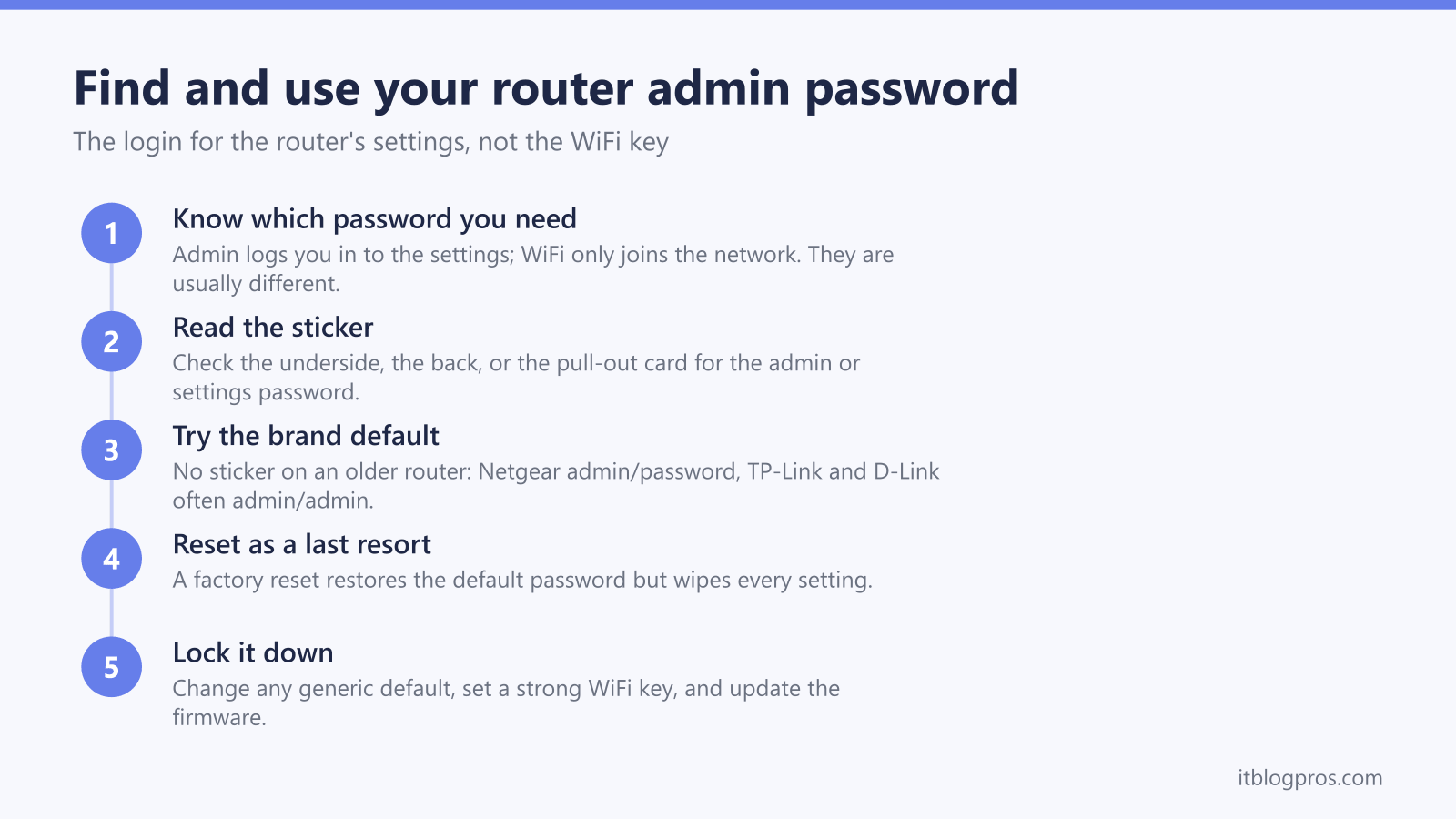
The router admin password is the login that opens your router's own settings, and it is not the same thing as the WiFi password most people reach for first. The WiFi password (also called the network key or wireless key) only lets a phone or laptop join the network. The admin password, sometimes labelled the router password or Hub Manager password, lets you log in to the router's control panel at an address like 192.168.1.1. This guide explains the difference, then gives the brand-by-brand default logins for standalone routers and shows where every major UK ISP hub hides its unique admin password.
Your router admin password logs you in to the router's settings pages at an address like 192.168.1.1, and it is usually different from your WiFi password, which only lets devices join the network. Standalone routers often default to admin/admin or admin/password; UK ISP hubs from BT, Sky, Virgin, EE, Plusnet and TalkTalk print a unique admin password on a sticker or pull-out card on the hub itself.
Key Takeaways
- The admin password logs you in to the router's settings, while the WiFi password only lets a device join the network, and the two are usually different strings.
- Standalone routers often use a generic default: Netgear is typically admin/password, TP-Link and D-Link are often admin/admin (D-Link frequently a blank password), while ASUS and newer TP-Link models make you set your own on first setup.
- UK ISP hubs from BT, Sky, Virgin Media, EE, Plusnet and TalkTalk do not use a generic default and instead print a unique admin password on a sticker or pull-out card on the hub.
- A factory reset restores the default admin password but wipes every setting, so it is a last resort after the label and the ISP app have both failed.
- Once logged in, change any still-generic admin password, set a strong WiFi key, and update the firmware.
The WiFi password and the admin password are two different things
These two passwords do two different jobs, and mixing them up is the most common reason a router login fails.
The WiFi password (also printed as the network key, wireless key or WiFi key) is what a phone, laptop or TV types in to join the wireless network. It gets you online, nothing more.
The admin password (also called the router password or, on UK ISP hubs, the Hub Manager password or settings password) is what you type to log in to the router's own control panel. You open that panel by putting an address like 192.168.1.1 into a web browser, not by searching the internet. From there you can rename the network, change the WiFi key, forward ports or update the firmware.
On almost all modern kit the two passwords are set separately and are not the same string. If you are only trying to connect a new device, you want the WiFi key. If you are trying to change a setting, you want the admin password. For the general sign-in walkthrough, see the guide to logging in to your router.
Where to find your router admin password
Look in this order:
- The label on the router. Turn the unit over or check the back. On UK ISP hubs the admin password is on the base sticker or on a pull-out settings card. Look for wording like "admin password", "router password", "Hub Manager password" or "settings password", which sits separately from the WiFi key.
- Your ISP's app. The BT, Sky, Virgin Media, EE, Plusnet and TalkTalk apps often display or let you reset the settings password without touching the hardware.
- The common brand defaults. On an older standalone router with no sticker and no app, try the maker's default in the next section.
The control panel itself opens at one of a few addresses. Most home routers use 192.168.1.1 or 192.168.0.1; BT, EE and Plusnet hubs use 192.168.1.254 instead. Type the address into a browser while connected to that router, then enter the admin password.
Default admin logins for standalone routers (Netgear, TP-Link, ASUS, D-Link)
Standalone routers you bought yourself are the ones most likely to still use a generic default. These are case-sensitive, so type them exactly.
- Netgear: admin / password on most models. A few very old units used admin / 1234, and recent models print a unique password on the label. The panel opens at routerlogin.net or 192.168.1.1.
- TP-Link: older models use admin / admin at 192.168.0.1 or tplinkwifi.net. Archer models from around 2019 onwards make you create your own admin password on first setup, so there is no shared default to guess.
- ASUS: older models use admin / admin, but ASUSWRT firmware from about 2020 makes you invent your own username and password in the first-run wizard, so current units have no fixed default.
- D-Link: many models use admin as the username with a blank password (leave the password box empty), though some use admin / admin. The login page is usually 192.168.0.1.
If none of these work, the password has been changed, and the only route back is a factory reset.
UK ISP hubs print a unique admin password on the hub itself
UK broadband hubs do not ship with admin/admin. Each one carries its own unique admin password printed on the device, so there is nothing generic to type.
- BT Smart Hub and EE: the "Admin Password for Hub Manager" is on the pull-out settings card on the back of the hub, and on the base label if the card has gone. The panel is BT Hub Manager at 192.168.1.254. See the BT Smart Hub login guide.
- Sky: the admin details are on the base label of the hub (for example the SR203 and SR204). Some older Sky hubs used admin / sky. The page is 192.168.0.1.
- Virgin Media: the sticker on the base is labelled "settings password", and it is deliberately separate from the WiFi password. The page is 192.168.0.1.
- Plusnet: the router/admin password is on the underside label, and the Hub Manager sits at 192.168.1.254. See the Plusnet Hub Manager login guide.
- TalkTalk: the admin credentials are on the sticker underneath the removable settings card on the back of the Wi-Fi Hub. See the TalkTalk router login guide.
There is a legal reason for this. Since the UK Product Security and Telecommunications Infrastructure (PSTI) Act came into force on 29 April 2024, universal default passwords such as admin/admin are banned on new connected devices sold in the UK. A password that is unique to each device is still allowed, which is exactly why modern hubs ship with a per-device password on the sticker rather than one anyone could look up.
If the admin password was changed and forgotten, factory reset is the last resort
If someone changed the admin password and did not record the new one, no lookup or app will recover it. A factory reset is the only way back in.
A reset returns the router to its out-of-the-box state. That restores the default admin password: the one printed on the sticker for an ISP hub, or the brand default for a standalone router. The catch is that it also wipes every setting: the WiFi name and password, port forwarding, static IP addresses and any custom configuration. Every device then has to reconnect afterwards, and any bespoke setup has to be rebuilt. Treat it as a last resort, only after the label and the ISP app have both failed.
To do it, keep the unit powered on, then use a pin or a straightened paperclip to press and hold the recessed reset button, usually for around 10 to 30 seconds depending on the model, until the lights flash and the hub restarts. The old "30-30-30" hold is a myth on modern hardware, so follow the label or the manual for your exact model.
Once you are logged in, do three things
Getting into the settings is the moment to close the obvious gaps.
- Change the admin password if it is still a generic default. Leaving a router on admin/admin or admin/password is a genuine security risk, because anyone on the network can walk straight into the settings. A unique factory password on an ISP hub sticker is fine to keep; a guessable shared default is not.
- Set a strong WiFi password. This is the separate network key that devices use to join. Use WPA2 or WPA3 and a long passphrase rather than a short word.
- Update the firmware. Look for a firmware or software update in the settings and install it. Updates patch security holes and fix bugs, and many routers can now do this automatically once the option is switched on.
The router login guide lists the login address and password for every other UK hub and router brand.