
BT customers type the address 192.168.1.254 when something on the network needs changing, or when the settings page refuses to appear. It is the home of BT Hub Manager, the control panel built into every recent BT hub, and EE's and Plusnet's help pages give the same address for several of their hubs. This guide covers which hubs answer on the address, where the admin password actually lives, what Hub Manager does and does not let you change, and a fix ladder for the times the page will not load. Everything here follows BT's current help pages, including the security warning BT says browsers can show at 192.168.1.254.
192.168.1.254 is the default address of BT Hub Manager, the settings page built into every BT hub from the Home Hub 3 to the Smart Hub 2 and the Wi-Fi 6 Smart Hub 3. Type it into the browser address bar on a connected device, accept the secure-connection prompt, and enter the admin password from the pull-out card on the back of the hub to change Wi-Fi, port forwarding and other settings.
Key Takeaways
- BT's help pages give 192.168.1.254 for Hub Manager on the Smart Hub, Smart Hub 2, Smart Hub 3 and Home Hub 3, 4 and 5, and EE's help gives it for the EE Smart Hub and Bright Box hubs.
- BT's help says changing hub settings needs the admin password, which is on the removable settings card on the back of the hub unless it has been changed.
- BT's help says the Smart Hub's self-signed certificate can make browsers show a security warning at 192.168.1.254, and that it is safe to proceed past it.
- BT's Hub Manager help covers Smart Setup, the hub lights, the admin password, access controls, wireless settings and port forwarding, and what each hub offers varies by model.
- When the page will not load, work through typing the address instead of searching for it, pausing any VPN and connecting by Ethernet cable.
192.168.1.254 is the built-in address of every recent BT hub
192.168.1.254 is a private network address, meaning it exists only inside your home network. Every BT hub gives itself this address on your network, so typing it into a browser on a connected device opens the hub's own settings pages, which BT brands as Hub Manager. Nothing is downloaded from the internet: the page lives on the hub itself, which is why it still opens during a broadband outage and makes a handy mid-outage diagnostic.
BT's help pages give 192.168.1.254 for Hub Manager on the Home Hub 3, Home Hub 4 and Home Hub 5, the original Smart Hub, the Smart Hub 2 and the Smart Hub 3, which BT's hub comparison lists as its Wi-Fi 6 hub. EE's hub help gives the same address for the EE Smart Hub, Bright Box hubs and the Smart Router, BT Business gives it for its Smart Hubs, and Plusnet's guides give it for the Hub One and Hub Two.
bthomehub.home opens the same Hub Manager page
BT's Hub Manager help gives a named address for when the numbers feel fiddly: http://bthomehub.home. EE's Manage your EE Hub page gives the number, 192.168.1.254, for EE hubs. Some people type bthomehub home without the dot, which a browser treats as a search rather than an address, so include the full http://bthomehub.home or fall back to 192.168.1.254.
Whichever you use, the device doing the typing must be connected to the hub's network, either over its Wi-Fi or with an Ethernet cable. The address will not respond over mobile data, from a friend's house, or from any network other than the hub's own.
The admin password sits on the pull-out card, not in your BT account
BT's Hub Manager help says any change to the hub's settings needs the admin password, and BT's Smart Hub 3 password help says that hub asks for it before any features can be accessed. BT's admin password help puts the default on the Hub settings card for the Smart Hub, Smart Hub 2 and Smart Hub 3, and BT's Smart Hub 3 guide describes that card as pulling out from the back of the hub. BT's Smart Hub 2 user guide says the QR code can be scanned with a device's camera to connect quickly. For the Home Hub 3, 4 and 5, BT's page gives the settings card or the label on the base, and our guide to finding the router admin password covers the equivalent labels and defaults on other UK providers' routers.
Three things trip people up here. First, the admin password is not the Wi-Fi password: the Wi-Fi key connects devices to the network, while the admin password unlocks the settings. Second, it is not your BT ID or email password, since BT's help puts the default on the hub's settings card. Third, BT's password help says it is case-sensitive, so type it exactly as printed.
If someone changed the admin password in the past and the new one is forgotten, BT's password help says some older hubs have a password override that sets a new password without losing your settings, and that a Smart Hub 2 or later may need a factory reset instead, although the same page also lists override steps for the Smart Hub 2, so look for a Password Override option first. For a reset, straighten a paper clip and press the reset button on the back of the hub: BT's factory reset page says to hold it for 20 seconds on the original Smart Hub and 10 seconds on a Smart Hub 3, and for five seconds on a Smart Hub 2, whose button sits just above the power socket. BT says the hub returns to its original settings and passwords, so any custom settings need redoing.
Logging in to Hub Manager takes a few short steps
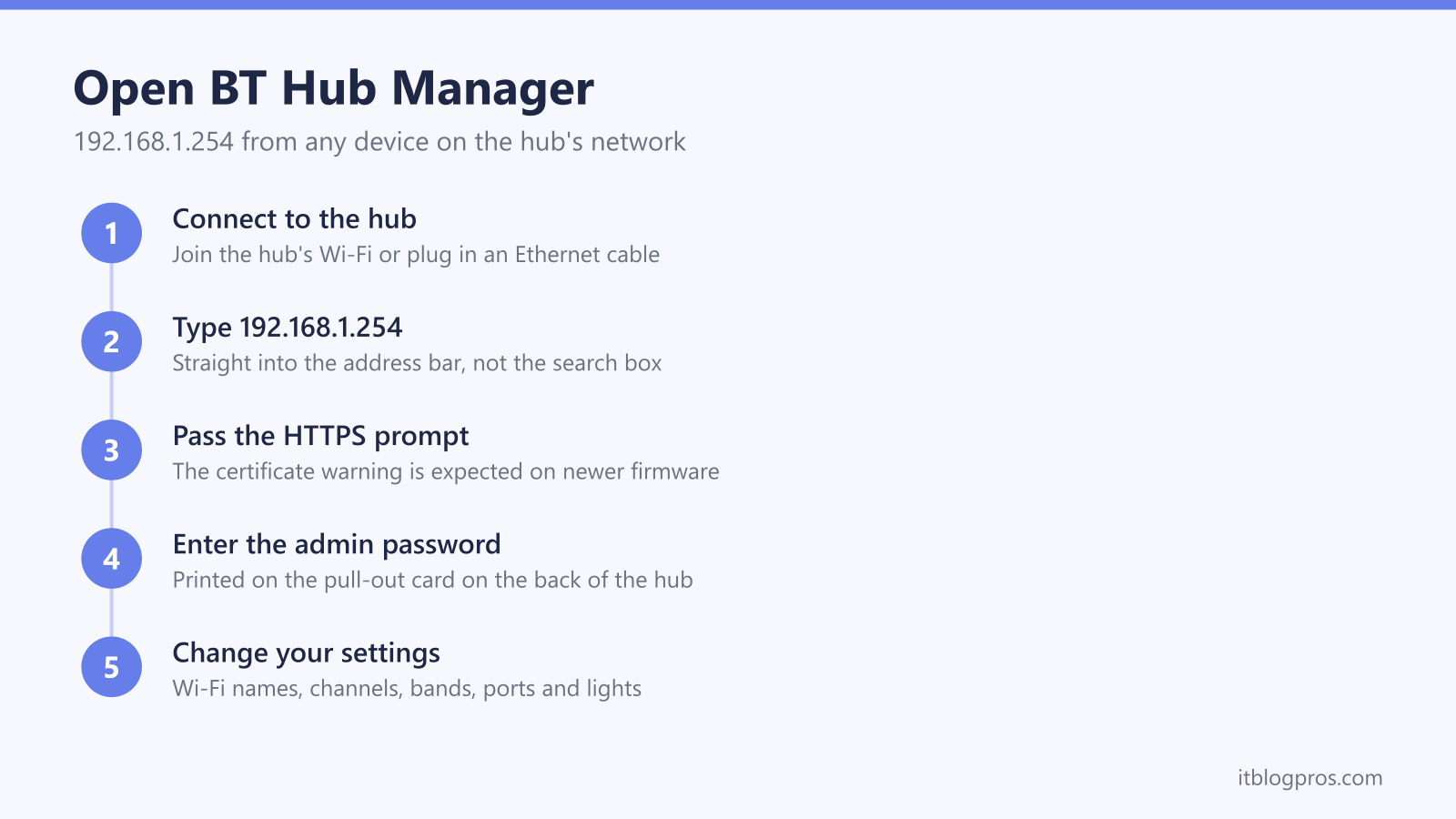
From any phone, tablet or computer connected to the hub, the routine is short. Type 192.168.1.254 directly into the browser's address bar and press Enter. BT's Smart Hub 3 password help says to expect a message about switching to HTTPS, and BT's security warning page says the Smart Hub uses a self-signed certificate, so the browser may say the connection is not private. BT says it is safe to proceed: in Chrome or Edge choose Advanced, then continue to 192.168.1.254.
Select Advanced Settings to make changes, and enter the admin password from the settings card when prompted. BT's password help says the first visit to Hub Manager prompts a change from the default password, which is worth accepting. The BT Smart Hub login guide walks through the same journey in more detail, including what each login screen looks like and the differences between the Smart Hub and Smart Hub 2 menus.
Hub Manager covers Wi-Fi names, channels, bands, ports and lights
Once inside, the useful controls cluster under Advanced Settings. The Wireless pages change the Wi-Fi network name and password, and what they offer for each band varies by model. BT's channel help does not recommend changing the wireless channel manually, because that turns off Smart Wireless, which BT says picks the channel with the least interference automatically. Where a manual change is still wanted, BT's steps suggest channels 1, 6 or 11 on the 2.4GHz band and 36, 40, 44 or 48 on 5GHz for the Home Hub 4 and Hub 5, while that page's Smart Hub 2 and Smart Hub 3 section covers changing a network password in the My BT app rather than a channel. BT's separate Smart Hub 3 page gives Hub Manager steps for fixing the 2.4GHz channel at 1, 6 or 11, says older 2.4GHz devices such as security cameras can struggle when the hub switches channels, and recommends leaving the hub to choose channels apart from rare situations.
Band separation depends entirely on the model. BT's split help page gives a Separate bands toggle for the original Smart Hub and a Sync with 2.4GHz setting for the Home Hub 4 and 5, and says the Smart Hub 2 does not have that capability, while BT's dual-band troubleshooting page includes the Smart Hub 2 and Smart Hub 3 in its Sync with 2.4GHz steps, so check the 5GHz section on your own hub. BT's Compatible Wi-Fi help describes a separate 2.4GHz network on the Smart Hub 3. The BT band-splitting guide covers the exact steps for each model and what to check on a Smart Hub 2.
Beyond wireless, Hub Manager opens ports for gaming and consoles through the port forwarding pages, applies access controls that block chosen devices from the internet on a schedule, dims or switches off the hub's light, renames the hub, toggles Smart Setup and shows every device connected to your network. If the hub light is doing something unexpected while you work, the BT Smart Hub lights guide decodes every colour. For firmware, BT's help page on checking for updates describes a manual check under Device Settings, then Online Updates, although its steps start from 192.168.1.1 rather than 192.168.1.254, so look through your own hub's menus for an update option.
Check your own hub's menus before relying on a setting
Some expectations need managing before anyone spends an evening hunting through menus. Modem-only mode is the one worth understanding properly. BT Business documents it on the Smart Hub 2, under Advanced Settings, Broadband, Routing and then Bridging, and BT's declaration of conformity lists the BT Smart Hub 2 and Business Smart Hub 2 under a single model number. BT's residential help pages say nothing about bridging either way, so check Advanced Settings, Broadband on your own hub for a Routing tab before planning around it. Before relying on a DNS, VPN or firmware setting, check the Advanced Settings menus on your own hub, since BT's help pages describe their options hub by hub.
Households that genuinely need those features can keep the BT hub for the connection and run their own router for the network, or replace the hub entirely where the connection type allows it. The best router for BT broadband guide explains which setups work with BT full fibre and copper lines, and what to check before spending anything.
The fix ladder when 192.168.1.254 will not load
Work down this list in order, starting with the quickest checks.
- Confirm the connection. The device must be on the hub's own network. Turn off mobile data on a phone so the browser cannot quietly route around your Wi-Fi.
- Type, do not search. Enter 192.168.1.254 in the address bar itself. Searching for the address returns lookalike websites and ads, none of which are your hub.
- Try HTTPS explicitly. Type https://192.168.1.254 and continue past the certificate warning, which BT's help says is safe to do.
- Try the named address. BT's Hub Manager help gives http://bthomehub.home as an alternative on BT hubs.
- Pause the VPN. Disable any VPN on the device and retry, to rule it out.
- Switch browsers. A different browser or a private window rules out a problem with the first browser.
- Go wired. Connect a laptop to the hub with an Ethernet cable to rule out Wi-Fi problems.
- Restart both ends. Power the hub off and on, restart the device, and try again once the hub light settles.
If a third-party router runs your home network, remember your devices sit on that router's network, not the hub's. Connect directly to the BT hub by cable or its own Wi-Fi to reach 192.168.1.254. BT's reset page recommends a factory reset only as a last resort, and says it returns the hub to its original settings and passwords.
Other brands answer on different addresses
192.168.1.254 is the address BT, EE and Plusnet give in their help pages. Other routers can listen elsewhere: Virgin Media's help page gives 192.168.0.1 for its Hub, Sky's Broadband Hub guide gives http://192.168.0.1/, and a shop-bought router's own manual gives its address. If a hub from another provider or a shop-bought router is what sits in your hallway, the 192.168.0.1 router login guide and the 192.168.1.1 router login guide cover those addresses, the default passwords and their own fix ladders. Check the router's setup label or manual for its address, since another brand's address will not reach it.
When the Hub Manager cannot fix the real problem
Some visits to 192.168.1.254 start with weak WiFi rather than a forgotten password, and the Hub Manager has no setting that adds range to a home the signal cannot reach. On a Smart Hub 2, BT's split help page says the hub is designed for use with Complete Wi-Fi and cannot split its network name into separate 2.4GHz and 5GHz networks, although BT's dual-band troubleshooting page includes it in its steps for separate names. Leave the hub handling the broadband connection and let a TP-Link Deco X50 three-pack carry the wireless, with the first unit wired into a hub LAN port and the other two placed in the rooms that drop out. What mesh will not do is add speed. It carries the connection you already have further through the house, so if a wired speed test at the hub itself already comes in low, that is worth raising with BT, and no amount of mesh will change the number. The best router for BT broadband guide sets out when mesh is the right call.
