
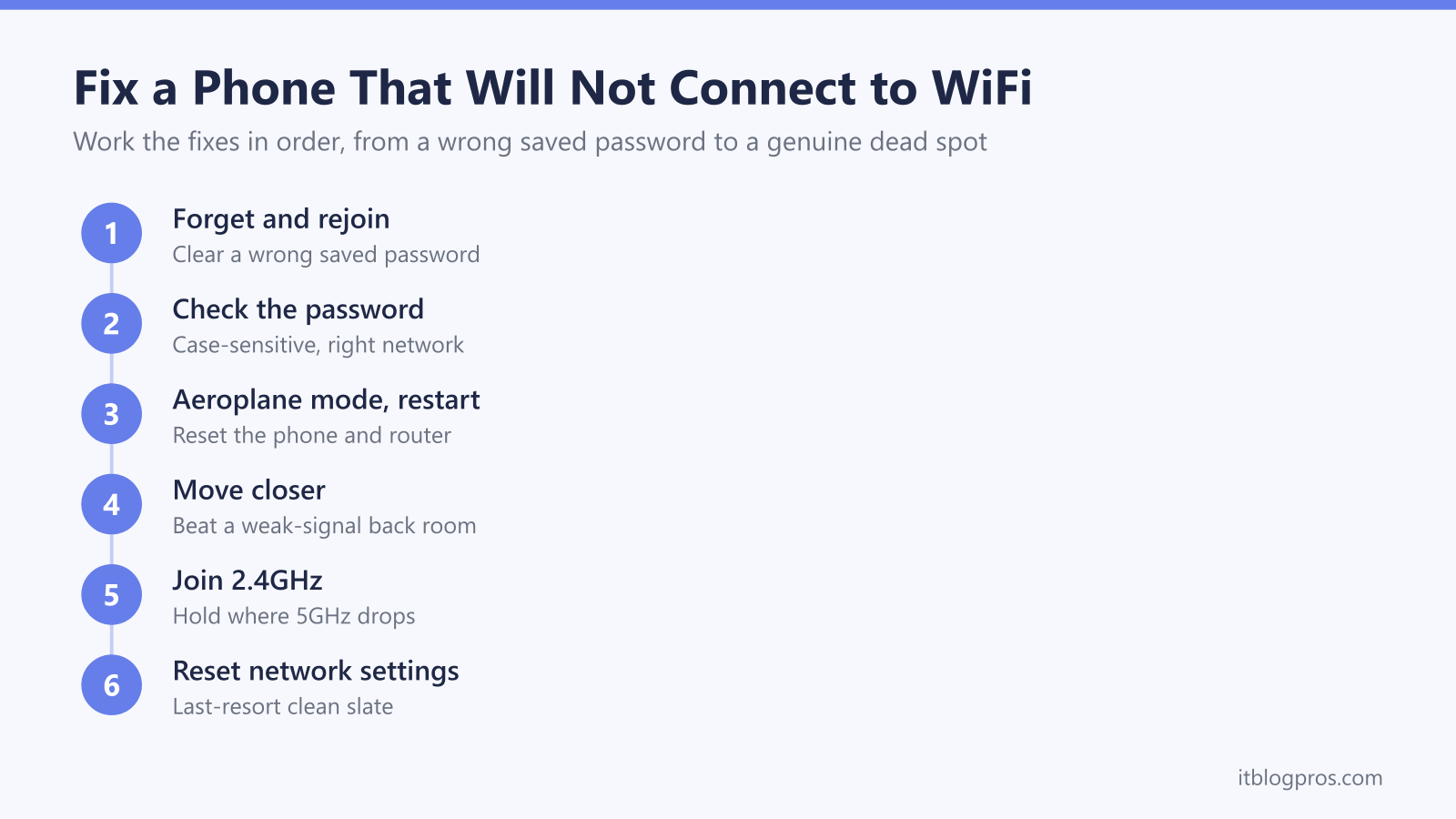
A phone that refuses to connect to WiFi is frustrating precisely because the network is usually working. Other devices are online, the router lights look normal, yet this one phone shows the network and will not join, or joins and immediately drops. That pattern points at the phone and its saved network details far more often than at the broadband. Most of the fixes are free and take a minute each, and they work the same way in spirit on an iPhone or an Android phone even where the menus differ. This guide works through them in the order that fixes the most, starting with the wrong saved password behind the majority of failed joins and ending at the rare case where a genuine dead spot needs hardware.
When a phone will not connect to home WiFi, the network is usually fine and the phone holds a wrong saved password or sits in a weak spot. Forget the network and rejoin with the correct case-sensitive password, toggle aeroplane mode, restart the phone and router, move closer, then try the 2.4GHz band before resetting network settings as a last resort.
Key Takeaways
- A phone that shows the network but will not join is almost always holding a wrong saved password, so forgetting the network and rejoining fixes the most cases.
- The WiFi password is case-sensitive, so a single wrong capital or a confused network name blocks the join even when everything else is right.
- Toggling aeroplane mode, restarting the phone and restarting the router clear the temporary faults behind most sudden connection failures.
- A phone can fail to join a weak 5GHz signal in a back room where the 2.4GHz band would hold, so connecting to the 2.4GHz network settles many range problems.
- Nearly every fix here is free, and hardware such as an extender or mesh only helps when the phone sits in a genuine dead spot the signal never reaches.
Check whether it is only the phone that cannot connect
Before changing anything on the phone, look at the other devices in the house. If laptops, the TV and other phones are all online and only this one phone will not join, the broadband is fine and the fault sits on the phone, which is what the rest of this guide fixes. If every device has lost WiFi at once, the problem is the router or the line, and that belongs in the guide to WiFi that keeps dropping instead. If the phone does join but every app then reports no connection, the network is letting it on while the internet itself is down, which is covered in why WiFi says no internet. One more check worth making early is whether a specific gadget rather than the phone is the odd one out, since a smart speaker has its own quirks set out in why an Echo will not connect to WiFi.
Forget the network and rejoin to clear a wrong saved password
The single most common reason a phone will not connect is a saved password that no longer matches the router, which happens the moment anyone changes the WiFi password or the broadband provider swaps the hub. The phone keeps trying the old password, fails silently and shows an incorrect password or authentication error. Forgetting the network wipes that stale entry so the phone can learn the new password cleanly.
On an iPhone, open Settings, tap Wi-Fi, tap the information button next to the network name, then tap Forget This Network and confirm. On an Android phone, open Settings, go to Network and internet, then Internet, tap the cog beside the network and choose Forget. On both, the network reappears in the list within range, and tapping it prompts for the password again. Enter the current password and the phone reconnects and saves it for next time.
Confirm the password is right and the network is the correct one
WiFi passwords are case-sensitive, so a capital letter typed as lower case, a one mistaken for a lowercase L, or a zero swapped for the letter O all fail the join without saying why. Tapping the show-password eye while typing, or checking the printed key on the underside of the router, removes the guesswork. The default key on the router label is the right one to use unless someone has changed it.
Selecting the wrong network is the other easy mistake. Many homes broadcast two names, one ending in something like 2.4G or 5G, or a neighbour runs a network with an almost identical name. Confirming the exact network name on the router label, and joining that one, rules out a join that was always going to fail because it was aimed at the wrong network or a locked neighbouring one.
Toggle aeroplane mode, then restart the phone and the router
When the password is definitely right, the next step clears the temporary glitches that stop a radio talking to the router. Switching aeroplane mode on for ten seconds and back off forces the phone to drop and rebuild every wireless connection, and it often fixes a join that was stuck for no clear reason. If that does not settle it, restart the phone fully, since a reboot clears the WiFi stack that a simple toggle leaves in place.
Restarting the router matters just as much. Unplugging it for thirty seconds and letting it boot clears a router that has stopped handing out addresses or has hung on one device. Give it a couple of minutes to come back fully before testing the phone, because the WiFi comes up before the internet connection behind it does.
A weak signal in a back room stops the join even when the network shows
A phone can list a network at one or two bars and still fail to join it, because showing a network only means the phone can hear the router, not that the link is strong enough to complete the handshake. Walking into the same room as the router, or within a wall or two of it, and trying the join there settles whether distance is the cause. If the phone connects the moment it is close and refuses from the far bedroom, the problem is coverage rather than the phone.
This matters most on the faster 5GHz band, which is covered next, because 5GHz fades far more quickly through walls than the older 2.4GHz band does. A phone at the edge of 5GHz range is exactly the kind of marginal link that shows the network but will not hold a connection.
Join the 2.4GHz network where 5GHz will not hold
The 2.4GHz band travels further and passes through walls better than 5GHz, so a phone that struggles on a weak 5GHz signal often connects instantly on 2.4GHz. If the router broadcasts both bands under one name, the phone chooses for itself and can cling to the wrong one; if they are split into two names, the phone can be pointed at the steadier 2.4GHz network by hand.
Where the router combines both bands, splitting them into separate names gives back that control, and the method for a Virgin Media Hub is set out in splitting the 2.4GHz and 5GHz bands. Once split, joining the 2.4GHz name in a distant room trades some speed for a connection that actually holds, which is the right trade when the alternative is no connection at all.
Check the router is not full or quietly blocking the phone
Some routers cap how many devices can connect at once, and a busy household of phones, tablets, TVs and smart plugs can hit that limit so a newly added phone is refused. Disconnecting a device that is not in use, or restarting the router to clear stale entries, frees a slot.
MAC address filtering is the quieter culprit. A router set to allow only known devices will silently drop any phone whose address is not on the list, showing the phone an authentication or access error even though the password is correct. Modern iPhones and Android phones add a twist here, because the Private WiFi Address or randomised MAC feature makes the phone present a different address to the router, which then fails to match an older whitelist entry. On an iPhone this is fixed in Settings, Wi-Fi, the information button next to the network, by turning Private Address off and rejoining, or by adding the phone's current WiFi address to the router's allowed list.
A wrong clock or a sign-in page can break the connection
A phone with the wrong date or time can fail to connect to a secure network, because the phone checks the network's security certificate against its own clock and rejects it as invalid when the clock is days out. This shows up after a flat battery or a long time switched off. Setting the clock to update automatically fixes it: on an iPhone through Settings, General, Date and Time, Set Automatically, and on an Android phone through Settings, System, Date and time, with automatic date and time switched on.
A captive portal is the other snag, though it is far more common on public and guest networks than on a home one. The phone joins but every page redirects to a sign-in screen that never appears on its own. Opening a browser and visiting any plain website usually forces the sign-in page to load so the connection can be completed.
Reset network settings as a last resort
When nothing above works, resetting the phone's network settings wipes every saved WiFi network, Bluetooth pairing and mobile-data setting and rebuilds them from scratch, which clears a corrupted network profile that a single forget-and-rejoin cannot. It is a last resort because every other WiFi password saved on the phone has to be entered again afterwards.
On an iPhone the path is Settings, General, Transfer or Reset iPhone, Reset, then Reset Network Settings. On most Android phones it is Settings, System, Reset options, then Reset Wi-Fi, mobile and Bluetooth, though Samsung phones keep it under General management. After the reset the phone forgets the home network, so rejoin it with the current password and the connection typically holds.
When a dead spot is the real problem, hardware fixes the coverage
Everything above is free, and for the great majority of phones one of those steps is the fix. Hardware only earns its place in one situation: when the phone connects perfectly near the router and genuinely cannot in a particular room because the signal never reaches it well enough. No setting adds range that the walls have taken away, so a persistent dead spot is a coverage problem to solve rather than a phone to troubleshoot.
For a single problem room, a WiFi 6 extender placed partway between the router and that room gives the phone a strong local signal to join, and the TP-Link RE705X suits one stubborn dead spot. Where several rooms are weak, a mesh system such as the TP-Link Deco X50 replaces the coverage across the whole home rather than patching one corner, with units that hand the phone between them as it moves. The choice between the two is set out in the guide to extenders versus mesh for dead zones.