
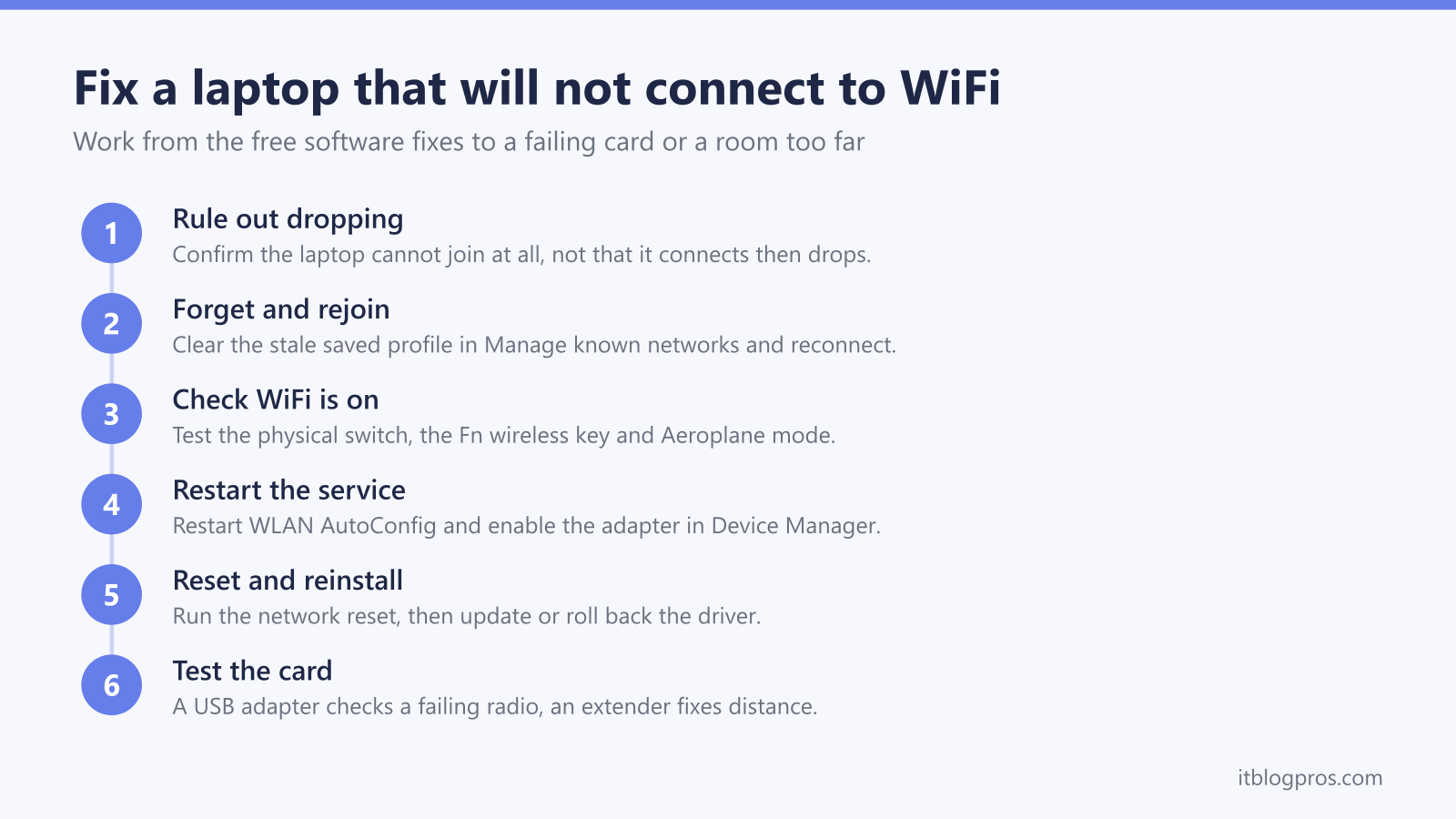
A Windows laptop that will not connect to WiFi is frustrating precisely because it feels like a broadband fault when it usually is not. When the phones, tablets and other machines in the house are online and only one laptop cannot get on, the problem sits on that laptop: a saved password gone stale, a radio switched off, a stopped service or a driver that needs attention. Almost every fix is free and lives inside Windows. This guide works the causes in order, from the thirty-second profile clear to the point where a failing card or a far room genuinely needs hardware.
A Windows laptop that will not connect to WiFi, or that shows Can't connect to this network, usually has a stale saved password, a switched-off adapter or a driver fault, not broken broadband. Forget the network and rejoin, confirm the WiFi is on, restart the WLAN AutoConfig service, run the Windows network reset, then update or reinstall the driver before suspecting the card.
Key Takeaways
- A laptop that connects and then keeps dropping is a different fault, so this page covers only a laptop that cannot join at all or sees no networks.
- A stale saved password is the most common cause, so forgetting the network and rejoining fixes many Can't connect to this network errors.
- A physical WiFi switch, an Fn key or Aeroplane mode can switch the adapter off, so confirm the radio is actually on before deeper fixes.
- When no networks show at all, restart the WLAN AutoConfig service and check the wireless adapter is enabled in Device Manager.
- Free fixes come first, the network reset, driver reinstall and IP and DNS flush, and hardware only matters for a failing card or a room too far for the signal.
This page is for a laptop that cannot join, not one that keeps dropping
There are two very different laptop WiFi faults, and they need different fixes. This page is for a laptop that cannot join a network at all, that shows 'Can't connect to this network', or that sees no networks in the list. A laptop that connects perfectly well and then keeps falling off every few minutes is a separate fault, covered in WiFi that keeps dropping on a laptop. If every device in the house loses WiFi together, the trouble is the router or the line rather than any single laptop, so start with WiFi that keeps dropping across the house. The rest of this guide assumes one Windows laptop simply will not connect while the broadband itself is fine.
Forget the network and rejoin to clear a stale saved password
The most common reason a laptop refuses to connect, and the usual cause of 'Can't connect to this network', is a saved network profile that no longer matches the router. If the WiFi password has changed, or the profile has simply gone stale, Windows keeps trying the old details and fails. Clearing the profile forces a clean reconnection. Open Settings, then Network & internet, then Wi-Fi, then Manage known networks. Select the network you cannot join and choose Forget. Reopen the WiFi list, select the network again and type the password carefully. This single step fixes a large share of connection failures, so it is worth doing before anything more involved.
Check the WiFi is actually switched on
A laptop that shows no WiFi and no obvious way to turn it on is often not broken at all, just switched off at a level that is easy to overlook. Many laptops carry a physical wireless switch on the front edge or side, and a knock can flip it. Most also have an Fn key combination, usually Fn plus the function key marked with a small radio-tower or aerial symbol, that toggles the radio on and off. Windows itself has Aeroplane mode, shown as a small aeroplane icon in the quick settings by the clock, and turning it on cuts every radio at once. Confirm the physical switch is on, press the Fn wireless key, and check Aeroplane mode is off before assuming a deeper fault.
No networks at all points to the WLAN AutoConfig service or a disabled adapter
When the laptop lists no networks whatsoever, not even the neighbours' WiFi, the wireless adapter is either switched off in Windows or the service that scans for networks has stopped. Two checks sort this out. First the service: press Windows plus R, type services.msc and press Enter, scroll to WLAN AutoConfig, right-click it and choose Restart, then open its Properties and set Startup type to Automatic so it runs at every boot. Second the adapter: right-click the Start button, open Device Manager and expand Network adapters. If the wireless adapter has a small down arrow on its icon it is disabled, so right-click it and choose Enable device. If it is missing entirely, open the View menu, choose Show hidden devices, then use the Action menu and Scan for hardware changes to bring it back.
Run the Windows network reset to rebuild every adapter
If forgetting the network and checking the adapter changed nothing, the network reset wipes the wireless configuration back to defaults and reinstalls the adapters, clearing corrupt settings that block a connection. Open Settings, then Network & internet, then Advanced network settings, then Network reset, and choose Reset now. Windows warns that it removes and reinstalls all WiFi, Ethernet and VPN adapters, deletes saved networks and clears custom DNS and proxy settings, then restarts the machine. That is expected, so note down any WiFi passwords first because you will need to enter them again afterwards. This is a heavier step than forgetting a single network, so it belongs after the quick fixes rather than first.
Update, reinstall or roll back the wireless driver
A missing, corrupt or mismatched driver stops the adapter working even when the hardware is fine. In Device Manager, expand Network adapters, right-click the wireless adapter and choose Update driver, then Search automatically for drivers. For a more reliable version, download the driver straight from the laptop maker's support page, or from the chip maker such as Intel, Realtek or Qualcomm, matched to the exact model. If the laptop stopped connecting right after a Windows or driver update, do the reverse: open the adapter's Properties, go to the Driver tab and choose Roll Back Driver to return to the version that worked. When nothing helps, right-click the adapter, choose Uninstall device, tick the option to remove the driver software if offered, and reboot so Windows fits a clean copy automatically.
Release the IP address and flush DNS from Command Prompt
Sometimes the WiFi connects but the laptop never gets a working address from the router, which shows up as a connection stuck on 'No internet' or an address that starts 169.254, the sign Windows gave up and assigned its own. Refreshing the address and clearing the stored DNS records often restores it. Search for Command Prompt, right-click it and choose Run as administrator, then type these three commands in turn, pressing Enter after each: ipconfig /release, then ipconfig /renew, then ipconfig /flushdns. The first drops the old address, the second asks the router for a fresh one, and the third clears cached DNS entries that can point the laptop at the wrong place. A connection that joins but reads 'No internet' has its own full guide in why WiFi says no internet.
An older adapter cannot see a 5GHz-only network
If the laptop connects to some networks but never sees your own, and your router broadcasts a single 5GHz network, the adapter may simply be too old to receive that band. Many budget and older laptops shipped with 2.4GHz-only radios, and no driver update or setting can make them see 5GHz. To check, open Command Prompt and run netsh wlan show drivers, then read the Radio types supported line: 802.11a or 802.11ac means the adapter handles 5GHz, while only 802.11b, 802.11g and 802.11n means it is 2.4GHz-only. The quick workaround is to enable the router's 2.4GHz band, or give it a separate name, so the laptop has a network it can actually see. A permanent fix is a dual-band USB adapter, which also sidesteps a tired internal card.
A failing card or a room too far is the only reason to spend money
Every fix so far is free, and one of them settles most laptops. Hardware only comes into it in two cases. The first is a failing internal card or its tiny antenna, where the laptop cannot connect on any network, including a phone hotspot. The cheap test is a USB WiFi adapter: plug one in, disable the internal adapter in Device Manager, and if the laptop connects happily through the USB stick then the internal radio is the fault. A USB adapter is a fine permanent fix, and an internal card swap is the tidy repair. The second case is distance, a room so far from the router that the signal never really arrives, which no Windows setting can cure. A WiFi 6 extender such as the TP-Link RE705X gives that one room a strong local signal to join, while a mesh system like the TP-Link Deco X50 replaces the coverage across several weak rooms. The choice between the two is set out in extenders versus mesh for dead zones.