
The Plusnet Hub Manager is the settings page built into every Plusnet hub, and it is where you rename the WiFi, set a new password, check what is connected and set up parental controls. Reaching it takes one address and one password, both of which trip people up in predictable ways. This guide covers the Hub Zero, Hub One and Hub Two, which all sign in the same way because each one is a rebadged BT Smart Hub.
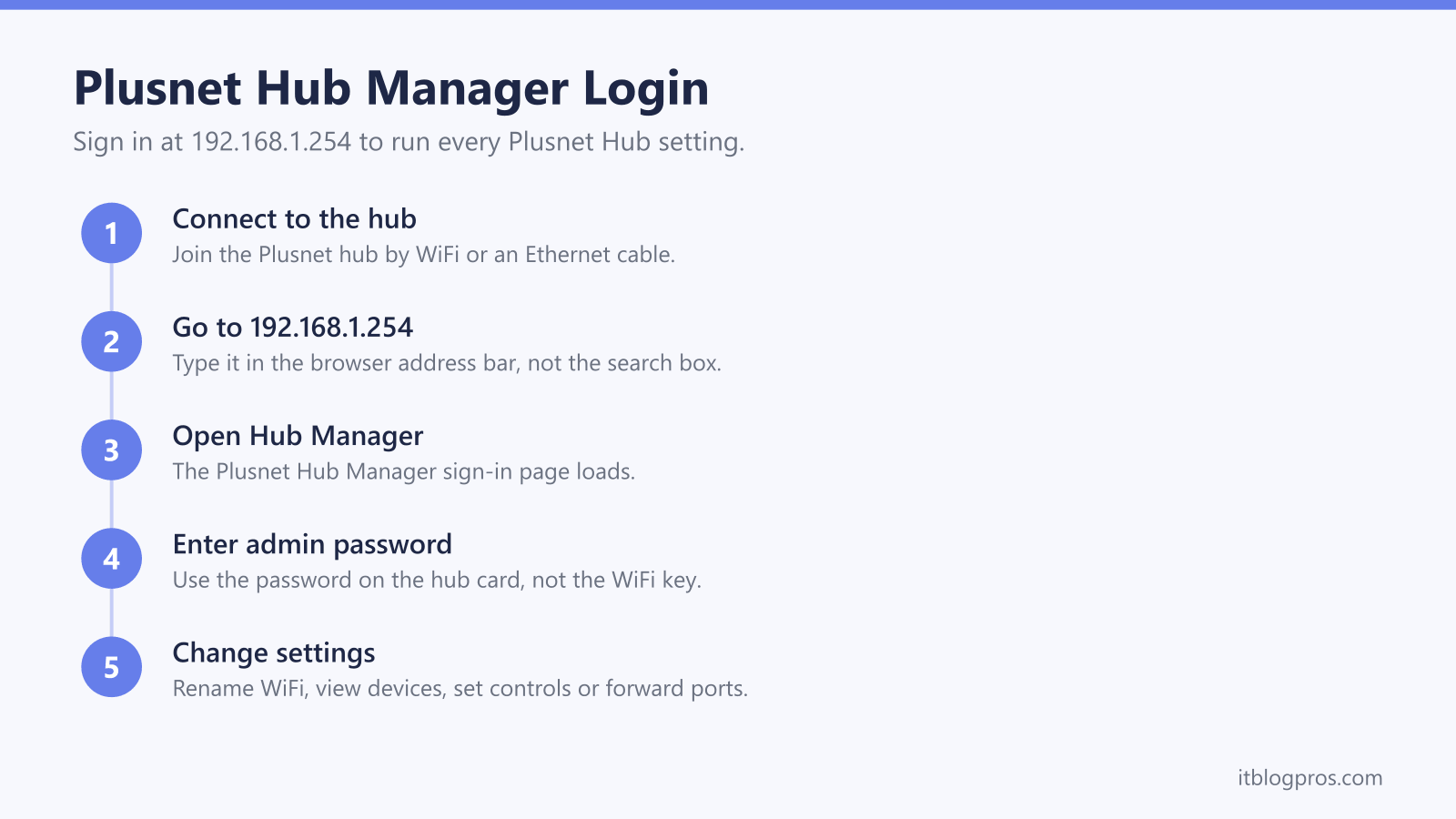
To open the Plusnet Hub Manager, connect a device to the hub by WiFi or cable, open a browser and go to 192.168.1.254. That address loads the sign-in page for the Hub Zero, Hub One and Hub Two. Enter the admin password printed on the card on the hub, not your WiFi password, to reach every setting.
Key Takeaways
- The Plusnet Hub Manager opens in a browser at 192.168.1.254, not 192.168.1.1, which is the number most people try by mistake.
- The admin password is printed on the card or sticker on the hub itself and is not the same as the WiFi password.
- The Hub Zero, Hub One and Hub Two all sign in the same way, because each one is a rebadged BT Smart Hub.
- Inside the Hub Manager you can rename the WiFi, set a new password, see connected devices, set parental controls and add port forwarding.
- The Hub Manager has no range control, so weak WiFi is a hardware job: Plusnet publishes the settings for swapping the hub for your own router, or a mesh can be added behind it.
What the Plusnet Hub Manager Is
The Plusnet Hub Manager is a small settings page served by the hub itself, so it works from any browser without an app or even a live internet connection, as long as the device is joined to the hub. Plusnet is owned by BT, and the current Plusnet Hub Two is a rebadged BT Smart Hub 2, while the older Hub One and Hub Zero are close cousins of earlier BT hubs. That family link is the reason every model uses the same login address and the same style of printed admin password, so the steps below do not change from one hub to the next. The Hub Two is the router Plusnet ships now, and an older hub can usually be swapped for one by asking Plusnet. Other providers sit at different addresses, so a TalkTalk router or a generic router login follows its own steps.
How to Log In to the Plusnet Hub Manager
Sign in from a device that is already on the Plusnet network, because the Hub Manager cannot be reached from outside your own connection.
- Connect a phone, tablet or computer to the hub over WiFi, or plug it into one of the yellow Ethernet ports with a cable.
- Open any web browser, type 192.168.1.254 into the address bar at the top and press Enter. That is the Plusnet Hub address, not 192.168.1.1.
- The Plusnet Hub Manager loads and asks for the admin password before it will show any settings.
- Enter the admin password printed on the hub, and the full settings menu opens.
The address is the same whether the hub is a Hub Two, a Hub One or a Hub Zero.
Where to Find the Admin Password
The admin password is not a generic default, and it is not the WiFi password. Every hub leaves the factory with its own admin password, printed on the card or sticker fixed to the unit. On the Hub Two, slide out or lift the small card on the back of the hub; the admin password sits next to the default WiFi name and WiFi key. On the Hub One and Hub Zero the same details are on a sticker or pull-out card in the same place. If someone has changed the admin password and it has since been lost, the only way back in is a factory reset, which restores the printed password. The wider router admin password guide covers the same problem on other makes of router.
What You Can Change Once You Are In
With the Hub Manager open, the controls are grouped into a few areas:
- Wireless: rename the network (the SSID) and set a new WiFi password. Every device then has to reconnect with the new details.
- Connected devices: the device list, or DHCP table, shows what is joined to the hub now and what has connected before. A refresh trims it to devices online at that moment.
- Access control: the parental control section pauses the internet for a single device or a group, and schedules set times when access is blocked.
- Port forwarding: most games and apps open their own ports through UPnP, and manual rules live under Advanced Settings, Firewall, Port Forwarding.
For steadier WiFi before changing anything physical, the best Plusnet WiFi channel guide explains which channels to pick in a crowded street.
When the Hub Manager Page Will Not Load
If 192.168.1.254 does nothing, work through these in order:
- Confirm the device is on the Plusnet network. A phone that has dropped to mobile data, or a laptop on a neighbour's WiFi or a work VPN, will never reach the hub, so turn mobile data off while signing in.
- Type the address into the address bar, not the search box. Many browsers treat 192.168.1.254 as a search term unless Enter is pressed on the address line, so a search results page means it went in the wrong box.
- Try http://192.168.1.254 with the http:// in front, which stops the browser forcing a secure connection the hub does not use.
- Check the number itself. The Plusnet Hub answers on 192.168.1.254, so 192.168.1.1 or 192.168.0.1 will not open it. The 192.168.1.1 router login page explains which brands use that other address instead.
When the Admin Password Is Rejected
A rejected password almost always means the WiFi password was typed instead of the admin password. They are two different strings, even though both are printed on the same card. Re-enter the admin password exactly as shown, watching for a capital letter O against a zero and a lower-case l against a one. If the admin password has genuinely been changed and forgotten, a factory reset is the last resort: press and hold the recessed reset pinhole on the back of the hub for about ten to twenty seconds with a straightened paperclip, until the lights blink and the hub restarts. That wipes every custom setting and returns the admin password to the one printed on the card, so the WiFi name and password will need setting up again afterwards.
When the Fix Is Hardware, Not a Hub Setting
Many people open the Hub Manager hoping to find a slider that boosts range, and there is not one. No hub setting adds coverage; the WiFi reaches only as far as the hardware allows, and thick walls or a long layout cut it short. That leaves two hardware routes, and the free one comes first.
Replace the hub. The Plusnet hub is not a fixture. Plusnet publishes the connection settings a third-party router needs on its own help page, "How to connect to broadband using your own router", which gives the username as your Plusnet username with @plusdsl.net on the end, the password as the one you use to log in to My Account, the fibre connection type as PPPoE Always On, and the VLAN ID (802.1q) as 101. Any router or mesh that can hold a PPPoE session can therefore take the hub's place, and our guide to using your own router with Plusnet covers the wiring for both line types and the swap order. That costs nothing beyond the hardware you were going to buy anyway.
Or keep the hub and add to it. For anyone who would rather leave a working broadband connection alone, the other route is to let the Plusnet hub carry on doing the broadband job and add a mesh system behind it, with nodes spread through the home to carry the signal room to room. A TP-Link Deco X50 three-pack is a sensible Wi-Fi 6 mesh for this: set it up in the Deco app, switch it to access-point mode so the Plusnet hub keeps handing out addresses, and turn the hub's own WiFi off so the two networks are not competing. The best budget mesh round-up covers cheaper options if a full three-pack is more than the house needs.
The router login guide lists the login address and password for every other UK hub and router brand.