
Plusnet supplies the Hub Two, and it is a perfectly serviceable box for a small flat. It is also the reason plenty of Plusnet customers put up with dead spots upstairs, a settings page that will not do half of what they want, and no way to run a VPN at the router itself. Swapping it for hardware you chose yourself is allowed, and the whole job comes down to one username format, the right wiring for your line type, and a quiet half hour.
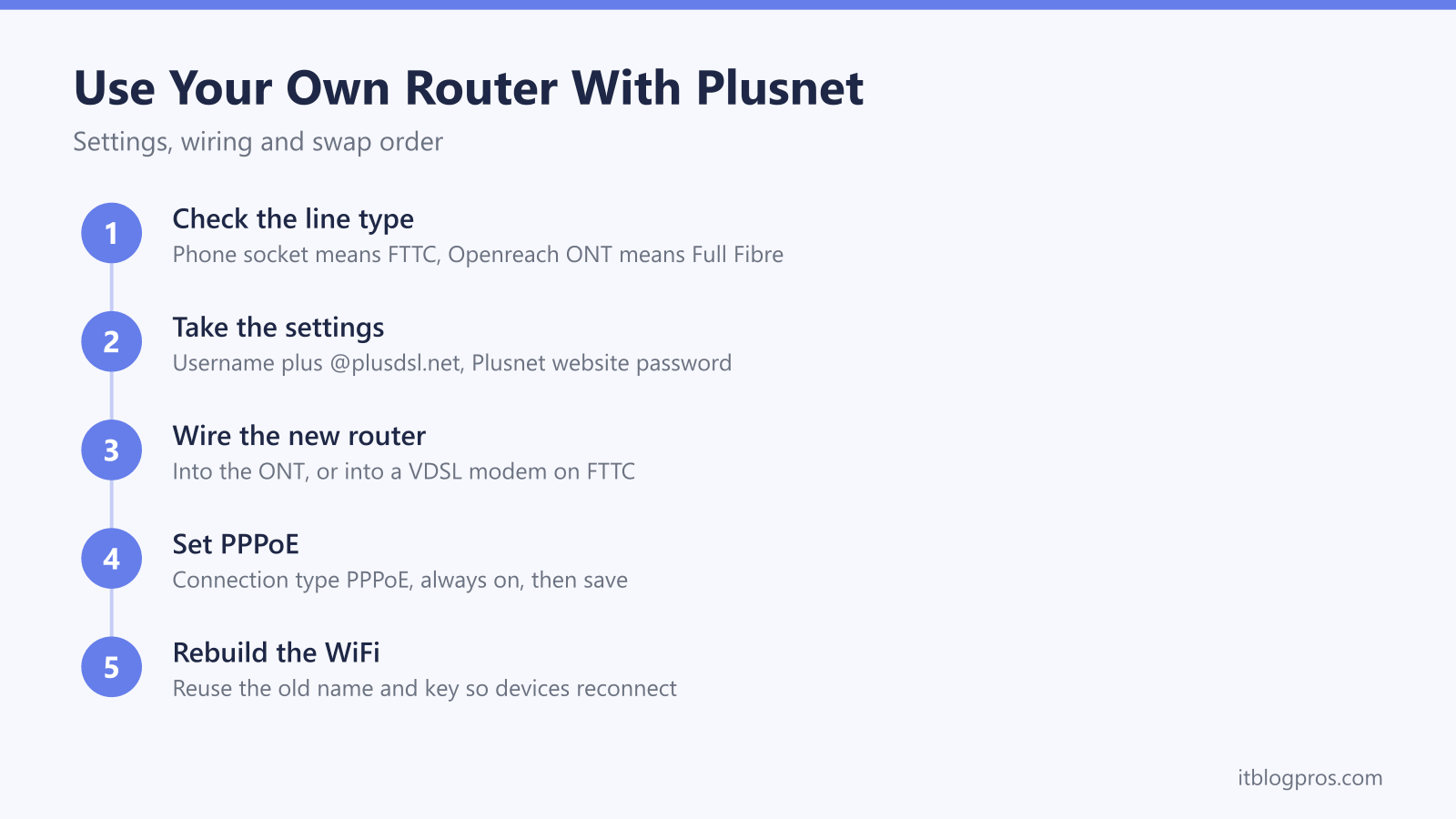
Plusnet allows a third-party router on both FTTC and Full Fibre. Set the connection type to PPPoE, enter your Plusnet username with @plusdsl.net on the end, and use your Plusnet website password. FTTC routers need a VDSL modem at the master socket, while Full Fibre routers plug into the Openreach ONT. Confirm your exact settings in My Account first.
Key Takeaways
- Plusnet resells the Openreach network and publishes its own connection settings, so a third-party router is catered for rather than blocked.
- The PPPoE username is the Plusnet website username with @plusdsl.net appended, and the password is the Plusnet website password, not the WiFi key.
- Full Fibre routers plug straight into the Openreach ONT, while FTTC lines need a separate VDSL modem in front of any router without a phone socket.
- Plusnet runs no digital voice service through the hub, so removing the Hub Two does not silence a landline the way removing an EE Smart Hub does.
- Customers moving to EE for a home phone need EE's settings instead, so the migration is worth finishing before the router swap rather than during it.
Plusnet does not lock you to the Hub Two
Plusnet ships the Hub Two to new customers, and the older Hub One and Hub Zero are still plugged in around plenty of houses. All of them are rebadged BT hardware, which is why they answer at 192.168.1.254 rather than the 192.168.1.1 most people try first. Anything to do with changing settings inside that hub, from the WiFi password to the admin login, is covered on our Plusnet Hub Manager login guide. This page is about taking the hub out of the chain altogether.
The swap works because Plusnet is a reseller on the Openreach network. The line into the property belongs to Openreach, the authentication is standard PPPoE, and Plusnet publishes the values a third-party router needs on its own help site, on a page about connecting to broadband using your own router. A provider that wanted customers welded to its own box would not publish those settings at all.
The reasons for swapping are the usual ones. Provider hubs are built to a price, so coverage in a three-storey house or a stone-walled cottage is normally the first thing to give out. Hub Manager is deliberately simple, so VPN clients, VLANs, custom DNS, real QoS and detailed per-device controls are either missing or buried. A router you buy yourself also outlives the broadband contract, which the hub does not.
Your line type decides where the new router plugs in
Work out which of the two Plusnet line types is in the house before ordering anything, because it changes what hardware will actually work.
Look at what the hub is plugged into. If the cable from the back of it runs to a phone socket on the wall, the line is FTTC, the part-fibre service that finishes over copper. If it runs to a separate white Openreach box with its own lights and power supply, the line is Full Fibre, and that box is the ONT.
FTTC, at the master socket. The Plusnet hub has a VDSL modem built into it, which is what allows it to plug straight into the phone socket. Most of the routers people actually want to buy do not. Premium WiFi 6 routers and mesh systems almost always have an Ethernet WAN port and no phone socket at all, so an FTTC swap usually means two boxes: a standalone VDSL modem at the master socket, feeding the new router's WAN port over Ethernet. Openreach's own white VDSL modem and standalone units such as the DrayTek Vigor 130 exist for exactly this job. Budget for the modem before buying the router, because it is the single most common surprise in an FTTC swap.
Full Fibre, at the ONT. The ONT is a media converter fitted by an Openreach engineer, and it handles the fibre-to-Ethernet translation on its own. The new router's Ethernet WAN port goes into the ONT's LAN port, and that is the entire physical job. Any router with a WAN port qualifies, which is why FTTP swaps are far simpler and far cheaper. The physical side, including which port to use and what the lights should be doing, is set out in our guide to connecting your own router to an Openreach ONT.
The connection settings to work out before anything is unplugged
This is the part that stops most swaps, and it is worth settling on paper before a single cable moves.
Plusnet authenticates over PPPoE, and the username follows a formula rather than arriving as a separate credential. Take the username used to sign in to the Plusnet website and add @plusdsl.net to the end of it, so a username of yourname becomes [email protected]. The password is the same one used to sign in to the Plusnet website. It is not the WiFi key on the card, and it is not the hub's admin password.
Two warnings matter here.
First, Plusnet's own settings page notes that customers of very long standing may need something other than plusdsl.net after the @ symbol. If the account has been running for many years, that suffix is not safe to assume. Sign into My Account, read the connection settings shown there, and use those exact values.
Second, there is no shared Plusnet username and password that works for everybody. Any page offering one literal login for every customer is wrong, and entering it will simply fail to authenticate. The credential is yours, derived from your own account, and nobody else's will work on your line.
For connection type, Plusnet's published fibre settings use PPPoE set to always on. The same page lists VLAN tagging as active with an 802.1q ID of 101 for its fibre service, which reflects FTTC-style provisioning; a Full Fibre line running straight into an ONT is generally set up without VLAN tagging. Because that detail varies with the line and with how the account was provisioned, the settings shown in My Account are the ones to trust, and Plusnet's support line on 0330 1239 123 can confirm them before anything is unplugged.
The swap, step by step
Allow about forty-five minutes and do it at a quiet hour, because the line will be down while the routers change over.
- Sign into the Plusnet website and write down the connection settings from My Account, including the exact username suffix.
- Open Hub Manager at 192.168.1.254 and note everything you have configured there: WiFi name and password, port forwards, reserved addresses and parental controls. Rebuilding those later from memory is where a short evening becomes a long one.
- Unplug the Plusnet hub and set it aside. Do not sell it.
- Cable the new router. On Full Fibre its WAN port goes into the ONT. On FTTC the VDSL modem goes into the master socket and its Ethernet output goes into the router's WAN port.
- Open the new router's setup page and set the internet connection type to PPPoE. Enter the username with its suffix, then the Plusnet website password.
- Save and wait. PPPoE can take several minutes to come up on a first attempt, partly because the previous session has to time out at the other end. A failure inside the first sixty seconds is not proof that the settings are wrong.
- Set the new WiFi name and password to match the old hub's. Every phone, TV, speaker and camera in the house then reconnects on its own instead of being re-paired one at a time.
If authentication is still failing after ten minutes, the username suffix is the first suspect, the password is the second, and the wiring is only the third.
What changes when the Plusnet hub comes out
Everything set inside Hub Manager goes with it. Guest WiFi, the connected-device list, parental controls and any port forwarding live on the hub rather than on the account, so they vanish when it is unplugged. The new router has its own versions, usually better ones, but they have to be rebuilt from scratch.
Plusnet supports the equipment it supplied. That is the practical reason to keep the hub in a drawer rather than list it on eBay. Plugging it back in for ten minutes during a fault report proves whether the problem is the line or your own router, and it keeps the support conversation short and factual.
Removal beats chaining. Running the new router behind the Plusnet hub creates double NAT, which quietly breaks port forwarding, some games and some VPN setups. If leaving the hub in the chain is unavoidable for other reasons, the available approaches and their trade-offs are laid out in our guide to using your own router with any UK ISP.
The home phone is the good news. Plusnet has not launched a digital voice product, so a Plusnet landline has sat on the copper line rather than inside the router. Unplugging the hub does not silence the phone. That is the opposite of EE, where the digital home phone plugs into the Smart Hub and goes dead the moment the hub does, and it is worth knowing precisely because so many Plusnet phone customers are being pointed towards EE.
The EE move that changes which settings apply
Plusnet broadband is still trading and still signing up new customers, so nothing here is a shutdown notice. Two changes are still worth knowing about before a router swap.
Plusnet Mobile moved to EE in 2024. More relevant to broadband customers, Plusnet has chosen not to launch its own digital voice service as the old copper phone network is retired, and has been contacting phone customers through 2026 about ending landline service, with a move to EE offered to anyone who wants to keep a home phone. EE is a fellow BT Group brand, so that migration is internal rather than a switch to an outside provider.
The consequence for this page is simple. Once an account has genuinely moved to EE, the Plusnet settings above stop being the right ones and EE's apply instead, including a different username format. EE's digital home phone also runs through the Smart Hub, which reintroduces exactly the landline problem Plusnet customers do not currently have. Anyone midway through that migration should follow our guide to using any router with EE broadband instead of this one.
If a migration letter lands while a router swap is being planned, finish the migration first and set the new router up once, using settings that will still be correct next month. Broadband-only Plusnet customers with no landline are unaffected and can carry straight on.
The router worth buying for a Plusnet line
A full buying guide is out of scope here, but three picks cover almost every Plusnet house, and one number decides between them. Plusnet sells Full Fibre 74, 145, 300 and 500, with Full Fibre 900 at the top of the range, plus a single part-fibre package advertised at up to 66Mb for addresses Full Fibre has not reached. Every one of those tiers fits comfortably inside a gigabit port. No router bought for a Plusnet line today needs a multi-gig WAN to carry the full speed of the service, so paying for one is a bet on a future tier rather than a fix for a present bottleneck.
The lead pick. The TP-Link Archer BE550 is the box to buy when a single router has to serve the house and the motive for leaving the hub is control as much as coverage. TP-Link's specification page lists PPPoE among its WAN types and Tag VLAN among its VLAN options, so Plusnet's published PPPoE settings, and a VLAN ID where My Account lists one, can be entered on the router itself. TP-Link also lists QoS by Device and OpenVPN, PPTP, L2TP and WireGuard VPN clients, which go past anything Hub Manager offers, and on Plusnet Full Fibre it plugs straight into the ONT with nothing in front of it. The ports are worth describing precisely, because on a Plusnet line the detail changes the answer. TP-Link lists a dedicated 2.5 Gbps WAN port and four 2.5 Gbps LAN ports, so the line goes into the WAN port with nothing to set up, and a PC with a 2.5G network card can link to the router at 2.5 Gbps on any of the LAN ports. The wireless side is tri-band WiFi 7, which TP-Link rates at BE9300. On a line that stops at 900Mb none of those 2.5 Gbps ports adds any internet speed, which is the honest case for this router: buy it for the settings, the faster wired links inside the house and the newer WiFi, not for a faster Plusnet connection.

The value pick. For the 66Mb part-fibre package, and for Full Fibre 74 through 500 where a gigabit WAN is already more than the line will ever deliver, the TP-Link Archer AX55 does the same work for a good deal less. TP-Link specifies it as an AX3000 dual-band WiFi 6 router, 2402 Mbps on 5GHz and 574 Mbps on 2.4GHz, with one gigabit WAN port, four gigabit LAN ports and four fixed antennas. It has no multi-gig port at all, which forfeits nothing on a Plusnet line. Its PPPoE setup is a single screen, and that counts for something when the swap is meant to be one evening's work.
Mesh, for when the dead room is the real complaint. Neither router above defeats a stone wall or a third floor. Where the genuine reason for the swap is one room that has never worked rather than a hub that irritates you, a mesh set replaces the hub and covers the house in a single purchase, and the main unit runs the PPPoE session exactly as a standalone router would. The TP-Link Deco X50 three-pack is the fuller answer, at AX3000 per unit with 2402 Mbps on 5GHz and 574 Mbps on 2.4GHz, three gigabit ports on every unit with WAN and LAN auto-sensing, and a TP-Link coverage rating of up to 6,500 square feet for the three-pack. The TP-Link Deco X10 two-pack is the cheaper route. TP-Link sells it as Dual-Band WiFi 6 AX1500, with 1201 Mbps on 5GHz and 300 Mbps on 2.4GHz over the older 802.11n standard, two gigabit ports per unit with WAN and LAN auto-sensing, and a coverage rating of up to 3,900 square feet (360 square metres) for the two-pack, which TP-Link positions for two to four bedroom houses. Choosing between a mesh set and one strong router is worked through properly in our best router for BT broadband guide, which compares the same hardware on the same Openreach lines.
The FTTC caveat applies to all three. None of these has a built-in VDSL modem, so on the part-fibre Plusnet package every one of them needs a separate VDSL modem at the master socket feeding the WAN port. That is true of nearly every router worth buying in this class, but it is the difference between one purchase and two, and it is far better known before the order than after. Full Fibre customers skip it entirely and go straight into the ONT.
Whichever box you land on, the process on this page does not change: confirm the line type, take the exact connection settings from My Account, swap at a quiet hour, and keep the Plusnet hub somewhere you can reach it.