
The Smart Hub 2 is a competent box, and it is also the reason a lot of BT Full Fibre homes put up with a dead bedroom, no VPN at the router and a settings page that hides half of what a keen user wants. Replacing it is allowed, and on Full Fibre the physical job is a single Ethernet cable moved from one WAN port to another. The part that catches people is not the wiring. It is the handful of BT services that only exist inside the hub, and the generic login that nobody at BT will read out over the phone.
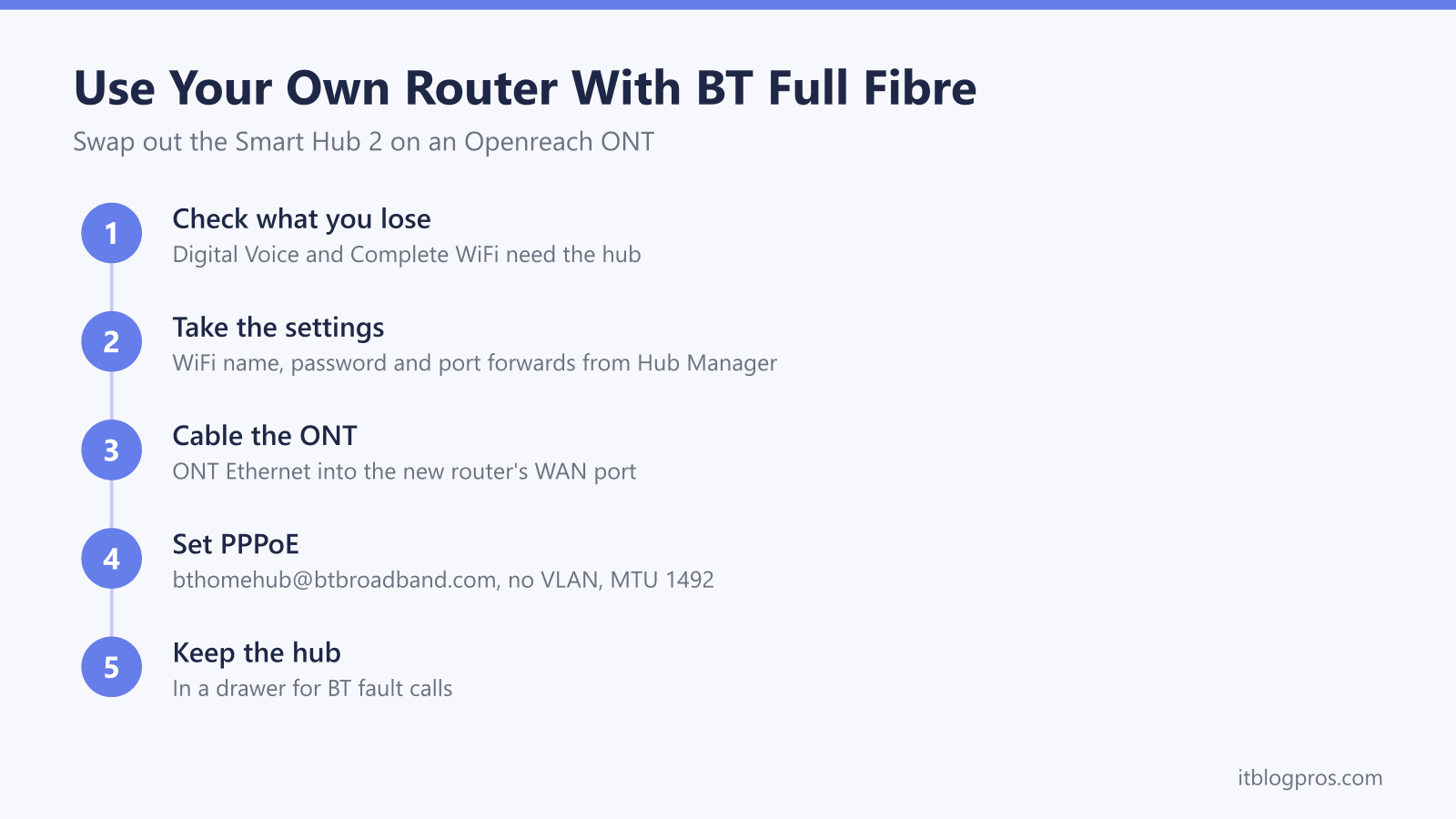
BT allows a third-party router on Full Fibre but does not support it. Unplug the Smart Hub 2, run the new router's WAN port to the Openreach ONT, set the connection to PPPoE with the username [email protected] and the password BT, leave VLAN off and MTU at 1492. Digital Voice and Complete WiFi discs stop working the moment the hub leaves the chain.
Key Takeaways
- BT permits a router it did not supply on Full Fibre, but its helpdesk will not set one up or fault-find it, so the Smart Hub 2 goes in a drawer for support calls rather than on eBay.
- A BT FTTP line authenticates over PPPoE with the login BT Community threads report, [email protected] with BT or a blank password, with no VLAN tag on an Openreach ONT and an MTU of 1492, or 1500 where the router supports RFC4638 baby jumbo frames.
- Modem-only mode on the Smart Hub 2 is documented by BT Business, while home users report no such menu on the residential firmware, so the new router's WAN port plugs straight into the ONT and the hub comes out of the chain entirely.
- Digital Voice runs only through the phone port on a BT hub, and Complete WiFi discs pair only with a BT hub, so the landline and the discs both stop the moment the hub is removed.
- Every BT Full Fibre tier from 150 to 900 fits inside a gigabit WAN port, and BT does not currently sell the 1.6Gbps tier that EE offers, so a 2.5G WAN is headroom rather than a requirement.
BT allows a third-party router on Full Fibre and will not support it
BT's position is short and reads the same across its help pages. A customer can use a router BT did not supply, as long as it is compatible with the service, and BT's technical helpdesk will not set it up or fault-find it. The customer configures the router alone, and BT asks that the BT hub is kept so it can be reconnected while a fault is being investigated. On Full Fibre that is an easy bargain, because the physical side of the swap is one cable.
Full Fibre means an Openreach engineer has fitted an ONT, the small white box with its own power supply and a row of status lights, usually close to where the fibre enters the property. The ONT turns light on the fibre into Ethernet on a socket, and that socket normally feeds the Smart Hub 2's WAN port. Any router with an Ethernet WAN port and PPPoE support can take the hub's place on that socket. The ONT does not care which router sits on the other end of the cable, because it is the PPPoE session that ties the connection to the BT account.
Modem mode on the Smart Hub 2 is a firmware question rather than a hardware one. BT Business publishes steps for putting the hub into modem-only mode, under Advanced Settings, Broadband, Routing and then Bridging, and warns that the hub light turns orange and that NAT, DHCP and DNS are all disabled by it. BT's declaration of conformity covers the residential and business hubs under one certified model number, so it is the same box either way, and the residential build is where the menu goes missing: BT has said nothing about it publicly, and home customers who follow those steps report no Routing tab. That matters because anyone arriving from Virgin Media expects to flick a switch in the hub and keep it in the chain as a plain modem. On BT Full Fibre it costs nothing, because the equivalent is simply to remove the hub and let the ONT do the modem's job. The wider picture for every provider is set out in the guide to using your own router with any UK ISP, and the ONT wiring detail, including which socket on which ONT model, lives in the guide to connecting your own router to an Openreach ONT. This page covers the parts that are specific to BT.
What the Smart Hub 2 takes with it when it goes
Three things depend on the BT hub itself, and all three need settling before a new router is ordered.
Digital Voice. BT's home phone now runs through the green phone port on the back of the Smart Hub 2, or on the Smart Hub 3 that BT began issuing to Full Fibre customers in 2026, and every way of connecting a handset that BT supports ends at that hub. A corded or cordless phone plugs into the green port. BT's own Digital Voice handsets pair wirelessly with the hub. The Digital Voice Adapter, which puts dial tone on a phone elsewhere in the house, also pairs wirelessly with the hub through its WPS button. There is no supported way to carry Digital Voice through a third-party router, so unplugging the hub silences the landline until the hub goes back in. Households that need both have two realistic routes. The first keeps the BT hub as the device on the ONT and plugs the new router's WAN port into one of the hub's LAN ports, which keeps the phone working at the cost of double NAT and the hub's WiFi being switched off by hand. BT Community members have run that arrangement for years, and putting the new router's WAN address in the hub's DMZ removes most of the friction for gaming and remote access. The second route drops Digital Voice altogether, either living without a landline or moving the number to a third-party VoIP service, with the caveat that BT Community threads record numbers being lost during a port, so that decision deserves care. Any fault already on the landline is better fixed before the swap, and the BT Digital Voice not working guide covers those checks.
Complete WiFi discs. The black Complete WiFi discs pair only with a BT Smart Hub, and BT says so on its own pages. They will not join a third-party router, so a home that leans on them needs the new router or mesh to replace their coverage as well as the hub's. BT's older white Whole Home WiFi discs are a different product and work behind any router.
Hybrid Connect and BT support. The Hybrid Connect 4G backup unit pairs with the Smart Hub 2 and has nothing to talk to once the hub is gone. BT's helpdesk will also ask for the hub to be reconnected before it investigates a line fault, which is the practical reason the Smart Hub 2 stays in the house.
The settings to take before anything is unplugged
Everything the hub knows about the household lives on the hub. Open Hub Manager at 192.168.1.254, sign in with the admin password from the card on the back, and write down the WiFi name and password, any port forwarding rules, any devices with reserved addresses and anything else changed under Advanced Settings. The BT Smart Hub login guide covers the sign-in itself and the 192.168.1.254 Hub Manager guide walks through the pages where those settings sit. Matching the new router's WiFi name and password to the hub's later means every device in the house rejoins without being touched.
One thing does not need copying. The PPPoE login on a BT consumer line is generic rather than per-account, and the next sections give it in full, so there is no hunting through Hub Manager for a hidden password.
Take a photo of the back of the hub and of the ONT before a cable moves, so the original wiring is on record. Check the ONT's lights are healthy while the hub is still connected, because a fault that exists before the swap gets blamed on the new router afterwards. The Openreach ONT lights guide shows which states are normal.
The swap, step by step
The whole change takes under half an hour, and most of that is waiting.
- Switch the Smart Hub 2 off at the mains.
- Unplug the Ethernet cable from the hub's WAN port. On the Smart Hub 2 version with a red WAN port that is the red one; on the version with four yellow ports BT uses port 4 as the WAN for Full Fibre. The other end of that cable is in the ONT and can stay there.
- Plug the free end into the new router's WAN or Internet port.
- Power the router, join its default WiFi or connect a laptop by cable, and run its setup wizard. Choose PPPoE when asked for the connection type.
- Enter the login from the next section, save, and wait. The previous PPPoE session has to time out before the new one is accepted, and a failure in the first minute is not proof the settings are wrong. Several minutes is normal.
- Once the router reports the internet is up, set the WiFi name and password to match the old hub's, then recreate any port forwards and reserved addresses from the list taken earlier.
PPPoE and MTU on the new router
BT Community threads report the same values on every BT consumer Full Fibre line, and BT publishes nothing about how it identifies the account, so treat the login as a community value and ask BT if a router rejects it.
- Connection type: PPPoE, always on.
- Username: [email protected]
- Password: BT, or left blank. Reported by BT Community threads, not published by BT.
- Service name: blank.
- VLAN tagging: off. VLAN 911 belongs to CityFibre lines and breaks an Openreach connection outright.
- IP address and DNS: automatic.
- MTU: 1492.
The MTU deserves a sentence. PPPoE adds eight bytes of overhead to every frame, so the standard PPP MTU is 1492 and that is the safe setting on any router. Openreach FTTP also supports RFC4638 baby jumbo frames, which lets a router that offers the option carry a full 1500-byte PPP MTU across the ONT. Where the router exposes it, usually as a jumbo frame or RFC4638 tick box alongside the PPPoE settings, 1500 works on a BT line. Where it does not, 1492 costs nothing that daily use will notice. BT also runs IPv6 over the same session, so a router that offers native IPv6 with prefix delegation can have it switched on, and nothing breaks if it stays off.
Speed tiers and the WAN port that suits them
BT names four residential Full Fibre packages, Full Fibre 150, 300, 500 and 900, with some longer-standing customers still on a Full Fibre 100 product. The top tier averages around 900Mbps down and 110Mbps up. Every one of those fits inside a gigabit WAN port, and a current mid-range router runs a PPPoE session at 900Mbps without breaking a sweat, so nothing about the BT ladder forces a multi-gig purchase.
The headroom question is about what comes next. BT does not currently sell a tier above 900. The 1.6Gbps package belongs to EE, which ships it with a hub that has 2.5G ports because a gigabit port cannot carry it, and BT Wholesale has been reported as bringing 1.8Gbps products to market later in 2026. If a faster BT tier arrives on the account, the only router that will carry it is one with a WAN port faster than gigabit, such as a 2.5G WAN. That is a reason to prefer such a port on a router bought today, and not a reason to spend more than the house needs on WiFi.
The router worth buying for a BT line
Two honest points first. No router on this page brings Digital Voice or the Complete WiFi discs back; those live on the hub and stay there. And a router that costs more than the hub is only worth buying when coverage, features or ports are the reason for the swap. A home where the hub's WiFi reached every room and the motive is control does not need the top of the range.
The standalone pick. The TP-Link Archer BE550 is the router to buy when one box has to cover the house. TP-Link rates it as a tri-band WiFi 7 router at BE9300 and lists PPPoE among its WAN types. TP-Link also lists a dedicated 2.5 Gbps WAN port and four 2.5 Gbps LAN ports, so the ONT cable simply goes into the WAN port, a NAS or PC with a 2.5G network card can sit on any LAN port, and that 2.5 Gbps WAN would take a future faster-than-gigabit BT tier without the router being replaced. There is no premium tier above it worth naming for a BT line.

The value pick. For Full Fibre 150 through 900, where a gigabit WAN is all the line can use, the TP-Link Archer AX55 does the job for a good deal less. It is a WiFi 6 router with one gigabit WAN port and four gigabit LAN ports, its PPPoE setup is a single screen, and it outperforms the Smart Hub 2's WiFi 5 radios in a typical house.
Mesh, only if coverage is the problem. Where the swap is really about a dead extension or a third floor, a mesh system replaces both the hub and the Complete WiFi discs in one go, and all three of these run the PPPoE session on the main unit. The TP-Link Deco X10 two-pack is the budget route with two gigabit ports on each unit. The TP-Link Deco X60 is the faster Deco with the same port layout. The Amazon eero Pro 6E at that link is a single unit, expanded by adding more later, and each unit carries one 2.5GbE port and one gigabit port that sense WAN or LAN on their own. The fuller comparison, including how each behaves behind a BT hub kept for Digital Voice, is in the best router for BT broadband guide.
Putting the Smart Hub 2 back
The hub goes back in for three reasons: a BT fault call, a new router that has failed, or a landline that turns out to matter after all. The reverse swap is simpler than the original because the hub carries its own login.
Power down the new router and move the ONT cable to the hub's WAN port, the red one on the version that has it or port 4 on the all-yellow version. Power the hub and leave it alone. It authenticates on its own with no settings to enter, and the light should settle to steady blue once the previous PPPoE session has cleared, which can again take several minutes. Anything other than steady blue after five minutes is decoded in the BT Smart Hub lights guide. A thirty-second power cycle of the ONT is harmless and clears a link that has stuck.
Digital Voice returns with the hub. Handsets and any Digital Voice Adapter remain registered to it and pick up dial tone once the hub is online, and the Complete WiFi discs rejoin on their own. Devices around the house reconnect without help provided the new router had been given the hub's WiFi name and password, which is one more reason to copy those exactly during the original swap.