
When a Ring doorbell refuses to finish setup on BT broadband, the setting that fixes it depends on which BT hub sits by the master socket. BT's original Smart Hub, the Smart Hub 2 and the Smart Hub 3 each handle their 2.4GHz and 5GHz bands differently, so a fix written for one BT hub often points at a menu another BT hub does not have. This guide sets out what BT documents for each model, which Ring doorbells care about the difference, and the point where the problem is signal at the door rather than settings.
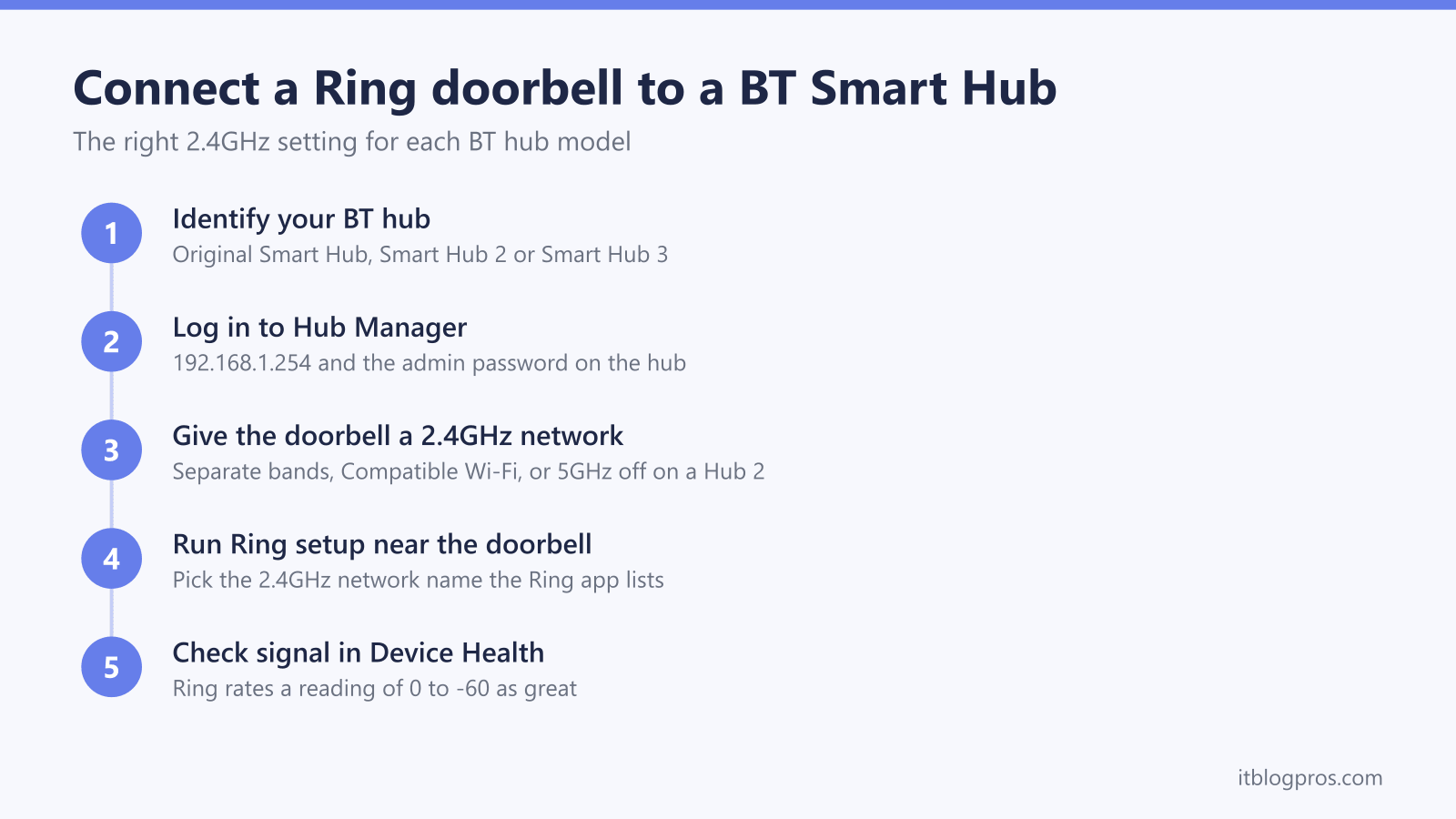
A Ring doorbell that won't connect to a BT Smart Hub needs a 2.4GHz network it can pick out on its own, and the route depends on the hub. On the original Smart Hub, turn Separate bands on at 192.168.1.254. On a Smart Hub 3, switch on the 2.4GHz Compatible Wi-Fi network. On a Smart Hub 2, check 5GHz for Sync with 2.4GHz, then switch 5GHz off only where Hub Manager offers that control.
Key Takeaways
- The right fix for a Ring doorbell on BT broadband depends on the hub, because the original Smart Hub, the Smart Hub 2 and the Smart Hub 3 each handle the two WiFi bands differently.
- The original BT Smart Hub gives the 5GHz band its own network name with the Separate bands switch under Advanced Settings, then Wireless, in Hub Manager.
- BT's split page says the Smart Hub 2 cannot split its bands, but BT's dual-band page includes it in Sync with 2.4GHz steps, so check the 5GHz section for that setting before switching 5GHz off where the hub offers that control.
- The Smart Hub 3 has a separate 2.4GHz network called Compatible Wi-Fi, and BT lists smart doorbells among the devices it is meant for.
- Ring says every Ring device works on 2.4GHz and its UK devices cannot use 5GHz channels 36 to 64, and a weak Device Health reading at the door needs a closer signal source rather than more settings.
Your BT hub model decides which fix applies
BT's help page on dual-band connection problems says the Home Hub 4, Hub 5, Smart Hub 2 and Smart Hub 3 use the same network name for both the 2.4GHz and 5GHz bands by default. The same page says some devices struggle with that arrangement, with symptoms ranging from failed connections to intermittent WiFi. What each hub lets you do about it varies, so the model matters before any setting changes.
BT's Different types of BT Hub help page shows each model with a photo, which is the quickest way to put a name to the box. Every fix below happens in Hub Manager, which BT's help says opens at 192.168.1.254 or bthomehub.home from a device connected to the hub, using the admin password on the back of the hub unless it has been changed. The BT Smart Hub login guide covers the address, the password and what to do when the page will not load.
| BT hub | What BT documents | Route for a Ring doorbell |
|---|---|---|
| Smart Hub (original) | Separate bands switch | Split the bands, pick the 2.4GHz name |
| Smart Hub 2 | Two BT pages disagree on a split | Check 5GHz for Sync with 2.4GHz first, then switch 5GHz off only where offered |
| Smart Hub 3 | Compatible Wi-Fi on 2.4GHz | Turn it on and pick it in the Ring app |
| Home Hub 4 and Hub 5 | Sync with 2.4GHz setting | Set it to No, rename 5GHz |
Every Ring doorbell works on 2.4GHz, and only some add 5GHz
Ring's product FAQ states that all Ring devices are compatible with 2.4GHz networks, while some are also compatible with 5GHz. The tech specs on Ring's UK support pages show which doorbell is which:
- 2.4GHz only: Battery Video Doorbell, Battery Video Doorbell Plus, Video Doorbell Wired and Wired Doorbell 2K (formerly Wired Video Doorbell (2nd Gen)). The Battery Video Doorbell and Battery Video Doorbell Plus are not the 2nd Gen battery models Ring renamed in August 2026.
- 2.4GHz and 5GHz: Video Doorbell 4, Battery Video Doorbell Pro, Battery Doorbell 4K Pro (formerly Battery Video Doorbell Pro (2nd Gen)), Battery Doorbell 2K Plus (formerly Battery Video Doorbell Plus (2nd Gen)), Wired Video Doorbell Pro (formerly Video Doorbell Pro 2), Wired Doorbell 2K Plus (formerly Wired Video Doorbell Plus (2nd Gen)) and the discontinued Video Doorbell Pro.
- Ring's pages disagree: Battery Doorbell 2K (formerly Battery Video Doorbell (2nd Gen)), whose UK product page says "WiFi 4, 2.4Ghz Single Band WiFi" while its UK support spec page says "Dual Band 2.4 GHz and 5 GHz".
For a model not listed here, Ring's FAQ points to the Device Health section of the Ring app for the exact model name, which Ring's product name changes article says now shows the new names, and the matching Ring support page lists its bands.
Dual-band models carry a UK catch. Ring's setup troubleshooting page says that in the UK and Europe, Ring devices cannot use 5GHz channels 36 to 64 to comply with WiFi regulations, and recommends setting the router to channels between 100 and 165. BT's channel help, meanwhile, does not recommend changing the wireless channel manually, but where a manual change is still wanted, BT's steps suggest channels 36, 40, 44 or 48 for the 5GHz band on the Home Hub 4 and Hub 5, every one of them inside the range Ring rules out. Ring's reconnection guide gives the practical answer for a device that keeps disconnecting: try a 2.4GHz network instead of 5GHz. For a doorbell on a BT hub, 2.4GHz is the band to set up on, whatever the model supports on paper.
The original Smart Hub splits its bands with one switch
BT's help page on splitting a hub's network name gives the steps for the original Smart Hub. On a device connected to the hub, type 192.168.1.254 into the browser, click Advanced Settings, then Wireless, and enter the admin password from the settings card on the back. Turn the Separate bands switch on. BT says the hub creates a new network name for the 5GHz band by default, and that the name can be changed as long as it contains no spaces. Click Save.
Ring's setup troubleshooting adds a stricter naming rule of its own, advising removal of special characters from the WiFi name and listing apostrophes, spaces and symbols such as !, @, #, $, % and &. A new name built from plain letters and numbers satisfies both companies.
Because BT's steps put the new name on the 5GHz band, the original network name stays with 2.4GHz. Run Ring setup and choose that original name from the list the app shows. Phones and laptops that should use the faster band need joining to the new 5GHz name once. The guide to splitting the WiFi bands on a BT Smart Hub covers the split in more depth, including the Home Hub 4 and Hub 5, where BT's equivalent is setting Sync with 2.4GHz to No on the 5GHz Wireless page.
BT's help pages disagree on whether the Smart Hub 2 can split its bands
BT's help page on splitting a hub's network name is plain about this model: it says the Smart Hub 2 does not have that capability because it is designed for use with Complete Wi-Fi, BT's system of add-on WiFi discs. So the Separate bands steps from the section above do not carry over.
There is one wrinkle worth knowing. BT's separate troubleshooting page for dual-band connection problems names the Smart Hub 2 and Smart Hub 3 alongside the Home Hub 4 and Hub 5, then gives steps built around a Sync with 2.4GHz setting on the 5GHz page. The two BT pages pull in different directions, and the quickest way to settle it for one particular hub is to look. Log in to Hub Manager, open Advanced Settings, then Wireless, and check the 5GHz section. If Sync with 2.4GHz appears, set it to No, give the 5GHz band a new name, apply the change and follow the original Smart Hub advice above.
Where no split option appears, take the 5GHz band out of the picture for the few minutes setup takes. If the Wireless page offers a separate on and off control for the 5GHz band, switch it off and save, run Ring setup, confirm Live View works, then switch 5GHz back on. With only 2.4GHz broadcasting, the network name the Ring app lists can only be the 2.4GHz band. Leave the main Wireless switch alone: on the original Smart Hub, BT's help says that switch turns WiFi off on both bands at once, which would take the doorbell's network away too. BT's page on turning WiFi on and off covers the original Smart Hub and the older Home Hubs rather than the Smart Hub 2, so the labels on a Smart Hub 2 screen may not match any written guide exactly.
The shared name matters less after setup than it might seem. Ring's UK support articles on 5GHz trouble with the dual-band Video Doorbell 4 and the Wired Video Doorbell Pro, the model Ring renamed from the Video Doorbell Pro 2, both say that where the doorbell has trouble connecting to the router, Ring recommends changing the router's channel or combining the 2.4GHz and 5GHz networks. So a single shared name is not something Ring asks you to get rid of.
The Smart Hub 3 has a 2.4GHz network built for devices like doorbells
BT's newest hub handles the problem with a feature rather than a band split. BT's Compatible Wi-Fi help page describes it as an extra network on the Smart Hub 3 that runs on 2.4GHz, and lists smart doorbells alongside smart bulbs and cameras among the devices it helps. BT also says the main network and Compatible Wi-Fi are linked, so apps can still control smart devices whichever of the two they sit on.
To switch it on, BT's steps are to open 192.168.1.254 on a connected device, accept the security warning, select Advanced Settings and enter the admin password, then select Wireless, then Compatible Wi-Fi. Turn Compatible Wi-Fi on, keep the default name and password or choose new ones, and select Save. BT warns that WiFi may drop briefly while the change applies. When choosing a new name, the Ring rule about spaces and special characters still applies. Then pick the Compatible Wi-Fi name when the Ring app lists networks during setup. BT's Smart Hub 3 specification page lists the extra networks as available on select models and software, so not every Smart Hub 3 shows the option.
A second Smart Hub 3 setting suits an always-on doorbell. BT's help page on fixed channels says some older 2.4GHz devices, including security cameras, can struggle to stay connected when the hub switches channels in the background, and suggests fixing the 2.4GHz channel at 1, 6 or 11 under Advanced Settings, then Wireless. BT also cautions that a fixed channel can leave the hub stuck on a busier channel, so it is a fix for a doorbell that keeps dropping off rather than a default.
Running Ring setup once the hub is ready
Ring's doorbell setup guide describes the sequence. Pressing the setup button when the app asks makes the doorbell create a temporary WiFi network for setup. The app then shows a list of WiFi names, and you choose your network and enter its password. Ring advises keeping the phone close to the doorbell until setup is complete, so it makes sense to run setup at the front door rather than beside the hub.
A 5GHz name missing from that list is covered by Ring's troubleshooting too: where separate 2.4GHz and 5GHz networks exist and the 5GHz one does not appear, Ring says to connect to the 2.4GHz network instead, because some Ring devices only support 2.4GHz. A doorbell that is already installed does not need a full setup to move networks. Ring's reconnection steps are the menu, then Devices, then the doorbell, then the Device Health tile, where Reconnect or Change Network sits under Network.
Virgin Media households face different hub menus altogether, covered in the Ring doorbell and Virgin Media Hub guide.
A weak signal at the door needs a closer signal, not more settings
A doorbell that connects happily near the hub and then fails once mounted has a signal problem, and no hub setting changes that. Ring's Understanding wifi recommendations for Ring devices page shows where to look: the menu, then Devices, then the doorbell, then Device Settings, the Device Health tile and Signal Strength. The same page rates the readings like this:
| Signal Strength (RSSI) | Ring's rating |
|---|---|
| 0 to -60 | Great, strong |
| -60 to -70 | Okay, could be improved |
| -70 to -80 | Poor, possible delays and interruptions in service |
| -80 or worse | Very poor, intermittent service or falling offline |
Ring's own suggestions for a poor reading are a shorter distance to the router, an extender or a mesh system. Start with what costs nothing. Where the hub's cables allow, moving it nearer the front of the house shortens the path, and where BT's Complete Wi-Fi discs are already in the house, a disc placed nearer the door does the job an extender would. When neither is possible, an extender is the fix. Ring's chime setup guide advises placing a Chime Pro used as a wifi extender halfway between the router and the farthest Ring device, a sensible starting point for any brand, and the best WiFi extender for a Ring doorbell guide covers placement and which type suits which home.
That guide's top pick is the TP-Link RE705X, which TP-Link describes as a dual-band WiFi 6 extender that works with standard WiFi routers. For a Smart Hub 2 household there is a side benefit. TP-Link's support FAQ says the extended network settings, found in the Tether app under Network, then Extended Network, include the network name and separate on and off switches for the 2.4GHz and 5GHz networks, depending on the model. That can give the doorbell a dedicated 2.4GHz name the hub itself cannot provide.
Once the doorbell is connected but keeps falling off the network days later, the Ring doorbell offline guide works through the remaining causes.