
A Vodafone landline with no dial tone is usually a phone plugged into the wrong place. Vodafone calls its home phone service Digital Voice, and its Digital Voice page says the phone cable plugs into the router instead of the wall. Vodafone's landline fault page names the socket: the green TEL port on the back of the router.
The fix order below follows Vodafone's own pages: power and cables first, then the green TEL port and the right lead or adapter for each hub, the phone light, a router restart and the broadband service test. It also sets out what Vodafone says about extension sockets, activation after a switch, power cuts and third-party routers.
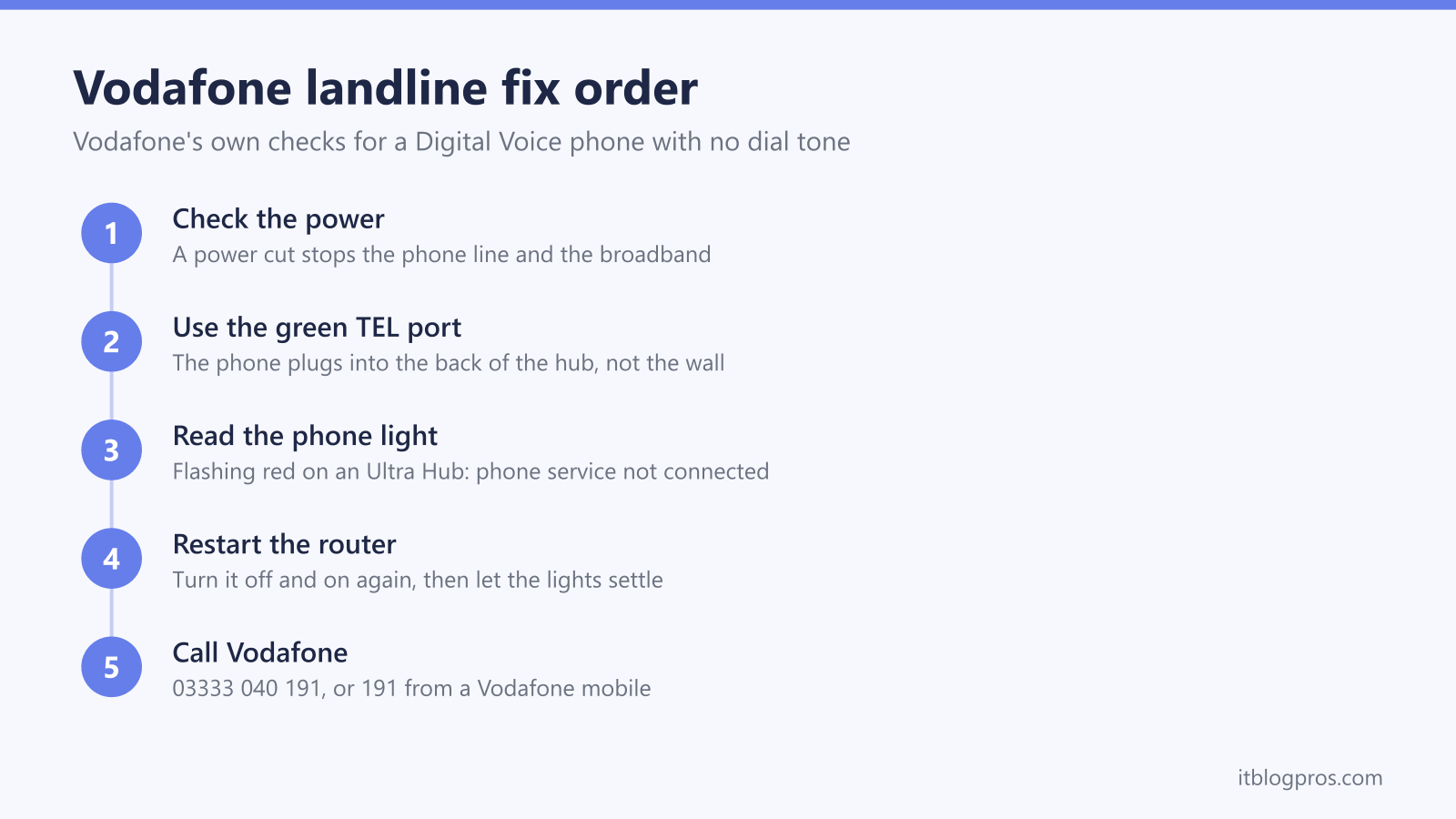
Vodafone's landline fault page says a Digital Voice phone must be plugged into the green TEL port on the back of the router, not a wall socket. Check the router has power and the broadband is working, use the lead or adapter Vodafone supplied, read the phone light, then turn the router off and on. If the line stays dead, Vodafone's number is 03333 040 191, or 191 from a Vodafone mobile.
Key Takeaways
- Vodafone's landline fault page says a Digital Voice phone plugs into the green TEL port on the back of the router, and its Digital Voice page says extra telephone sockets in the home stop working after the switch.
- Vodafone's setup guide names a different lead for each setup: a new phone cable labelled Internet on a WiFi Hub with a fibre connection box, a VoIP adapter on a WiFi Hub alone, and a DSL cable on the Ultra Hub.
- Vodafone's router lights page gives flashing red on the Ultra Hub and Power Hub phone light as phone service not connected, and red on the Vodafone WiFi Hub phone light as unable to connect to the voice service.
- Vodafone's Digital Voice page says a landline number transferred to Vodafone could take around two working days to activate, and that the move to Digital Voice itself usually happens at night.
- Vodafone's own-router page says a Vodafone router must be used on any plan with Digital Voice, and its landline fault page gives 03333 040 191, or 191 from a Vodafone mobile, for a line that stays dead.
Vodafone's first checks: power, cables and batteries
Vodafone's landline fault page starts with power: in a power cut the phone line and the broadband stop working until the power comes back. With the power on, the same page lists three checks:
- every wire connecting to the phone is firmly plugged in
- the phone is connected to mains electricity, if it needs it (a cordless base does)
- any batteries are not flat
The page then splits by line type: a phone that plugs straight into the wall, or one that plugs into the router, which Vodafone calls Digital Voice. Vodafone's home phone setup page, in its business help section, says a home with full fibre or a VoIP adapter is on Digital Voice.
The phone plugs into a green TEL port, with a different lead for each hub
Vodafone's landline fault page says to make sure the phone cable is in the green TEL port on the back of the router. Its Digital Voice setup guide names the lead for three setups, each starting with the phone unplugged from the wall socket.
| Setup in Vodafone's guide | Lead Vodafone names | Where it plugs in |
|---|---|---|
| WiFi Hub with a fibre connection box | New phone cable from Vodafone, labelled Internet, replacing the phone's original cable | A green TEL port on the back of the WiFi Hub |
| WiFi Hub only | The phone's cable goes into the VoIP adapter | The adapter goes into a green TEL port on the back of the WiFi Hub |
| Ultra Hub | The DSL cable, replacing the phone's original cable | A green TEL port on the back of the Ultra Hub |
The guide has no Power Hub or Ultra Hub 7 option. For those hubs, the fault page's wording (the green TEL port on the back of the router) is all Vodafone's help pages give.
For an older phone with a cable that cannot be unplugged, the guide says an adapter may be needed and offers an Order adapter button. Vodafone's Digital Voice page says it sends an adapter to plug the phone into the router, and a new router to customers with one of its older models, which it does not name. The guide mentions no microfilter at any step.
The phone light shows whether the voice service has reached the hub
Vodafone's router lights page gives a phone light for three hubs, and the colours differ.
- Ultra Hub: solid green is phone connected, flashing green is a call in progress, flashing red is phone service not connected, and no light is power off, failure to boot up or phone not connected.
- Power Hub: solid green is phone service available, flashing green is a call in progress, flashing red is phone service not connected, and no light is power off, no voice service available or the LED disabled by the user.
- Vodafone WiFi Hub: white means calls can be made, flashing white is a call in progress, and red means the hub cannot connect to the voice service. Vodafone marks red as Vodafone Business customers only and says to turn the router off and on again.
The page lists no phone light for the older VOX 2.5 Broadband Router, and gives no action for flashing red on the Ultra Hub or Power Hub. A green or white phone light with a silent handset points at the handset, the lead or the adapter. The Vodafone router lights guide covers every other light.
No dial tone on Digital Voice: the checks in order
- Confirm the green TEL port. Reseat the lead at both ends. Vodafone's setup guide says one of the green TEL ports and does not say whether each one is live, so try the second if the first gives no dial tone.
- Check the internet is working. Vodafone's fault page says that if it is not, sign in and run a broadband service test. Digital Voice uses the broadband connection, so the Vodafone broadband not working fixes come first when the broadband is down.
- Check the setup. Vodafone's fault page says to check the router and phone were set up correctly, meaning the lead or adapter in the table above.
- Turn the router off and on again. That is Vodafone's instruction for a red phone light on the WiFi Hub. Vodafone gives no wait time, so let the lights settle before testing.
- Try another phone. Vodafone lists this test under wall-socket lines, and it rules out a dead handset on a hub too.
Hold off on a factory reset. Vodafone's factory reset page says it erases all custom settings, including the WiFi name and password, and the Vodafone router reset guide explains when one is worth doing.
A phone that still plugs into the wall has its own checks
For a line that has not moved to Digital Voice, Vodafone's fault page gives four steps: unplug all equipment from every phone socket, plug the phone into the main phone socket and test it, try another phone, then check extensions and any devices on the line one by one.
After the move, the wall sockets are finished. Vodafone's Digital Voice page says any extra telephone sockets in the home will not work, and that every phone must plug into the back of the router or be a wireless phone that works with Digital Voice. The phone socket not working after fibre guide explains the wiring side.
After a switch or a router change, allow for activation
Vodafone's Digital Voice page says the move to Digital Voice happens automatically, usually at night so that it is working in the morning. For a landline number transferred to Vodafone, the same page says the number could take around two working days to activate.
Vodafone's setup guide adds that a WiFi Hub or Power Hub may take until midnight on activation day to connect, and the phone cannot work before the broadband does. Vodafone's pages give no figure for how long the phone takes to return after a router swap, so watch the phone light: green on an Ultra Hub or Power Hub, or white on a WiFi Hub.
A third-party router is a different matter. Vodafone's own-router page says a Vodafone router must be used on Pro Broadband plans, 5G Broadband plans and any plan with Digital Voice, so the Vodafone hub has to stay connected for the phone.
Some features stop by design. Vodafone's Digital Voice page says the service does not work with Vodafone voicemail, conference calls, call diversion or call management features such as anonymous caller rejection.
Power cuts stop a Vodafone digital landline
Vodafone's Digital Voice page says that if the router loses power, the landline cannot be used until the power returns, and that emergency calls then need a mobile phone with signal. Customers who rely on the home phone for accessibility needs and have no mobile are told to chat to Vodafone.
Vodafone's news centre describes a Broadband Battery Backup that keeps the router running for four to seven hours, depending on the router model, free for customers registered with Vodafone customer care as landline dependent. It only helps, Vodafone adds, if the power cut has not also affected the network infrastructure in the area. GOV.UK's summary of Ofcom's guidance says providers should have at least one solution giving access to emergency organisations for a minimum of one hour in a power cut, free of charge to those at risk because they depend on their landline. The digital landline power cut rules set out what each provider offers.
Vodafone's Digital Voice page also warns that Telecare devices and monitored alarms that use the telephone wiring might not work, and says to check with the local authority or the device maker.
Kit that helps on a digital landline
A household that does not qualify for Vodafone's free unit can run the router from its own backup, and the battery backup guide for routers and fibre boxes compares the options. For phones in other rooms, Vodafone's advice is wireless phones that work with Digital Voice, and the cordless phone guide for digital landlines helps with choosing a set.
When the fault needs Vodafone
Vodafone's landline fault page says that if there is still no service, call 03333 040 191, or 191 from a Vodafone mobile. Vodafone's setup guide says its chat team needs the landline number or Vodafone account number, plus the router's model and serial number, found on the back of the hub. GOV.UK's guidance says the move away from analogue lines is expected to be complete for most customers by January 2027, so more Vodafone phones are moving to the router.