
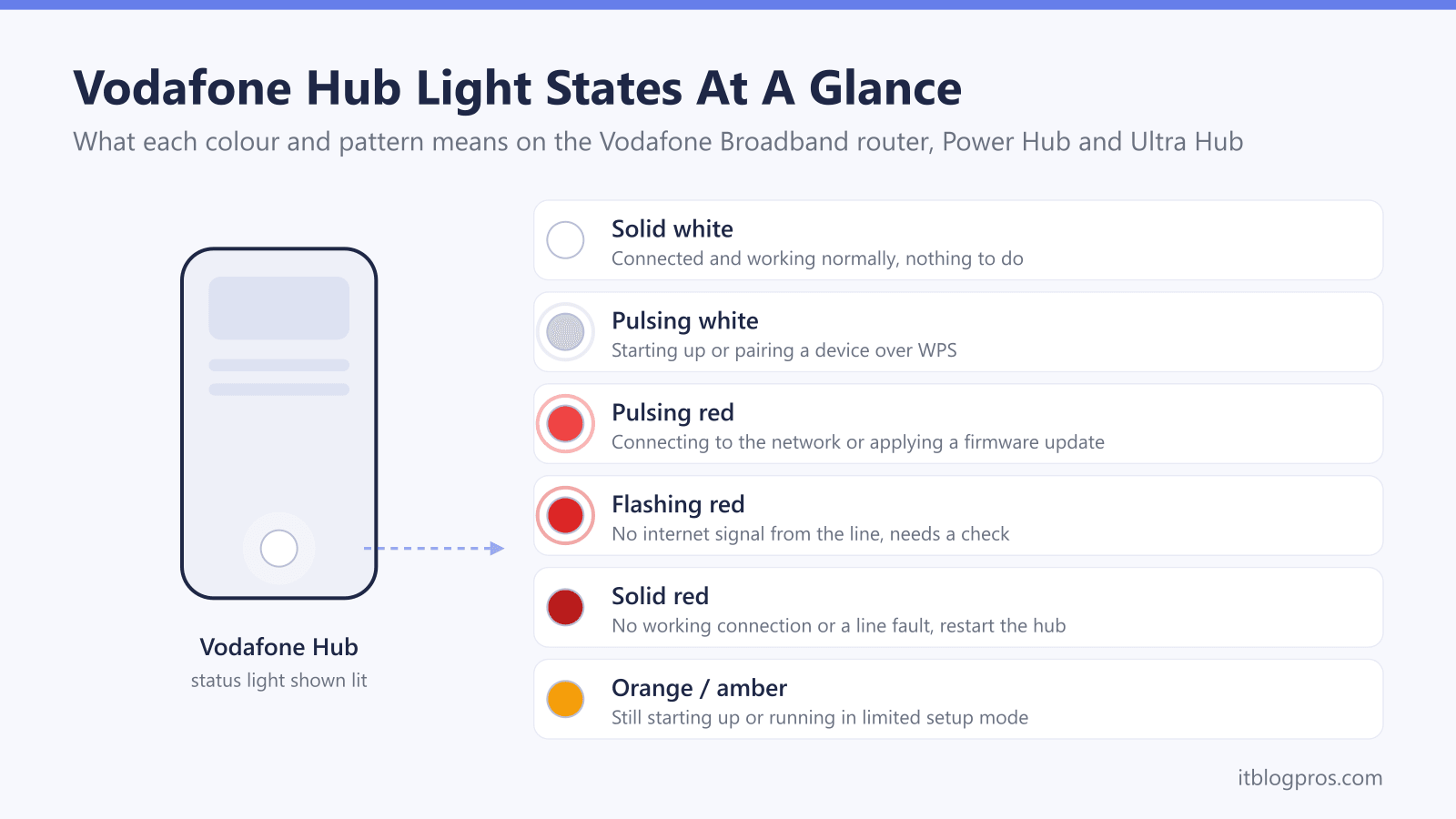
Your Vodafone hub talks to you through its lights, and Vodafone publishes what each one means on a single page: Vodafone router lights explained. Every meaning and instruction in this guide comes from that page, read on 9 September 2026. It is worth saying up front why so many guides to these hubs are wrong. Vodafone's light key sits behind a JavaScript accordion that only fills in after you pick your hub, so a crawler, a scraper or a large language model reading the page sees six hub names and no light meanings at all. What gets written instead is guesswork from other brands. The panels also do not agree with each other, so this guide keeps the Ultra Hub, the Power Hub and the Vodafone WiFi Hub separate rather than merging them into one table.
Vodafone gives solid white on the Ultra Hub front light as power up with no issues, flashing purple as pairing in progress and flashing red as pairing failed. Solid amber means a user switched the WiFi off, and flashing white means the hub is running through a backup module, so the fixed line is down. Vodafone documents no solid red on these front lights.
Key Takeaways
- Vodafone's own router lights page is the source, and its light key is a JavaScript accordion, so pick your hub before reading; the Ultra Hub, Power Hub and Vodafone WiFi Hub do not share one scheme.
- Solid amber on the Ultra Hub and Power Hub front light means the WiFi has been turned off by the user, and on the Power Hub Vodafone's whole fix is to press the WiFi button.
- Flashing red on those two front lights means pairing has failed, not pairing in progress; flashing purple is the in-progress state, and Vodafone's answer to a failure is a retry or a reboot.
- Flashing white on those two front lights means the hub is connected through a back up module, so the fixed line is not carrying the connection and is worth reporting.
- Vodafone publishes no solid red state on the Ultra Hub or Power Hub front light, though on the Vodafone WiFi Hub a power light still red after five minutes is its documented system failure state.
Vodafone Ultra Hub lights
The Ultra Hub carries a front status light plus separate WiFi, internet, phone and mobile indicators, and Vodafone lists nine states for the front light alone. Note what is not in that list: there is no solid red, and no state at all that Vodafone describes as authentication failing.
| Light | What it means | What to do |
|---|---|---|
| Front light: solid white | Vodafone's wording is power up, no issues. | Nothing to do. |
| Front light: solid green | Pairing successful. | Nothing to do. Whatever you were pairing has paired. |
| Front light: flashing purple | Pairing is in progress. | Leave it to finish. This is the in-progress state, not a failure. |
| Front light: flashing red | Pairing has failed. | Vodafone points you at its Broadband Service Test, which needs a My Vodafone login or registration. |
| Front light: flashing blue | The hub is rebooting. | Wait for the reboot to finish. |
| Front light: flashing white | Connected through a back up module, so the fixed line is not carrying the connection. | Treat the fixed line as down and report it. Watch any metered mobile allowance while the backup carries the household. |
| Front light: flashing blue and white | A firmware update is in progress. | Do not switch the hub off until it finishes. |
| Front light: solid amber | The WiFi has been turned off by the user. | Turn the WiFi back on at the hub. Vodafone gives the WiFi button as the control on the Power Hub. |
| Front light: no light | Power off, or a failure to boot up. | Check the plug, the socket and the power button, then watch whether the hub boots at all. |
| WiFi light: solid green | WiFi is on and working correctly. | Nothing to do. |
| WiFi light: solid amber | WiFi is turned off. | Turn the WiFi back on at the hub. |
| WiFi light: no light | Power off, or a failure to boot up. | Check the power before treating the WiFi as the fault. |
| Internet light: solid green | The internet is connected. | Nothing to do. |
| Internet light: flashing red | Internet failed. | Vodafone says to check the broadband backup module or get in touch, and points to its Broadband Service Test. |
| Internet light: no light | Power off, or loss of connection. | Check the power first, then the line. |
| Phone light: solid green | The phone is connected. | Nothing to do. |
| Phone light: flashing green | A call is in progress. | Nothing to do. |
| Phone light: flashing red | Phone service not connected. | Check the handset is in the hub's phone port, then treat it as a voice service fault. |
| Phone light: no light | Power off, a failure to boot up, or no phone connected. | Check the power and whether a handset is plugged in at all. |
| Mobile light: solid green | Mobile is connected. | Nothing to do. |
| Mobile light: flashing red | A connection issue. | Vodafone says to check the broadband backup module or get in touch. |
| Mobile light: no light | Power off, a failure to boot up, or no backup dongle connected. | Nothing to do if you have no backup dongle. That is the expected state. |
Vodafone Power Hub lights
The Power Hub uses the same layout, with two differences worth catching. Vodafone gives its solid white front light as power is on rather than as a working connection, so the internet light is the one that tells you whether broadband is up. And it does not list a solid green pairing-successful state on the front light the way the Ultra Hub does.
| Light | What it means | What to do |
|---|---|---|
| Front light: solid white | Power is on. Vodafone's Power Hub wording says power, not connected, so read the internet light before you call it healthy. | Check the internet light is solid green before assuming the broadband is up. |
| Front light: flashing purple | Pairing is in progress. | Leave it to finish. |
| Front light: flashing red | Pairing has failed. | Vodafone's own instruction is to try pairing your booster again, or reboot the Power Hub. |
| Front light: flashing white | Connected through a back up module, such as a broadband back-up dongle. | Treat the fixed line as down and report it. Watch any metered mobile allowance in the meantime. |
| Front light: flashing blue and white | A firmware update is in progress. | Do not switch the hub off until it finishes. |
| Front light: solid amber | The WiFi has been turned off by the user. | Press the WiFi button to turn it back on. That is Vodafone's entire fix for this state. |
| Front light: no light | Power is off, or the LED has been disabled by the user. | Check the power, then check whether someone disabled the light rather than the hub. |
| WiFi light: solid green | Connected to the internet and WiFi is active. | Nothing to do. |
| WiFi light: solid amber | WiFi is turned off. | Press the WiFi button to turn it back on. |
| WiFi light: no light | Power is off, or the LED has been disabled by the user. | Check the power and the LED setting before treating the WiFi as broken. |
| Internet light: solid green | Connected to the internet. | Nothing to do. |
| Internet light: flashing red | Not connected to the internet. | Check the cabling, restart the hub, and report the line if it does not come back. |
| Internet light: no light | Power is off, or the LED has been disabled by the user. | Check the power and the LED setting. |
| Phone light: solid green | Phone service is available. | Nothing to do. |
| Phone light: flashing green | A call is in progress. | Nothing to do. |
| Phone light: flashing red | Phone service not connected. | Check the handset is in the hub's phone port, then treat it as a voice service fault. |
| Phone light: no light | Power is off, no voice service is available, or the LED has been disabled by the user. | Nothing to do if the account carries no voice service. |
| Mobile light: solid green | Mobile is connected. | Nothing to do. |
| Mobile light: flashing red | A connection issue. | Check the backup dongle is seated, then report it. |
| Mobile light: no light | Power is off, or no back up dongle is connected. | Nothing to do if you have no backup dongle. |
Vodafone WiFi Hub lights, the VOX 3
Choosing Vodafone WiFi Hub on Vodafone's page brings up a panel headed Vodafone VOX 3 Broadband Router. This one has no single front status light at all. It carries five separate labelled lights, and it runs them in white rather than green, so none of the Ultra Hub or Power Hub colour meanings transfer to it.
| Light | What it means | What to do |
|---|---|---|
| Power light: white | Power is on. | Nothing to do. |
| Power light: red | Vodafone says the power light is temporarily red while the router powers on. Red for longer than five minutes means a system failure. | Under five minutes, wait. Past five minutes, Vodafone's instruction is to factory reset the device. |
| Power light: no light | Power is not on. | Check the wires and the wall switch, then press the power button on the back. |
| Internet light: white | The router is connected to the internet. | Nothing to do. |
| Internet light: flashing white | The router is connecting to the internet. | Wait for it to finish. |
| Internet light: flashing red | The router is trying to connect. | Past five minutes, Vodafone says to check all cables are connected and restart the router with the power button. |
| Phone light: white | You can make calls. | Nothing to do. |
| Phone light: flashing white | A call is in progress. | Nothing to do. |
| Phone light: red | The router cannot connect to the voice service. Vodafone marks this one Vodafone Business customers only. | Vodafone's instruction is to turn the router off and on again. |
| Mobile light: white | A Vodafone Backup Dongle is connected and working. Vodafone marks this one Vodafone Pro customers only. | Nothing to do. |
| Mobile light: flashing or pulsing red | The dongle is connected but there is an issue. | Reseat the dongle, then report it. |
| Mobile light: red | The dongle is connected but no SIM card is detected. | Check the SIM is inserted correctly. |
| WiFi light: white | WiFi is on and working correctly. | Nothing to do. |
| WiFi light: pulsing white | WiFi is pairing a device. | Finish the pairing on the device. |
| WiFi light: no light | WiFi is disabled. | Turn the WiFi back on at the hub. |
Vodafone's page carries a fourth broadband panel, the VOX 2.5 Broadband Router, and it is different again. On the VOX 2.5 the power light is red when the power is on, a pulsing red power light is a system update in progress, and a flashing red power light is Vodafone's problem state. Vodafone also notes that you swipe a hand over the top of the device to reveal the lights. If a red light on a Vodafone router has ever been reported as normal, this is the hub it came from.
Solid amber means somebody switched the WiFi off
This is the single most fixable state Vodafone documents, and it is the one most often written up as something else. On both the Ultra Hub and the Power Hub, solid amber on the front light means the WiFi has been turned off by the user. Vodafone repeats it on the separate WiFi indicator, where solid amber means WiFi is turned off, and on the Power Hub it gives the fix in one line: press the WiFi button to turn it back on.
That matters because the symptom looks catastrophic from the sofa. Every device drops off at once, the hub shows an unfamiliar colour, and nothing on the line is actually wrong. Before restarting anything, look for the WiFi button on the hub and press it. If the WiFi indicator goes from amber to solid green, that was the whole fault.
Flashing red means pairing failed and flashing purple means pairing in progress
These two are easy to read backwards, and reading them backwards costs you the fix. Vodafone gives flashing purple on the Ultra Hub and Power Hub front light as pairing is in progress, which is a wait-and-see state. Flashing red on the same light is the opposite: Vodafone's wording is that pairing has failed.
The instruction differs slightly between the two hubs. On the Power Hub, Vodafone says to try repairing your booster again, or reboot the Power Hub. On the Ultra Hub, Vodafone routes a flashing red front light to its Broadband Service Test, which needs a My Vodafone login or registration. Either way there is something to do, so a reader told that flashing red means the hub is busy connecting will sit and wait through a failure that Vodafone expects them to retry.
Flashing red on the separate internet light is a different state again, and that one does mean no internet: Vodafone gives it as internet failed on the Ultra Hub and as not connected to the internet on the Power Hub. That is the state the Vodafone router flashing red troubleshooting guide walks through, with a focused reset routine in how to reset your Vodafone broadband router.
Flashing white means the hub is running on a backup module
Vodafone gives flashing white on the Ultra Hub front light as connected through a back up module, and on the Power Hub it spells the same state out as connected through a back up module like a broadband back-up dongle. It is not a boot sequence and not a pairing animation.
Read plainly, it says the fixed line is not carrying your connection and a mobile backup is. Two things follow. The line fault is real and needs reporting, because nothing will bring the fixed connection back on its own. And the backup is mobile data, so a household that carries on streaming through it because a guide called the light harmless can work through an allowance without knowing. If the mobile indicator is solid green while the front light flashes white, that is the backup doing its job, and the job it is doing is covering an outage.
On the Vodafone WiFi Hub the equivalent signal is the mobile light: Vodafone gives white there as a Vodafone Backup Dongle connected and working, marked Vodafone Pro customers only.
The phone light reports the voice service rather than the broadband
The phone indicator on the Ultra Hub and Power Hub runs green. Vodafone gives solid green as the phone being connected on the Ultra Hub and phone service being available on the Power Hub, flashing green as a call in progress, and flashing red as phone service not connected. On the Vodafone WiFi Hub the same light runs white, with white meaning you can make calls, flashing white meaning a call is in progress, and red meaning it cannot connect to the voice service, which Vodafone marks as Vodafone Business customers only.
The first practical check is that the handset is plugged into the hub's phone port rather than an unused socket. Beyond that, Vodafone home phone now runs as Digital Voice over the broadband connection, so a phone-light fault and a broadband fault often share one root cause on the line.
What the lights say about replacing or upgrading the hub
The lights are a diagnostic tool, not a verdict on the hardware. A hub that boots to solid white and only struggles when many devices are online is usually fine, and the honest fix is better coverage rather than a new router. Vodafone supplies its own hub with every plan, and what you may do with it depends on the plan rather than on the hardware. Vodafone requires its own router on Pro Broadband, on 5G Broadband and on any plan that includes Digital Voice. On any other plan you may use your own Openreach-approved router outright, ringing Vodafone for the broadband username and password, though Vodafone will ask for its hub back on the line before it investigates a speed or reliability complaint. Vodafone documents no bridge or modem mode on the hubs it supplies in the UK, and TP-Link and eero both say the same in their own setup guides, though both were written around the older Wi-Fi Hub rather than the current kit. Where the real issue is dead spots rather than a failing hub, a mesh system or a strong standalone router running alongside the hub is the sensible route, and the honest options are laid out in the best router for Vodafone broadband guide. If the hub itself genuinely will not hold a connection after resets, that is a fault to raise with Vodafone, and the broader symptom list lives in the Vodafone broadband not working fixes. Where the honest answer is better coverage, a mesh running alongside the Vodafone hub reaches the rooms the hub cannot.
