
Is your Vodafone router flashing red and leaving you without internet? You're not alone - this is one of the most common Vodafone router issues, but fortunately, it's usually fixable in just a few minutes.
In this comprehensive guide, we'll cover everything you need to know about Vodafone router lights, what they mean, and exactly how to fix them.
Key Takeaways
- A flashing red light almost always means no internet connection; it is normal at startup but needs action if it stays red past 5 minutes.
- You'll learn to read every Vodafone hub light state, from solid white to double-blinking red and green, and what each one tells you to do next.
- The current hubs differ in layout; the WiFi Hub (THG3000) uses a labelled row of lights while the Ultra Hub shows a single front status LED, so identify yours before matching colours.
- We walk through a fix ladder in the order most likely to work, starting with a 30-second power cycle before moving on to cable checks, outage checks and a factory reset.
- You'll know exactly when the fault sits with the line or your account rather than the hub, and how to reach Vodafone with the right details ready.
Vodafone Router Lights: Full Colour Guide
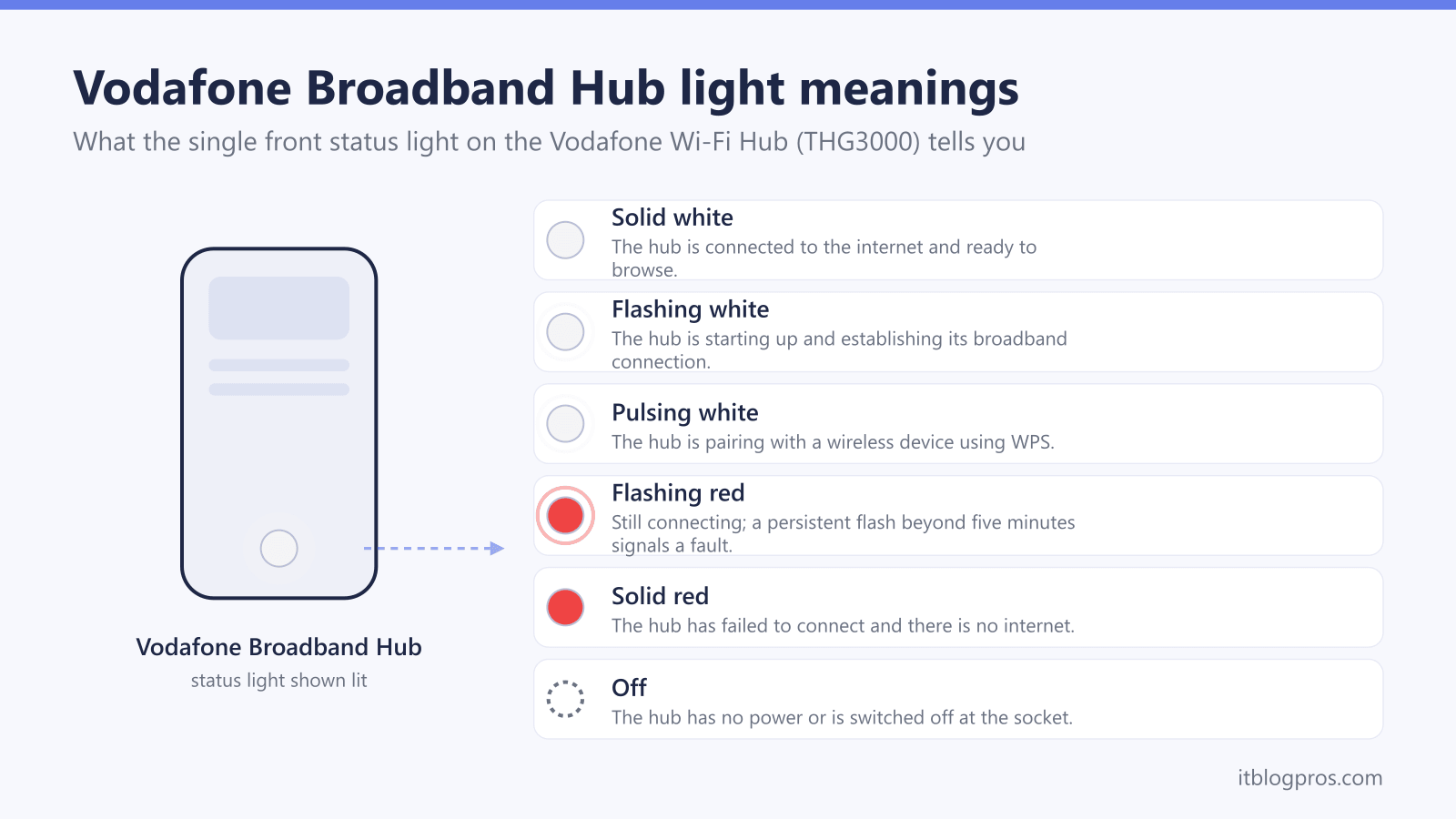
Here's the quick answer for every light state on the current Vodafone Broadband hubs (the WiFi Hub THG3000 and Ultra Hub). Match your light to the row below, then jump to the relevant fix.
| Light State | What It Means | What To Do |
|---|---|---|
| Solid white | Powered up, connected and working normally | Nothing; you're online |
| Flashing (pulsing) white | Starting up or re-establishing the connection | Wait up to 5 minutes for it to settle on solid white |
| Pulsing white (WiFi only) | Pairing a device via WPS | Hold your device near the hub until it connects |
| Flashing red | No internet; the hub is searching for a connection | Normal at startup; if it stays red past 5 minutes, follow the fixes below |
| Solid red | Critical fault or line failure | Power cycle once, then contact Vodafone if it persists |
| Double-blink red and green | Cannot establish a stable connection to Vodafone's network | Check cables and outages, then run a 30-second reset |
| No light | No power reaching the hub | Check the power cable and try another socket |
The rest of this guide focuses on the most common state, a flashing red light, and walks through every fix in order.
WiFi Hub (THG3000) vs Ultra Hub: Where the Lights Differ
The colour meanings above hold across both current hubs, but the two models show them in different places, so it is worth knowing which hub you have before you start matching lights.
On the older WiFi Hub (THG3000), the status lights sit in a row on the front of the unit and each one is labelled (Power, Internet, WiFi and Phone). When the connection drops, the dedicated Internet light is the one that flashes red; the Power light staying white tells you the hub itself is fine and the fault is on the line or upstream.
On the newer Ultra Hub (and the Wi-Fi 7 Ultra Hub 7), Vodafone moved the individual phone, internet, WiFi and 4G-backup indicators to the rear of the unit and left a single status LED on the front. That front LED flashes blue while the hub boots and settles on solid white once everything is working; a red front LED on the Ultra Hub therefore signals the same no-internet condition that the labelled Internet light shows on the THG3000. If your hub has just one light on the front, you have an Ultra Hub; if it has a row of named lights, you have the WiFi Hub.
For the colour meanings on every other UK provider's hub, see our router lights guide covering what every colour means, which acts as the hub for all of our individual light guides.
Quick Navigation
- What Does a Red Flashing Light Mean?
- All Vodafone Router Light Meanings
- 5-Minute Quick Fixes
- Advanced Troubleshooting
- When to Contact Vodafone
- FAQ
Understanding Your Vodafone Router Lights
Before we dive into fixes, let's understand what all the lights on your Vodafone router mean. This applies to most Vodafone router models including the Vodafone WiFi Hub, Ultra Hub, and Station.
Complete Vodafone Router Light Guide
| Light Color | Status | What It Means | Action Needed |
|---|---|---|---|
| Solid Green | Power | Everything working perfectly | None - enjoy your internet! |
| Flashing Red | Internet | No internet connection detected | Follow troubleshooting below |
| Solid Red | Internet | Critical connection failure | Contact Vodafone support |
| Flashing Amber/Orange | Power/Internet | Router starting up or firmware update | Wait 5-10 minutes |
| Solid Amber | Internet | Limited connectivity or setup mode | Check cables and configuration |
| Flashing Green | Internet | Connecting to network | Wait 2-3 minutes |
| Blue Light | WiFi | WiFi is active and working | Normal operation |
| No Lights | Power | No power to router | Check power cable and outlet |
Vodafone Router Flashing Red: The Meaning
A flashing red light on your Vodafone router's internet indicator means:
- No Internet Connection: The router can't connect to Vodafone's network
- Line Issue: Problem with your phone line or fiber connection
- Service Outage: Vodafone may be experiencing issues in your area
- Configuration Error: Router settings may need resetting
Why the red light happens
Common causes include:
- ✗ Loose or damaged cables
- ✗ Service outage in your area
- ✗ Unpaid bill or account issue
- ✗ Router firmware glitch
- ✗ Phone line or fiber connection problem
- ✗ Incorrect router configuration
5-Minute Quick Fixes for Flashing Red Light
Try these solutions in order - most people fix their issue with one of these steps:
The Flashing Red Fix Ladder
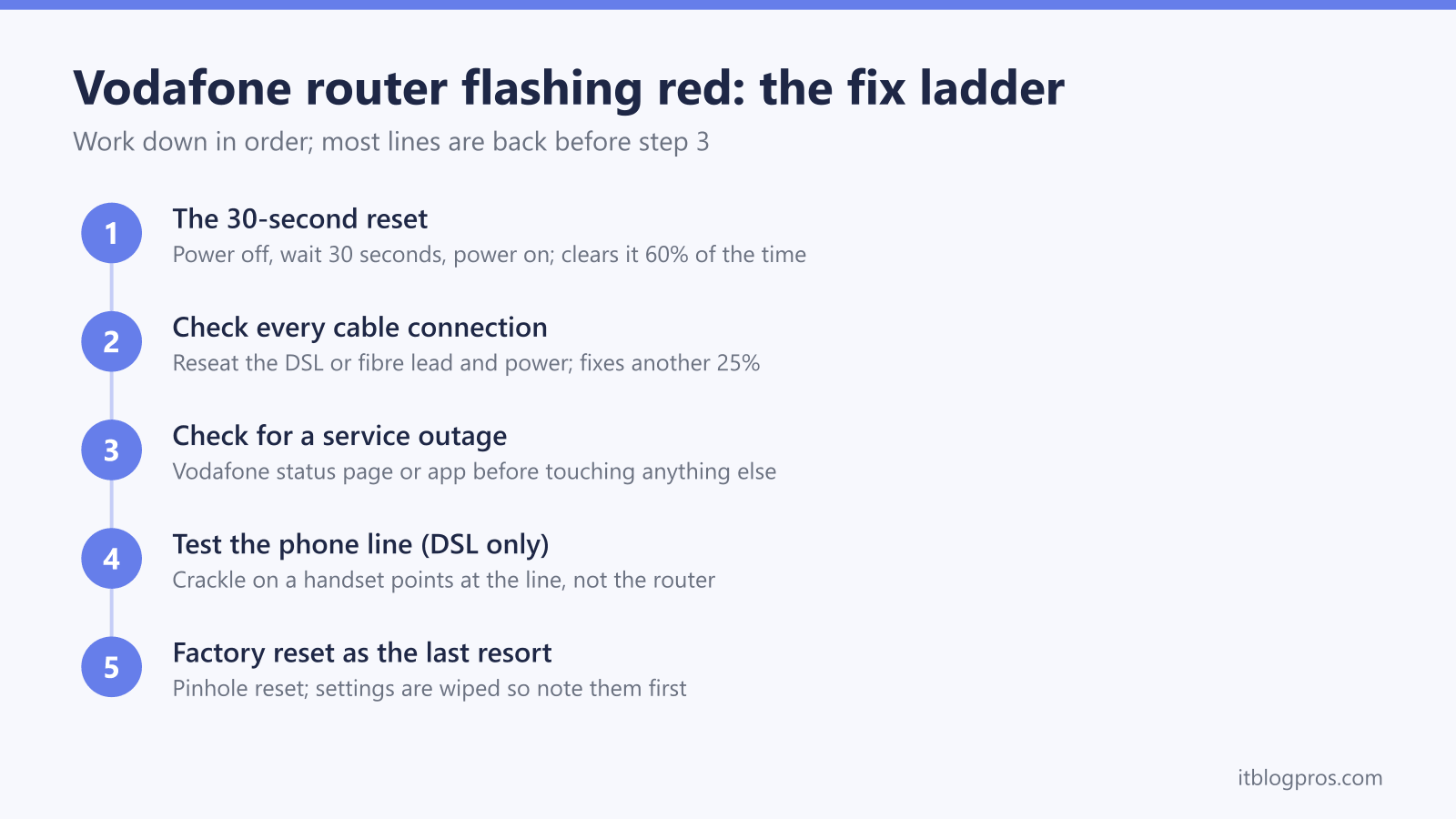
If you want the order at a glance before reading the detail, work down this ladder and stop at the step that brings the light back to solid white:
- Reboot the hub and wait a full 2 minutes. Power off, leave it off for two minutes so the connection fully drops, then power back on and allow up to 5 minutes to resync.
- Check the line and the master socket. Confirm the broadband cable runs into your master socket (not an extension), and test at the master socket only with extensions and microfilters removed.
- Check Vodafone's service status. Rule out an area outage before going further, using the status check in Fix 3 below.
- Factory reset the hub. Only after the steps above; this clears any bad configuration but wipes your custom settings, so treat it as a near-last resort.
- Escalate to Vodafone. If the light is still red after a reset, the fault is almost certainly on the line or account side and needs Vodafone support; see when to contact Vodafone below.
The sections that follow walk through each of these in full.
Fix 1: The 30-Second Reset (Start Here)
This simple reboot fixes most temporary glitches:
- Unplug the power cable from the back of your Vodafone router
- Wait exactly 30 seconds (this clears the router's memory)
- Plug back in and wait 3-5 minutes for full startup
- Check the lights - they should cycle through colors and settle on green
Why this works: Clears temporary cache and re-establishes connection to Vodafone's network.
Fix 2: Check All Cable Connections
A loose cable is a surprisingly common culprit:
- Power Cable: Ensure it's firmly connected to router and wall outlet
- DSL/Phone Cable (gray cable with RJ11 connector):
- Check connection to router's DSL port
- Check connection to master phone socket
- Look for any damage or kinks
- Fiber Cable (if you have fiber):
- Check connection to ONT (white box)
- Ensure fiber cable isn't bent at sharp angles
Pro Tip: Try a different phone socket if you have multiple in your home.
Fix 3: Check for Service Outages
Before spending more time troubleshooting:
- Check Vodafone Status: Visit Vodafone's network status checker
- Check Your Area: Enter your postcode to see local outages
- Ask Neighbors: Quick way to confirm if it's area-wide
- Social Media: Check @VodafoneUK on Twitter for updates
If there's an outage, you'll just need to wait it out - but at least you know it's not your equipment!
Fix 4: Test Your Phone Line (DSL Only)
If you have DSL (not fiber), test your phone line:
- Plug in a phone to your master socket
- Listen for dial tone - should be clear, no crackling
- If noisy or no dial tone: This is your issue - contact Vodafone
- Try the test socket: Most master sockets have a removable faceplate with a test socket behind it
Fix 5: Factory Reset Your Router
Warning: This erases all custom settings (WiFi name, password, port forwards, etc.)
- Locate the reset button - small pinhole on back of router
- Press and hold with a paperclip for 10-15 seconds
- Wait for lights to flash and router to restart (5-10 minutes)
- Reconfigure: You'll need to set up WiFi name and password again
When to use this: If you've recently changed settings or suspect a configuration issue.
Advanced Troubleshooting
If the quick fixes didn't work, try these more advanced solutions:
Check Your Vodafone Account Status
Sometimes the issue isn't technical at all:
- Log into My Vodafone: Check your account online or via app
- Verify payment: Ensure your last bill was paid
- Check for notifications: Look for any service messages
- Account restrictions: Ensure no holds or restrictions on your account
Update Router Firmware
Outdated firmware can cause connection issues:
- Connect via Ethernet cable to router
- Access router settings: Open browser and go to
http://192.168.1.1(our 192.168.1.1 router login guide covers what to do if that page will not load) - Login: Default username is often "admin" (check router label)
- Check for updates: Look in System or Administration section
- Install updates: Follow on-screen instructions
- Wait for restart: Don't interrupt the process
Test with Different Equipment
Isolate whether it's the router or line:
- Try a different router (if you have a spare)
- Test at the test socket (if DSL)
- Check the ONT (if fiber) - should have green lights
Check for Line Noise (DSL)
Electrical interference can disrupt DSL connections:
Common Culprits:
- Sky boxes or Virgin Media equipment on same phone line
- Poorly fitted phone extension sockets
- Old phone wiring
- Lack of microfilters on phone extensions
- Electrical equipment near phone line
Solution: Disconnect all phone extensions and test at master socket only.
Environmental Factors
Your router's environment matters:
- Heat: Ensure router has good ventilation
- Moisture: Keep away from bathrooms, kitchens
- Electrical Interference: Move away from microwaves, baby monitors
- Physical Damage: Check for any damage to router casing
Vodafone Router Models: Specific Guidance
Vodafone WiFi Hub (THG3000)
Most Common Issues:
- Red flashing on "Internet" light
- Overheating in warm rooms
- 5GHz band dropping
Specific Fixes:
- Ensure router is upright (not on its side)
- Keep away from heat sources
- Update to latest firmware (V2.01.06 or newer)
Vodafone Ultra Hub (THG3000G)
Known Issues:
- Red light after power outage
- Slow reconnection times
- WiFi dropping on 5GHz
Specific Fixes:
- Disable Smart WiFi in settings
- Manually select WiFi channels
- Position vertically with vents clear
Vodafone Station (Older Model)
Common Problems:
- Red light persistent after line test
- Slow ADSL speeds
- Firmware not updating
Specific Fixes:
- May need VDSL plate replacement
- Check you're connected to master socket
- Consider upgrading to newer router model
When to Contact Vodafone Support
Contact Vodafone if:
- ✓ Red light persists after all troubleshooting
- ✓ You hear noise or crackling on your phone line
- ✓ No dial tone on connected phone
- ✓ Your internet has been down for 24+ hours
- ✓ Router lights are completely off despite power connection
- ✓ You've confirmed neighbors have working Vodafone service
Related Reset and Light Guides
If the hub needs a clean reset rather than a power cycle, our guide to resetting a BT broadband router walks through the same paperclip-reset method that applies to most providers. If you arrived here from a different provider, we also cover the EE router lights and how to fix them and the Virgin Media Hub lights across all models.
How to Contact Vodafone
Best Methods:
- My Vodafone App: Fastest for technical support
- Phone: 191 from Vodafone mobile, 03333 040 191 from other phones
- Online Chat: Available 24/7 via Vodafone website
- Social Media: @VodafoneUK on Twitter (surprisingly effective!)
What to Have Ready:
- Your Vodafone account number
- Router model number (on label underneath)
- Description of issue and troubleshooting steps tried
- Any error messages or light patterns
Preventing Future Issues
Regular Maintenance
Monthly:
- Check all cable connections are secure
- Verify router vents aren't blocked
- Update router firmware if available
- Check for service updates from Vodafone
Quarterly:
- Clean dust from router vents with compressed air
- Check cables for wear or damage
- Review and optimize router placement
- Test backup power solutions
Optimal Router Placement
Position your Vodafone router:
- ✓ Central location in your home
- ✓ Elevated (on shelf, not on floor)
- ✓ Away from walls and metal objects
- ✓ Not in enclosed spaces (cupboards, drawers)
- ✓ Away from other electronic devices
- ✓ Near your master phone socket (for DSL)
Consider These Upgrades
If you're constantly having issues:
Mesh WiFi System
If your issue is actually WiFi coverage rather than connection:
TP-Link Deco X10 Mesh System
Be honest about what this buys you. A mesh fixes coverage, so it is worth the money only when the hub reaches the internet perfectly well and simply cannot reach the back bedroom. It will not clear a flashing red light, because a red light means the hub has no connection at all, and spreading a connection that does not exist changes nothing.
Where the X10 suits a Vodafone setup specifically is that TP-Link lists access-point mode alongside router mode, so the Deco can carry the WiFi while the Vodafone hub stays in charge of the connection itself. That matters more on Vodafone than on most providers: Vodafone's own help pages state that its router is required on Pro Broadband, on 5G Broadband and on any plan that includes Digital Voice, so for a lot of customers the hub is staying put whatever they buy alongside it.

Ethernet Cables
For anything that matters, a cable takes WiFi out of the equation altogether, which also makes it the quickest way to prove whether a problem is the line or the wireless.
Powerline Adapters
Powerline adapters carry the connection over your mains wiring, which can reach a room WiFi will not cover and where running a cable is impractical. Results depend heavily on the state of the house wiring and which circuits the sockets sit on, so treat them as a workaround rather than a guaranteed fix.
Other Vodafone Router Light Issues
Solid Red Light (Critical Failure)
What It Means: Major hardware or line fault
Immediate Actions:
- Check if your account is active and paid
- Verify phone line has dial tone
- Test at master socket (DSL) or ONT (fiber)
- Contact Vodafone immediately - likely needs engineer visit
Flashing Amber/Orange Light
What It Means: Router is starting up or updating
What To Do:
- Wait 5-10 minutes for startup to complete
- Don't interrupt if it's updating firmware
- If persists beyond 15 minutes: Power cycle router
- If continues: May indicate failed firmware update - contact support
No Lights At All
What It Means: No power to router
Troubleshooting:
- Check power cable is firmly connected both ends
- Try different power outlet
- Check if outlet has power (test with phone charger)
- Inspect power cable for damage
- Try different power adapter if available
- If nothing works: Router may be faulty - contact Vodafone
Flashing Green Light (Normal)
What It Means: Router is connecting to network
What To Do:
- This is normal during startup
- Should change to solid green within 2-3 minutes
- If flashing green continues: Follow red light troubleshooting above
Understanding Vodafone Connection Types
ADSL/VDSL (DSL)
Uses: Copper phone lines Typical Speeds: 10-80 Mbps Router Connection: DSL port → Phone socket
Common Issues:
- Line noise affecting connection
- Distance from exchange limits speed
- Old phone wiring causing problems
Diagnosis: Phone line noise or no dial tone = line fault
Fiber to the Cabinet (FTTC)
Uses: Fiber to cabinet, copper to home Typical Speeds: 40-80 Mbps Router Connection: Same as ADSL but faster
Common Issues:
- Same as DSL but generally more stable
- Cabinet issues can affect whole street
Fiber to the Home (FTTH)
Uses: Full fiber optic connection Typical Speeds: 100-900 Mbps Router Connection: Router → ONT (white box)
Common Issues:
- ONT power issues
- Fiber cable damage
- Generally most reliable connection type
Frequently Asked Questions
Q: How long should I wait for my Vodafone router to connect? A: Normal startup is 3-5 minutes. If red light persists beyond 10 minutes, start troubleshooting.
Q: Will resetting my router delete all my settings? A: A power cycle (unplug/replug) keeps settings. A factory reset (pinhole button) erases everything.
Q: Can I use my own router with Vodafone? A: Yes, but you'll need to configure VLAN tagging and PPPoE settings. Vodafone provides these details upon request.
Q: Why does my Vodafone router keep flashing red at night? A: Could be scheduled maintenance, line noise from electrical interference, or router overheating during peak use.
Q: Is a flashing red light covered by warranty? A: If it's a router fault, yes. If it's a line issue, that's a different support process. Vodafone will diagnose this.
Q: How do I know if it's my router or the phone line? A: Test your phone line - if there's no dial tone or crackling noise, it's the line. If dial tone is clear, likely the router.
Q: Can weather affect my Vodafone connection? A: Heavy rain can affect older copper phone lines. Fiber is generally weather-resistant unless physically damaged.
Q: Should I buy my own Vodafone router? A: Only if your current one is faulty and out of warranty. Vodafone provides replacements for genuine faults.
Q: What's the difference between red flashing and solid red? A: Flashing = trying to connect but failing. Solid = critical failure, no connection attempt possible.
Q: How often should I restart my Vodafone router? A: Monthly restarts are good practice, but not required unless experiencing issues.
When the Light Is Still Red
If you've tried everything in this guide and still have a flashing red light:
Next Steps:
- Document Everything: Note all troubleshooting steps you've tried
- Take Photos: Of router lights and cable connections
- Test at Different Times: Note if issue is time-specific
- Contact Vodafone: With all your documentation ready
Escalation Process:
- First Contact: Technical support via app/phone
- If Unresolved: Request engineer visit
- If Still Unresolved: Ask to escalate to senior technical team
- Last Resort: Complaints procedure via Vodafone website
Summary: Quick Reference Guide
Red Flashing Light - Try In This Order:
- ✓ Unplug router for 30 seconds
- ✓ Check all cables are secure
- ✓ Verify no service outage in your area
- ✓ Test phone line for dial tone (DSL)
- ✓ Factory reset router (if comfortable)
- ✓ Contact Vodafone support
Most Issues Are Fixed By, In Rough Order:
- A simple power cycle, which clears the large majority of flashing red lights
- Checking and reconnecting the cables, especially at the master socket
- Waiting out a service outage that is nothing to do with your kit
- A Vodafone engineer visit, which is the least common outcome of the four
When In Doubt:
- Check Vodafone status page first
- Try the simple fixes before calling support
- Keep all your account details handy
- Don't interrupt firmware updates
Related Vodafone Guides
- If the hub is genuinely tired rather than just glitching, the best router for Vodafone broadband covers what to run behind it and how to set it up.
- For every hub light colour and what each one means, see the Vodafone router lights guide.
- For no internet, slow speeds or dropouts beyond the red light, the Vodafone broadband not working fixes work through it in order.
A Vodafone router flashing red rarely means disaster; in most cases it is a quick fix. If this guide solved it, a quick note through the contact page telling us which step worked helps keep the guide sharp.