
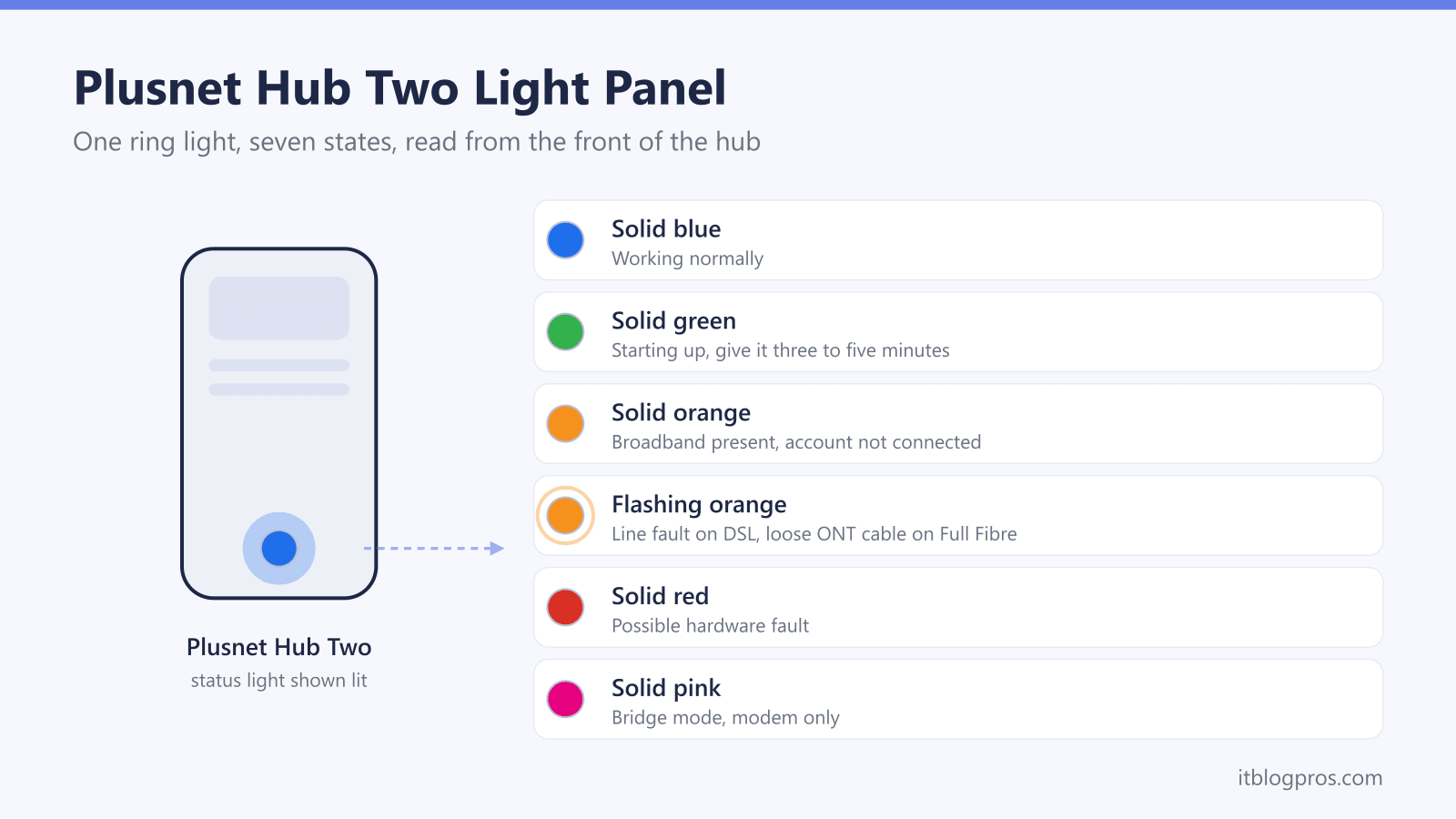
A Plusnet hub tells you what is wrong before you open a single settings page, provided you know which colour maps to which fault. The trouble is that Plusnet ships two very different designs. The Hub Two carries one ring light that changes colour, so a single glance covers power, line and account status. The Hub One splits the same information across a power light, a broadband light and a wireless light, and the same colour can mean different things depending on which of those three is lit. Everything below comes from Plusnet's own router guides and help videos for those two hubs, with the Full Fibre and DSL differences kept separate, because a flashing orange light does not mean the same thing on both.
On a Plusnet Hub Two, blue means the connection is working, green means the hub is still starting up, solid orange means broadband reaches the hub but the account is not connected, flashing orange means a line fault or a loose ONT cable, red means a possible hardware fault, and pink means bridge mode. On a Hub One, the power, broadband and wireless lights each carry their own meaning and must be read separately.
Key Takeaways
- Blue is the only fully healthy colour on a Hub Two, and green simply means the hub has not finished starting up yet.
- Solid orange points at the account or an activation that has not completed, while flashing orange points at the phone line on DSL or the ONT cable on Full Fibre.
- Pink is bridge mode rather than a fault, and it clears from Advanced settings in the Hub Manager without a full reset.
- A hub showing no light at all may have been dimmed, switched off or put on a schedule in Hub light control rather than losing power.
- A factory reset needs 20 seconds on the pinhole and returns the WiFi name, WiFi password, admin password and light schedule to the values printed on the card.
Plusnet Hub Light Colours and What Each One Means
| Light | What it means | What to do |
|---|---|---|
| Hub Two: solid blue | The hub is working and the broadband connection is up. | Nothing is wrong with the hub. If one device still cannot get online, restart that device rather than the hub. |
| Hub Two: solid green | The hub is powered on and still starting up, so it has not finished connecting. | Leave it alone for three to five minutes and it should turn blue on its own. If it stays green, switch it off at the rear power switch, wait 30 seconds and switch it back on. |
| Hub Two: solid orange | Broadband reaches the hub but the internet connection is not established, which on a new line usually means the account has not been switched on yet. | On an activation day, wait until after midnight before treating this as a fault. Otherwise restart the hub, then factory reset it and allow five minutes for it to set itself up again. |
| Hub Two: flashing orange | A problem with the broadband line on a DSL connection, or a disconnected Ethernet cable between the hub and the ONT on Full Fibre. | On DSL, reseat the broadband cable and check the microfilter. On Full Fibre, push the red-ended Ethernet cable firmly into the hub and into PORT1 or LAN1 on the ONT. |
| Hub Two: solid red | The hub has detected a problem and may have a hardware fault. | Switch it off and on again first. If it stays red, hold a paper clip in the reset pinhole for 20 seconds. A red light that survives a factory reset needs a replacement hub from Plusnet. |
| Hub Two: solid pink | The hub has been put into bridge mode, so it is acting as a modem only rather than handling WiFi and addressing. | Sign in at 192.168.1.254, open Advanced settings, then Broadband, and untick the Bridge mode box. A factory reset also clears it. |
| Hub Two: no light | Either the hub has no power, or the light has been switched off, dimmed or put on a schedule in the Hub Manager. | Check the plug at the wall and the power switch on the back. If WiFi is still working normally, the light was almost certainly turned off or scheduled rather than lost. |
| Hub Two: WPS light flashing blue | The hub is waiting for the WPS button to be pressed on the device being paired. | Press the WPS or Connect button on that device while the light is still flashing. |
| Hub Two: WPS light flashing red | The WPS pairing attempt did not complete. | Wait two minutes before trying again, or skip WPS entirely and join the network with the WiFi password printed on the card. |
| Hub One: power light blue | The hub is working normally. | Nothing to do on the hub. Look at the settings on whichever device cannot connect. |
| Hub One: power light green or flashing green | The hub is starting up. | Wait for it to settle. The power light stays blue once the hub is ready. |
| Hub One: power light orange | There is a problem with the connection. | Sign in to the Hub Manager at 192.168.1.254 to see what the hub reports about the line, then restart the hub. |
| Hub One: power light red | There is a problem with the hub itself. | Use Restart in the Hub Manager. If the light is still red afterwards, factory reset the hub with a paper clip held in the reset pinhole for 20 seconds. |
| Hub One: power light off | The hub has no power. | Check the mains socket, check the power switch is pressed in and make sure the power cable is pushed fully home. |
| Hub One: broadband light orange | Broadband reaches the hub but the account has not been activated yet. | Wait for the activation email or text from Plusnet, and allow until after midnight on the activation date before reporting a fault. |
| Hub One: broadband light red | The broadband username or password the hub is sending is being rejected. | Factory reset the hub so it collects the correct settings again on its next connection attempt. |
| Hub One: broadband light flashing red | There is a problem with the broadband line. | Check the broadband cable and every microfilter on the line, then test the hub at the master socket with everything else unplugged. |
| Hub One: wireless light orange | Wireless security has been turned off, so the network is running unprotected. | Turn wireless security back on in the Hub Manager at 192.168.1.254. |
| Hub One: wireless light flashing orange | The hub is in WPS pairing mode. | Press the Connect or WPS button on the device being paired, or wait for the mode to time out. |
Identifying Your Plusnet Hub Before Reading the Light
Two hubs dominate Plusnet homes, and they report faults in completely different ways.
The Hub Two is the current model and the one Plusnet supplies with Full Fibre. It has a single ring light set into the front face, showing one colour at a time. That one light covers power, startup, line status, account status and bridge mode, which is why the colour matters so much on this model.
The Hub One is the older model still in plenty of homes. It splits the same information across three separate indicators: a power light, a broadband light marked with a small b, and a wireless light. Orange on the power light and orange on the broadband light mean two different things, so identify which light is lit before acting on any advice.
Plusnet also still lists two legacy routers in its user guides, the 2704n and the 582n. Those use labelled indicators rather than a colour-coded ring, and their states are documented separately by Plusnet rather than covered by the colours on this page.
If the model name is not obvious, it is printed on the card stored on the back of the hub, alongside the default WiFi name, the WiFi password and the admin password. Both current hubs use the same Hub Manager address, 192.168.1.254, so the sign-in page does not tell the models apart.
The Fix Order for a Plusnet Fault Light
Working through the states in order avoids the most common mistake, which is factory resetting a hub that was only halfway through starting up.
Rule out activation first. A solid orange light on a hub that has never worked is usually an account that is not switched on rather than a broken hub. Plusnet asks customers to wait until after midnight on the day the service goes live before treating orange as a fault. Check for the confirmation email or text before doing anything else.
Restart the hub the slow way. Use the power switch on the back rather than pulling the plug, wait 30 seconds, then leave the hub alone for a full five minutes. A Hub Two goes green while it starts and turns blue when it is ready, so judging the colour after 40 seconds tells you nothing useful.
Check the physical link next. On a DSL line, pick up the phone with it plugged in and listen for a dial tone. A silent or noisy line is a phone line fault, and broadband will not work until it is fixed. Confirm that every device sharing the line, including Sky boxes, answerphones and alarms, runs through a microfilter. On Full Fibre there is no phone line to test, so the equivalent check is the ONT: PON should be solid green, LOS should be off, and the red-ended Ethernet cable should be firmly seated in PORT1 or LAN1.
Isolate at the master socket. Still on DSL, unplug everything from every socket in the house, leave only the hub connected, and move it to the master socket, which carries the Openreach branding and a horizontal split across the faceplate. If the light goes blue there, the fault is an extension lead or one of the devices you unplugged. Plug them back one at a time to find the culprit.
Only then reset. A factory reset is the last self-service step, not the first, and the section below explains exactly what it costs you.
Flashing Orange Means Different Things on DSL and Full Fibre
This is the single state most likely to send a Plusnet customer down the wrong path.
On a DSL connection, Plusnet documents a flashing orange light as a problem with the broadband line itself. The fix is the cable and microfilter check above, followed by the master socket test. If the light still flashes orange with the hub alone at the master socket, the line needs reporting and Openreach may need to attend.
On Full Fibre, the phone line is not carrying the broadband at all, and Plusnet documents flashing orange on the hub as a disconnected Ethernet cable between the hub and the ONT. That is the small wall-mounted fibre box, and the cable in question is the one with red ends. Check it is pushed fully into the hub's WAN port and into PORT1 or LAN1 on the ONT. Restarting the ONT and confirming PON is green with LOS off comes next.
The practical consequence is that a Full Fibre customer chasing a phantom line fault is usually looking at a cable that has been nudged out of a socket behind the furniture. Check that before booking anything.
A Pink Light Means Bridge Mode Rather Than a Fault
A pink Hub Two is not broken. Pink means the hub has been switched into bridge mode, which turns it into a modem only. It stops handling WiFi and addressing and passes the connection straight through to whatever is plugged into it. Anyone who did not deliberately set that up will find WiFi has disappeared even though the broadband itself is fine.
Two routes clear it. The gentler one is the Hub Manager: go to 192.168.1.254, open Advanced settings, then Broadband, scroll to the bottom and untick the Bridge mode box. That leaves every other setting intact. The blunt route is a factory reset, which clears bridge mode along with everything else.
The pink light is also useful information for anyone who wants better hardware. It confirms bridge mode exists on the Hub Two, which is what makes running a third-party router in front of a Plusnet connection practical rather than a fight. The trade-offs and the settings involved are covered in the guide to using your own router with Plusnet.
Dimming, Scheduling and Switching Off the Hub Light
A dark hub is not automatically a dead hub, and this catches people out often enough to be worth checking before any troubleshooting starts.
Plusnet builds light control into the Hub Two's own settings page. Go to 192.168.1.254 in a browser, and the Hub Manager home page shows eight tiles: Status, Wireless, My devices, Help, Hub light control, Broadband performance test, Restart the hub, and Advanced settings. Select Hub light control. It asks for the admin password, which is printed on the card on the back of the hub.
Three options sit behind that tile:
- Turn the light off completely. Choosing this hides the settings below it, because there is no brightness or schedule to set once the light is off.
- Change the brightness. A slider dims the ring without switching it off, which suits a hub in a bedroom or beside a television.
- Set a schedule. Pick a Turn light on at time and a matching time to turn it off, then press Save. A hub scheduled to go dark at 10pm will look identical to a hub that has lost power.
So if the light is off but WiFi is working, devices are online and the Hub Manager loads, nothing is wrong. Someone has dimmed or scheduled the light. Signing into Hub light control will show which.
What a Factory Reset Wipes on a Plusnet Hub
Both current hubs reset the same way. Use a paper clip, pen or something similarly pointed to press the reset pinhole on the back, near the power connector. Hold it for 20 seconds. Release when the light on the front turns or flashes green. When the light turns blue, the reset has finished. Plusnet advises allowing around five minutes for the hub to set itself up again afterwards.
A reset restores the hub to the settings it had when it arrived, which means the following are lost:
- Any custom WiFi name and password, which revert to the values printed on the card on the back. Every phone, laptop, television, printer and smart plug in the house must then be rejoined using those printed details.
- A changed admin password, which also reverts to the card value.
- Bridge mode, which is cleared, so a pink hub comes back as a normal router.
- The hub light schedule and brightness, which are cleared, so a light deliberately switched off will come back on and need setting again.
- Any other settings changed in the Hub Manager, including anything configured under Advanced settings.
The expensive part is the WiFi credentials. Households that renamed the network to match an old router so that nothing needed re-pairing will undo exactly that convenience with a reset. Note the current WiFi name and password down first if you have ever changed them. The same caution applies across brands, and the hold times and pitfalls for other providers are collected in the guide to resetting a router on every UK ISP.
When Only Plusnet Can Fix the Fault
Several states are outside what any amount of cable wiggling will solve.
Red after a factory reset. Plusnet's own guidance is explicit that a hub still showing red once it has been reset needs to be reported. That is a hardware failure and the hub needs replacing.
Broadband light red on a Hub One. This is an authentication failure, meaning the credentials the hub sends are being rejected. A reset often fixes it because the hub re-collects its settings, but if it returns, the problem sits on the account rather than in the house.
Orange past the activation date. If the day has passed, midnight has come and gone, and the light is still solid orange, the provisioning did not complete and Plusnet has to push it through.
Line and ONT faults. A DSL line that stays flashing orange with the hub alone at the master socket, or a Full Fibre ONT showing LOS lit or PON dark, is an Openreach matter that only Plusnet can raise on your behalf.
Plusnet takes reports through plus.net/contact-us or on 0800 432 0200, and Full Fibre customers can text HELP to 07800008121.
One related point worth knowing before you diagnose a dead dial tone as a broadband symptom. Plusnet does not sell a digital voice product of its own, and its packages are moving to broadband only, so the traditional dial tone test will not apply to every household for much longer. The analogue landline switch-off lands on 31 January 2027, and Plusnet customers who still need a home phone are being pointed at EE rather than to a Plusnet replacement. What that means in practice is set out in the guide to the 2027 landline switch-off.
For colours on hardware from other providers, the cross-brand reference is the router lights guide.