
192.168.0.254 is mainly a range extender and access point address, not a broadband hub address. TP-Link's support pages give it for its range extenders, its TL-WA access points, its Omada EAP units and its Pharos outdoor kit, and Tenda's FAQs give it for Tenda extenders and access points.
The catch is that the address only works at certain moments. TP-Link's troubleshooting FAQ says an extender uses 192.168.0.254 until it is connected to a router, after which the router hands it a different address. This guide sets out which devices use the address, the login each maker documents, the fixes when the page will not open and the reset as each maker describes it.
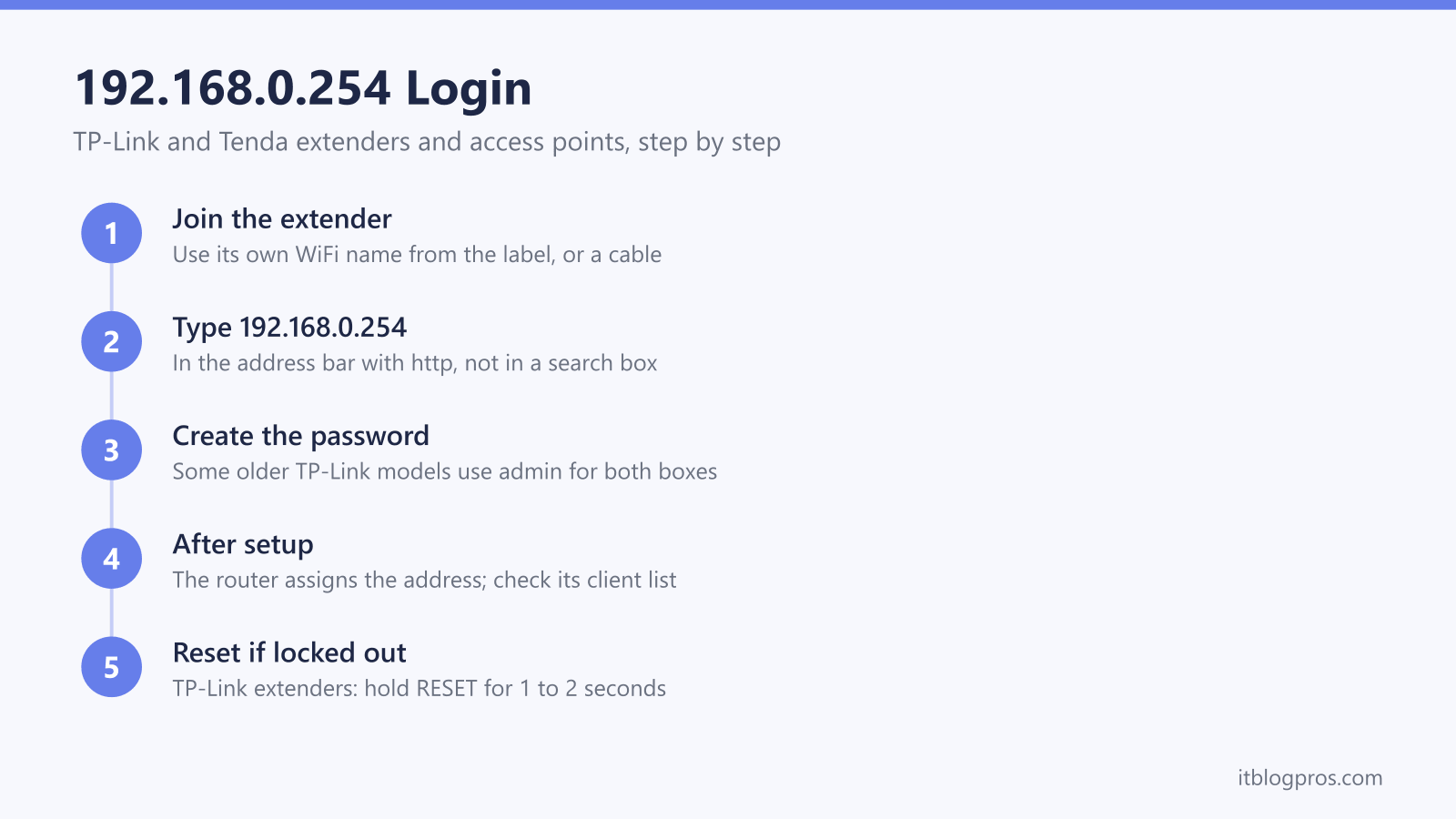
192.168.0.254 is the default address TP-Link documents for its range extenders and access points, and Tenda for its extenders and access points. Join the device's own WiFi or plug in a cable, then type http://192.168.0.254 into the address bar. TP-Link's login FAQ says a first visit asks for a new administrator password, and that some older models use admin for both boxes.
Key Takeaways
- TP-Link's extender login FAQ gives http://192.168.0.254 as the address for a range extender in its factory default state, alongside tplinkrepeater.net.
- TP-Link's troubleshooting FAQ says the router assigns the extender's address once the two are connected, so the number to use is then in the router's client list.
- TP-Link's current login FAQ says a first visit prompts for a new administrator password, and that some older models use admin as both username and password.
- TP-Link's reset guide gives 1 to 2 seconds on the RESET button for range extenders and 8 to 10 seconds for its TL-WA access points.
- 192.168.1.254 is a different address: the BT, EE and Plusnet help pages each give it for their own broadband hubs.
192.168.0.254 Is an Extender and Access Point Address
The makers' own pages tie 192.168.0.254 to these product families.
| Product | Address on the maker's page | Login on the maker's page |
|---|---|---|
| TP-Link range extenders | TP-Link's extender login FAQ: tplinkrepeater.net, or http://192.168.0.254 on a factory default unit | A password created at first login; admin for both boxes on some older models |
| TP-Link TL-WA access points | TP-Link's access point FAQ: tplinkap.net or 192.168.0.254 | A password created at first login; admin for both on some older models |
| TP-Link Omada EAP access points | Omada's standalone login guide: 192.168.0.254 when no router is handing out addresses | admin for both boxes |
| TP-Link Pharos CPE210 and CPE510 | TP-Link's Pharos login FAQ: 192.168.0.254 | admin for both, changed at first login |
| Tenda range extenders | Tenda's extender FAQ: re.tenda.cn or 192.168.0.254 | Not given in the FAQ |
| Tenda access points | Tenda's access point FAQ: 192.168.0.254 | Not given in the FAQ |
It is not a universal address. Netgear's support article for the WAC104 access point gives 192.168.0.100, and D-Link's FAQ for its DWL access points gives 192.168.0.50. TP-Link's FAQ on changing a device's address says its access points and extenders use 192.168.1.1, 192.168.1.254 or 192.168.0.254 depending on the model, and tells owners to check the label on the bottom of the device.
How to Log In at 192.168.0.254
- Connect to the device itself. TP-Link's extender login FAQ says the phone or computer must be connected to the extender, by Ethernet cable or over its own WiFi, using the default network name and password on the label for a first visit. Tenda's extender FAQ names its setup network as Tenda-EXT, with no WiFi password by default.
- Type the address into the address bar. TP-Link's FAQ writes it as http://192.168.0.254. A search box will not find it, because the address exists only on the device's own network.
- Create or enter the password. The next section sets out which applies.
TP-Link's older extender FAQ gives a quick way to confirm the connection: a computer correctly joined to a factory default extender shows an IPv4 address beginning 192.168.0 and a default gateway of 192.168.0.254. On Windows, the ipconfig command in Command Prompt shows both.
The tplinkrepeater.net login guide covers the name-based route and the browser security warning in full.
The Login Depends on the Product and Its Age
TP-Link's current extender login FAQ says the first visit to the management page prompts for a new administrator password, so there is no factory password to look up. It adds that on some older models the default username and password are both admin, and that an extender linked to a TP-Link ID opens with that account's details.
TP-Link's pages do not agree on where the line between old and new falls. An older TP-Link FAQ, dated June 2022, tells owners to enter admin in both boxes and lists the RE200, RE220 and RE705X among its models, while the current FAQ lists the same three under its create-a-password steps. Neither page gives a cut-off by hardware version, so the login page itself is the guide: one that asks for a new password has never been set up.
TP-Link's access point login FAQ follows the same pattern, and the TL-WA901N V6 user guide has owners log in with the password they created. Omada's standalone guide for EAP units and TP-Link's Pharos FAQ both give admin, in lower case, for the username and the password. Tenda's extender and access point FAQs give the address but no login password, so check the label and the model's own guide.
192.168.0.254 Stops Working Once the Extender Joins the Router
An address that opened the setup page can stop loading once setup is finished. TP-Link's troubleshooting FAQ says 192.168.0.254 is the address to use while the extender is not connected to a router, and that once it is connected the address "will be assigned by the front router". TP-Link's access point FAQ says the same of the TL-WA range: unless a static address was set on it, the main router assigns the access point a new address and 192.168.0.254 might not work.
TP-Link's pages give three ways back in.
- The router's client list. The troubleshooting FAQ says to log in to the router, find the extender in its client list and use the address shown there. The 192.168.0.1 login guide and the router login guide cover getting into the router itself.
- The name in place of the number. TP-Link's extender login FAQ gives tplinkrepeater.net as the main address, from a device connected to the extender. Where the extender shares the router's WiFi name, the same FAQ says to switch the main router off for a moment so the device joins the extender.
- The Tether app. TP-Link's extender setup FAQ says to connect the phone to the extender's WiFi, open Tether and tap the extender to log in, and that the app and the web page share one password.
Fixes When 192.168.0.254 Will Not Open on a New Unit
TP-Link's troubleshooting FAQ for extenders works through the causes in this order.
- The device is on the wrong network. Check the Ethernet cable at both ends, or confirm the device has joined the extender's WiFi, and turn off mobile data on a phone.
- The computer has no usable address. TP-Link says to set the computer to obtain an IP address automatically. An address starting 169, or 0.0.0.0, means the settings need checking again or the extender needs a restart; an address starting 192 means the page is worth trying.
- The browser or security software is in the way. TP-Link suggests a private or incognito window, clearing the DNS cache or trying another browser, then closing firewall or antivirus software for a moment.
Three product families need the opposite of step 2. Omada's guide for an EAP on a network with no router, TP-Link's Pharos FAQ and Tenda's access point FAQ each tell the owner to give the computer a fixed address in the 192.168.0 range first (Omada's example is 192.168.0.100), then open 192.168.0.254, and Omada's guide says to restore the computer's settings afterwards.
Typos and the 192.168.1.254 Mix-Up
The address is four numbers separated by full stops, with a zero in the third place. The slips to look for are a letter o in place of the zero (192.168.o.254), spaces or commas in place of the full stops (192 168 0 254) and a missing or extra digit. Most of them send the browser to a search page, not a login page.
192.168.1.254 is a different address. BT's help page gives 192.168.1.254 for its Hub Manager, EE's help page gives it for the EE hub and Plusnet's Hub Two guide gives it for the Hub Two. On those lines the hub is at 192.168.1.254, which the BT Hub Manager guide covers, and an extender plugged in elsewhere in the house is at 192.168.0.254 only until it has been set up.
The Reset, as Each Maker Describes It
A reset clears a forgotten password. TP-Link's troubleshooting FAQ says to try 192.168.0.254 again after one, and Tenda's reset page for the A33 V2.0 says a reset restores 192.168.0.254 as the login address. TP-Link's own pages give slightly different hold times for extenders.
| Device | Reset on the maker's page |
|---|---|
| TP-Link range extenders | TP-Link's reset guide: with the unit powered on, hold RESET with a pin for 1 to 2 seconds, until all the lights go off and the power light blinks. Its setup FAQ says 1 second on current firmware and about 5 seconds on some earlier firmware |
| TP-Link TL-WA access points | TP-Link's reset guide: hold RESET with a pin for 8 to 10 seconds, until all the lights flash, go off and some come back on slowly |
| Tenda range extenders | Tenda's extender FAQ: press the RST button with a needle until the indicator is steady red and then blinks red, with no time given. Its A33 V2.0 page says about 8 seconds |
The Omada and Pharos login pages give no reset time. TP-Link's user guide for the RE215 and RE315 offers a route that avoids a reset: where the extender is linked to a TP-Link ID, or Password Recovery was switched on, the Forgot Password link on the login page restores access. TP-Link's setup FAQ says the extender must be set up again after any reset.
When the Extender Is the Problem, Not the Address
A settings page cannot fix a badly placed extender. The guide to a WiFi booster or extender that is not working works through dropouts and slow speeds, and the extender versus mesh comparison covers the homes where a different kind of kit is the better answer. For anyone replacing an old unit, the TP-Link extender guide sets out the current models.