Typing an eero login into a browser, the way it works for other routers, leads nowhere. eero's own help article says the network can only be managed using the mobile app and cannot be configured through a web browser. There is no admin page to find and no default username or password to look up.
The sign-in that does exist is for the eero account, inside the eero app, using a one-time code or a linked Amazon account. This guide covers that sign-in, the fixes when the code does not arrive, where eero's help articles put the WiFi name, guest network, connected devices, port forwarding, DNS and bridge mode, what eero Insight is, and what changes on an eero supplied by a broadband provider.
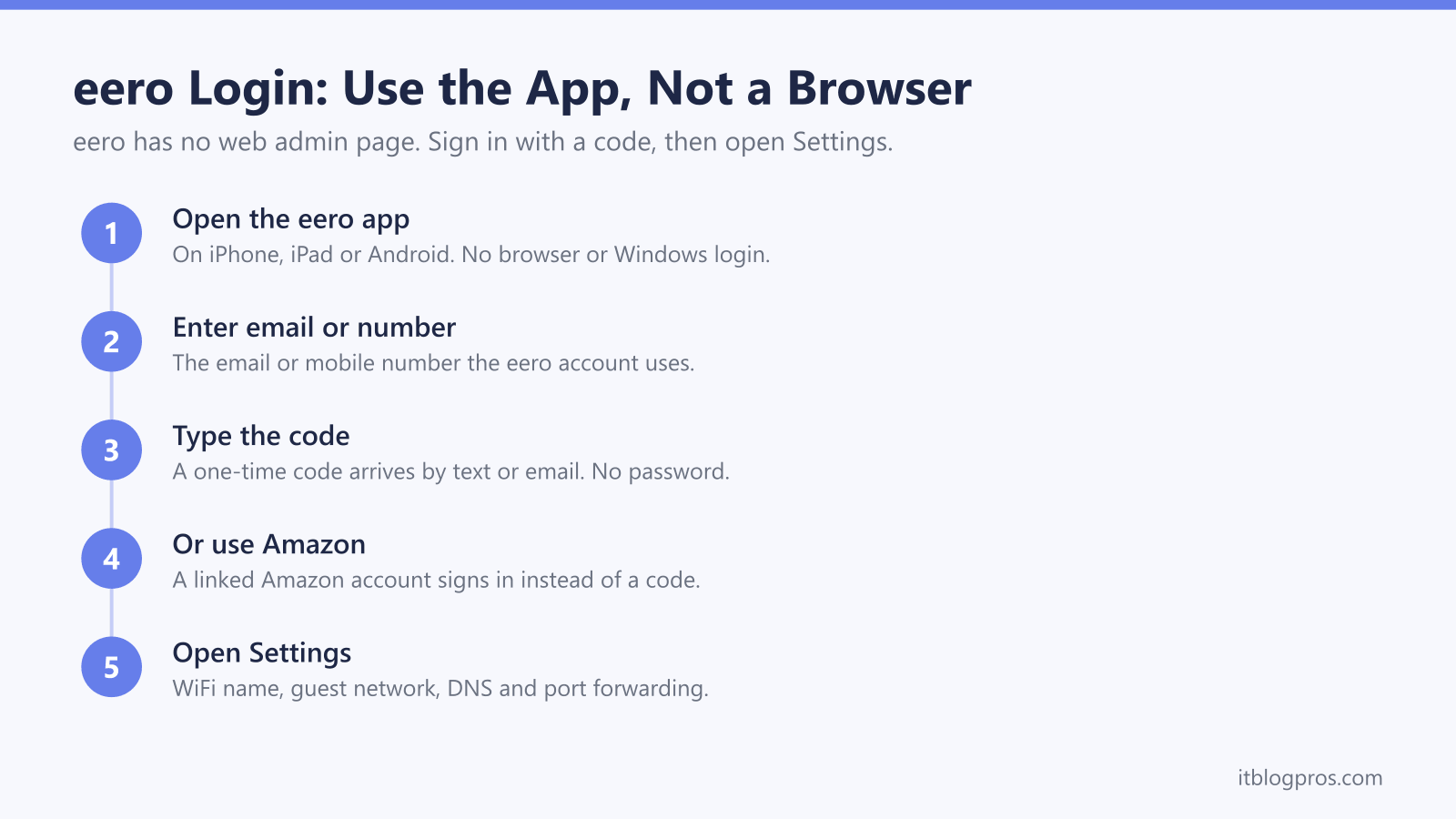
eero has no browser login page. eero's help article says the network can only be managed using the mobile app and cannot be configured through a web browser on Windows, Linux or Intel-based Macs. Sign in to the eero app with the account's email or phone number and the one-time code eero sends, or with a linked Amazon account. The WiFi name, password and other settings are in the app's Settings tab.
Key Takeaways
- eero's help article says an eero network can only be managed using the mobile app and cannot be configured through a program or web browser on Windows, Linux or Intel-based Macs.
- eero's account article says the app uses a verification code system with no username or password, with the code sent by text or email, or a linked Amazon account used instead.
- eero says codes may take 1 to 2 minutes to arrive, that Resend verification code sends another, and that five unsuccessful attempts may lock the account.
- eero's help articles put the WiFi name and password, the guest network, DNS, port forwarding and bridge mode in the app's Settings tab, the last three under Advanced networking.
- eero Insight at insight.eero.com is a web portal that eero limits to Business Network Owners with an eero Business subscription, and eero's provider page presents it as a tool for broadband providers' support teams.
eero Has No Browser Login Page
Most routers answer at an address such as 192.168.1.1 with an admin login. eero does not. eero's help article on the eero app says, "Your eero network can only be managed using the mobile app," and adds that it cannot be configured through a program or web browser using Windows, Linux or Intel-based Mac machines. As of November 2026, that article describes no web dashboard for a home network.
There is no default login either. eero's account verification article says the app uses a verification code system with no username or password, so a page listing a default eero admin password describes something eero does not have. The router admin password guide covers routers that do have one.
eero's help pages publish no gateway address. A user post on eero's community forum, not eero's help pages, reports the app showing the gateway eero at 192.168.4.1 and no browser opening a page there. The router login guide shows how to read the address from a connected device, though eero's article rules out changing settings from any browser.
How to Sign In to the eero App
The sign-in is to an eero account, not to the router. eero's app article lists iOS 15 or later, or Android 9.0 or later with tablets included. TalkTalk's eero setup page gives Android 7.0 or later, so the two pages disagree and eero's own figure is the safer one.
- Install the eero app. TalkTalk's setup page lists the Apple App Store, Google Play and eero.com/app.
- Enter the account's email address or phone number. eero's new phone article says the account is tied to both and the code can go to either.
- Type in the one-time code. eero's password article says a login code is sent at every login and no password is needed.
- Or use an Amazon account instead. eero's Amazon login article says the app accepts Amazon account details once the accounts are linked.
Linking is a one-way step. eero gives the path as Settings, Account settings, Switch to Amazon login, then Continue with Amazon to confirm, and says the switch is permanent and the previous eero login details stop working.
When the Verification Code Does Not Arrive or the Number Has Changed
eero's account verification article says codes may take 1 to 2 minutes to arrive. If nothing comes, it says to check the phone has a strong WiFi or mobile data signal, then tap Resend verification code. eero says five unsuccessful attempts may lock the account, and then eero support has to be contacted.
eero recommends verifying both a phone number and an email address under Settings, Account settings, so that one backs up the other.
A changed number is simple to fix while the app is still signed in. eero's steps are Settings, Account settings, tap the Mobile Number or Email Address field, enter the new one, tap Next, enter the 6-digit code and tap Verify. eero notes this applies only when an Amazon account is not linked.
If the old number is gone and the app is signed out, ask for the code by email. eero's help pages give no self-service recovery when neither can be reached and point to eero's contact options.
If the app signs in but shows the network offline, the login is not the problem. The eero light meanings guide explains what the light is reporting.
Where the Common Settings Live in the eero App
Everything a router's admin page would hold is in the app, mostly under the Settings tab in the bottom-right corner. Each path below comes from eero's help article for that task.
| Task | Path in the eero app |
|---|---|
| WiFi name and password | Settings, Wifi name & password, Save |
| Guest network | Settings, Guest wifi network, Enable guest network, Save |
| Connected devices | Home or Devices tab, then tap a device |
| Port forwarding and IP reservations | Settings, Advanced networking, Reservations & port forwarding |
| Custom DNS | Settings, Advanced networking, DNS, Custom DNS, Save |
| Bridge mode | Settings, Advanced networking, DHCP & NAT, Bridge |
eero's WiFi name and password article warns that changing either one disconnects every device until it rejoins with the new details. eero says a guest network's name must differ from the main one, and that guest devices are isolated from the main network and from each other. Each device's page shows its eero and band, IP addresses and MAC address, according to eero's device information article.
Port Forwarding, DNS and Bridge Mode Are Under Advanced Networking
eero's port forwarding article starts at Settings, Advanced networking, Reservations & port forwarding. Under IPv4 Reservations & Port Forwards, add a reservation for the device, select Open a port, enter a port or range, pick TCP, UDP or both, and tap Save.
eero's custom DNS article says to turn on the Custom DNS toggle, enter the IPv4 or IPv6 server addresses and tap Save, which reboots the network. If the toggle is greyed out, eero says that is expected while eero Plus filtering is on: Advanced Security, Ad Blocking and any content filters have to be switched off first.
Bridge mode stops the eero routing and leaves it providing WiFi only. eero's bridge mode article says to switch DHCP & NAT from Automatic to Bridge, and that eero does not generally recommend it. With a combined modem and router from the provider, eero suggests bridging that device instead, and says the app's advanced features cannot be managed while the eeros are bridged. The double NAT guide explains why two routers in a row cause trouble.
eero Insight and account.eero.com Are Not Home Router Logins
Two eero web addresses do accept a sign-in. Neither is a settings page for a home network.
eero Insight is at insight.eero.com. eero's article describes it as a web portal for managing a business network, open only to Business Network Owners with an eero Business subscription. eero's page for internet service providers presents Insight as a provider's support tool for remote diagnostics. Neither page offers a home customer an Insight login.
account.eero.com is the subscription site. eero's eero Plus article says to sign in there with the account's email address, phone number or Amazon-linked account plus a verification code, to change or cancel a subscription bought on eero.com. It lists no network settings there.
Windows and Mac. eero's app article rules out configuring the network from a program or browser on Windows, which covers Windows 11. The one computer exception eero gives is a Mac with Apple silicon, which can install the iPad version of the eero app.
An eero Supplied by a Broadband Provider Has a Few Differences
TalkTalk is one UK provider that supplies eero units, and the sign-in is the same app. TalkTalk's eero setup page says the eero cannot be set up in a web browser.
eero's article on provider-supplied eeros gives a quick check. In the row at the top of the app's home screen, a globe icon with the word Internet means a retail network, and a different icon with Provided by underneath means a provider's. On those networks, eero says:
- eero Plus has to be obtained through the provider.
- The eeros are the property of the organisation that bought them.
- Ownership transfer is unavailable on a network managed by a provider or professional installer (stated in eero's Multi-Admin article).
eero's article and TalkTalk's eero pages list no app settings that are locked on a provider-supplied eero, so the Settings tab itself is the place to check. The guide to using your own router with any UK ISP covers a retail eero on a provider's line.
Adding Another Admin or Handing the Network Over
eero's Multi-Admin article says the owner can invite up to 10 admins from Settings, User permissions, the blue plus icon, Invite admin. The invitee scans a QR code or opens an invite link, needs their own eero account, and has 48 hours before the invite expires. eero says admins can change the WiFi name and password and pause or block devices, but cannot see other admins, start an ownership transfer or delete the network.
To pass the whole network to another account, eero's transfer article says to open the Settings tab, tap the more options icon in the top-right corner, choose Transfer network and confirm, then show the new owner the QR code or send the link. The code lasts 48 hours and works once. eero says the WiFi name, password and connected devices stay the same, the previous owner loses access, and subscriptions do not transfer.
Mesh Systems to Compare if App-Only Control Does Not Suit
If app-only control does not suit the household, the eero vs Deco and eero vs Orbi comparisons set eero against two other mesh systems for UK homes.