
Every Amazon eero unit uses a single LED on the front to tell you exactly what state the device is in, from a healthy network to a dropped internet connection. The most worrying one for most people is the red light, which simply means the eero has lost its connection to the internet. The colours and flashes are the same whether you run an eero in the UK or the US, because they are set by the device firmware rather than by any individual broadband provider. This guide explains each LED state in plain terms, deals with the red light fault in detail, and walks through the reboot, soft reset and factory reset steps that clear the most common problems. Every meaning and timing below comes from eero's own support pages, read on 9 September 2026: the LED colour table, the flashing yellow article and the reboot and reset article.
A solid white eero light means the network is healthy. Flashing white is the eero booting up, and flashing blue means it is ready to set up in the app. Red means the eero has no internet, usually a modem or ISP issue, so power cycle the modem first. Flashing yellow is eero's power supply warning, so put the adapter that came in the box back on before anything else.
Key Takeaways
- Solid white is the healthy state and means the eero network is up and working normally, unless the LED has been dimmed or switched off in the app.
- A red eero LED means there is no internet connection, which is a WAN fault between the modem and your ISP rather than a fault inside the eero.
- eero's LED colour table gives flashing yellow or orange as a power supply problem, so a yellow flash on a unit nobody is resetting points at the adapter, cable or PoE supply rather than at the network.
- A soft reset reboots the eero and keeps your settings, a factory reset wipes it back to flashing blue, and the yellow flash only means reset while you are holding the button down.
- When the light is red, power cycling the modem or ONT for three minutes fixes far more cases than resetting the eero, so try that first.
Amazon eero light meanings at a glance
| Light | What it means | What to do |
|---|---|---|
| Solid white | Everything is running correctly and the eero network is online. This is the normal healthy state. The white LED can also be dimmed or turned off in the eero app, so a unit with no light is not always a fault. | No action needed. If you prefer the light off at night, schedule or disable the LED under that eero's settings in the app. |
| Flashing white | The eero is booting up or starting its connection after being powered on or rebooted. It is working through start-up checks and is not yet ready. | Wait a few minutes. The LED should settle to solid white on its own. If it stays flashing white for a long time, power cycle the unit by unplugging it for 30 seconds. |
| Flashing blue | The eero is in setup mode and ready to be added in the eero app. It is broadcasting over Bluetooth so a nearby phone can find it during setup, which is also the state a unit reaches after a factory reset. | Open the eero app, keep your phone close to the unit, and follow the in-app prompts to add or set up the eero. |
| Solid blue | The eero app has connected to the unit and is in the middle of setting up or configuring the network. This is a brief step during setup, not a fault. | Stay in the eero app and follow the configuration steps. The LED moves to solid white once setup finishes successfully. |
| Flashing green | More than one eero has been detected during setup. The unit has found other eeros nearby and is sorting out which to add. | Continue setup in the app and add the eeros one at a time as prompted. The light returns to white once the network settles. |
| Solid aqua | eero's LED colour table gives this as Using Hotspot Internet, so the unit is online through a hotspot connection rather than the usual wired one. | Nothing to do if a hotspot connection was set up on purpose. eero's LED page does not expand on the state, so open the eero app and check which connection the gateway is using if you did not expect it. |
| Flashing aqua | eero's LED colour table gives this as identifying Zigbee devices, which is the built-in smart home hub finding kit rather than a broadband fault. | Carry on adding the smart home device. eero does not list this as a fault state, so there is nothing here to reset. |
| Solid green | eero's LED colour table gives this as power saving. It is not the healthy online colour and it is not an error code either. | Nothing to do. Do not reset the unit on the strength of a green light; check the app for whether the network is online. |
| Flashing yellow or orange | eero's LED colour table gives this as a power supply problem, and eero's article on it says the eero is not getting enough power. eero names third-party USB-C cables and adapters, an underpowered PoE switch or injector, and damaged or loose cables. | Reconnect the eero with the adapter and cable that came in the box, seat both ends firmly and try another socket. On a PoE unit, check the Ethernet cable and confirm the switch or injector meets your model's power requirement. eero says a flash that will not clear means the adapter, switch, cable or eero needs replacing. The same yellow flash also appears while you hold the reset button for a soft reset, so it only means reset while your finger is on the button. |
| Solid red | The eero has no internet connection. This is a WAN fault, meaning the link from your modem or ONT to your ISP is down, rather than a fault inside the eero itself. | Power cycle your modem or ONT by unplugging it for three minutes, then wait 5 to 10 minutes for it to reconnect. Check the cable into the gateway eero and confirm there is no ISP outage. |
| No light | The eero is off or has no power. The LED may have been switched off in the app, or the unit is not receiving power from the adapter or socket. | Confirm the LED is enabled in the app, then check the power adapter, cable and wall socket. Try a different outlet or adapter, and power cycle the unit for 30 seconds. |
The red eero light means no internet, not a broken eero
A red LED is the fault people search for most, and the meaning is specific. It tells you the eero has lost its connection to the internet, which eero calls a WAN issue: the link from your modem or fibre ONT out to your internet provider has gone down. The eero hardware itself is usually fine. That distinction matters because resetting the eero will not fix a problem that lives in the modem or with the ISP.
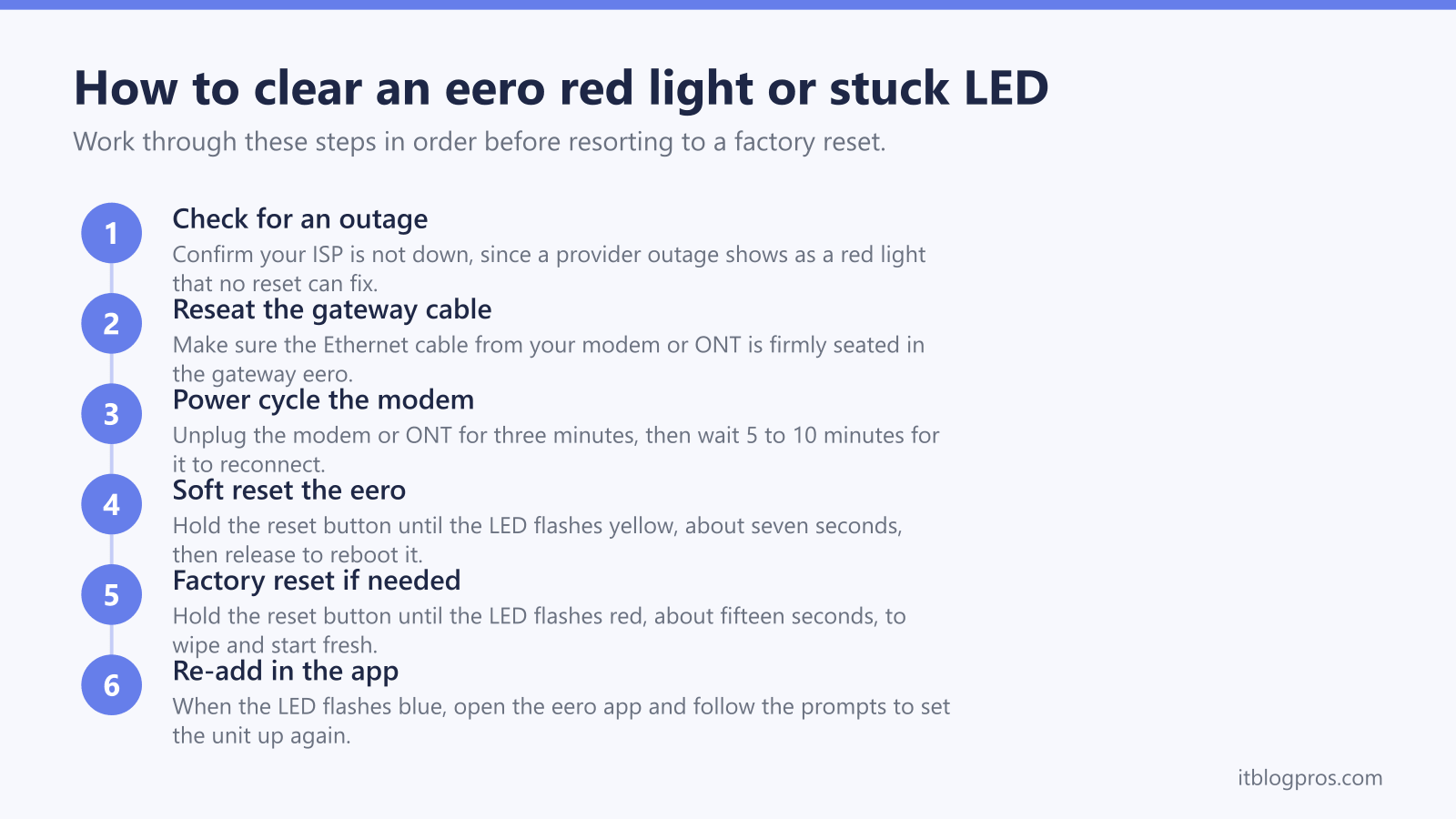
Work through it in order. First, check whether your provider has an outage, because if the line is down nothing you do to the eero will help. Next, make sure the Ethernet cable from your modem or ONT is plugged firmly into the gateway eero, the unit that connects directly to your modem. A loose or damaged cable is a common cause of a red light. If the connection looks fine and there is no known outage, move on to power cycling the modem, which clears the largest share of red-light cases.
Power cycle the modem before you touch the eero
Because a red light is almost always a modem or ISP fault, the modem is where the fix usually lives. Unplug your modem or fibre ONT from power and leave it off for at least three minutes so it fully powers down. While it is off, check that the cable feeding your gateway eero is seated in the correct port, which on a modem is often labelled LAN or Ethernet.
Plug the modem back in and give it time. It can take 5 to 10 minutes to come back online and re-establish the connection to your provider. Once the modem is back, the gateway eero should pick up the connection and the LED should return to solid white. If it is still red after the modem has fully come back, try a different Ethernet cable between the modem and the gateway eero, then repeat the cycle. If it still will not connect, the next call is to your ISP, since some providers need a specific line configuration before a router like eero can get online.
Flashing yellow is eero's power supply warning, not a reset receipt
This is the state most often read backwards, and getting it wrong keeps a fault alive. eero's LED colour table gives flashing yellow or orange one meaning: a power supply problem. Its dedicated article goes further and says a flashing yellow LED usually means the eero is not getting enough power, because the eero monitors the power it receives and flashes yellow when the source does not meet its requirements.
eero lists the causes by how the unit is powered. On a USB-C powered eero it names a third-party USB-C cable rather than the supplied one, a non-eero power adapter, a damaged or frayed cable, and a loose connection at the eero or the wall outlet. On a PoE powered eero it names a switch or injector that does not meet the model's power requirement, a damaged or loose Ethernet cable, and an underpowered or faulty PoE port. eero also notes that the eero PoE Gateway shows a solid yellow LED for power issues rather than a flashing one.
The fix eero publishes is short. On USB-C, check the cable and adapter for visible damage, reconnect the eero using the adapter that came with it, make sure the cable is firmly plugged in at both ends, and try a different wall outlet. On PoE, check the Ethernet cable, confirm the switch or injector meets your model's requirement, and try a different PoE port. eero's own wording is that if the LED turns solid white the eero is working normally, and if it is still flashing yellow the adapter, switch, cable or eero may need replacing.
eero does not say what happens if the flash is ignored, so the honest version is this: the LED is telling you the power source is outside what the unit needs, and no amount of mesh troubleshooting changes a power source. If a yellow flash appears when nobody is touching the reset button, treat the adapter, the cable or the PoE supply as the fault and start there.
A soft reset reboots the eero without losing your setup
A soft reset is the gentler option and is the right first move for an eero that is sluggish, dropping devices or stuck on a flashing light. eero describes it as being like refreshing your browser: it reboots the unit and returns it to its default wifi channel while keeping it on your network and saving its logs and advanced settings such as IP reservations and port forwarding.
Find the small reset button, and hold it in. eero's instruction is to hold until the LED flashes yellow, no longer than 8 seconds, then release. That yellow flash is the only time yellow means a reset rather than a power problem, and it only counts while the button is held down. The eero then flashes white on boot, which eero says can take up to two minutes, and returns to solid white once it reconnects. You can also reboot a single eero from the app, or unplug it for 30 seconds and plug it back in.
Where the button sits depends on the model. eero puts it on the back of the eero (1st generation) and eero Pro, on the side of the eero Beacon, on the bottom of the eero, eero 6, eero 6 extender, eero 6+, eero Pro 6, eero Pro 6E and eero 7, and on the back of the eero Max 7 and eero Pro 7.
A factory reset wipes the eero back to flashing blue
A factory reset, also called a hard reset, is the bigger step. It clears all user data and logs and removes the eero from your network, so it returns to the same out-of-the-box state as a brand new unit. Use it when you are selling the eero, starting a network from scratch, or troubleshooting a unit that will not recover any other way.
Hold the reset button until the LED flashes red, which eero puts at approximately 15 seconds, then release. eero's own description of what follows is that the LED flashes white on initial boot up, then flashes blue and stays flashing blue to show the eero is ready to be set up again in the eero app. From there you add it back through the app as if it were new. Because a factory reset erases your configuration, only reach for it after a soft reset and a modem power cycle have failed.
White and blue lights during setup are normal, not faults
Several of the colours only ever appear while you are setting up or rebooting, and they are easy to misread as problems. Flashing white is simply the eero booting up, and it should give way to solid white within a few minutes. Flashing blue means the unit is in setup mode and broadcasting over Bluetooth so your phone can find it in the app. Solid blue is the brief moment when the app has connected and is configuring the network, and flashing green shows that more than one eero has been detected during setup.
None of these need fixing on their own. They are steps along the way to a healthy solid white light. If a unit gets stuck on flashing white or flashing blue and never reaches white, treat it like any other stall: power cycle it, check the cabling to the gateway, and if it still will not progress, run a soft reset.
One honest caveat on blue. eero's two support pages do not agree with each other here. The LED colour table lists solid blue as ready for setup and flashing blue as Bluetooth pairing, while the reboot and reset article says a unit that has been hard reset flashes blue and stays flashing blue to show it is ready to be set up again in the app. This guide follows the reset article, because that is the state most people actually meet. Either way, blue is a setup colour on an eero and not a fault, so the answer to both is the same: open the app.
Aqua and green are documented states, not error codes
Three colours in eero's LED table get missed because they rarely show up during a fault, and a reader who meets one and cannot find it assumes the worst.
Solid aqua is given by eero as using hotspot internet, so the unit is online through a hotspot connection rather than the wired one you would normally expect. eero's LED page says no more than that, so if you did not set a hotspot connection up deliberately, the check to run is in the eero app: look at what the gateway says it is connected through.
Flashing aqua is given as identifying Zigbee devices. That is eero's built-in Zigbee smart home hub finding kit, and it has nothing to do with broadband. Carry on with whatever you were pairing.
Solid green is given as power saving. It is worth knowing precisely because green reads as healthy on most other brands of router, and on an eero it is neither the healthy colour nor a fault. Solid white is the online state. eero also notes that eero Signal uses a different set of LED meanings from the table above, so its colours do not transfer.
When the eero light keeps going red, weigh up the hardware
Most red-light events are one-off modem or ISP hiccups that a power cycle clears. If the light goes red repeatedly, and you have already ruled out the modem, the cabling and the ISP, the problem may sit with ageing hardware or a unit that has genuinely failed. An eero that constantly drops its WAN connection despite a healthy modem, or one that will not hold a solid white light after a factory reset, is a candidate for replacement.
Before spending anything, decide whether the issue is the gateway eero or the wider mesh. A single failing satellite can often be removed without replacing the whole set, whereas a failing gateway affects everything. The dead-zone and upgrade guides below help you work out whether you need a new unit at all, or whether a different placement or an extra satellite would do the job for less.
If a genuine replacement is the answer, a current-generation eero joins the same eero app and network you already use, and eero systems happily mix generations, so a newer unit can slot in alongside older ones or take over as the gateway. The budget mesh guide weighs the options against cheaper alternatives first.
