
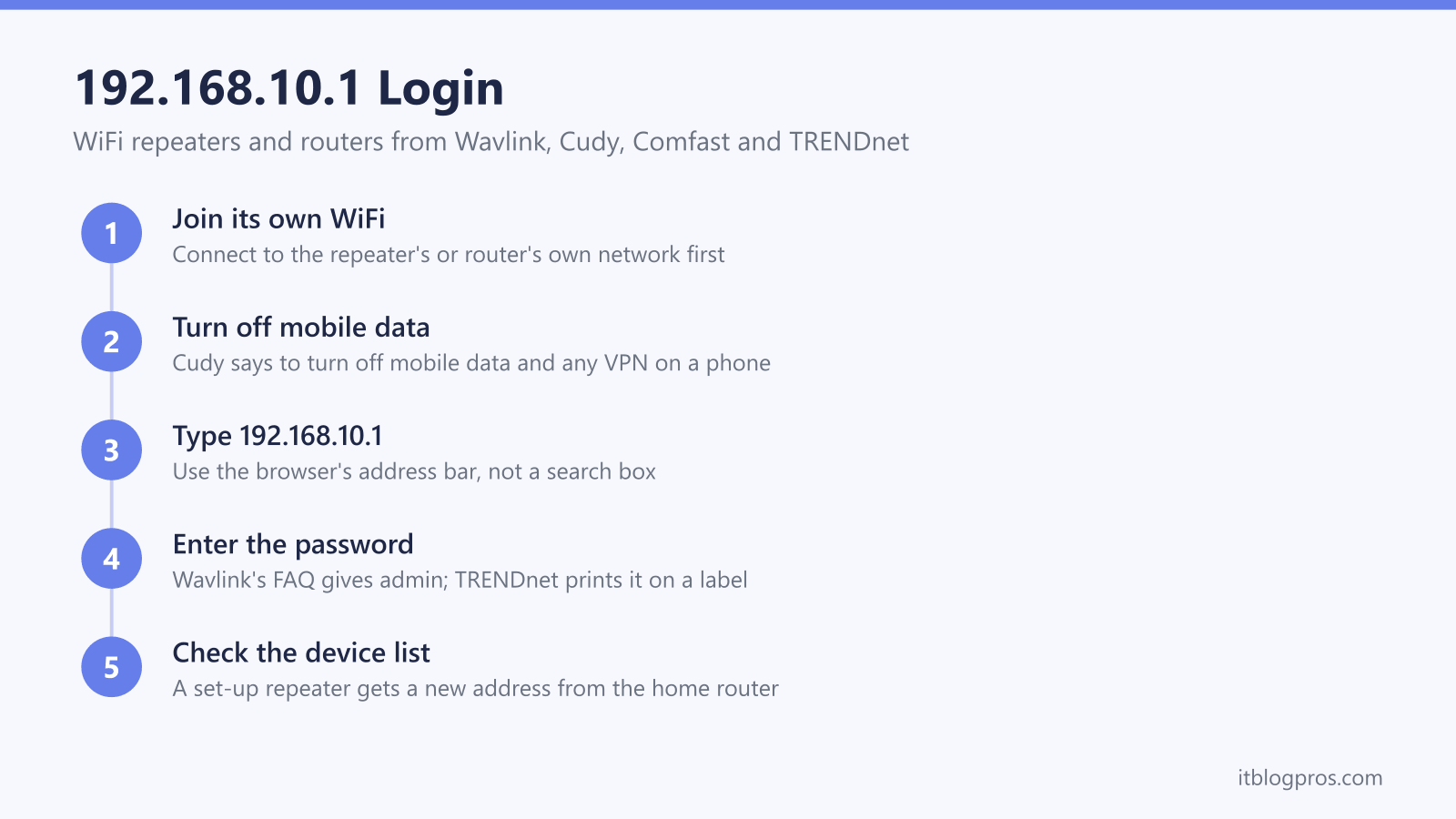
192.168.10.1 is the setup address for WiFi repeaters and routers from Wavlink, Cudy, Comfast and TRENDnet. Each maker gives it in its own manual or support pages, and each has a different rule for the password that goes with it.
Typed into the address bar on the right network, it opens the device's own settings page. When it will not load, the usual causes are a phone still on the home WiFi or on mobile data, a typo in the address, or a repeater that has already joined the home router and moved to a new address. This guide covers the login steps, each maker's documented password and reset, and how to find the address a device is really using.
192.168.10.1 is the default settings address for Wavlink routers and repeaters, Cudy routers, Comfast's CF-XR186 repeater and several TRENDnet routers, according to each maker's own manual or support pages. Join the device's own WiFi network first, then type 192.168.10.1 into the browser's address bar. Wavlink's router FAQ gives admin as the default password. A repeater that has already joined a home router is found in that router's device list instead.
Key Takeaways
- Wavlink's support article gives 192.168.10.1 as the address for its routers and repeaters and says the default management password is usually admin.
- Wavlink's own article says the wifi.wavlink.com login is no longer applicable and tells owners to type the device's IP address instead.
- Cudy's FAQ gives cudy.net or 192.168.10.1 for its routers, while its range extender FAQ gives cudyre.net or 192.168.10.254.
- Cudy's troubleshooting page tells phone users to turn off mobile data and any VPN before opening the address.
- Reset times differ by maker: Wavlink's FAQ says about 8 seconds, Cudy's says about 3 seconds, and Comfast's CF-XR186 manual gives both 5 and 10 seconds.
How to Log In at 192.168.10.1
Join the device's own network before anything else. A phone or laptop that is still on the home WiFi cannot reach a repeater that has not been set up yet.
- Plug the device in and let it start. Wavlink's repeater FAQ says to wait about 30 seconds, and Comfast's CF-XR186 manual says 1 to 2 minutes.
- Open the WiFi list on a phone or laptop and join the device's own network. The table in the next section gives the names each maker documents.
- On a phone, turn off mobile data and any VPN, which is the advice on Cudy's troubleshooting page.
- Open a browser and type 192.168.10.1 into the address bar at the top, not a search box. Wavlink's support article accepts either 192.168.10.1 or http://192.168.10.1.
- Enter the password. Wavlink's router FAQ gives admin as the default, and Comfast's manual has the owner type admin and press Set Password.
Comfast's manual adds that its login screen pops up by itself on the first connection only. After that the address has to be typed.
Makers That Document 192.168.10.1
Four makers give this address in their own manuals or support pages, and D-Link gives it for one range.
| Maker and product | Other address | Documented login | Own network name |
|---|---|---|---|
| Wavlink routers and repeaters | wavlogin.link (routers), waplogin.link (extenders), ap.setup (repeaters) | admin | On the router label; wireless-n in the repeater FAQ |
| Cudy routers | cudy.net | admin, or a password created at setup | Cudy-XXXX and Cudy-XXXX-5G |
| Comfast CF-XR186 repeater | None given | admin, then Set Password | COMFAST_XXXX_2G or COMFAST_XXXX_5G |
| TRENDnet TEW-828DRU | TEW-828DRU | Unique password on the sticker and label | Not given in the login FAQ |
| TRENDnet TEW-718BRM | None given | admin and admin | Not given in the login FAQ |
| D-Link DSR series routers | None given | admin and admin | Not given in the login FAQ |
Wavlink's pages disagree about one name. Its article on wifi.wavlink.com says that login is "no longer applicable" and tells owners to use the device's IP address, while its extender FAQ still lists wifi.wavlink.com beside waplogin.link. The number is the safe choice. The same article says the label on Wavlink's wireless products carries the line Default IP: 192.168.10.1, and that most models broadcast a network name beginning with wavlink, with no WiFi password set by default.
TRENDnet's TEW-731BR support page carries two answers. One says the user name and password are both admin, and another says the router is preconfigured with a unique password printed on a sticker on top and on the label underneath. Check the label first.
Cudy's range extenders are a separate case: Cudy's extender FAQ gives cudyre.net or 192.168.10.254 for those. Unbranded repeaters have no support site to check, so the leaflet in the box and the label on the unit are the only authority for the address and password.
Why 192.168.10.1 Will Not Load
Work through these in order. Each is a cause the makers document, with the fix they give.
- Wrong network. The page only exists on the device's own network. Wavlink's router FAQ says to make sure the phone or computer is connected to the router's own WiFi name, or to a LAN port by cable.
- Mobile data. Cudy's troubleshooting page tells phone users to turn off mobile data and any VPN before trying the address.
- A typo. Wavlink's support article says many users type 192.168.l0.1, with a lowercase letter L where the number 1 belongs. The same slip at the end, 192.168.10.l, fails the same way. All four parts are numbers.
- A fixed address on the computer. Wavlink's repeater FAQ says a computer whose own address is not in the 192.168.10.xx range cannot reach the repeater, and that the fix is to set the computer to obtain an IP address automatically. Cudy's page gives the same fix.
- The browser. Wavlink's extender FAQ says to clear the browser's cache and cookies, or to try another browser or device.
- A cable to the main router. Wavlink's extender FAQ says to unplug the Ethernet cable between the extender and the main router, then try again.
A Repeater Moves to a New Address After Setup
192.168.10.1 is where a repeater answers while it is new. Once it has joined the home router, that router gives it an address of its own. Cudy's extender FAQ says this directly about its own extenders: after configuration the address is no longer the default one, and the way back in is the cudyre.net name or the router's client list.
Wavlink's extender FAQ gives the same route. Open the main router's DHCP client list and find the extender by the MAC address printed on the extender's label. For a Windows computer it also offers a command: type arp -a at the command prompt and look for that MAC address in the list.
The home router's device list sits on its own settings page. The 192.168.0.1 and 192.168.1.1 guides cover the addresses many home routers use, and the router login guide lists the address for each UK hub.
Finding the Address a Device Is Really Using
A computer or phone already holds the address of the device it is connected to, listed as the default gateway. Wavlink's extender FAQ says its extender's address shows there as the IPv4 default gateway.
- Windows: open Command Prompt, type
ipconfigand press Enter. Microsoft's documentation says the command shows the IP addresses, subnet mask and default gateway for every adapter. Read the Default Gateway line. - Mac: Apple's Mac User Guide puts the TCP/IP details under the Apple menu, System Settings, Network, then the connection in use, Details and TCP/IP. The router address is among them.
A gateway of 192.168.10.1 means the computer is on the repeater's network and the address should open. A different gateway means the computer is on another network, usually the home router's, and the repeater's address has to come from that router's device list.
When the Password Is Refused
The login page wants the device's admin password, not the WiFi key, and the router admin password guide explains the difference. The right password depends on the maker.
- Wavlink: the router FAQ says the login password is admin by default. The support article adds that if a user name is asked for, it is also admin, or can be left blank.
- Cudy: the FAQ says the password is admin, or one the owner is asked to create. If a password was created at setup, that is the one to enter.
- Comfast CF-XR186: the manual has the owner type admin and press Set Password on the first visit.
- TRENDnet: the TEW-828DRU FAQ says the password is unique to each router and printed on a sticker on the front and on the label on the bottom. The TEW-718BRM FAQ gives admin for both boxes.
A changed and forgotten password means a reset. Wavlink's router FAQ says a hard reset returns the password to admin.
Reset Times Each Maker Gives
A reset wipes the settings, so the device has to be set up again afterwards. Wavlink's support article says every setting returns to its factory default, including any changed password. Several makers give more than one hold time, so both are shown.
- Wavlink: the setup-page FAQ says to find the Reset button or hole on the side of the device and hold it for about 8 seconds. The extender FAQ says 6 to 8 seconds. The 192.168.10.1 article gives 8 to 15 seconds as a general range and says 8 seconds is enough on a Wavlink router.
- Cudy: the troubleshooting page says to hold the reset button for about 3 seconds and let go when the LED flashes.
- Comfast CF-XR186: the manual gives two figures. A tip beside the product diagram says to hold the RESET key for 5 seconds, and the FAQ at the back says to press the WPS/Reset button for 10 seconds, until the lamp goes off and lights up again.
- TRENDnet TEW-731BR: the support page gives 10 seconds in one answer and approximately 15 seconds, with the power on, in another.
When the Login Works but the WiFi Is Still Poor
Logging in fixes setup problems, not coverage problems. If the repeater joins the home router but the signal stays weak, the extender not working guide works through placement and pairing. Where one repeater cannot cover the house, the extender versus mesh comparison sets out which kind of kit fixes which dead zone. TP-Link extenders have their own setup address, covered in the tplinkrepeater.net login guide.