Linksys's support articles put a Linksys router's settings page at 192.168.1.1 or myrouter.local on most models, and at myrouter.info on its newer mesh systems. Which address and which password apply depends on the model family, and Linksys documents each family separately.
One thing changed in 2026. Linksys's support article on Smart WiFi cloud services says cloud sign-in at linksyssmartwifi.com began to be withdrawn from selected models on 26 March 2026, so those routers are now managed with the local router password. This guide covers the addresses, the passwords, the Linksys app, the fixes when the page will not load, the reset for each family and where the WiFi name and password are changed.
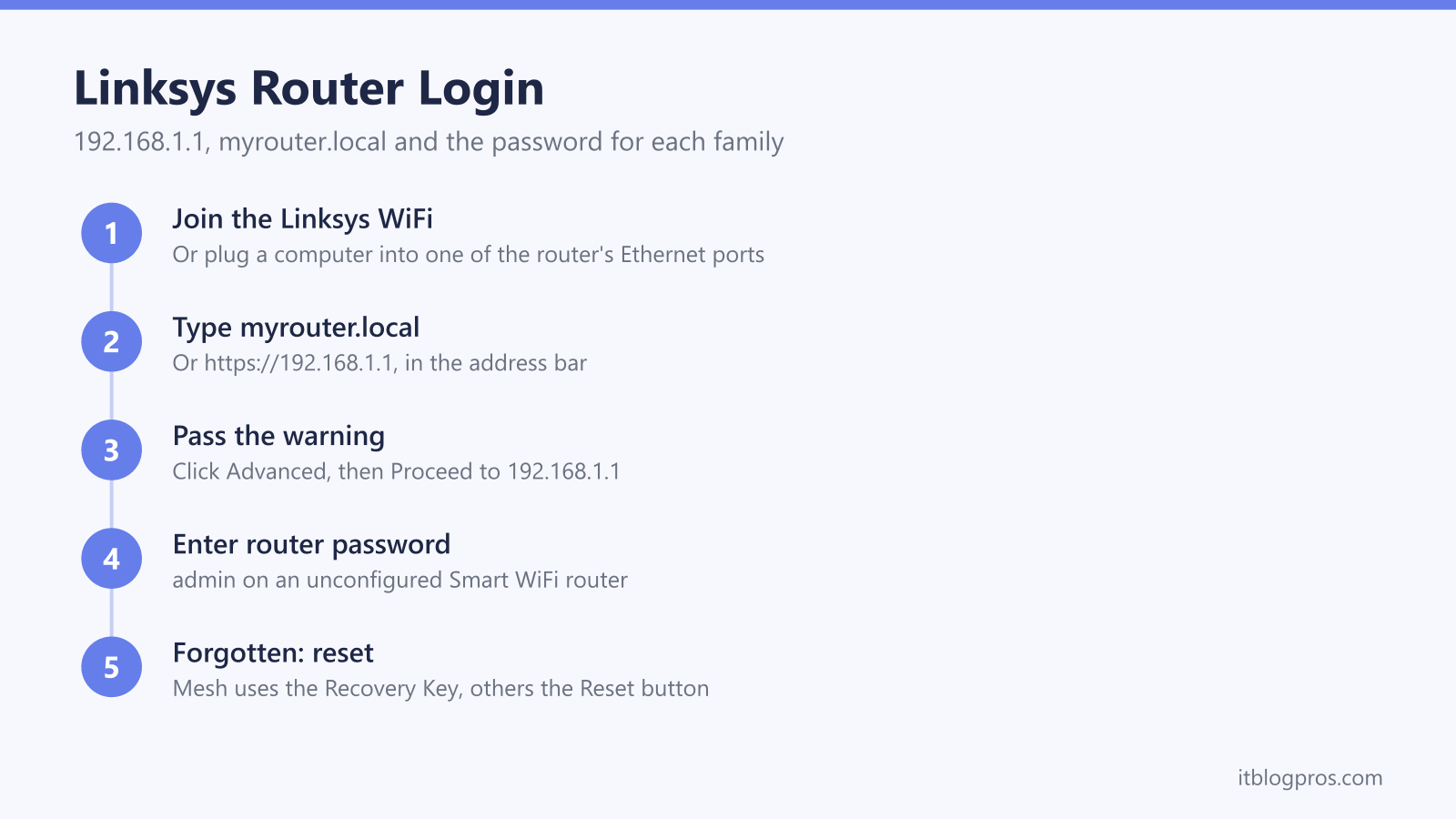
Linksys's support articles give https://192.168.1.1 or myrouter.local as the login address for Smart WiFi and Velop mesh routers, and myrouter.info for its newer mesh models. The device must be on the router's own network. An unconfigured Smart WiFi router uses the password admin, while Linksys's mesh article has a first-time user create a password with the Recovery Key printed under the router.
Key Takeaways
- Linksys's support articles give https://192.168.1.1 or myrouter.local for Smart WiFi (EA and WRT) and Velop mesh (WHW, MX and MR) routers, and myrouter.info for Cognitive Mesh and LinksysNOW models.
- Linksys's article on Smart WiFi cloud services says cloud sign-in at linksyssmartwifi.com began to end on selected models on 26 March 2026, with local login as the replacement.
- There is no single Linksys default: its documents give admin for an unconfigured Smart WiFi router, a password created with the Recovery Key on mesh models, and the printed WiFi password on LinksysNOW models.
- Linksys's HTTPS article says some routers on the latest firmware need https:// in front of the address, and that the connection is still secure despite the browser warning.
- Reset hold times differ in Linksys's own documents: 5 to 10 seconds on E-Series routers, 10 to 20 seconds on Dual-Band WiFi Routers and at least 20 seconds on Velop mesh nodes.
The Linksys Login Address for Each Model Family
Each row is the address and first password that Linksys's own user guide or login article gives for that family.
| Linksys family | Login address | First password |
|---|---|---|
| E-Series (E900 to E4200) | 192.168.1.1 | admin |
| Dual-Band WiFi Router (E5600, E7350, E8450) | myrouter.local or 192.168.1.1 | admin |
| Smart WiFi (EA and WRT) | myrouter.local or https://192.168.1.1 | admin until it is changed |
| Velop mesh (WHW, MX, MR) | myrouter.local or https://192.168.1.1 | Set with the Recovery Key |
| Cognitive Mesh (MBE7000, MX6200, LN1100, LN1400) | myrouter.info or https://192.168.1.1 | Set with the Recovery Key |
| LinksysNOW (LN1600, SPNM60, SPNM62) | myrouter.info or https://192.168.1.1 | The printed WiFi password |
Linksys's E-Series user guide says version 2 hardware, marked V2 on the bottom label, also answers at myrouter.local. Linksys's Dual-Band WiFi Router article says Windows uses myrouter where macOS uses myrouter.local. The 192.168.1.1 login guide explains how to read a router's real address from a connected device, and the router login guide covers the other brands.
How to Log In to a Linksys Router
Linksys's mesh login article starts with the connection: join a computer to the Linksys WiFi or plug it into one of the router's Ethernet ports. The same article says a desktop computer is required for the web interface.
Next, type the family's address into the browser's address bar. The mesh article covers three screens that can appear first: click the mobile phone image if a page shows one, click Continue on a Linksys browser message, and proceed past the browser's own security warning.
Then enter the router password and click Sign In. If a Linksys Smart WiFi account sign-in appears instead, the mesh article says to click For local access.
The Linksys app takes the same password. Linksys's app login article has the phone join the router's WiFi, then Manage Your Wi-Fi on iOS or Log in on Android, then the Router Password tab.
The Default Password Depends on the Linksys Family
Linksys documents a different starting point for each family:
- E-Series: Linksys's E-Series user guide gives admin as the default password with the user name left blank, except on the E4200 V2, which needs admin as the user name too.
- Dual-Band WiFi Router: Linksys's login article for the E5600, E7350 and E8450 says the default password is admin.
- Smart WiFi (EA and WRT): Linksys's browser login article says an unconfigured router's default administrator password is admin.
- Velop mesh (WHW, MX, MR): Linksys's mesh login article names no default. On a first login it says to click Reset Password and enter the Recovery Key from the bottom of the router connected to the modem. Linksys's WHW03 article differs, saying the default password is on the sticker under the device.
- LinksysNOW (LN1600, SPNM60, SPNM62): Linksys's LinksysNOW login article says the default password matches the default WiFi password printed under the router, or is admin on an unconfigured router showing a solid blue light.
Linksys's Smart WiFi settings article states that the WiFi password is not the router password. The router admin password guide explains the two kinds of password.
Linksys Began Ending Smart WiFi Cloud Sign-In on 26 March 2026
Smart WiFi routers used to offer two logins: the local router password, and a Linksys cloud account, which Linksys's EA7500 user guide describes as a way to configure the router from anywhere in the world at linksyssmartwifi.com.
Linksys's support article on Smart WiFi cloud services says it began to discontinue those services on selected products on 26 March 2026. Its list covers WHW, MX and MR mesh routers such as the WHW03 and MX4200, EA routers such as the EA7500 v2 and v3, and the WRT1200AC and WRT1900ACS. For those models the article says:
- desktop access at linksyssmartwifi.com is no longer supported, and local login at myrouter.local or 192.168.1.1 replaces it
- new Linksys cloud accounts cannot be created, and data held in the Linksys cloud is permanently deleted
- remote access is not supported on the latest firmware
- the Linksys app can still be tried with the router's local password on the Linksys WiFi, with a desktop computer as the fallback
The article adds that the router keeps working normally, and that every Smart WiFi model with a cloud account is affected once the cloud services are gone.
Fixes When the Linksys Login Page Will Not Load
- The device is on another network. Linksys's mesh login article has the computer on the Linksys WiFi or an Ethernet port before anything else. Mobile data or a provider hub's WiFi will not reach the page.
- The address went into a search box. Type it in the address bar, where every Linksys article puts it.
- The address needs https:// in front. Linksys's HTTPS article says some routers on the latest firmware require an HTTPS connection, such as https://192.168.1.1, and that the connection is still secure despite the browser warning. Its steps for Chrome and Edge are Advanced, then Proceed to 192.168.1.1. Linksys's Dual-Band WiFi Router article says the E7350 and E8450 need https:// while the E5600 uses http://.
- The address has moved. The same Dual-Band article says a router connected to an existing network may answer at https://10.0.0.1 (E8450), https://192.168.10.1 (E7350) or http://192.168.11.1 (E5600).
- The Velop is in Bridge Mode. Linksys's bridge mode article says a bridged Velop gives up 192.168.1.1 and stops answering to myrouter.local. It says the new address is in the Linksys app under Network Administration, then Nodes, or in the main router's list of connected devices.
If the router's light is red or flashing, the Linksys router lights guide explains each pattern.
A Forgotten Password Needs the Recovery Key or a Reset
Linksys's WHW03 article says the Reset password link on the login page, with the Recovery Key from the product label, resets only the password and not the router settings. Linksys's cloud services article says EA and WRT owners must reset and reconfigure the router to create a new password.
The reset button's hold time differs across Linksys's own documents:
| Linksys document | Reset instruction |
|---|---|
| E-Series user guide (E900 to E4200) | 5 to 10 seconds, until the port lights flash together |
| EA7500 user guide | About 10 seconds, until the light starts blinking |
| Dual-Band WiFi Router reset article | 10 to 20 seconds |
| Mesh system reset article (WHW, MX, MR) | At least 20 seconds |
| MBE70 reset article | About 10 seconds; solid red turns to blinking blue |
Linksys's two mesh articles disagree slightly. The mesh system article says not to release until the light goes out and then turns bright red. The mesh node article says the red sequence takes about 10 to 20 seconds and the button can be released once the light turns off. The first also warns that a reset straight after a power cycle will not work, that resetting the parent node means resetting the child nodes too, and that a reset erases the WiFi name, passwords and security type.
Where the WiFi Name and Password Are Changed
- E-Series: Linksys's E-Series user guide puts the name on the Wireless tab under Basic Wireless Settings (Wireless Settings on the E4200).
- Dual-Band WiFi Router: Linksys's article says Configuration, then Wi-Fi, for the name, and Wireless Security for the password.
- Smart WiFi interface: Linksys's article says Wi-Fi Settings, under Router Settings in the left-hand pane, then Apply and OK.
- Cognitive Mesh: Linksys's article says to click the CA link at the bottom right after signing in, then Wi-Fi Settings.
- LinksysNOW: Linksys's article says Menu, then Incredible-WiFi, then the pencil icon on the WiFi tab.
- Linksys app: Linksys's app FAQs say the menu icon, then Wi-Fi Settings.
Linksys's Smart WiFi article warns that changing these settings disconnects every device until each rejoins with the new details.
Linksys Routers Supplied by a UK Provider or Used Behind a Hub
Community Fibre supplies Linksys routers, and its web interface help page gives 192.168.1.1 for its WiFi 5 and WiFi 6 models (square top) and myrouter.info for its WiFi 7 models (droplet-shaped top). It says the recovery key is on the base of the router, and Community Fibre's app page says there is no Linksys app for its WiFi 7 models.
A Linksys bought separately and plugged into a provider's hub puts two routers in a row, which is double NAT. The double NAT guide explains the symptoms and fixes, and the guide to using your own router with any UK ISP covers modem mode, bridge mode and access point mode.