
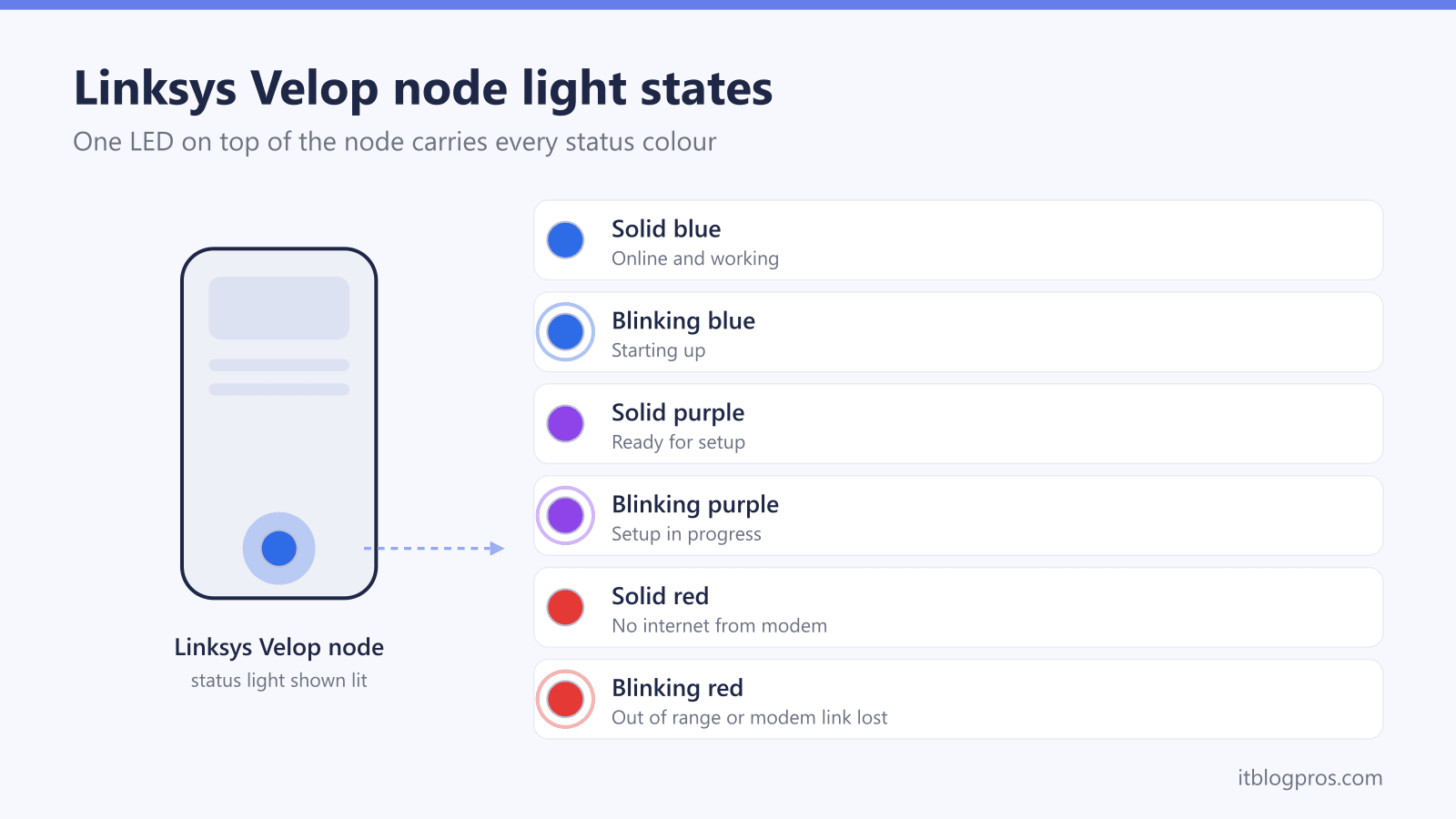
A Linksys light speaks one of two languages. Velop nodes and MR routers use a single color LED where blue, purple, red, and yellow each carry a fixed meaning. The older EA line uses one white light where the speed of the blink is the message. Reading the wrong dictionary is how a factory-reset purple gets mistaken for a hardware fault, or a routine firmware pulse gets interrupted into a bricked router. Every meaning below comes from Linksys support documentation and official user guides rather than guesswork, and each state pairs with the fix that clears it. The guide covers the original Velop towers (WHW01, WHW03), the Wi-Fi 6 and 6E MX series, the Max-Stream MR routers, and the single-light EA series.
Solid blue on a Linksys Velop node or MR router means it is online. Solid purple means it is ready for setup, blinking red means a node is out of range or the parent lost its modem link, and solid red means no internet from the modem. Solid yellow is a weak mesh connection. EA routers use one light: solid when connected, pulsing slowly during startup or firmware updates, flashing quickly on a connection error.
Key Takeaways
- Solid blue means online on every Velop node and MR router, and blinking blue is nothing more than the startup or WPS pairing phase.
- Purple is a setup signal rather than a fault, with solid purple meaning ready for setup and blinking purple meaning the Linksys app is mid-configuration.
- Solid red means no internet from the modem, while blinking red means a child node is out of range or the parent has lost its modem connection.
- Solid yellow on a child node flags a weak mesh link, and moving the node closer to a solid-blue neighbor usually restores it.
- EA-series routers use one white light that stays solid when connected, pulses slowly during startup and firmware updates, and flashes quickly on connection errors.
Linksys light states on Velop, MR, and EA hardware
| Light | What it means | What to do |
|---|---|---|
| Solid blue | Online. The parent router has internet, or the child node is connected to the mesh. | Nothing to fix. This is the normal working state on Velop and MR hardware. |
| Blinking blue | Starting up, or a WPS pairing attempt has started on an MR router. | Wait a minute or two for solid blue. Investigate only if the blinking never stops. |
| Solid purple | Factory state, ready for setup through the Linksys app. | Run setup in the Linksys app. A previously working node showing purple has been factory reset and must be re-added. |
| Blinking purple | Setup in progress with the Linksys app. | Keep the phone near the node and finish the app steps without powering anything off. |
| Solid red | No internet from the modem. | Reboot the modem, wait for it to settle, then check the Ethernet cable to the node and reboot the node. |
| Blinking red | Child node out of range, or the parent node lost its connection to the modem. | Move the child closer to a solid-blue node. On the parent, reseat the Ethernet cable to the modem. |
| Solid yellow | Weak connection on a wireless child node. | Move the node closer to its parent, or wire it with Ethernet to remove the wireless backhaul entirely. |
| Blinking yellow | WPS pairing failed (MR series). | Restart WPS and press the button on the client device within two minutes, or join with the Wi-Fi password instead. |
| Solid white (EA series) | Connected to the internet and working. | Nothing to fix. This is the EA series normal state. |
| Slow pulsing white (EA series) | Startup, self-testing, or a firmware upgrade in progress. | Allow up to five minutes, and never unplug the router during a firmware update. |
| Fast flashing white (EA series) | Connection error. | Power cycle the modem, then the router. If it returns, check Internet status at linksyssmartwifi.com and reseat the modem cable. |
Three Linksys families read their lights differently
Linksys hardware in American homes falls into three families, and the light rules change at each boundary.
Velop mesh nodes include the original tower-shaped units, the dual-band WHW01 and tri-band WHW03, plus the Wi-Fi 6 and 6E MX series such as the MX4200, MX5300, and the MX8500 Atlas Max line. The single LED sits on top of the unit.
MR Max-Stream routers such as the MR7350, MR8300, and MR9000 look like traditional routers with antennas, but they run the same Intelligent Mesh firmware as Velop. The LED moves to the front of the case, and every color means exactly what it means on a Velop node.
EA Smart Wi-Fi routers such as the EA6350, EA7500, and EA8300 predate the mesh era. They carry one white light, often an illuminated Linksys logo on top, and communicate through blink speed rather than color. On the back, Ethernet and Internet port lights flash when traffic passes, and a separate WPS light flashes during pairing.
The color table above applies to Velop and MR hardware. EA behavior gets its own section further down, because applying Velop color logic to an EA router leads nowhere. A router from another brand elsewhere in the house reads by its own rules, which the cross-brand guide to what each router light color means sets out side by side.
Blue means online and purple means setup on Velop and MR
Blue is the state every node should live in. A blinking blue light means the node is starting up, which normally lasts a minute or two after power-on. On MR routers, blinking blue also appears when a WPS pairing attempt starts. Solid blue means the parent router is online or a child node is connected to the network, according to the official Linksys light guide.
Purple is not an error. Solid purple means the node is in factory state and ready for setup through the Linksys app. Blinking purple means setup is in progress and the app is talking to the node. The purple state matters most when it appears on a node that used to work: that node has lost its configuration, usually after a factory reset, and it needs to be added back to the network through the app. Rebooting it over and over changes nothing.
A solid white light has one narrow meaning on ISP-supplied Velop hardware, where it signals that automatic setup is in progress. Most retail Velop owners never see it.
Red points at the modem or at distance between nodes
Red splits into two different problems depending on whether it is steady or flashing.
Solid red means no internet from the modem. The mesh is fine, the node is powered and configured, but nothing is arriving from upstream. Work the modem side first: reboot the modem and wait for its online light to go solid, check the Ethernet cable from the modem to the parent node, and confirm the coax or fiber line into the modem is snug. Every ISP codes that modem or gateway light differently, and the guide to US router and gateway lights by ISP shows what a healthy one looks like on Xfinity, Spectrum, Cox, and Fios. A computer plugged straight into the modem that also fails to get online proves the problem belongs to the ISP or the modem, not the Linksys, and every device in the house will report the same fault as Wi-Fi connected but no internet.
Blinking red means lost contact. On a child node it means the node is out of range of the rest of the mesh, so move it closer to the parent or another solid-blue node. On the parent node it means the connection to the modem has dropped, which usually traces to an unplugged or failed Ethernet cable.
After any cable fix, power cycle in order: modem first, parent node second, child nodes last. Skipping that order is the most common reason a red light survives a reboot.
Yellow flags a weak mesh link
Solid yellow appears only on wireless child nodes and means the connection back to the parent is too weak to be reliable. The node is online, but speed and stability suffer. The official guidance is simple: move the node closer to the node it connects through. In practice, one or two rooms apart with no more than one wall between nodes keeps Velop hardware in the solid-blue zone. Thick masonry, metal appliances, and floor-to-floor hops are the usual culprits when a yellow node refuses to turn blue.
Where the room layout cannot change, wiring the child node to the parent with an Ethernet cable removes the wireless backhaul problem entirely, and the yellow state with it.
On MR series routers, a blinking yellow light has a separate meaning: a WPS pairing attempt failed. Restart the pairing and press the WPS button on the client device within two minutes, or skip WPS and join the network with the password.
A child node that flips between yellow and blinking red is parked at the very edge of range. Either move it inward or add a node between it and the parent, because no reboot changes the distance.
EA routers signal through one light and blink speed
The EA series has no color vocabulary. The official EA7500 user guide describes the single light on top in one sentence: it stays on steadily while connected to the internet, flashes or pulses slowly during startup, self-testing, and firmware upgrades, and flashes quickly when indicating connection errors.
That yields three rules:
- Solid light. The router is connected and healthy. No action needed.
- Slow pulse. The router is booting, self-testing, or updating firmware. Give it up to five minutes, and never pull the power during a firmware update, because an interrupted flash can leave the router unbootable.
- Fast flash. A connection error. Power cycle the modem, then the router. If the fast flash returns, log in at linksyssmartwifi.com or 192.168.1.1, check the Internet status page, and reseat the cable between the modem and the router's Internet port.
A light that pulses endlessly after a power cycle usually means a boot problem. Try a different wall outlet to rule out the power adapter, then factory reset by holding the recessed Reset button for about 10 seconds until the light flashes, and set the router up again. The EA line left the Linksys lineup years ago, so a persistent boot loop on an old unit is often the hardware telling the truth about its age.
The reset sequence Linksys actually documents
Reboots and resets are different tools. A reboot keeps every setting and clears temporary faults. A factory reset erases the network name, password, and every customization, and on a mesh it has a chain effect.
For Velop and MR hardware, Linksys documents a specific sequence. Let the node boot fully first, because a reset attempted mid-boot does nothing. Then press and hold the reset button on the bottom or back for at least 20 seconds. The light turns red and fades in three pulses, then goes out and turns bright red. Release at that point. A successful reset ends with the light settling on solid purple, the ready-for-setup state.
One warning matters more than the rest: resetting the parent node orphans every child node. Linksys states that after a parent reset, the child nodes must be reset and re-added as well. Resetting one misbehaving child node, by contrast, leaves the rest of the mesh running.
On EA routers the process is shorter. Hold the Reset button until the top light starts flashing, roughly 10 seconds, then run setup again at linksyssmartwifi.com.
Replace the hardware when the lights keep coming back
Every fix above assumes the hardware is healthy, and some of it no longer is. The original Velop towers date to 2017 and the EA line is discontinued Wi-Fi 5 equipment, so a unit that needs weekly reboots, cycles into red with no upstream cause, or holds yellow at distances it used to handle is signaling age rather than misconfiguration.
The honest replacement paths match the failure:
- A Velop mesh that keeps dropping child nodes is replaced like-for-like by a current mesh kit. The eero Pro 6E carries tri-band Wi-Fi 6E backhaul that holds links the old Wi-Fi 5 Velop drops, and the TP-Link Deco X55 covers large homes for notably less money.
- A single EA router with a permanent fast flash is outclassed by any current Wi-Fi 6 router. The ASUS RT-AX86U Pro is the strong all-rounder, and the TP-Link Archer AX55 does the job on a budget.
- A parent node showing solid red every week may not be the Linksys's fault at all. On cable internet with an aging rented modem, the Motorola MB8611 removes both the fault source and the monthly rental fee.
A Linksys sitting on solid blue needs none of this. The upgrade case exists only when the light table above keeps failing at the same row.