
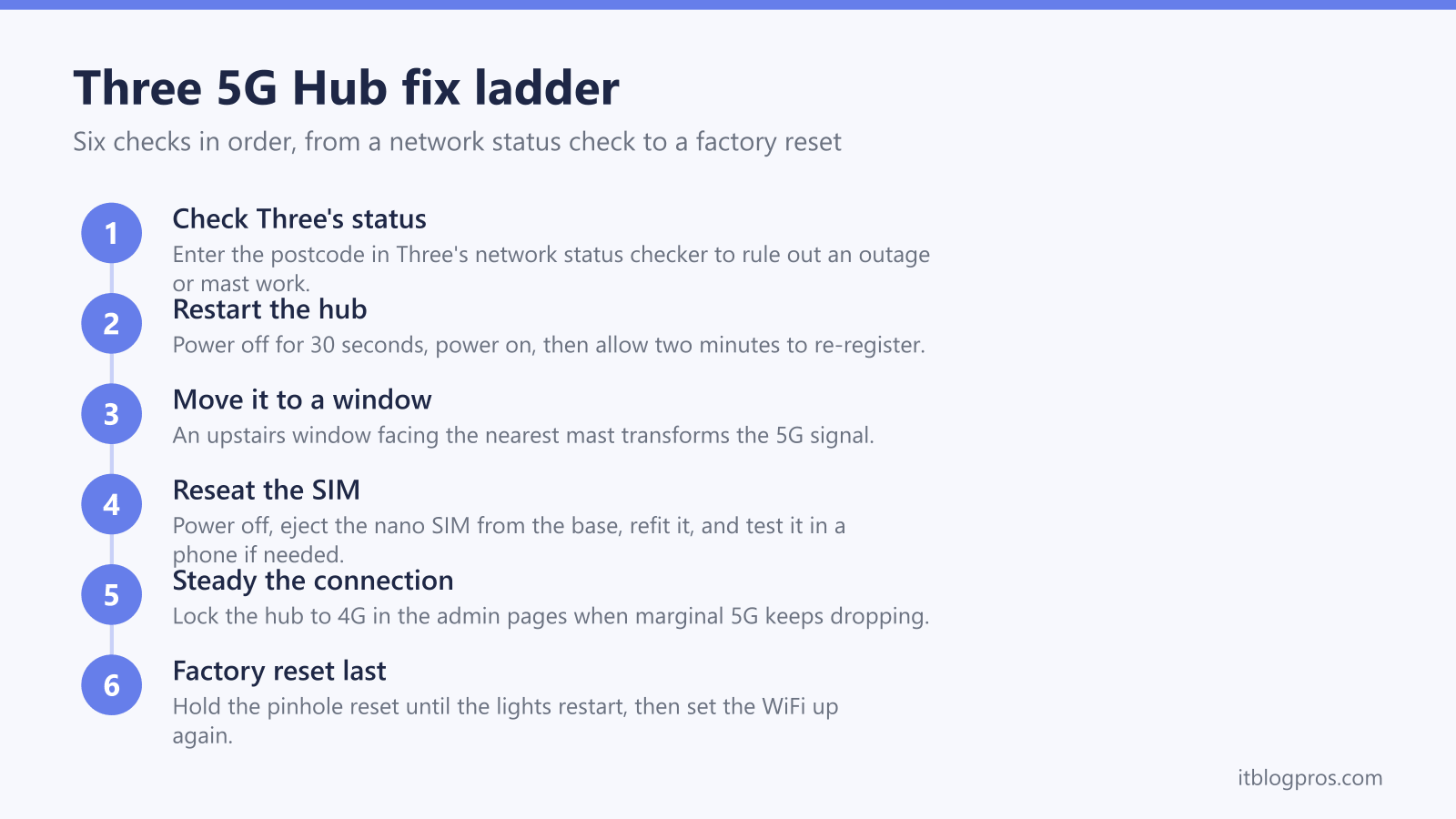
Three's 5G home broadband hangs everything off one box and one radio signal. When the Three 5G Hub stops working, shows no internet, or crawls along at a fraction of the promised speed, the cause is nearly always on a short list: a problem at Three's end, a hub that has lost its registration on the network, or a weak 5G signal at the exact spot where the hub sits. This fix ladder works through the checks in the order that finds the fault fastest, from a thirty-second status check to a factory reset, and the placement step does most of the heavy lifting.
A Three 5G Hub with no internet is usually fixable at home. Check Three's network status checker for a local outage, restart the hub, then move it to an upstairs window facing the nearest mast, since placement decides 5G signal. Reseat the SIM, lock the hub to 4G if 5G keeps dropping, and factory reset as a last resort before asking Three for a replacement.
Key Takeaways
- Placement is the biggest lever on a Three 5G Hub, and moving it to an upstairs window facing the nearest mast fixes more no-internet and slow-5G faults than any setting.
- A red network light means the hub is powered but not registered on Three's network, so the status checker, a SIM reseat and a better window come before anything drastic.
- The hub settings live at 192.168.1.1 on the Zyxel NR5103E and 192.168.0.1 on the ZTE MC801A, MC888 and MC888AD, with the admin password printed on the base sticker.
- Locking the hub to 4G in the admin pages trades headline speed for stability when a marginal 5G signal keeps flapping between bands and dropping the line.
- Mesh WiFi behind the hub cures slow speeds in far rooms, while an external antenna on the TS9 ports cures weak signal reaching the hub itself; the two fixes solve different problems.
ZTE MC801A and MC888 light states at a glance
| Light | What it means | What to do |
|---|---|---|
| Network light solid red | Powered on but not registered on Three's network, so no internet | Check the status checker, restart, reseat the SIM, then move the hub nearer a window |
| Network light solid blue | Connected on 4G rather than 5G, so speeds are lower | Improve placement or fit an antenna to regain 5G, or accept 4G for stability |
| Network light solid white | Connected on 5G and working normally | No action; slow far rooms are a WiFi coverage job for mesh, not a 5G fault |
| Signal bars all unlit | No usable signal detected, or no SIM in the slot | Reseat the nano SIM and try windows on other sides of the home |
| One signal bar lit | Weak reception at the current spot | Move the hub higher and closer to a window, or consider an external antenna |
Know which Three 5G Hub is on the shelf
Three has shipped several different hubs for its 5G home broadband, and the right fix depends on which one is in the house. The current hub is the white Zyxel NR5103E, supplied in original and V2 versions, a WiFi 6 unit rated at up to 4.7 Gbps on 5G. Before the Zyxel, Three supplied three ZTE models: the MC801A, and the taller MC888 and MC888AD. A separate 5G Outdoor Hub also exists for weak-signal homes. The model name is printed on the sticker on the base of the unit, next to the default WiFi details.
| Hub | Admin address | External antenna ports |
|---|---|---|
| Zyxel NR5103E / NR5103E V2 | 192.168.1.1 | 4x TS9 |
| ZTE MC801A | 192.168.0.1 | 2x TS9 (fragile, and owners report later Three firmware disabled them) |
| ZTE MC888 / MC888AD | 192.168.0.1 | None |
The model decides the admin login address, the antenna options and where some settings live, so identify it before working down the ladder. The Three 5G Hub login guide covers the admin pages for every model in detail.
The lights point at the right fix before anything is touched
The ZTE hubs share one indicator language, and it triages the fault in seconds. Three small signal bars show reception strength, with more lit meaning a stronger signal; all of them dark means no usable signal or no SIM detected. A separate network light shows the connection state: red means the hub is powered on but not registered on the mobile network, blue means it is connected on 4G, and white means it is connected on 5G.
That one glance sorts the problem. A red network light or dark signal bars point to the network, SIM and placement steps below. A blue light explains slow speeds, because the hub has fallen back to 4G. A white light with full bars but slow WiFi in the back bedroom is not a 5G problem at all, and the mesh section near the end is the honest fix. The Zyxel NR5103E uses its own LED scheme, and the Three 5G Hub lights guide decodes every state on every model.
Step 1: Rule out Three's network before touching the hub
Three publishes a combined coverage and network status checker on three.co.uk that takes a postcode and reports live faults, mast issues and planned maintenance in the area. Check it first, because no amount of rebooting fixes a mast that is down, and the Three app shows the same service status. A third-party outage tracker such as Downdetector is a useful cross-check when the official page claims all is well but the hub disagrees.
Two timing quirks are worth knowing. A brand-new hub can take a while to provision, and Three support has told new customers that activation can take up to 24 hours, so a day-one hub with a red light may simply need to finish activating. Separately, Vodafone and Three are combining their networks, and VodafoneThree publishes a network improvement checker showing upgrade work by postcode; masts being upgraded can drop or degrade briefly, which explains some short-lived outages that fix themselves.
Step 2: Restart the hub properly
A restart clears a surprising number of stuck states, because it forces the hub to re-register on the network and often lands it on a healthier cell. Pull the power lead or use the power button, wait around 30 seconds, then power it back on and leave it alone for two full minutes while it boots and registers. Watch the network light: red turning blue or white means registration succeeded.
Restart from the mains rather than the admin pages when the hub is unreachable, and resist the urge to power cycle repeatedly in quick succession; give each attempt time to complete. A restart is also worth repeating once after any placement change later in the ladder, because it lets the hub take a fresh measurement of the cells it can see and lock onto the best one.
Step 3: Move the hub, the step that does the heavy lifting
5G home broadband lives or dies on where the box sits, and Three's own performance advice is to place the hub on a windowsill. Three's main 5G band sits around 3.4 to 3.8 GHz, frequencies that struggle through brick, foil-backed insulation and coated glass, which is why one side of a house can have strong 5G and the other almost none.
Work through placement like this:
- Move the hub to a window, ideally upstairs, and ideally on the side of the home facing the nearest mast. A coverage mapping site such as CellMapper helps locate the mast, and simply trying windows on different sides works nearly as well.
- Give the hub a minute at each spot, then read the signal bars or the signal strength shown in the Three app, and keep the best-scoring position.
- Keep it away from radiators, fridges, microwaves, metal lintels and dense shelving, all of which shadow the signal.
- Try rotating the unit. Owners report the NR5103E V2 in particular is sensitive to orientation as well as position.
- Avoid a windowsill in strong direct summer sun, since the hub can run hot and a cooked hub performs worse.
A hub that goes from one bar in the hallway to three bars at a bedroom window routinely doubles or triples its speed, which is more than any settings change delivers.
Step 4: Reseat the SIM and test it in a phone
The Three 5G Hub is a SIM-powered device, and a poorly seated or faulty nano SIM produces exactly the symptoms of a dead connection: a red network light, dark signal bars, or a connection that vanishes at random. Power the hub off, find the SIM slot on the base of the unit, eject the nano SIM, check it for marks, and refit it the way the slot diagram shows, gold contacts against the contacts in the slot, before powering back on.
The SIM also doubles as the best diagnostic tool in the house. Pop it into an unlocked phone and see whether mobile data works. Data flowing normally in a phone means the SIM and the account are fine and the fault sits with the hub itself, which moves the investigation to the reset and replacement steps. No data in a phone either means the problem is the SIM or the account, which is a conversation with Three support rather than a hardware fix.
Step 5: Lock the band when 5G keeps dropping
A hub on the edge of 5G coverage flaps constantly between 5G and 4G, and every switch can stall or drop the connection. Forcing the hub onto 4G gives a slower but steady line, which is a worthwhile trade while a better window or an antenna is arranged.
Sign in to the admin pages with the password from the base sticker, at 192.168.0.1 on the ZTE hubs or 192.168.1.1 on the Zyxel. On the ZTE models the network selection setting allows the hub to be set to 4G only, and community threads confirm this restores a stable connection for owners whose 5G is marginal. Some ZTE firmware versions go further and expose band and cell locking under the developer options within the advanced settings, a technique widely shared on the ISPreview forums for pinning the hub to the strongest local cell. Menu names move between firmware batches, and the Zyxel lays its settings out differently, so the Three 5G Hub login guide walks through each layout. Change one thing at a time and note what changed, since a factory reset later wipes these tweaks.
Step 6: Factory reset as the final software fix
A factory reset is the last software step because it erases every customisation: the WiFi name and password return to the base sticker defaults, and any band lock or admin changes are wiped. It earns its place because it clears corrupted settings and stuck firmware states that survive a normal restart, and Three community advisers regularly recommend it for hubs that refuse to reconnect.
With the hub powered on, straighten a paperclip and press it into the recessed reset hole on the unit. Hold for a few seconds, roughly three to ten depending on the model, until the lights go out and the hub restarts, then release and leave it for a few minutes to rebuild and re-register. Reconnect devices using the sticker credentials, and redo any settings changes deliberately, one at a time.
A reset does not create signal that is not there. A hub that showed one bar at every window before the reset will show one bar after it, which is what the antenna and outdoor options are for.
An external antenna rescues weak-signal homes
When every window in the house still yields poor bars, the honest options are aerial rather than software. The current Zyxel NR5103E carries four TS9 antenna ports on the back and supports an external antenna array, with a setting in the hub that switches it from the internal antennas to the external ports. A directional outdoor antenna mounted high and pointed at the mast can turn an unusable connection into a solid one.
The ZTE hubs are less accommodating. The MC801A has two TS9 ports, but the connectors are notoriously fragile, and owners on the ISPreview forums report that later Three firmware disabled the ports on some units, so results vary. The MC888 and MC888AD have no external antenna ports at all, which leaves placement, mesh or a hub swap. Three also offers a 5G Outdoor Hub in some areas, effectively moving the whole radio outside. Antenna choice, cabling and pointing deserve their own page, and the external antenna guide for the Three 5G Hub guide covers the kit and the setup honestly, including when an antenna is not worth the money.
Mesh behind the hub cures slow WiFi in far rooms
A white 5G light, strong bars and fast speed tests next to the hub mean Three's side of the job is done. Slow WiFi two rooms away is a coverage problem inside the house, and it gets worse when placement forces the hub onto a windowsill at one end of the home, far from where everyone actually uses the internet. No 5G setting fixes that; more access points do.
A mesh system plugged into one of the hub's Ethernet ports carries fast WiFi to the rest of the house while the hub stays in its best 5G spot. The TP-Link Deco X50 three-pack is the budget pick, covering a large home with WiFi 6 for a modest outlay, and the Amazon eero 6+ two-pack is the simplest to set up and live with. Either way, switch off the hub's own WiFi or run the mesh as the only network name so devices stop clinging to the weaker hub signal. Running your own router or mesh properly behind the hub, including the double NAT question, is covered in the guide to using your own router with Three 5G broadband.
Check the TP-Link Deco X50 mesh on Amazon UK →
Check the Amazon eero 6+ mesh price on Amazon UK →
Signs the hub itself has failed
The ladder ends at hardware. A hub that stays on a red light at every window, after a SIM reseat and a factory reset, while the same SIM pulls fast data in a phone, has run out of user-side fixes; the fault is the hub or its firmware. Contact Three support through the app, live chat or by phone and describe the steps already taken, because that list moves the conversation straight to a replacement rather than a repeat of the basics.
The hub remains Three's property on home broadband plans, so a genuinely faulty unit is swapped rather than repaired at the customer's expense. Persistent slow speeds with good signal are a different conversation: cell congestion at peak evening hours is real on busy masts, and the status checker, the VodafoneThree improvement checker and a few speed tests logged at different times of day are the evidence worth gathering before that call.