
A Three 5G Hub uses its lights to tell you whether the fault sits with power, mobile signal, network registration or WiFi, but the message changes depending on which hub Three sent you. This guide decodes every light on the ZTE MC801A, MC888 and MC888AD and on the Zyxel NR5103E family, then works through the three states people actually search for: a red light, flashing lights, and a hub stuck on 4G with no 5G.
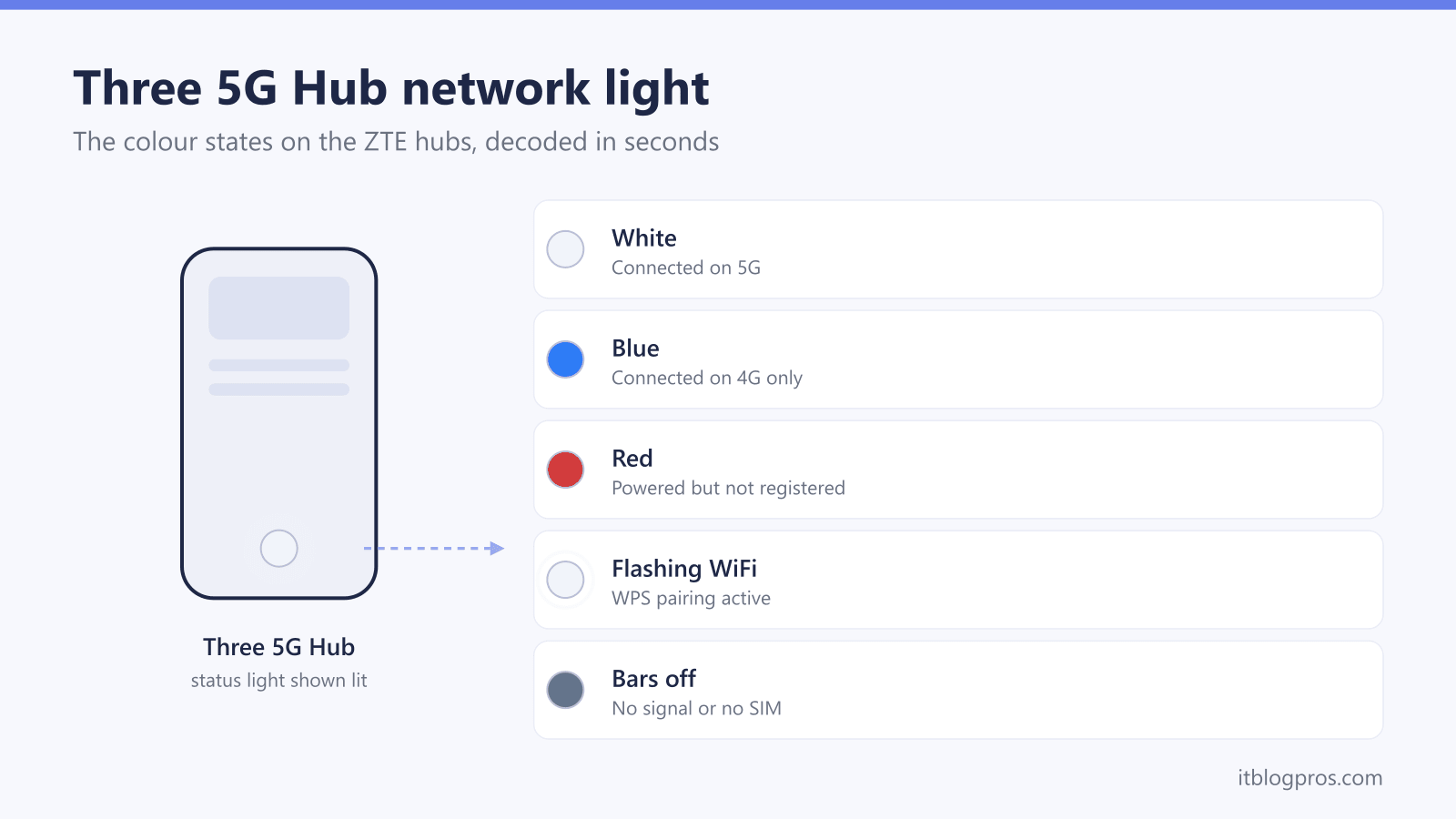
On Three's ZTE hubs (MC801A, MC888 and MC888AD) one network light tells the story: white means 5G, blue means 4G only, and red means the hub is powered but not registered, usually a SIM or coverage fault. On the Zyxel NR5103E the globe light shows blue for 5G, green for 4G and red for no internet. Most red lights clear after a SIM reseat and a restart.
Key Takeaways
- Three has shipped two families of 5G hub that speak different light languages: the ZTE MC801A, MC888 and MC888AD use one colour-changing network light, while the Zyxel NR5103E uses a row of icon LEDs on top.
- On the ZTE hubs the network light tells the whole story: white means connected on 5G, blue means 4G only, and red means the hub is powered but not registered to Three's network.
- On the Zyxel NR5103E the internet globe shows blue for 5G, green for 4G and red for no internet, with a separate signal light that grades reception blue, green or red.
- Most red lights clear with a short ladder: reseat the SIM, restart the hub, allow up to 24 hours of activation time on a brand-new hub, then check Three's network status checker.
- A hub stuck on 4G is nearly always a coverage or placement problem; an upstairs window position and a check of Three's 5G coverage for the postcode fix more cases than any setting.
Three 5G Hub light meanings for every model
| Light | What it means | What to do |
|---|---|---|
| Solid white network light (ZTE MC801A, MC888, MC888AD) | Registered and connected on 5G. The hub is healthy. | Nothing to do. |
| Solid blue network light (ZTE hubs) | Connected on 4G only; the hub cannot see usable 5G right now. | Move the hub to an upstairs window, check Three's 5G coverage for the postcode, then restart to force re-registration. |
| Red network light (ZTE hubs) | Powered on but not registered to the mobile network: SIM missing, not yet activated, or no usable signal. | Reseat the SIM, restart the hub, allow up to 24 hours on a new hub, then check Three's network status checker. |
| Signal bars all off (ZTE hubs) | No mobile signal, or no nano-SIM detected. | Power off, reseat the SIM, then move the hub higher and nearer a window. |
| Flashing signal bars (ZTE hubs) | Data is moving through the hub; the bars flicker during downloads and updates. This is normal. | Nothing to do. |
| Flashing WiFi light (ZTE hubs) | WPS pairing is active. | Press the WPS button on the device you want to connect, or wait for the pairing window to time out. |
| Blinking green power light (Zyxel NR5103E) | The hub is booting or installing firmware. | Wait a few minutes and do not pull the power during a firmware update. |
| Blue internet light (Zyxel NR5103E) | Online over 5G. The hub is healthy. | Nothing to do. |
| Green internet light (Zyxel NR5103E) | Online, but over 4G rather than 5G. | Reposition the hub near a window and confirm 5G coverage at the address; restart to re-register. |
| Red internet light (Zyxel NR5103E) | No internet connection. | Restart the hub, then log in at 192.168.1.1 and check the dashboard for a No SIM Card detected message; reseat the SIM if it appears. |
| Blue or green signal light (Zyxel NR5103E) | Healthy reception: blue is a strong signal, green is medium. | Nothing to do, though a blue reading usually means faster speeds are available in that spot. |
| Red or flashing signal light (Zyxel NR5103E) | Weak signal when solid red, no usable signal when flashing. | Move the hub to an upstairs window on the side of the home facing the mast, then recheck the light. |
| Flashing green WiFi light (Zyxel NR5103E) | WPS is pairing with a device. | Complete the pairing on the other device or wait for it to time out. |
| Green SMS light (Zyxel NR5103E) | An unread text message sits in the hub's inbox; a blinking light means the inbox is full. | Log in at 192.168.1.1 and open Network Settings, then Broadband, then Cellular SMS to read or clear messages. |
| Red SMS light (Zyxel NR5103E) | A device error that needs attention. | Restart the hub; if the red light returns, factory reset, and contact Three if it persists. |
Identify which Three 5G Hub you own before decoding anything
Three has shipped several different 5G hubs over the years, and they do not use the same lights. The original ZTE MC801A launched with Three's 5G home broadband, followed by the taller ZTE MC888 and its MC888AD revision, both WiFi 6 towers. Alongside the ZTE units, Three has supplied the Zyxel NR5103E and a V2 revision of it, also WiFi 6.
The model name is printed on the sticker on the base of the hub, next to the default WiFi password and the admin login details. If you cannot reach the sticker, the lights themselves give it away: the ZTE hubs use a single network light that changes colour between white, blue and red, plus a row of three signal bars. The Zyxel hubs instead use a row of icon LEDs on the top panel: power, an internet globe, WiFi, signal strength and an SMS envelope.
Everything below is split by family, so match your hub first and then read the right table. The full status table for both families sits just above this section.
ZTE hub lights decoded: MC801A, MC888 and MC888AD
All three ZTE hubs share one scheme, confirmed by ZTE's own documentation for the MC801A and MC888.
Signal indicators (three bars). More lit bars mean a stronger mobile signal. All bars off means the hub has no signal at all, or no nano-SIM inserted. The bars also flicker while data is moving; Three's community staff have confirmed that flashing signal lights during a big download are normal behaviour, not a fault.
Network indicator (the important one). This single light carries the connection status in its colour:
- White, solid: registered and connected on 5G.
- Blue, solid: registered on the 4G network only.
- Red: the hub is powered on but not registered to the mobile network at all.
WiFi indicator. On means WiFi is broadcasting normally; blinking means WPS pairing is active; off means WiFi has been disabled.
Power indicator. On when powered, off when not; there are no colour states to read here.
A red network light combined with dark signal bars points firmly at a SIM or coverage problem rather than anything wrong with your devices or WiFi settings.
Zyxel NR5103E lights decoded, including the V2
The Zyxel NR5103E reports through five icon LEDs on the top of the unit, and the NR5103E V2 uses the same icon row.
- Power: solid green means the hub is powered and ready; blinking green means it is booting or updating firmware; off means no power.
- Internet (globe icon): solid blue means online over 5G; solid green means online over 4G; solid red means no internet connection.
- WiFi: solid green means WiFi is enabled; blinking means WPS is pairing; off means WiFi is disabled.
- Signal strength: solid blue is a strong signal, solid green is medium, solid red is poor, and blinking means there is no usable signal at all.
- SMS (envelope icon): solid green means an unread message is waiting in the hub's inbox, blinking means the inbox is full, and red flags a device error that needs attention.
Three's own NR5103E guide confirms the red state means the hub is not registered on the network, and its first checks are the SIM and the dashboard at 192.168.1.1: if the Cellular Info card reads No SIM Card detected, the SIM needs reseating.
Red light fixes in the order that clears most hubs
A red light on any Three 5G Hub means no registration or no internet, and the same ladder fixes most cases on both families.
- Allow activation time on a new hub. Three's support agents tell new customers to allow anywhere from a few hours up to 24 hours for the SIM in a freshly delivered hub to activate. A red light on day one is common and usually clears on its own; leave the hub powered on.
- Reseat the SIM. Power off, open the slot cover on the base, remove the SIM, and reinsert it the way the diagram on the slot shows. A slightly misaligned SIM is the single most common cause of a permanent red light.
- Restart properly. Use the power button, wait 60 seconds, and power back on. Give the hub five minutes to re-register.
- Check Three's network status. Run your postcode through Three's network status checker; mast maintenance produces exactly this light and no amount of local fixing will beat it.
- Check the dashboard. Log in to the hub and confirm the SIM shows as detected; the Three 5G Hub login guide walks through both admin addresses.
- Factory reset as a last resort, then contact Three if the red light survives all of the above. The no-internet fix guide covers the deeper steps.
Flashing lights are usually normal states
Flashing states cause a lot of worry and very rarely deserve it.
Blinking green power light (Zyxel): the hub is booting or installing firmware. Give it a few minutes and never pull the power mid-update.
Blinking WiFi light (both families): WPS pairing is running its window after someone pressed the WPS button. It times out by itself; nothing is wrong.
Flashing signal bars (ZTE): the bars flicker while data moves through the hub. Owners often first notice it during a large download or console update, and Three's community staff have confirmed it is normal.
The one flashing state that does matter is the blinking signal light on the Zyxel NR5103E, which means the hub cannot find a usable signal at all. Treat it exactly like a red light: reposition the hub high up and near a window, then work the red-light ladder above; where no position in the house gets a stable signal, the external antenna guide covers which hub models can take one and which cannot. Likewise, a hub whose lights are cycling or restarting on a loop, rather than blinking one steady pattern, points to a power or firmware fault and belongs with the steps in the no-internet fix guide.
A hub stuck on 4G shows blue on ZTE and green on Zyxel
A blue network light on the ZTE hubs, or a green globe on the Zyxel, means the hub is online but riding the 4G network instead of 5G. This is designed behaviour, not a fault: the hub falls back to 4G whenever usable 5G is missing. Getting the 5G colour back is mostly a radio problem.
Check coverage first. Three's coverage checker will confirm whether outdoor or indoor 5G is expected at the address. If the address only has outdoor 5G, placement decides everything.
Move the hub. Upstairs, on a windowsill, on the side of the home facing the mast, away from foil-backed insulation, radiators and large metal objects. On the Zyxel, the separate signal light grades each new spot for you: blue is strong, green is medium, red is poor.
Restart to re-register. After moving the hub, a restart forces it to negotiate the best available network again, and that is often when the 5G colour returns.
Check the band settings. On the Zyxel, log in at 192.168.1.1 and open the menu, then Broadband, then Cellular Band to see which technology the hub is allowed to use. The ZTE hubs expose similar network preferences in their settings pages at 192.168.0.1; the login guide covers getting into both.
The point where Three needs to take over
Some states are beyond home fixes. Hand the problem to Three when a red light survives the full ladder plus a 24-hour wait, when the Zyxel SMS light shows the solid red device-error state after a restart and a factory reset, or when the hub drops registration repeatedly at an address the coverage checker says is well served. Persistent no-5G at an address listed with indoor 5G coverage is also worth reporting, because it can indicate a mast fault rather than a placement issue.
Have four things ready before contacting Three: the model name from the base sticker (MC801A, MC888, MC888AD or NR5103E), exactly which lights show and whether they are solid or flashing, the steps already tried, and the postcode so the agent can run the same coverage and status checks. Hubs on a Three broadband plan are covered for hardware faults, so a unit that stays in an error state after a factory reset is a candidate for replacement rather than more troubleshooting.