
Logging in to a Three 5G Hub takes about a minute once you know which model is sitting on the windowsill, because Three has shipped four main hubs and they do not all use the same address. The settings page is where you change the WiFi name and password, split the 2.4GHz and 5GHz bands, manage WPS and restart the hub, and everything needed to reach it is printed on the hub itself. This guide names each model, gives the exact login address and credential location for every one, walks through the login step by step, covers the Three app route, and explains what to do when the login page refuses to load or the password is rejected.
The Three 5G Hub login address depends on the model. The ZTE hubs, the MC801A, MC888 and MC888AD, use 192.168.0.1 with the username and password printed on the base. The Zyxel NR5103E uses 192.168.1.1 with the username admin and the web login password printed on the back. Type the address into a browser on a device connected to the hub, log in, and change your WiFi settings.
Key Takeaways
- The ZTE hubs, the MC801A, MC888 and MC888AD, all use the login address 192.168.0.1, with the settings username and password printed on the sticker on the base.
- The Zyxel NR5103E uses 192.168.1.1 instead, with the username admin and its web login password printed on the back of the hub.
- The settings login is separate from the WiFi password, and both sit on the same printed label, so the wording on the sticker decides which one to type.
- The settings page and the Three app both change the WiFi name and password, merge or split the 2.4GHz and 5GHz bands, and handle WPS pairing.
- A failed login usually means the wrong address for the model or the WiFi password typed by mistake, and a pinhole factory reset restores the printed defaults.
Three 5G Hub models and their login addresses
Three has shipped four main hubs for its 5G home broadband, and the login address depends on which one you have. The ZTE MC801A is the oldest of the four, a glossy white tower from the early 5G Broadband rollout. The Zyxel NR5103E, including the later V2 revision, followed it. The ZTE MC888 is the taller cylinder that replaced both, and the ZTE MC888AD is the newest of the range. The model name is printed on the same label as the login details, so a quick look at the hub settles which one is on the shelf.
All three ZTE hubs, the MC801A, MC888 and MC888AD, host their settings page at 192.168.0.1. The Zyxel NR5103E is the odd one out and uses 192.168.1.1 with the username admin. Three's own support pages hedge across 192.168.8.1, 192.168.1.1 and 192.168.0.1 because the fleet is mixed, but the label on your hub prints the exact address for your unit, so the sticker beats any generic list.
Whichever model you have, the address goes into the browser's address bar, not a search box. A search engine cannot find a device on your home network, so typing 192.168.0.1 into a search field returns results pages rather than the hub.
The username and password are printed on the hub
On the ZTE hubs the web login details sit on the sticker on the base. Turn the hub over and the label lists the WiFi name and password for joining the network, plus the separate username and password for the settings page. Three's device support pages for the MC888 and MC888AD both point to the base of the hub for these details.
On the Zyxel NR5103E the web login password is printed on the back of the hub. The username is admin, and the password on the label is unique to your unit rather than a generic Zyxel default.
The distinction that catches most people out is that the settings login is not the WiFi password. The WiFi password joins phones and laptops to the network, while the settings password unlocks the admin page. They sit close together on the same label, so read the wording carefully before typing.
Logging in to the Three 5G Hub step by step
-
Connect the device you are using to the hub, either over its WiFi or with an Ethernet cable into the back of the hub. The settings page is only reachable from inside the network, so mobile data will not work.
-
Open any web browser, such as Chrome, Safari or Edge.
-
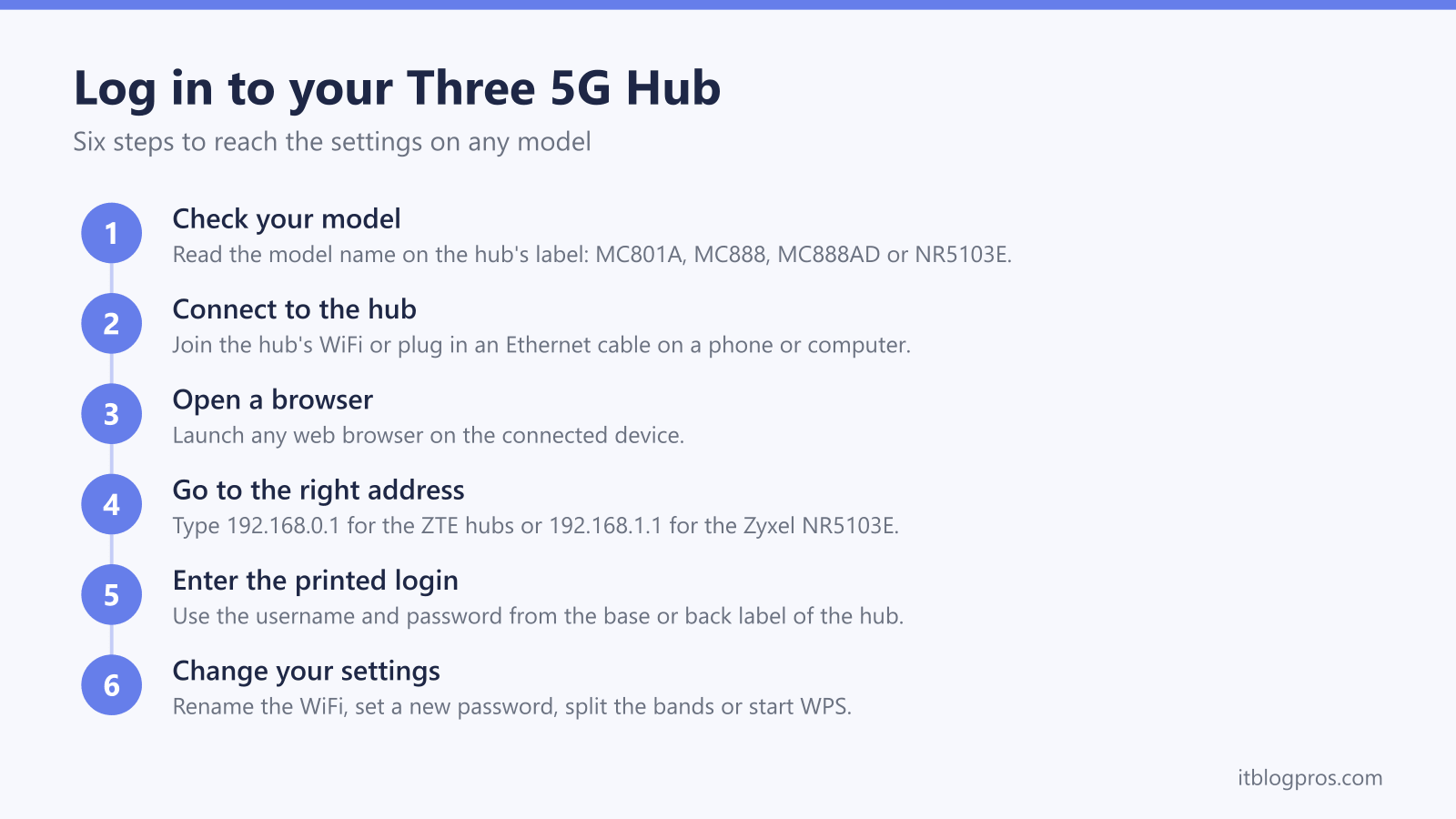
Type the address for your model into the address bar and press Enter: 192.168.0.1 for the ZTE MC801A, MC888 and MC888AD, or 192.168.1.1 for the Zyxel NR5103E.
-
Read the login details from the hub. ZTE models print the username and password on the base sticker, and the Zyxel prints the web login password on the back with admin as the username.
-
Enter the details and log in. The settings dashboard loads with the connection status and the WiFi options.
-
Make your change and save it. Wireless changes briefly drop the WiFi while the hub applies them, so reconnect with the new details afterwards.
The Three app changes the same settings
Three's own how-to guides now describe the app route first, and it reaches the same settings without any printed password. Once the hub has been through its first startup, it appears in the Three app against your account. From the app's home screen, tap the Network tab, then the Wi-Fi tab, then Configure Wi-Fi. The 2.4GHz and 5GHz bands entry changes the WiFi name and password, the Merge 2.4 and 5GHz bands switch splits or joins the two networks, and each band gets its own toggle once they are separated. Save changes applies the new settings to the hub.
The app is the practical fallback when the label on the hub has worn smooth or the settings password has been changed and forgotten, because it authenticates through your Three account instead of the hub's own login. It is also easier on a phone than the web dashboard, which is built for a bigger screen.
Settings you can change once logged in
The most common reason for logging in is the WiFi name and password, and every model changes both from the WiFi settings. On the ZTE hubs the new WiFi password needs at least eight characters. Every device in the house needs the new details before it reconnects, so make the change at a convenient time.
The band settings live in the same area. Three's Enable or disable 5GHz guides for the MC801A, MC888, MC888AD and NR5103E say that if the hub's 2.4 and 5GHz bands are merged, you unmerge them with the Merge 2.4 and 5GHz bands switch in the Three app, after which the 5GHz band can be switched off and the change saved. Three's guides do not tie either step to smart home kit, so check the device maker's setup guide for the bands it supports. If a device the maker lists as 2.4GHz only keeps failing setup on the merged name, separating the bands lets you join it to the 2.4GHz name directly. WPS is supported across the current hubs, so devices that pair by button press can join without the password being typed.
The settings page also shows the devices connected to the hub, lets you change the admin password to something memorable, and restarts the hub without touching the power lead. What it will not show is line speed tuning or fibre-style connection settings, because the hub's connection is a 5G radio link. Signal strength and placement decide the speed, and the front light reports the connection state, with the Three 5G Hub lights guide decoding every colour and flash state the hub can show.
Fixes for a Three 5G Hub login that will not work
When the page will not load, start with the address. The ZTE and Zyxel hubs use different addresses, so a bookmark from an old hub or a generic list from a search result often points at the wrong one. Check the label on your hub and use the address printed there. Next, confirm the device you are typing on is connected to the hub rather than mobile data or a neighbour's network, and that the address went into the address bar rather than a search box.
When the page loads but the password is rejected, the usual culprit is the WiFi password entered where the settings password belongs. Read the label again and use the entry marked for the web or settings login. The Three app is a reliable fallback here, since it signs in through your Three account and changes the same WiFi settings without the printed password.
When the settings password has been changed and forgotten, a factory reset is the way back in. With the hub powered on, press the recessed reset pinhole with a paperclip and hold it for more than five seconds, since a short press only restarts the hub. The hub reboots to factory defaults, the printed label details work again, and any custom WiFi name, password and band settings are wiped, so every device in the house reconnects with the label defaults. The guide on how to reset your router for every UK ISP walks through the difference between a restart and a full reset.
A successful login with no working internet is a different problem, usually signal, placement or a network outage rather than anything in the settings, and the Three broadband not working guide runs through those fixes in order.