
A red light on a Spectrum router or Panoramic WiFi gateway is the device telling you it has lost its connection to Spectrum's network. The colour replaces the normal blue or white "online" glow, and it almost always means the internet is down at that box. The good news is that most red-light cases clear on their own or after a single proper power cycle, because the usual cause is a passing outage or a loose cable rather than a dead gateway.
This guide explains the difference between a solid red light and a blinking red light, walks through the fixes in the right order, and flags the fake "Spectrum" outage and refund scams that tend to circulate while people are searching for help.
A red light on a Spectrum router or Panoramic gateway means it cannot reach Spectrum's network. Blinking red usually signals an outage, a loose coax cable, or a provisioning hiccup. Solid red points to a deeper signal loss or hardware fault. Power cycle the gateway, check the coax, and confirm there is no area outage before contacting support.
Key Takeaways
- A red light replaces the normal blue or white light and means the gateway has no working internet connection to Spectrum.
- Blinking red usually means a temporary problem such as an area outage, a loose coaxial cable, or a stalled boot, and it often clears with a power cycle.
- Solid red is more serious and points to a lost signal, a setup error, or possible hardware failure that may need a replacement gateway.
- Reboot by unplugging the gateway for at least one minute, then allow two minutes for it to power back up before judging the result.
- Spectrum will never demand gift cards, crypto, or your passwords over the phone, so treat unsolicited outage or refund messages as scams.
What a Red Light on a Spectrum Gateway Means
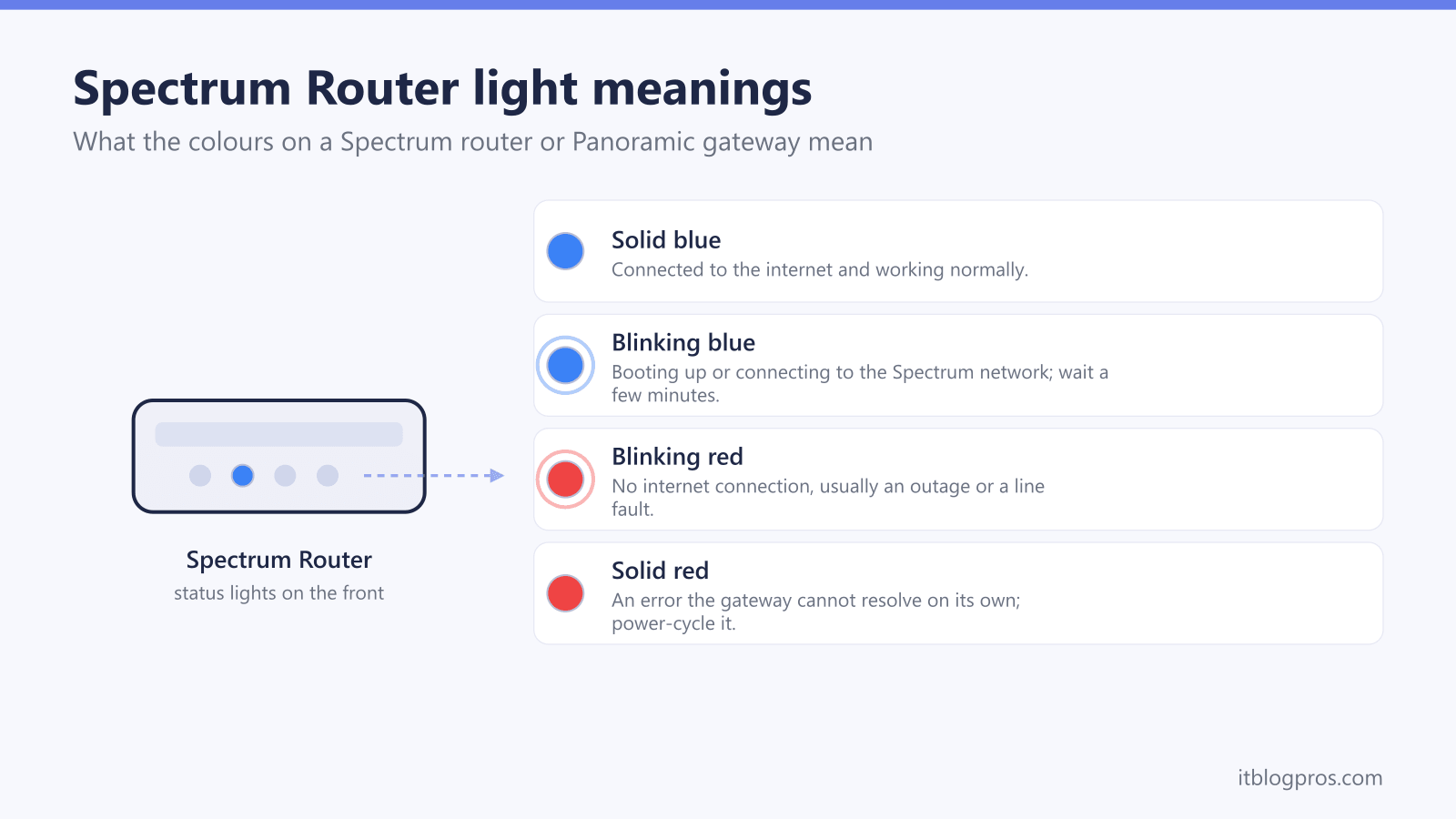
Spectrum routers and Panoramic gateways use a single status light to show connection health. When everything is working, that light glows a steady blue or, on newer models, a steady white. A red light is the warning state: the gateway has powered on but cannot establish a usable connection to Spectrum's network, so there is no internet to pass on to your devices.
The pattern of the red light tells you how deep the problem runs.
| Light state | What it usually means | First action |
|---|---|---|
| Solid blue or solid white | Online and working normally | Nothing needed |
| Blinking blue or blue and white | Booting and trying to connect (give it 2 to 5 minutes) | Wait |
| Blinking red | Cannot reach Spectrum's network, often an outage, loose cable, or provisioning issue | Power cycle, check coax, check for an outage |
| Solid red | Critical fault, signal loss, setup error, or hardware failure | Power cycle once, then contact support if it stays |
| No light at all | No power | Check the power cable and the wall outlet |
If you want the full colour chart across every brand of gateway, the universal router lights guide covers the patterns side by side, and the router and gateway lights by ISP pillar maps each major US provider's scheme.
Blinking Red Versus Solid Red
The single most useful thing to notice is whether the red light is blinking or steady, because the two states point to different causes.
Blinking or flashing red usually means the gateway is actively failing to connect and is the more common, more recoverable state. The typical triggers are a service outage in your area, a loose or damaged coaxial cable, a stalled boot loop after a firmware update, or a provisioning issue on Spectrum's side. Right after a neighbourhood outage, a blinking red light is extremely common while the gateway tries to re-establish its signal. Most blinking-red cases clear with a clean power cycle once the upstream problem is resolved.
Solid red is generally more serious. It points to a critical fault such as a complete loss of incoming signal, a configuration or setup error, or genuine hardware failure inside the gateway. A solid red light is more likely than a blinking one to end with a gateway replacement. It is still worth one proper power cycle first, because a hung boot can occasionally hold the light solid, but if it returns to solid red after a full reboot you are looking at a support call rather than a quick home fix.
How to Fix a Spectrum Red Light Step by Step
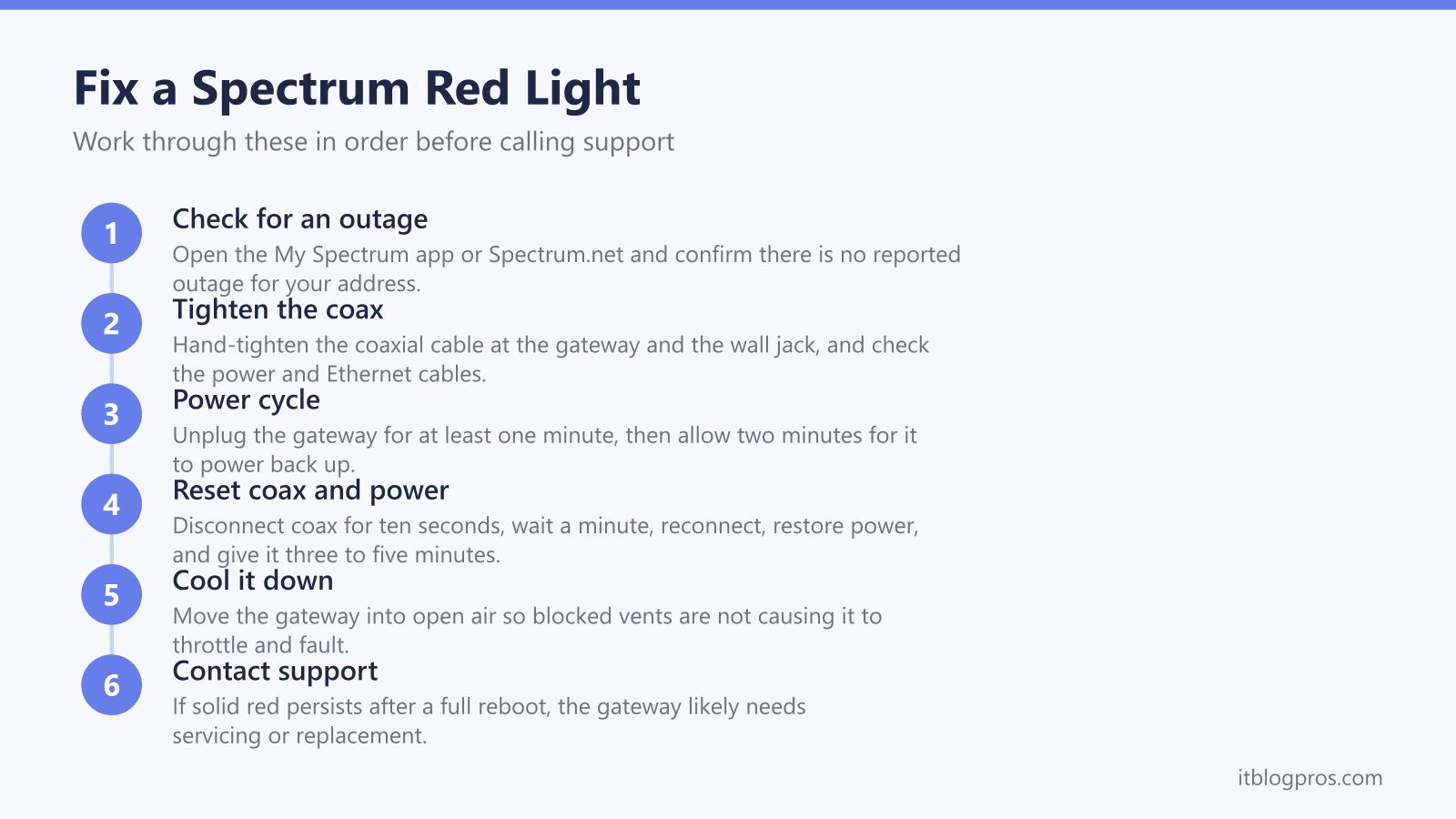
Work through these steps in order. Most red lights are resolved by step three.
- Check for an area outage first. Before touching the hardware, confirm the problem is not Spectrum-wide. Use the My Spectrum app or sign in at Spectrum.net to check service status for your address. If an outage is reported, there is nothing to fix at home; the gateway will recover on its own once service returns.
- Inspect the cables. A slightly loose cable is enough to trigger a red light. Hand-tighten the coaxial cable where it screws into the gateway and into the wall jack, and check that the power cable and any Ethernet cables are seated firmly and undamaged.
- Power cycle the gateway properly. Unplug the power cord (and remove any battery on a telephony Panoramic gateway), wait at least one minute, then plug it back in. Allow a full two minutes for it to power up and re-provision. The light should move from red to a blinking blue or white and finally to solid blue or white.
- Reset coax and power together if it persists. Unplug the power, disconnect the coaxial cable for about ten seconds, wait roughly sixty seconds, reconnect the coax, then restore power and give the gateway three to five minutes to stabilise.
- Check ventilation. Spectrum's WiFi 6 gateways run warm and will throttle or fault if their vents are blocked by carpet, a cabinet, or dust. Move the gateway into open air and let it cool before retrying.
- Restart through the app. The My Spectrum app can restart your equipment remotely under Services, which is a clean alternative to pulling the plug.
If a steady or repeating red light survives all of this, the gateway likely needs servicing or replacement, which is the point to contact Spectrum.
When a Factory Reset Helps and How Long to Hold
A power cycle and a factory reset are not the same thing. A power cycle simply restarts the gateway and keeps all your settings. A factory reset wipes the gateway back to defaults, including your custom WiFi network name and password, so only use it when a reboot has failed and you are willing to set the network up again.
To factory reset a Spectrum router or Panoramic gateway, find the recessed Reset button on the back, then press and hold it for more than fifteen seconds using a paperclip or pen tip. Release when the lights blink or change, then allow the gateway a couple of minutes to fully reboot, which can take longer than a normal restart.
After a factory reset your WiFi name and password revert to the defaults printed on the gateway's label, so reconnect using those credentials. If the red light returns even after a factory reset, the fault is almost certainly on the line or in the hardware and needs Spectrum's attention rather than another reset.
Avoiding Fake Spectrum Outage and Refund Scams
Outages and connection faults are a favourite hook for scammers, because people searching for help are anxious and distracted. While your gateway is showing red, be wary of unsolicited contact that claims to be Spectrum.
Common scams include voicemails or texts warning that you will lose a discount unless you call a number back, messages offering an outage "refund" or a free device through a link to a fake Spectrum login page, and callers who insist you owe money that can only be paid with gift cards or cryptocurrency. Search-result phone numbers can also be fake support lines designed to harvest your account details.
The rules are simple. Spectrum will never demand gift cards, crypto, or wire transfers, will never ask for your full Social Security number, passwords, or PINs over the phone, and will never threaten instant disconnection to rush you. Any pressure to act immediately is itself the warning sign. Check outages and contact support only through the My Spectrum app or by typing Spectrum.net directly into your browser, never through a link or number that arrived in a message you did not request.
When Buying Your Own Equipment Can Help
Spectrum does not charge a separate monthly modem rental fee in the way some providers do, but if you use a Panoramic WiFi gateway you are typically paying a monthly WiFi service charge for it. Owning a compatible modem and your own router can remove that recurring charge and often gives you a more capable, better-ventilated setup that is less prone to the throttling that can trigger a red light.
This is a bigger decision than a single light fix, and the savings maths and DOCSIS compatibility differ by provider. The detailed cost breakdown in this cluster is written for Xfinity in stop renting your gateway and buy your own modem, but the same principle applies to Spectrum: confirm your plan speed, check that any modem you buy is on your provider's approved list, and weigh the one-time hardware cost against the monthly fee.
If your red light turns out to be a recurring WiFi problem rather than a one-off outage, it is also worth reviewing related issues such as why your WiFi says no internet and what double NAT is and how to fix it, both of which can survive a reboot and masquerade as a gateway fault.