
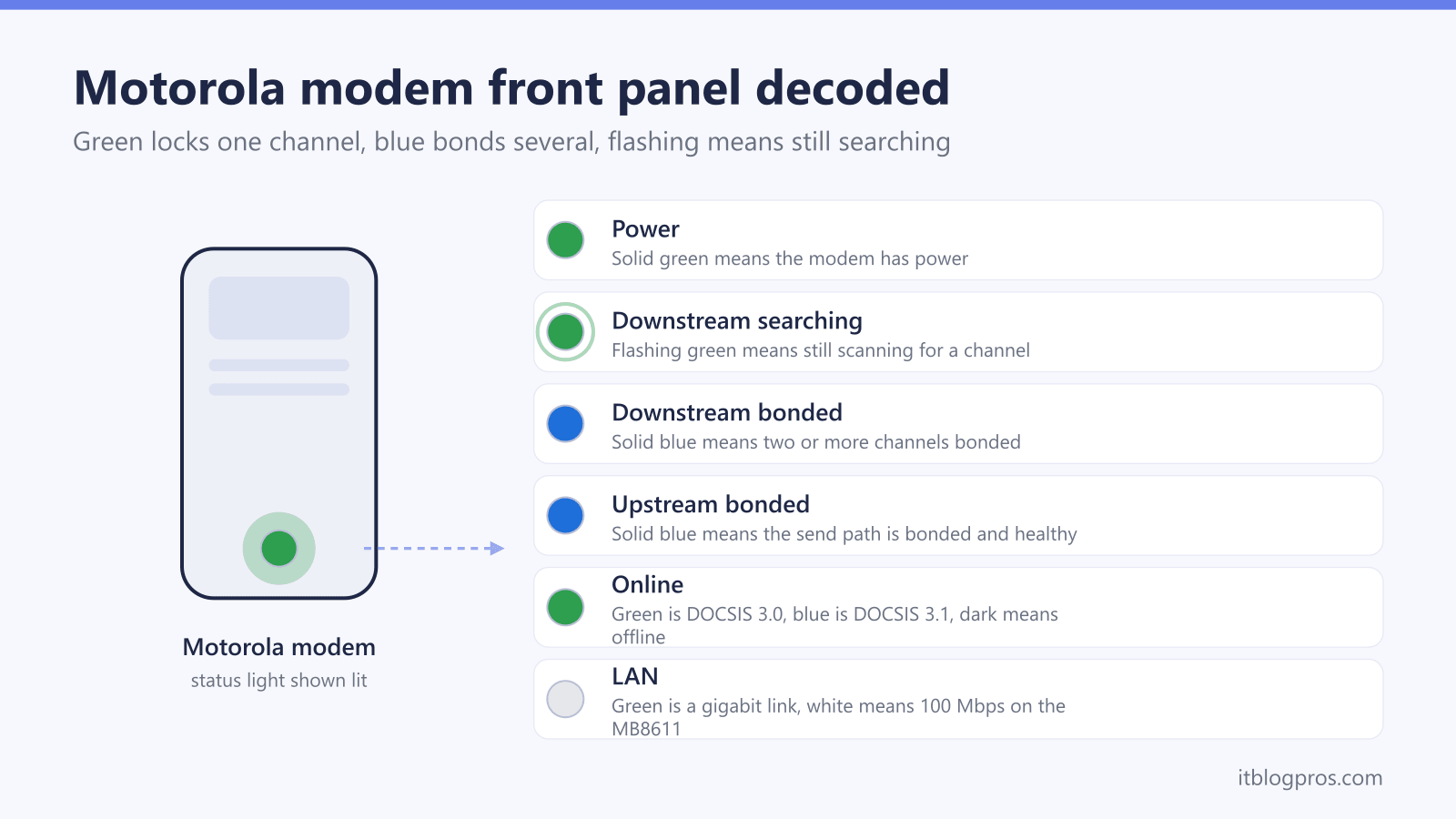
A Motorola cable modem reports every stage of its connection through five lights on the front panel, and the colours matter more than most owners realise. On the MB7621, MB8600 and MB8611 the same rule applies: green on the Downstream or Upstream arrow means the modem has locked just one channel, while blue means it has bonded two or more, which is the healthy full-speed state. That green-versus-blue distinction is unique to Motorola-brand modems and clears up the single most common confusion with these devices. The two other faults people search for, a Downstream light that never stops flashing and an Online light that stays dark, both trace back to the cable signal rather than a broken modem in most cases. This guide decodes every light state against the official Motorola quick start tables and the Motorola Network support documentation maintained by Minim, then works through the fixes in order: coax and splitter checks, the correct power cycle, the event log at 192.168.100.1 and the 30-second factory reset. The meanings below hold on any US cable provider, including Xfinity, Cox and Spectrum, because the lights are driven by the modem firmware rather than the network.
Motorola cable modems use five lights: Power, Downstream, Upstream, Online and LAN. Blue on the Downstream or Upstream arrow means the modem has bonded two or more channels, while green means it locked only one, so blue is the healthy high-speed state. A light that keeps flashing means that stage of the connection has not locked, and the Online light stays dark until both arrows go solid.
Key Takeaways
- Blue beats green on a Motorola modem: a blue Downstream or Upstream light means two or more bonded channels, while green means the modem locked only a single channel.
- A Downstream light that keeps flashing green means the modem cannot find a downstream channel, and the usual causes are loose coax, a failing splitter or a provider outage.
- The Online light only turns solid after both arrow lights lock, so an Online light that is off or blinking usually points back to a signal problem rather than a dead modem.
- On the MB8600 and MB8611 the Online light shows green for a DOCSIS 3.0 connection and blue for DOCSIS 3.1, so a blue globe is the best possible state.
- Most Motorola light faults clear with finger-tight coax, splitter removal and a power cycle, and the event log at 192.168.100.1 exposes T3 and T4 timeouts when the line itself is at fault.
Motorola modem light meanings at a glance
| Light | What it means | What to do |
|---|---|---|
| Power solid green | The modem has mains power. On the MB7621, MB8600 and MB8611 this is the first light to appear and it stays steady the whole time the modem runs. | No action needed. If Power never lights, check the adapter at both ends, try another outlet, and confirm the rear ON/OFF button is pressed in on the MB8600 and MB8611. |
| Downstream flashing green | The modem is scanning for a downstream channel from the provider. This is normal for the first few minutes after plugging in or rebooting on all three models. | Allow up to 10 minutes. If it keeps flashing, hand-tighten the coax at the modem and the wall plate, remove any splitter, then power cycle the modem. |
| Downstream solid green | Connected on one downstream channel only. The modem works but has not bonded multiple channels, so speeds run well below the plan. | Give it a few minutes to negotiate bonding. If it stays green, power cycle, simplify the coax run, and ask the provider to check downstream power levels. |
| Downstream solid blue | Bonded with two or more downstream channels. This is the healthy full-speed state in the official Motorola quick start tables. | No action needed. Solid blue on the down arrow is exactly what a working modem shows. |
| Upstream flashing green | Ranging in progress, meaning the modem is calibrating its transmit path back to the provider. Normal briefly during startup. | Persistent flashing points at upstream signal trouble. Remove splitters, reseat the coax, then have the provider verify upstream power levels. |
| Upstream solid green | Connected on one upstream channel without bonding. Uploads will run slower than the plan allows until more channels bond. | Wait a few minutes for bonding, then power cycle if it stays green. Ongoing single-channel upstream is a line fault for the provider to trace. |
| Upstream solid blue | Bonded with two or more upstream channels. The send path back to the provider is running at full capability. | No action needed. Solid blue on the up arrow is the healthy state. |
| Downstream or Upstream blinking blue | The modem is negotiating bonded channels. Motorola documents persistent blue blinking as partial service, where at least one designated channel has not completed bonding. | Speeds may still be usable. If the blinking never settles, power cycle, check the coax run for damage and splitters, and report the partial service state to the provider. |
| Online flashing green | The modem has signal and is registering with the provider to come online. This is the last step of the startup sequence. | Wait several minutes. If it never goes solid, the modem may not be activated on the account, so call the provider with the MAC address from the label. |
| Online solid green | The modem is online. On the MB8600 and MB8611 green specifically means a DOCSIS 3.0 connection, and green is the only online colour the DOCSIS 3.0 MB7621 shows. | No action needed on the MB7621. On an MB8600 or MB8611 with a gigabit plan, a green globe where blue is expected is worth a provisioning query to the provider. |
| Online solid blue (MB8600 and MB8611) | The modem is online with DOCSIS 3.1, the fastest mode these two models support and the expected state on gigabit tiers. | No action needed. A blue globe is the best possible state. |
| Online off | The modem is offline, or per the MB8600 table the upstream is not connected. No internet traffic passes in this state. | Read the two arrow lights first and fix whichever is not solid. If both arrows are solid and Online stays dark, power cycle for 20 seconds, then contact the provider about provisioning. |
| LAN green or amber (MB7621 and MB8600) | Green means the Ethernet port is linked at gigabit speed and amber means a 10 or 100 Mbps link. Blinking in either colour is data flowing. | Amber against a gigabit router points to the lead, so swap to a known-good Cat 5e or Cat 6 cable and reseat both ends. |
| LAN white, green or blue (MB8611) | The MB8611 LAN light shows link speed by colour: white for a 100 Mbps link, green for 1 Gbps and blue for 2.5 Gbps. Blinking means data is flowing, off means no connection. | A white light on modern kit means a bad cable or a slow port. Replace the Ethernet cable and confirm the router WAN port supports gigabit or higher. |
The five Motorola lights read in order
The MB7621, MB8600 and MB8611 all use the same five-light column on the front panel, read from top to bottom: Power, Downstream shown as a down arrow, Upstream shown as an up arrow, Online shown as a globe, and LAN. The lights fill in sequence as the modem connects, so the first light that is flashing or dark marks exactly where the connection broke. Power confirms electricity. Downstream locks the signal coming in from the provider. Upstream calibrates the transmit path going back out. Online lights once the modem has registered on the provider network, and LAN reports the Ethernet link to the router behind it. Motorola-brand cable modems are built under licence and officially supported through the Motorola Network help site run by Minim, and the LED tables in each model's quick start guide match across all three units, so one reading method covers the whole range. Because the steps run strictly in order, there is no point chasing a dark Online light while the Downstream arrow is still flashing, since Online can only light after both arrows lock.
Blue versus green signals bonded versus single channel
The colour rule is the distinctive Motorola quirk that no other modem brand shares in quite the same way. On both arrow lights, solid green means the modem is connected on exactly one channel, while solid blue means it has bonded two or more channels together. A normal startup runs blinking green while scanning, solid green as the first channel locks, blinking blue while the modem negotiates bonding, and finally solid blue. Both arrows solid blue is the state a healthy modem settles into. An arrow that stays solid green is therefore not fine, it means the modem is running the whole connection through a single channel and delivering a fraction of the plan speed. The usual cause is a marginal cable signal that lets one channel lock but blocks the rest, so the fixes are physical: finger-tight coax at the modem and the wall, no unnecessary splitters in the line, and a provider check on signal power levels if green persists after a power cycle. Motorola also documents a persistently blinking blue arrow as partial service, meaning at least one designated channel has not completed bonding, which is worth reporting even when speeds feel acceptable.
Downstream light flashing green with no internet
A Downstream arrow that flashes green is scanning for a downstream channel, and for the first few minutes after a reboot that is completely normal. It becomes a fault when the flashing runs past 10 to 15 minutes, because at that point the modem cannot find a usable channel at all. Work from the modem outwards. Hand-tighten the coax connector where it screws into the modem, then check the wall plate end, since a connector that looks seated can still be a quarter-turn loose. Remove any splitter so the modem gets the full signal, and inspect the visible cable for kinks, cuts or crush damage; Motorola's own MB8611 guidance says a splitter that causes drops should be replaced with a 5-1000 MHz bi-directional rated unit if one must stay in line. Confirm the coax outlet is the live one, as many homes have dead outlets that were never connected at the tap. Then power cycle using the rear button, wait 20 seconds, and give the modem five to ten minutes to relock. If the flashing continues, check the provider's outage map before assuming the hardware failed, and ask the provider to verify downstream power levels on the line.
Online light off or blinking with the arrows solid
The Online globe is the last light in the chain, and it has only three states that matter. Blinking green means the modem is trying to come online, registering itself and pulling its configuration from the provider, which normally takes a couple of minutes at the end of startup. Solid means online, with green indicating DOCSIS 3.0 and blue indicating DOCSIS 3.1 on the MB8600 and MB8611. Off means offline, and the MB8600 table also lists a dark Online light against an unconnected upstream. Always read the arrows first: if either Downstream or Upstream is not solid, the Online light is just reporting the consequence, and the fix lives in the signal steps above. The interesting case is both arrows solid blue while Online stays dark or keeps blinking. That pattern means signal is fine but the provider is not letting the modem register, which is almost always an activation or provisioning issue rather than a fault. It is common on a newly purchased modem that was never added to the account, and it can reappear after account changes. Call the provider, read out the MAC address from the label on the modem, and have them re-provision it.
The event log at 192.168.100.1 names the real fault
Every Motorola cable modem exposes a local status page that turns light-guessing into hard data. From any device wired or connected behind the modem's router, browse to 192.168.100.1 and sign in with the default username admin and password motorola, unless the password was changed after setup. Motorola's official MB8611 troubleshooting points to Advanced, then Status, then Event Log as the page that matters. Repeated T3 or T4 timeout entries mean the modem keeps losing contact with the provider on the upstream path, which is a line problem the provider has to fix, not something a reset will cure. The same status pages show downstream and upstream power levels, and readings far out of range explain an arrow light stuck on green or a modem that bonds channels and then drops them at the same time every evening. Taking a screenshot of the event log before calling support shortcuts the conversation, because it proves the fault sits on the provider's side of the coax when T3 and T4 entries line up with each dropout.
Model differences on the MB7621, MB8600 and MB8611
The three models share the five-light layout but differ in what the colours can show. The MB7621 is a DOCSIS 3.0 modem with 24 downstream and 8 upstream channels, so its Online light only ever shows green, and its LAN light uses green for a gigabit Ethernet link and amber for a slower 10 or 100 Mbps link. The MB8600 adds DOCSIS 3.1, so its Online globe distinguishes green for a 3.0 connection from blue for 3.1, and because its four Ethernet ports support link aggregation, its quick start table describes the green LAN state as ports linked and bonded, with amber again meaning a 10 or 100 Mbps link. The MB8611 is the current DOCSIS 3.1 model with a single 2.5 Gigabit Ethernet port, and its LAN light is the one that confuses owners: white means a 100 Mbps link, green means 1 Gbps and blue means 2.5 Gbps. A white LAN light on the MB8611 is not decorative, it is a warning that the wired link negotiated at a tenth of gigabit speed, usually because of a tired Ethernet cable or an old router WAN port.
Check the Motorola MB8611 price on Amazon →
Power cycle and factory reset done properly
Motorola's own support process starts with a power cycle done in a specific way. On the MB8600 and MB8611, press the ON/OFF button on the back until the front lights go out, wait 20 seconds, then power back on; on a modem without a switch, pull the power connector instead. Allow five to ten minutes for the full sequence, since the arrows need to scan, lock and bond before the globe can light, and repeatedly cutting power mid-sequence just restarts the clock. Power cycle the router and key devices behind the modem afterwards so they pick up fresh addresses. If lights still misbehave, the factory reset is the recessed RESET hole on the back: with the modem powered on, hold it with a paperclip for 30 seconds per Motorola's MB8611 guidance, then let the modem restart and run the whole light sequence again. A reset returns local settings such as a changed admin password to the defaults printed on the sticker, but it does not change how the provider provisions the modem, so a unit that was offline because of an account problem will still be offline after the reset and needs the provider call instead.
Upgrading an older Motorola modem ends the repeat light faults
Chronic light problems on ageing hardware sometimes signal a modem at the end of its useful life rather than a fixable fault. The MB7621 tops out at DOCSIS 3.0, so on the 600 Mbps to gigabit tiers that US cable providers now sell as standard, it can never show the blue DOCSIS 3.1 globe and it works its bonded 3.0 channels hard to keep up, which shows up as evening slowdowns and arrows dropping back to green. An MB8600 or MB7621 whose event log fills with T3 and T4 timeouts after years of service, and which keeps failing after the provider has checked the line, is also a fair candidate for replacement rather than another support cycle. The natural upgrade inside the same brand is the Motorola MB8611, which brings DOCSIS 3.1, a 2.5 Gigabit Ethernet port and the same five-light panel this guide already decodes, so nothing new to learn. Owners weighing other brands can compare provider-specific picks in the guides to the best modem for Xfinity, the best modem for Cox and the best modem for Spectrum, and anyone still paying monthly equipment fees should read the case for buying your own modem instead of renting. Arris owners can decode their unit's panel in the matching Arris Surfboard light meanings guide.