
An Arris Surfboard cable modem tells you exactly where a connection has broken through its front-panel lights, so reading them correctly saves a long call to the internet provider. The older Surfboard models most people buy, the SB6190 and SB8200, use four separate LEDs labelled Power, Receive (a down arrow), Send (an up arrow) and Online (a globe or link symbol). Each light moves through the same pattern: it flashes while the modem hunts for a signal, then goes solid once that part of the connection locks in. The newer S33 and S34 condense all of that into one multi-colour LED that changes shade and blink pattern instead. The single most common Surfboard fault is the Receive or Send light flashing for several minutes and never going solid, which means the modem cannot lock its downstream or upstream channel and the Online light stays dark. This guide maps every colour and state on these models against the official Arris support documentation, then walks through the coax checks, the reboot and the 10-second reset that clear most cases. The light meanings are identical on a Surfboard bought in the UK and one bought in the US, since they come from the modem firmware rather than the broadband provider. A provider-supplied gateway is the opposite case, because each ISP picks its own meanings, which the guide to US router and gateway lights by ISP sets out provider by provider.
Arris Surfboard modems use four lights on the SB6190 and SB8200, namely Power, Receive, Send and Online. Each flashes while searching, then turns solid green for DOCSIS 3.0 or solid blue for DOCSIS 3.1 once locked. A light stuck flashing means that part of the connection failed. The S33 uses one LED that shifts colour to show the same states.
Key Takeaways
- On the SB6190 and SB8200, all four lights solid means the modem is online: Power, Receive, Send and Online should be steady, with green for DOCSIS 3.0 and blue for DOCSIS 3.1.
- A light that keeps flashing for more than a few minutes is the fault signal: a flashing Receive or Send light means the modem cannot lock its downstream or upstream channel.
- The Online light only goes solid after Receive and Send have locked, so a dark Online light points back to a signal problem rather than the modem itself.
- The S33 and S34 use a single colour-changing LED, where blinking green is channel search, solid green or blue is online, and alternating blue and green flashing is an error.
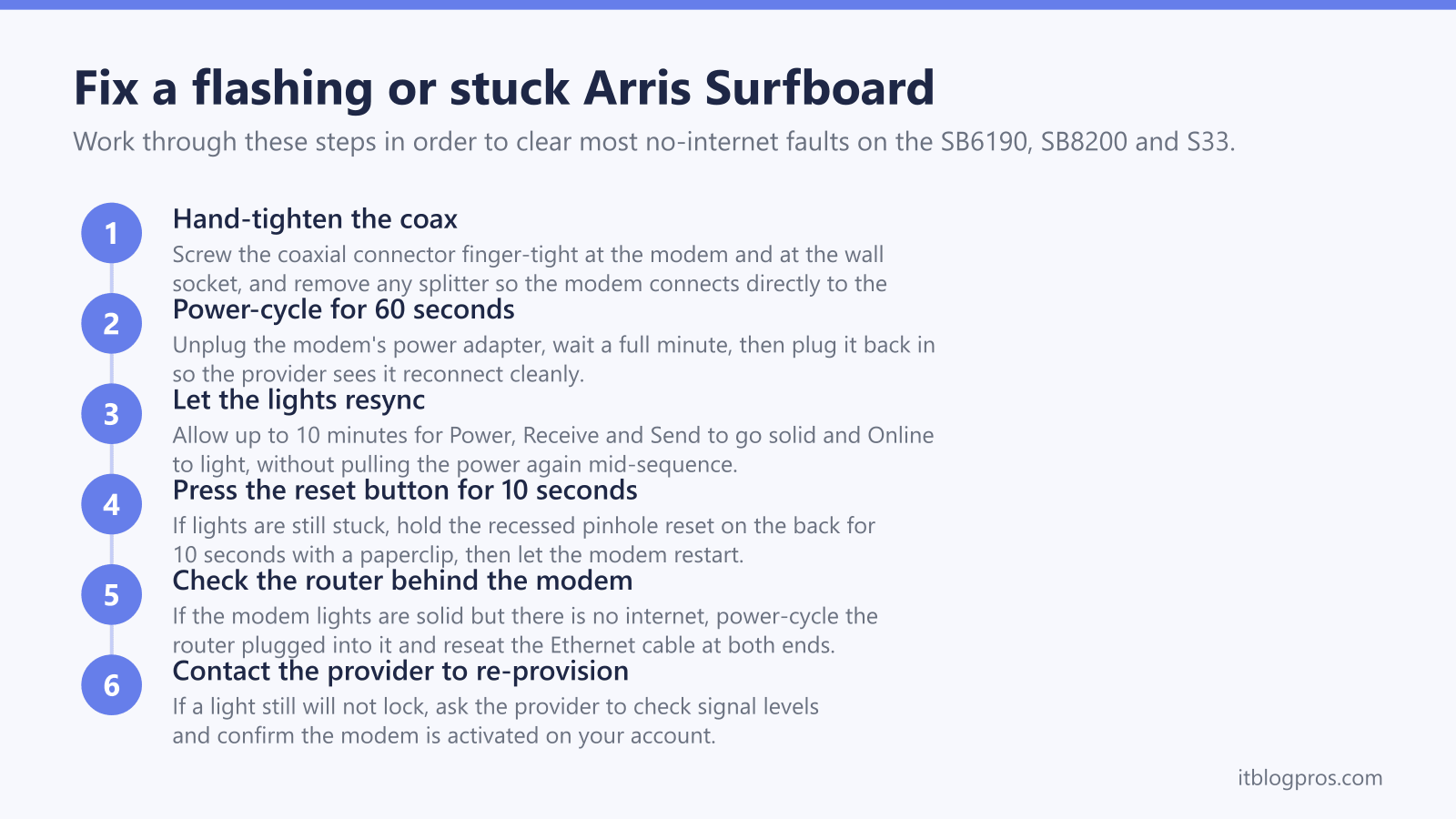
- Most Surfboard faults clear with a tighter coax connection, a 60-second power cycle and, if needed, a 10-second press of the recessed reset button on the back.
Arris Surfboard light meanings at a glance
| Light | What it means | What to do |
|---|---|---|
| Power solid green | On the SB6190 and SB8200 the Power LED is solid green when mains power is properly connected. It can take up to a minute to light after plugging in. | No action needed. If Power never lights, check the adapter is firmly in the modem and the wall socket, and try a different outlet. |
| Receive (down arrow) flashing green | The modem is scanning for and trying to lock its downstream channel from the cable line. This is normal for the first few minutes after powering on. | Wait up to 10 minutes. If it keeps flashing, tighten the coax connector finger-tight, remove any splitter, then power-cycle the modem. |
| Receive solid green or solid blue | The downstream channel is locked. Solid green means a DOCSIS 3.0 connection and solid blue means a higher-speed DOCSIS 3.1 connection on the SB8200 or S33. | No action needed. Solid is the healthy state for the Receive light. |
| Send (up arrow) flashing green | The modem is trying to lock its upstream channel so it can talk back to the provider. Normal briefly at startup, a problem if it persists. | Check the coax run for splitters and loose fittings. If it still flashes after a reboot, ask the provider to check your upstream power levels. |
| Send solid green or solid blue | The upstream channel is locked. Green is a DOCSIS 3.0 lock and blue is a DOCSIS 3.1 lock, matching the Receive light. | No action needed. A solid Send light means the modem can reach the provider. |
| Online (globe) flashing green | The modem has signal and is registering with the provider to get online. This is the last step in the startup sequence. | Wait a few minutes for registration. If it never goes solid, the modem may not be activated on your account, so contact the provider. |
| Online solid green | The modem is fully connected to the internet. With Power, Receive and Send also solid, the Surfboard is working normally. | No action needed. This is the fully online state. |
| Any front light off | An off Power light means no mains power. An off Receive, Send or Online light during use means that channel or the internet registration has been lost. | Power-cycle the modem for 60 seconds, check every coax and Ethernet connection, then run the 10-second reset if lights stay off. |
| Ethernet port green or amber (back panel) | On the rear LAN ports, green shows a gigabit or faster link and amber shows a slower link speed. Blinking indicates active traffic. | If you expect full speed but see amber, swap to a Cat 6 cable and confirm the connected router or PC supports gigabit. |
| S33 single LED blinking green | On the S33 and S34, which use one multi-colour LED, blinking green means the modem is searching for downstream and upstream channels (unlocked status). | Allow a few minutes to lock. If it keeps blinking green, tighten the coax, remove splitters and power-cycle the modem. |
| S33 single LED solid green or blue | On the S33 and S34, solid green means online in DOCSIS 3.0 mode and solid blue means online in DOCSIS 3.1 mode. Either solid colour means the modem is connected. | No action needed. A steady green or blue LED is the healthy online state. |
| S33 LED amber off or flashing | On the S33 and S34, an amber LED that is off means no power, while flashing amber means the modem is downloading firmware in the background. | For flashing amber, leave the modem alone until it finishes. For amber off, check all power and cable connections and reset the modem. |
| S33 LED flashing blue and green alternately | On the S33 and S34, an alternating blue and green flash is the official error mode, meaning the modem hit a fault that needs attention. | Verify all cable connections, then power-cycle. If the error returns, run the 10-second reset and contact the provider if it persists. |
The four Surfboard lights read in order
On the SB6190 and SB8200 the four lights tell a story from left to right, and reading them in that order pinpoints the fault fast. Power confirms the modem has mains electricity. Receive, shown as a down arrow, locks the downstream signal coming in from the cable line. Send, shown as an up arrow, locks the upstream signal going back to the provider. Online, shown as a globe or link symbol, lights once the modem has registered and can pass internet traffic. Each light flashes while it works and goes solid when that step succeeds. Because the steps run in sequence, the first light that is flashing or off is where the connection broke. If Receive is still flashing, there is no point worrying about Online, since Online can only go solid after Receive and Send have both locked. Solid green means a DOCSIS 3.0 connection and solid blue means a faster DOCSIS 3.1 connection on the SB8200, so blue is not a fault, it is the better lock, which is a different rule from the one on a Motorola modem, where blue marks bonded channels.
The flashing Receive or Send light with no internet
This is the classic Surfboard fault. The Receive light, the Send light, or both keep flashing for far longer than the usual few minutes and the Online light never lights, so there is no internet. A flashing Receive light means the modem cannot lock the downstream channel coming from the cable line, and a flashing Send light means it cannot lock the upstream channel back to the provider. The cause is almost always the physical cable signal rather than a broken modem. Common culprits are a loose coax connector, an unnecessary splitter weakening the signal, a damaged cable, or an upstream power level the provider needs to adjust. Start at the modem and work outward: hand-tighten the coax connector where it screws into the modem and at the wall, then remove any splitter in the line so the modem connects directly. Power-cycle the modem afterwards and give it up to ten minutes to relock. If the light still will not go solid, the provider may need to check signal and power levels on their side or re-provision the modem on your account.
Power-cycle the modem the right way
A power cycle clears most transient Surfboard faults and should be the first fix after checking the cables. Unplug the power adapter from the back of the modem, not just the wall switch, and leave it unplugged for a full 60 seconds so the modem fully discharges and the provider sees it drop off the line. Plug it back in and wait. The Power light can take up to a minute to appear, then Receive and Send flash as they hunt for channels, and finally Online flashes and goes solid. Allow the whole sequence up to ten minutes before deciding it has failed. Do not keep pulling the power repeatedly, as that interrupts the channel lock and makes the modem start over each time. If you have a separate router plugged into the Surfboard, power-cycle that after the modem is fully online, so it picks up a fresh address.
Reset the Surfboard to factory defaults
If a power cycle and cable checks do not clear the fault, a factory reset returns the modem to its default state. The reset button is a small recessed pinhole on the back of the modem, so it needs a straightened paperclip or a pen tip. With the modem powered on, press and hold the button for 10 seconds, then release. The front lights flash during the reset, and the modem then restarts and runs through the full Power, Receive, Send and Online sequence again, which can take several minutes. On current SB8200 firmware this 10-second reset also reverts the admin password to the default, which is the last eight digits of the serial number printed on the label. A factory reset clears local settings but does not change how the modem is provisioned on your account, so if the modem comes back online but still has no internet, the next step is a call to the provider to confirm activation.
How the S33 and S34 differ
The newer S33 and S34 do not have the four-light row. They use a single multi-colour LED that signals the same states through colour and blink pattern, so the reading is different even though the underlying meaning matches the older models. Blinking green means the modem is searching for downstream and upstream channels, the equivalent of the Receive and Send lights flashing. Solid green means it is online in DOCSIS 3.0 mode and solid blue means online in DOCSIS 3.1 mode. Amber that is off means no power, and flashing amber means the modem is quietly downloading new firmware, which you should let finish rather than interrupt. The one extra pattern to know is an alternating blue and green flash, which Arris documents as an error mode that needs attention, so treat it like the older models stuck flashing and run through the cable checks, power cycle and reset.
When the lights are fine but there is still no internet
Sometimes every Surfboard light is solid and correct, yet devices still cannot reach the internet, the state most people describe as Wi-Fi connected but no internet. That points away from the modem and towards the equipment behind it. A bare Surfboard is a modem only, so it needs a router to share the connection over Wi-Fi and to more than one device. Check that the router plugged into the modem is powered on and that the Ethernet cable between them is seated at both ends, then power-cycle the router. If the modem is online but the provider has not finished activating it on your account, the lights can look perfect while traffic is still blocked, so a quick call confirms provisioning. People who are still renting their provider's gateway and have bought a Surfboard to replace it should make sure the new modem is the device registered on the account, since the guide to dropping the rented gateway and running your own modem covers that swap and the paperwork it needs. If the issue is weak Wi-Fi rather than the modem, that is a router or mesh question rather than a Surfboard one.