
A Sky hub in the hallway and a back bedroom with one bar is one of the most common complaints in British homes, and the shops are full of boxes promising to fix it. Most of those boxes will fix it. Some of them will not, because the problem was never coverage in the first place. This page separates the two cases, weighs Sky's own WiFi Max subscription against a one-off purchase with the actual arithmetic, and names the extender worth buying for each Sky hub generation.
The TP-Link RE705X is the best WiFi extender for most Sky broadband homes, and the TP-Link RE315 covers a single quiet room for less. An extender does not raise the speed Sky sells you. It moves coverage you already have into a room that has none. If speeds are slow standing next to the hub, the line is the problem and buying an extender fixes nothing.
Key Takeaways
- An extender moves existing coverage into a dead room and never raises the line speed Sky sells you.
- Slow speeds in the same room as the hub point at the line or the hub, so a coverage purchase is the wrong fix.
- Sky quotes WiFi Max from £6 a month on its own page, which is £72 across a year and £144 across a 24-month contract.
- A plug-in extender roughly halves throughput at the far end and usually creates a second network name on a Sky hub.
- One weak room suits an extender, while a weak whole upstairs suits a mesh set such as the TP-Link Deco X50.
An Extender Fixes Coverage and Nothing Else
A WiFi extender listens to the signal your Sky hub is already broadcasting and rebroadcasts it further into the house. That is the entire job. It adds reach, not capacity, and it cannot create bandwidth that never arrived on the line.
One two-minute test decides whether to spend anything at all. Stand in the same room as the hub, connect to the WiFi and run a speed test. Then run the identical test in the dead room.
- Fast beside the hub, slow or dropping in the far room. This is a coverage problem and an extender is the correct tool.
- Slow in both places. This is a line or hub problem, and an extender will faithfully rebroadcast the same slow connection into the spare room.
If the second case matches, buy nothing yet. Work through the free fixes for a weak Sky WiFi signal first, because lifting the hub off the floor, taking it out of the cupboard and moving it away from the television clears a surprising share of dead zones at no cost. If the connection drops out rather than merely slowing, treat it as a fault instead: a Sky hub that keeps disconnecting has its own set of causes, and the hub light codes show whether the line is even up.
Two costs come with every plug-in extender, and honest shops mention them before the checkout button.
Throughput drops at the extender. A plug-in unit receives and retransmits using the same radios, so devices connected to it typically see around half the speed the extender itself is receiving. Mesh kit with a dedicated third radio for the link back to the base avoids this. Neither the RE705X nor the RE315 has that third radio, so plan for roughly half.
You usually end up with a second network name. Out of the box, TP-Link extenders broadcast a copy of your Sky network name with a suffix such as _EXT. You can set the extender to use the same name as the hub, but a Sky hub does not coordinate handover with a third-party extender, so phones can cling to the weaker signal until you toggle the WiFi off and on. TP-Link's OneMesh feature solves this properly, and it only works with a TP-Link OneMesh router, not with a Sky hub.
Your Sky Hub Sets the Ceiling on What an Extender Can Deliver
An extender can only pass on what the hub hands it. The model code printed on the label underneath the unit tells you what you are working with, and the difference between the oldest and newest hubs is enormous.
Sky Gigafast+ Hub. The newest unit, a WiFi 7 router supplied with Gigafast+ plans on the CityFibre network. Anything you plug in alongside it will be the slower half of the pair.
Sky Max Hub (SR213). WiFi 6, dual-band across 2.4GHz and 5GHz, WPA3 security, eight internal aerials and a gigabit LAN. This is the best partner for a WiFi 6 extender, because the link back to the hub can run at WiFi 6 speeds rather than falling back.
Sky Broadband Hub (SR203). WiFi 5, dual-band, WPA2, with four gigabit Ethernet ports. Released in 2019 and still widely deployed. A WiFi 6 extender works fine here, it simply links back to the hub over WiFi 5, so the WiFi 6 benefit only reaches devices connected to the extender itself.
Sky Q Hub. The dual-band unit that shipped through the Sky Q era. Extenders pair with it without trouble, and the hub radio is the limiting factor rather than the extender.
Sky Hub (SR102). The one to watch for. This 2013 unit runs WiFi 4 on the 2.4GHz band only, with no 5GHz radio at all. Every extender linking back to it is stuck on the crowded 2.4GHz band, so a fast AX3000 extender buys you range and very little speed. On an SR102 the money is better spent on a hub upgrade or a mesh set that supplies its own radios. Better routers for Sky broadband covers the replacement route, and the Sky hub login page shows how to reach the settings on each generation.
One further quirk matters here. Current Sky hubs broadcast 2.4GHz and 5GHz under a single network name and steer devices between them automatically, and the hub does not let you separate the two. That means you cannot force the extender onto the 5GHz band from the hub side, and you cannot give the extender a band of its own. Splitting the WiFi bands on a Sky hub explains what is and is not possible and what the workaround costs.
Sky WiFi Max Weighed Against Buying Your Own
Sky sells its own answer to this problem. It has been marketed as Sky Broadband Boost and is now sold as WiFi Max, with Boost still appearing for some Sky Q customers and existing subscribers who re-contract.
Sky's own WiFi Max page quotes the add-on from £6 extra a month, or free with Gigafast+ speeds. Add-on pricing varies by package and changes over time, so treat that as the starting figure and check the exact number against your own account in the Sky app.
What Sky includes for that is more than a plug-in extender:
- A Sky Max Hub if you are still on an older router.
- Up to three Sky Max Pods, which are mesh units rather than simple repeaters, sent out if your coverage falls short of the guarantee.
- A whole-home speed guarantee. Sky guarantees a minimum of 25Mb in every room on Full Fibre 150, Full Fibre 500 and Full Fibre Gigafast, and a minimum of 10Mb on Superfast, Full Fibre 75 and Full Fibre 100.
- Engineer visits without the evening and weekend surcharge, plus the right to claim money back if Sky cannot meet the promise.
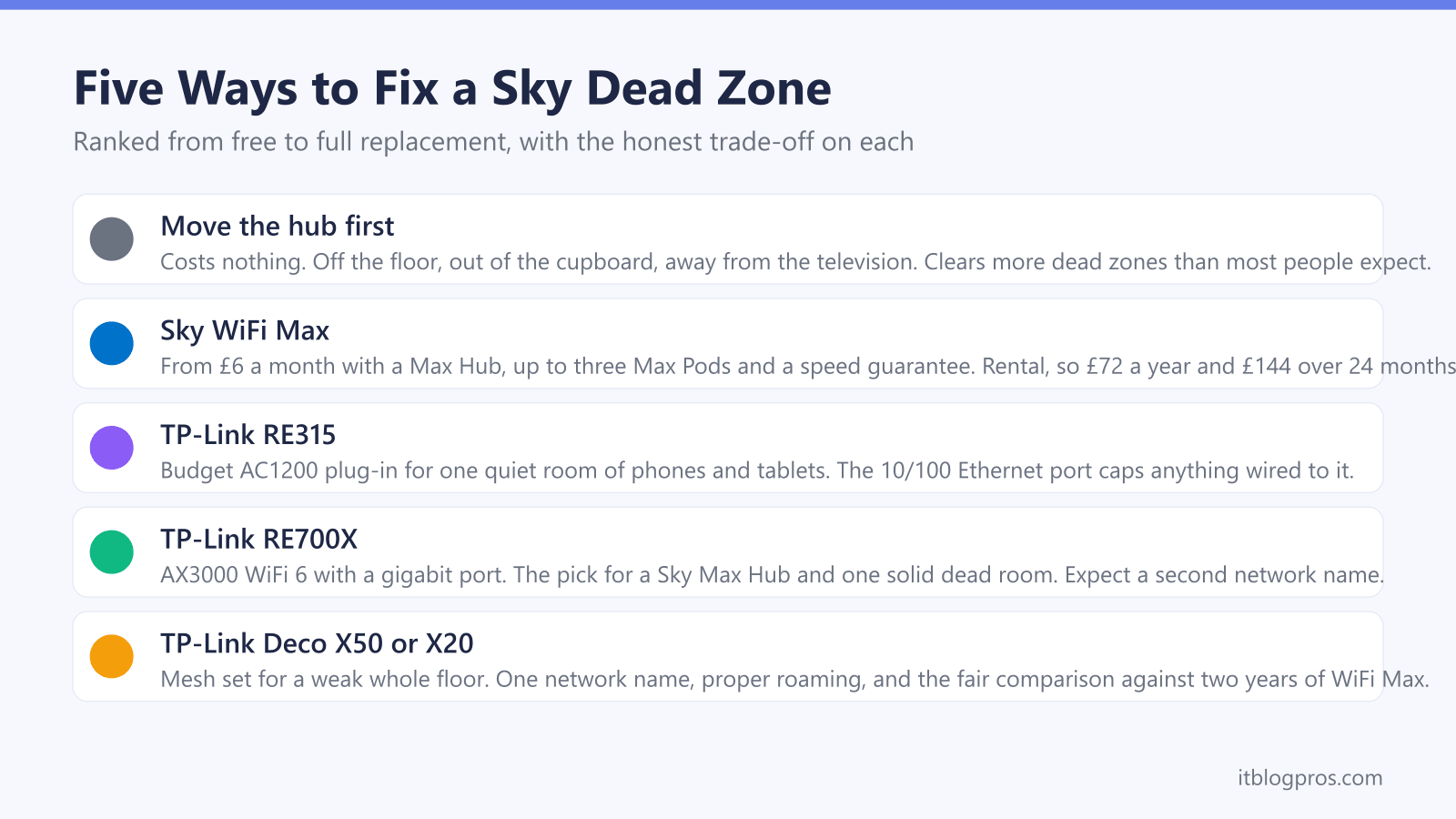
Now the arithmetic, because a monthly rental compounds and a one-off purchase does not. At £6 a month, WiFi Max costs £72 over 12 months and £144 across a 24-month contract. That £144 is comfortably more than a good WiFi 6 extender, and it is roughly in the territory of a three-unit mesh set. At the end of it you own nothing, and the pods go back if you leave Sky.
The honest split looks like this.
WiFi Max earns its money when you are still on an SR102, a Sky Q Hub or an SR203, because the hub upgrade alone is worth having; when you want somebody accountable for the result rather than a box you configure yourself; when the house needs three pods rather than one extender; or when you are on Gigafast+ and it costs nothing.
Buying your own wins when you already have a Sky Max Hub, so the hub upgrade adds nothing; when exactly one room is dead rather than a whole floor; or when you would rather pay once, keep the hardware and take it with you to the next provider.
TP-Link RE705X: The Lead Pick for a Sky Hub
The TP-Link RE705X is the extender to buy for most Sky homes. It is an AX3000 dual-band WiFi 6 unit rated at 2402Mbps on 5GHz and 574Mbps on 2.4GHz, with four amplifiers, beamforming and a gigabit Ethernet port.
That Ethernet port is the quietly important part. If the dead room holds a games console, a smart television or a desktop, you can plug it straight into the extender at gigabit rather than relying on a second wireless hop. The same port lets the unit run in access point mode if you ever get a network cable to that end of the house, which is the best-performing option of all.
It pairs cleanly with a Sky Max Hub, where the WiFi 6 link back to the hub is preserved, and it still works on an SR203 or Sky Q Hub with the return link running at WiFi 5.
The caveats, stated before the recommendation lands. OneMesh, TP-Link's single-name seamless roaming feature, needs a TP-Link OneMesh router and will not activate with a Sky hub, so expect a second network name or sticky handover if you copy the hub's name. There is no dedicated backhaul radio, so devices on the extender see roughly half the speed the extender receives. And it will do nothing at all if the hub room is already slow.

TP-Link RE315: The Budget Pick for One Quiet Room
The TP-Link RE315 is the sensible choice when the target is a single bedroom, a home office used for video calls, or a garden room where phones and tablets simply need a usable signal. It is an AC1200 dual-band WiFi 5 unit, rated at 867Mbps on 5GHz and 300Mbps on 2.4GHz, in a compact plug-in body.
For browsing, video calls, streaming to a phone or tablet and general phone use in a dead room, it is genuinely enough, and it costs a fraction of the RE705X.
The caveat that decides it. The Ethernet socket on the RE315 is 10/100, not gigabit. Anything you wire into it is capped at 100Mbps no matter what Sky sells you. If the dead room contains a console or a work machine that needs a fast wired connection, skip this one and take the RE705X. If the dead room contains people holding phones, the RE315 does the job for less.

TP-Link Deco X50 and Deco X10: The Step Up for a Weak Whole Floor
If the problem is the whole upstairs rather than one room, an extender is the wrong shape of solution. Repeating a signal that is already thin gives you a thin signal in more places. A mesh set replaces the coverage layer instead of patching it, with several units sharing one network name and handing devices between them properly as you walk around.
TP-Link Deco X50, three-pack. AX3000 WiFi 6 per unit, matching the RE705X on paper but spread across three points with gigabit Ethernet on each. This is the choice for a three-bedroom house or anything with awkward stone or thick internal walls, and it is the closest equivalent to what Sky's own Max Pods provide.
TP-Link Deco X10, two-pack. TP-Link sells it as Dual-Band WiFi 6 AX1500, with WiFi 6 on the 5GHz band, two gigabit ports on each unit, and a two-pack rated up to 3,900 sq ft, which TP-Link positions for two to four bedroom houses. It is the more affordable mesh entry point, a clear step up from any single extender for whole-floor coverage while sitting below the X50 on raw throughput: TP-Link rates the X10 at 1201Mbps on 5GHz, against 2402Mbps for the X50.
With either, you would normally put the Sky hub into modem mode or accept running the mesh behind it, so plan the setup before ordering. The extender versus mesh comparison sets out that decision in full, and households streaming to Sky's own kit should read the mesh guidance for Sky Glass and Sky Stream, since those devices are sensitive to a weak link in a way that phones are not.
A mesh set is also the fair comparison against WiFi Max at £144 over two years. Buy the mesh once and it stays yours.
Check the TP-Link Deco X50 mesh on Amazon UK →
Check the TP-Link Deco X10 price on Amazon UK →
Placement Decides Whether the Extender Works at All
More extenders fail because of where they are plugged in than because of what was bought. The single most common mistake is putting the extender in the dead room, which is precisely where it has no signal to rebroadcast.
- Site it roughly halfway between the hub and the dead room, at the point where a phone still shows a usable signal. The extender needs a strong link back to the hub far more than the dead room needs the extender nearby.
- Use an open socket, not one behind a sofa, inside a cupboard or below a metal-fronted appliance.
- Keep it clear of the microwave, cordless phone base and baby monitor, all of which sit on 2.4GHz.
- Watch the signal indicator on the extender. TP-Link units show link quality on the front. If the indicator reports a weak link, move the extender one socket closer to the hub and check again.
- Count the walls, not the metres. A single stone chimney breast or a foil-backed plasterboard wall costs more signal than two rooms of open air.
If the halfway point happens to be a hallway with no socket, the honest answer is that a mesh unit or a wired access point suits the house better than an extender.
Setting Up an Extender on a Sky Hub
Setup is short and the order matters. Pair the extender in the same room as the hub, then move it to its final position.
WPS is the quickest route on a Sky Broadband Hub (SR203), where the WPS button sits in a recess on the right-hand edge of the unit and can be awkward to press firmly. On a Sky Max Hub (SR213) the WPS button is on the side and holding it for around three seconds makes the front light pulse blue, turning white on a successful pair. If WPS refuses to complete, the manufacturer's app is the reliable fallback: it asks for the hub's WiFi name and the password printed on the card attached to the hub.
Expect a second network name once the extender is running. If a single name matters more than guaranteed roaming, set the extender to copy the hub's network name and password in the app, then accept that phones may hold on to the weaker of the two until you toggle WiFi off and on. If a single name and clean roaming both matter, that is the argument for a mesh set rather than an extender.
What to Do When the Extender Does Not Help
Work down this list before returning anything.
- Repeat the two-room speed test. If the hub room is now slow too, the fault moved to the line and no amount of extending will help.
- Move the extender one socket closer to the hub. A weak backhaul is the most common cause of disappointing results, and the fix is free.
- Confirm the device is actually on the extender. Phones cling to the original network. Forget the hub network temporarily and reconnect to check what the extender is really delivering.
- Halve your expectations deliberately. If the extender receives 200Mb, devices on it seeing around 100Mb is normal behaviour, not a fault.
- Check the hub's own health. The Sky hub light codes show whether the line is stable, and repeated dropouts belong in the Sky hub disconnection fixes instead.
- Reconsider the shape of the problem. One stubborn room after all of the above usually means the halfway point is not viable, and a mesh set or an Ethernet run to an access point is the real answer.
If the house needs three coverage points and an engineer to sign it off, Sky's WiFi Max stops looking expensive. If it needs one box in one landing socket, the one-off purchase stays the better deal.