
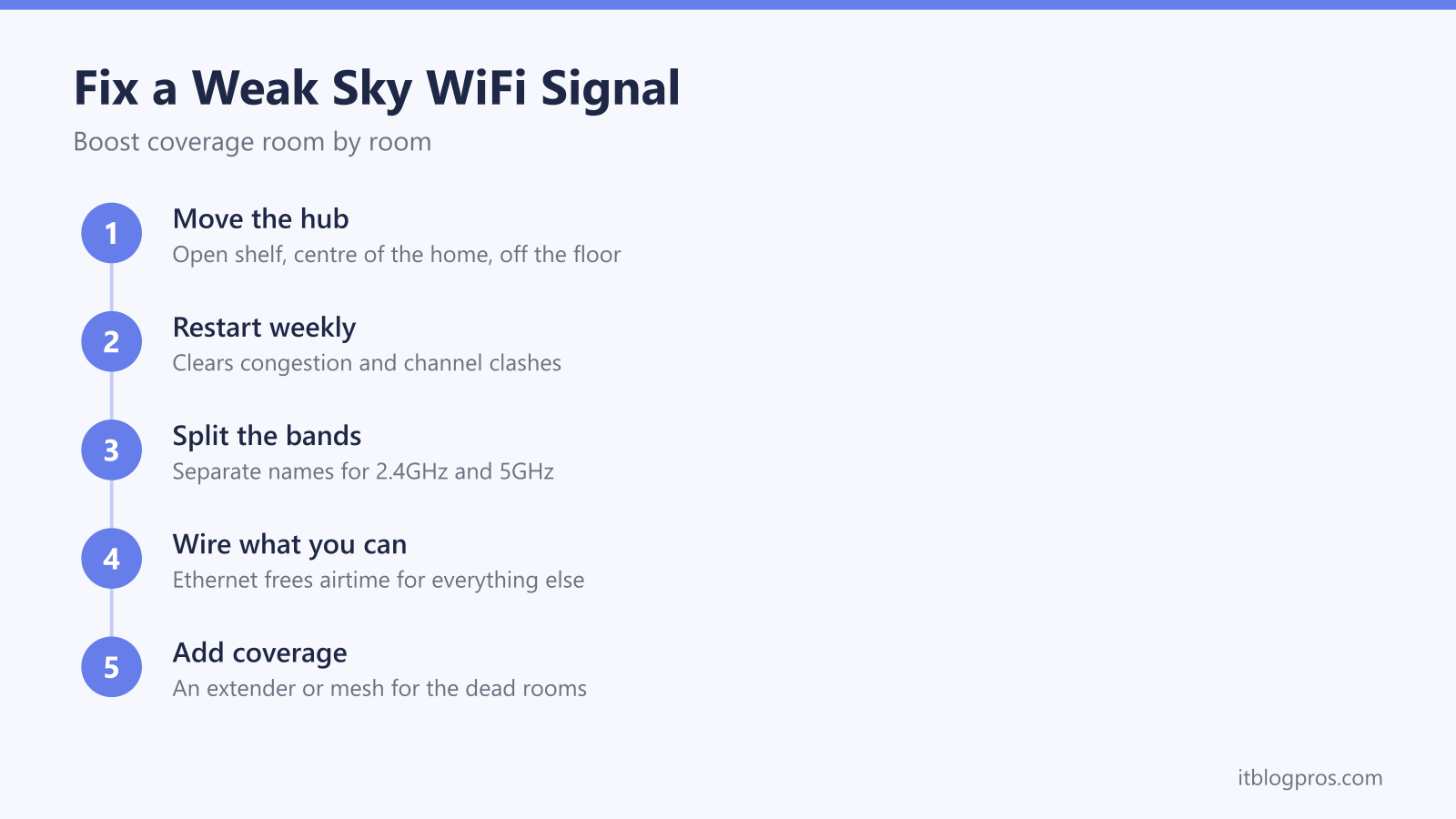
A weak Sky Broadband WiFi signal rarely means the broadband itself is broken. In most homes the hub is simply in the wrong place, hidden in a cupboard or squeezed behind the TV, and the fix costs nothing at all. This guide works through the free improvements first, then Sky's own booster options, and finally the honest hardware ladder for rooms the hub genuinely cannot reach.
Most weak Sky Broadband WiFi signals are fixed without spending anything: move the hub off the floor and out of cupboards to somewhere central, restart it regularly, and wire the TV or console by Ethernet. Test speed right beside the hub first, because a slow result there means a line fault, not a WiFi one. For a genuine dead room, a WiFi 6 extender or a mesh system covers what the hub cannot reach.
Key Takeaways
- Hub placement is the cheapest signal fix there is: off the floor, out of cabinets, central and upright, with at least a metre of clearance from the TV and other electronics.
- A regular restart clears the hub's memory and prompts a fresh scan for a quieter WiFi channel, and because Sky pushes firmware automatically, restarting also lets pending updates apply.
- The black Sky Broadband Hub (SR203) can split its 2.4GHz and 5GHz bands at 192.168.0.1, while Sky documents no split for the white Max Hub or Gigafast+ Hub, whose WiFi settings Sky puts in the My Sky app.
- Wiring the TV, console or Sky Stream puck by Ethernet frees wireless airtime for everything else and beats any WiFi tweak for that device.
- Coverage hardware fixes coverage, not speed: an extender suits one dead room, mesh suits whole-home gaps, and a slow speed test taken beside the hub means a line fault instead.
Hub placement is the cheapest signal fix there is
WiFi is radio, and radio hates obstacles. Every wall, floor, mirror and large piece of furniture between the hub and your device shaves signal off, and a few household items are especially brutal: fish tanks soak up WiFi because the signal struggles through water, mirrors reflect it, and anything metal, from radiators to filing cabinets, blocks it almost completely.
That is why the hub's position matters more than any setting. The usual hiding spots are the worst offenders:
- inside a cupboard or display cabinet
- on the floor behind the sofa
- underneath or directly behind the TV
- next to the microwave in the kitchen
Pull the hub out into the open, stand it upright, lift it off the floor onto a shelf or table, and place it as centrally as the master socket or fibre box allows, facing the rooms where you actually use WiFi. Leave at least a metre between the hub and the TV, soundbar, games consoles and anything else electronic. Baby monitors, cordless phones and microwave ovens deserve extra distance, because they transmit on or near the same 2.4GHz frequencies and interfere directly with the signal.
Ten minutes of rearranging beats any gadget purchase, which is why placement always comes first.
A regular restart keeps the hub and its firmware healthy
Sky hubs benefit from a restart far more than most people expect. Powering the hub off at the plug for thirty seconds clears its memory, drops stale connections and prompts a fresh scan for the least congested WiFi channel, which matters on streets where dozens of neighbouring networks fight over the same airwaves. A weekly restart is a sensible habit; monthly at the very least.
Firmware largely takes care of itself, with one catch. Sky pushes hub updates automatically and there is no manual update button, so there is nothing to download or install yourself. The catch is that a hub left running for months on end can sit on a pending update, and the regular restart is what lets everything apply cleanly.
One quick security check belongs here too. A guessable WiFi password does not weaken the signal, but uninvited neighbours streaming video will happily eat the bandwidth that signal carries, so stick with the strong default printed on the hub's sticker or something equally hard to crack.
Sky hub bands behave differently depending on the model
Every current Sky hub broadcasts on two bands. The 2.4GHz band travels further and punches through walls better, but it is slower and more crowded; the 5GHz band is much faster but fades quickly with distance. Phones, laptops and TVs near the hub belong on 5GHz, while smart plugs, cameras and anything at the far end of the house does better on 2.4GHz.
How much control you get depends on the hub Sky sent you. The black Sky Broadband Hub (SR203) can split the bands into two separately named networks: log in at 192.168.0.1 with the username admin and the default password from the hub's sticker, untick Synchronise 2.4GHz and 5GHz settings under Wireless, then rename the 5GHz network. The login details for every model are in our Sky Hub login guide, and the step-by-step walkthrough lives in our guide to splitting WiFi bands on a Sky hub.
Sky documents no band split for the white Sky Max Hub or the newer Gigafast+ Hub. Both present one network name and move devices between the bands, which is band steering, and Sky says their WiFi settings are managed in the My Sky app rather than admin pages. For most households the steering works well on its own. It only becomes a nuisance with 2.4GHz-only smart devices, and the split-bands guide above covers the honest workarounds for those hubs too.
Wiring the TV or console frees airtime for everything else
Every device you take off WiFi makes the WiFi better for the ones that remain. Wireless airtime is shared, so a 4K film streaming to the TV occupies the hub's radio almost constantly while every other device waits its turn around it. Run an Ethernet cable from the hub to the TV, games console or Sky Stream puck and that traffic leaves the airwaves entirely, while the wired device gets a faster, more stable connection than WiFi could ever manage in the same spot.
Consoles and streaming boxes are the best candidates, because they move the most data and never move around the house. Where a cable run is genuinely impossible, powerline adapters push the connection over the home's electrical wiring instead; performance varies with the age and layout of that wiring, so treat them as a convenient middle option rather than a guaranteed one.
Sky WiFi Max weighed honestly against buying your own kit
Sky's own answer to poor coverage is WiFi Max, an add-on at £4 a month where offered. It supplies the WiFi 6 Max Hub, up to three matching mesh booster pods, and a guarantee of at least 25Mbps in every room on Full Fibre 150 and above, or 10Mbps on slower tiers, with more pods, an engineer visit and ultimately money back if a room still misses the target.
The strengths are genuine. Nothing needs paying upfront, the pods are matched to the hub and managed through the My Sky app, and any misbehaviour is Sky's problem to solve rather than yours. For a lighter household with one awkward room, it is a perfectly reasonable answer.
The honest weakness is the maths. The fee never ends, so an eighteen-month contract adds £72 and four years adds nearly £200, for hardware that goes back to Sky if you leave. Buying your own extender or mesh costs more on day one, delivers more speed than the 25Mbps guarantee, and keeps working if you ever switch provider. Replacing the hub entirely with a better router is also possible, with real caveats, since Sky documents no bridge mode on its hubs, all covered in our best router for Sky broadband guide.
The honest upgrade ladder for rooms the hub cannot reach
Before spending anything, be clear about what coverage hardware can and cannot do. Extenders, pods and mesh systems fix coverage: they carry your existing speed into rooms the hub cannot reach on its own. None of them raises the speed of the line itself, which is why the beside-the-hub speed test in the next section matters before any purchase.
For one stubborn room, a plug-in extender is the right-sized fix. Once a TP-Link unit is paired, its own settings page lives at the tplinkrepeater.net login. The TP-Link RE705X is the verified pick here: an AX3000 WiFi 6 unit that pairs with any Sky hub over WPS, plugged into a wall socket roughly halfway between the hub and the dead room. Its gigabit Ethernet port also lets you wire in a TV or console at the far end, a genuinely useful bonus in a bedroom or garden office.

For a home that is patchy across several rooms or floors, one extender turns into a game of whack-a-mole and a mesh system is the better spend. Mesh nodes blanket the house under a single network name, and the usual Sky setup runs the mesh in access point mode behind the hub, which is the arrangement that works whatever the hub, since Sky documents no bridge mode on any of them. Our extender versus mesh decider walks through which side of that line your home falls on, and Sky Glass or Sky Stream households, where every TV is a WiFi stream, should read the best mesh WiFi for Sky Glass and Sky Stream guide before choosing.
Nobody should talk you into mesh for a single dead spot, though. A modest extender or a cheap Ethernet cable often does that job completely.
Slow speeds beside the hub point to a line fault, not the WiFi
One test separates a coverage problem from a broadband problem. Stand next to the hub with a phone or laptop on the 5GHz band, or plugged in by Ethernet, and run a speed test. A result close to the speed your package promises means the line is fine, and every slow room in the house is a coverage issue that the steps above can fix. A result well below the package speed, taken right beside the hub, means the fault is on the line, and no extender, pod or mesh purchase will change it.
Line faults show other symptoms too: the hub's internet light changing colour or flashing, connections dropping at similar times each day, and speeds that collapse across every device at once. Check the hub's lights, run the service checker in the My Sky app, restart the hub once, and write down the beside-the-hub speed test result. If the number stays low, contact Sky with that result in hand, because a sync or line problem is an engineer's job and nothing on this page substitutes for it.