
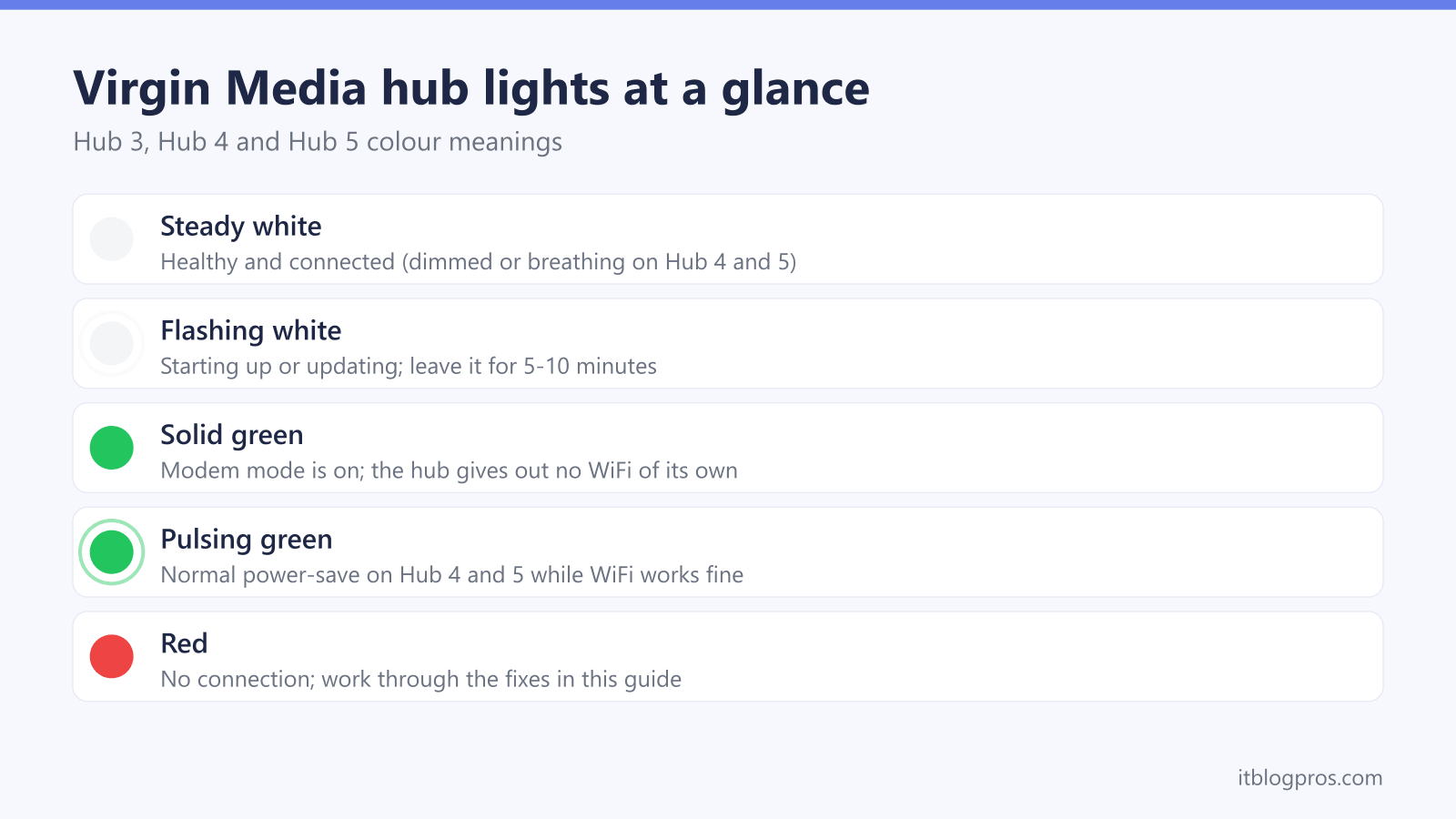
If your Virgin Media hub is showing an unexpected light colour, this complete guide explains what every light means on the Super Hub 2, Hub 3, Hub 4, and Hub 5, plus quick fixes for each state.
Virgin Media's lights key gives solid white as everything okay on the Hub 3 and Hub 5, with dimmed white as the healthy state on the Hub 4. Flashing white means booting, and a slow green flash a software update. Solid green on the Hub 4 and Hub 5 means modem mode, so the hub gives out no WiFi. Solid red is cabling or heat; flashing red means it failed to register.
Key Takeaways
- You'll decode every light colour and pattern across the Super Hub 2, Hub 3, Hub 4, and Hub 5 using the per-model reference tables, then jump to a subsection written for your exact state, such as a Hub 5 solid red or a Hub 3 flashing red internet light.
- We clear up the biggest source of confusion: a solid green light means modem mode is on and the hub is giving out no WiFi of its own, white rather than green is the healthy colour on the Hub 3 and Hub 5 and dimmed white on the Hub 4, and Virgin Media documents no amber state at all on the Hub 4 and Hub 5.
- You'll have a five-step fix ladder for red and no-internet states, covering a power cycle, a fifteen-minute cool-down for the overheating that causes solid red, checking the coax connection, the service-status page, and a ten-second pinhole reset.
- We set out exactly when a fault is on the line or hub rather than something you can fix, plus what to have ready before contacting Virgin Media.
- You'll learn when a healthy white hub is still your WiFi bottleneck and how modem mode with a third-party router or a mesh system fixes weak coverage.
Virgin Media hub lights meaning (quick answer)
Here is what the colours mean across the range. Virgin Media's lights key gives a solid white light as everything okay on the Hub 3 and Hub 5, while on the Hub 4 the healthy state is a dimmed white and a solid white one is normal for the first minute or so after switching on; flashing white means it is still booting, so leave it be. The Super Hub 2 works from a separate blue and white key, covered in its own table below. Solid green on the Hub 4 and Hub 5 means modem mode is switched on, so the hub is passing the connection through and giving out no WiFi of its own, while a slow green flash is a software update downloading. Solid red points at a cable problem or an overheating hub, and flashing red means the hub could not register on the network. The per-model tables that follow break each pattern down for Hub 3, Hub 4, and Hub 5, and the state-by-state section takes each red and flashing light on its own.
| Light | What it means | What to do |
|---|---|---|
| Solid white (dimmed white on the Hub 4) | Everything is okay. This is the normal working state. | Nothing to do. |
| Flashing white | The hub is booting up, on every model. | Wait at least five minutes, and check the cables are pushed in firmly. |
| Solid green (Hub 4 and Hub 5) | Modem mode is on, so the hub gives out no WiFi of its own. | Connect your own router to one of the Hub's Ethernet ports, trying each in turn if it gets no internet, as Virgin names no port. Or hold the pinhole reset for ten seconds to exit modem mode. |
| Slow flashing green | A software update is downloading. | Leave it alone. The hub reboots itself a few minutes after the download finishes. |
| Flashing blue | The WPS pairing window is open for two minutes. Solid blue for twenty seconds means a device paired. | Pair the device now. A rapid blue flash means the pairing failed, so start again. |
| Solid red | A cable connection problem, or the hub is running too hot. | Power off, uncover the vents, check every cable, leave it fifteen minutes to cool, then power back on. |
| Flashing red | Startup finished but the hub could not register on Virgin Media's network. | Reboot at the wall and allow five to ten minutes. If it persists, hold the pinhole reset for ten seconds. |
Quick Navigation
- Hub 3 Lights
- Hub 4 Lights
- Hub 5 Lights
- Red and Flashing Lights, State by State
- Quick Fixes
- When to Call Virgin Media
- FAQ
Universal Virgin Media Hub Light Meanings
Before the per-model tables, here are the patterns that hold across the range, taken from Virgin Media's own light key.
White Is the Healthy Colour, Not Green
Solid white means the hub is working normally on the Hub 5 and the Hub 3, and the Hub 4 shows a dimmed white for the same thing. Flashing white means the hub is booting, on every model. Neither needs action.
Green Means Modem Mode or an Update
On the Hub 4 and Hub 5, a solid green light means modem mode is on and the hub is giving out no WiFi of its own. A slow green flash means a software update is downloading, so leave the hub alone until it reboots itself.
Blue Belongs to WPS Pairing
Blue is not a status or a startup colour. A slow blue flash is the two-minute WPS pairing window, solid blue for twenty seconds confirms a device paired, and a rapid blue flash means the pairing failed.
Red Is Heat or Registration, and Amber Is Not Documented
A solid red light means a cable problem or an overheating hub. A flashing red light means the hub started up but could not register on Virgin Media's network. Virgin Media publishes no amber or orange state for the Hub 4 or Hub 5, and on the Hub 3 a yellow power light is healthy.
Virgin Media Super Hub 2 Lights
The older Super Hub 2 (and Super Hub 2ac) works differently from the single-light hubs that followed it. Instead of one status light, it has a separate power light and internet light, plus small WiFi lights for the 2.4GHz and 5GHz networks. Reading the two together tells you where the problem sits.
Complete Super Hub 2 Light Reference
| Light | What you see | What it means | What to do |
|---|---|---|---|
| Power | Solid blue | Everything is okay; the normal working state | Nothing |
| Power | Off, with mains on | The hub is off | Check the power cable both ends and the wall switch; allow 5 to 10 minutes |
| Ready | Solid blue | Connected to Virgin Media's network | Nothing |
| Ready | Off, with a solid blue power light | The hub is on but not connected to the network, usually a loose connection at home | Push every cable in firmly |
| Traffic (WAN) | Blinking blue | Data is passing through the hub, which is normal | Nothing |
| Wireless (2.4 / 5GHz) | Solid or flashing blue | Both wireless bands are up | Nothing |
| Wireless (2.4 / 5GHz) | Off, with a solid blue power light | The hub is on but the WiFi is not, usually a loose connection at home | Push every cable in firmly |
Super Hub 2 Common Issues
Power light on, ready light off: the hub has power but is not connected to Virgin Media's network, and Virgin Media puts this down to a loose connection in the home. Check the white coax cable is finger-tight at the wall socket and the hub, then reboot. If it does not come back, check the Virgin Media service status for an outage. Note that Virgin Media documents no red state at all on the Super Hub 2 or 2ac; its light key is blue and white only, so a red light here is not something Virgin Media publishes a meaning for.
No WiFi but lights look normal: confirm you are not in modem mode (see the solid-green callout near the top). If you rely on the hub's own WiFi and it has dropped out, the WiFi-only-showing-2-bars fix guide walks through the usual causes.
The Super Hub 2 is now several generations old; if it is your bottleneck, see the upgrade bridge later in this guide.
Virgin Media Hub 3 Lights
The Hub 3 (also called Super Hub 3) has a simpler light system than newer models.
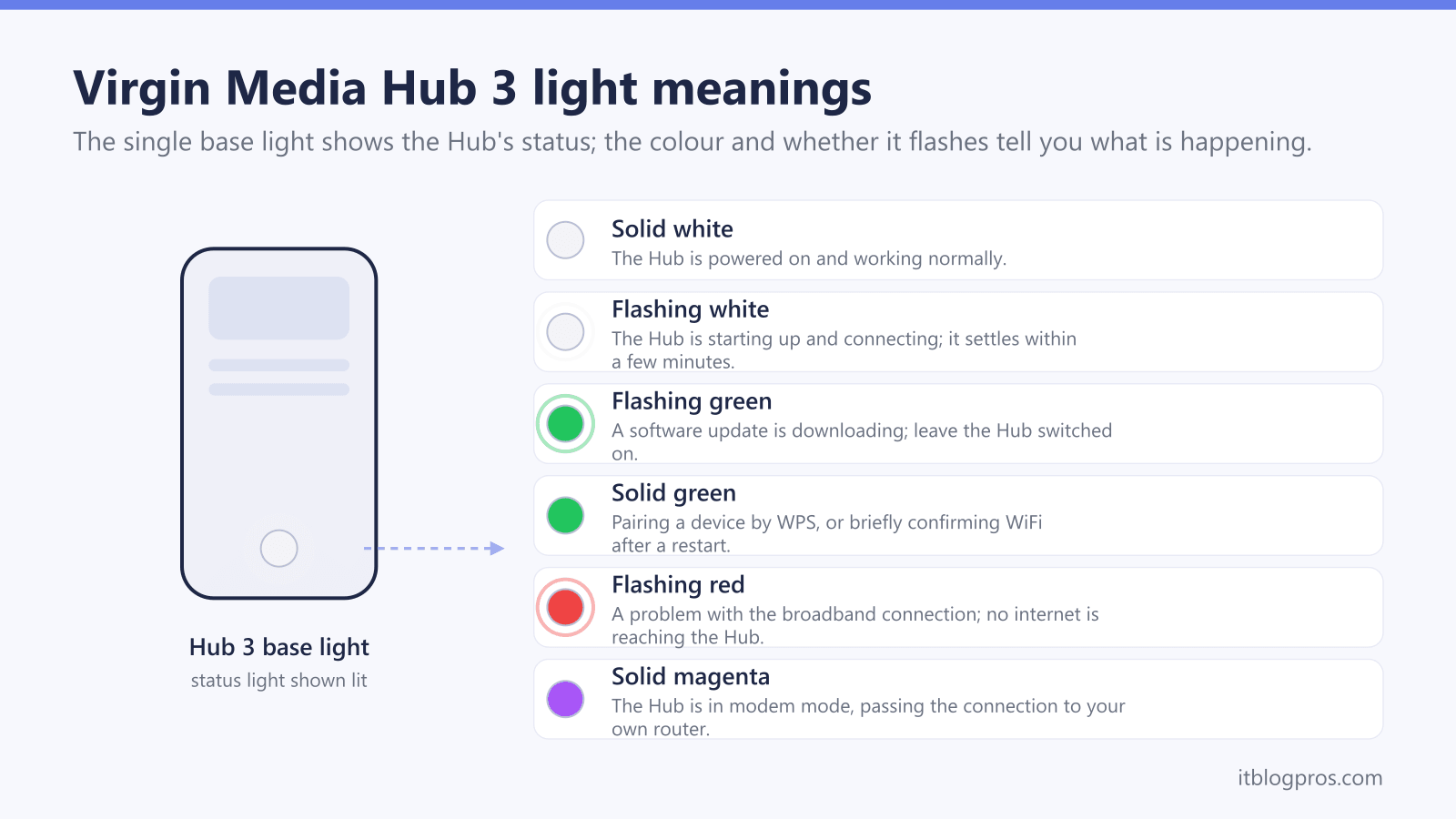
Complete Hub 3 Light Reference
| Light | What you see | What it means | What to do |
|---|---|---|---|
| Power | Flashing white | Starting up, which is what it does when first switched on | Wait; it goes solid white when finished |
| Power | Solid white | Everything is okay; the normal working state | Nothing |
| Power | Solid yellow | Everything is okay; also a normal working state | Nothing |
| Power | Solid red | The hub is too hot | Power off, clear the vents, cool 15 minutes, then power back on |
| Power | Solid purple, with solid green internet and phone | Modem mode is on, so the hub shares no WiFi | Use your own router, or hold the pinhole reset 10 seconds to exit |
| Power | Flashing green, with solid green WiFi and phone | Still starting up | Allow 5 to 10 minutes |
| Internet | Flashing red, with solid white power and solid green WiFi | Startup finished but the hub could not register on the network | Reboot at the wall; allow 5 to 10 minutes |
| Internet | Flashing green | A software update is downloading | Leave it; the hub reboots a few minutes later |
| WiFi | Flashing red constantly | The hub is on but the WiFi is not, usually a loose connection | Push every cable in firmly, then reboot |
| WiFi | Flashing red for 2 minutes only | A WPS pairing attempt failed | Press WPS for 2 seconds and try again |
| WiFi | Flashing green | The WPS pairing window is open for about 2 minutes | Pair the device now |
| WiFi | Solid green | The normal working state. It also holds for 5 minutes straight after a successful WPS pairing | Nothing |
| Phone | Flashing red | A home phone issue locally or on the wider network | Check the cables, then reboot |
| All four | Solid white power with solid green WiFi, internet and phone | Registered successfully; shows for about 2 minutes after startup | Nothing |
| All four | No lights, with mains on | The hub is off | Check the power supply both ends, the wall switch, and the power button |
Hub 3 Common Issues
Problem: A solid red power light
Fix: this is the overheating signal on the Hub 3, so treat it as a heat problem first.
- Switch the power supply off at the wall
- Stand the hub upright in the open with the vents uncovered, away from heat sources
- Check the cables for damage and push them in firmly
- Leave it 15 minutes to cool
- Power back on and allow 5 to 10 minutes
Problem: A flashing red internet light, with a solid white power light and a solid green WiFi light
Fix: the hub finished starting up but could not register on Virgin Media's network.
- Switch the power supply off at the wall, then back on
- Allow 5 to 10 minutes for it to start up
- A solid white power light means it has come back up properly
- If it stays on flashing red, check the service status and then contact Virgin Media
Virgin Media Hub 4 Lights
The Hub 4 (Super Hub 4) has one light only, circling the whole top quarter of the case.
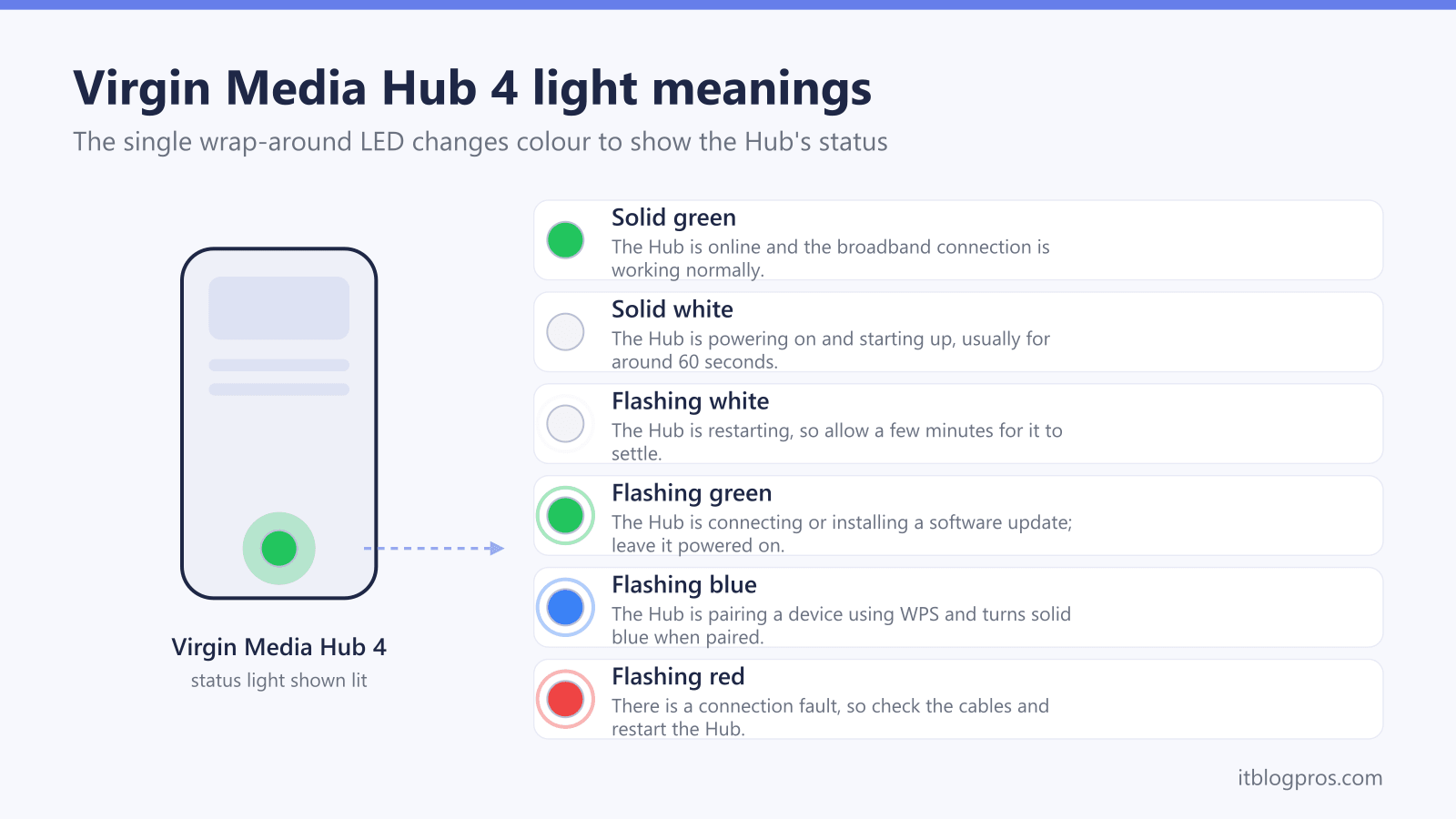
Complete Hub 4 Light Reference
| Light pattern | What it means | What to do |
|---|---|---|
| Dimmed white | Everything is okay; this is the normal working state | Nothing |
| Solid white | Normal for the first minute or so after switching on | Wait |
| Flashing white | The hub is booting up | Wait at least 5 minutes; check the cables are pushed in firmly |
| Solid green | Modem mode is on, so the hub shares no WiFi of its own | Use your own router, or hold the pinhole reset 10 seconds to exit |
| Slow flashing green | A software update is downloading | Leave it; the hub reboots a few minutes after the download |
| Slow flashing blue | The WPS pairing window is open for 2 minutes | Pair the device now |
| Solid blue | A device paired over WPS; it holds for 20 seconds | Nothing |
| Rapid flashing blue | The WPS pairing attempt failed | Start the pairing again |
| Solid red | A cable connection problem, or the hub is too hot | Power off, clear the vents, check cables, cool 15 minutes, power on |
| Flashing red | Startup finished but the hub could not register on the network | Reboot at the wall and allow 5 to 10 minutes; then a 10 second reset |
| No light | The hub is off | Check the power supply both ends, the wall switch, and the power button |
How the Hub 4 Light Actually Works
Virgin Media is explicit that the Hub 4 has one light only, circling the whole top quarter of the case. There are no side arrows, no separate WiFi-activity indicator, and no amber state. The one pattern worth memorising is the WPS sequence, because the blue states are easy to read backwards:
- Push WPS and the light flashes blue slowly for 2 minutes, which is the pairing window.
- A successful pairing turns the light solid blue for 20 seconds.
- A rapid blue flash means the pairing failed, so try again.
Hub 4 Common Issues
Problem: Hub 4 flashing white for ages
Fix: flashing white means booting, not updating.
- Give it at least 5 minutes to finish
- Check every cable in and out of the hub is pushed in firmly while you wait
- A healthy Hub 4 settles on a dimmed white light
- If it is still flashing white well past that, power cycle it and allow another 5 to 10 minutes
Problem: Solid red light on Hub 4
Fix: Virgin Media names a cable problem or an overheating hub.
- Switch the power supply off at the wall
- Stand the hub upright in the open, vents uncovered, away from heat sources
- Check the cables for damage and push them in firmly
- Leave it 15 minutes to cool
- Power back on and allow 5 to 10 minutes; if it is still red once cool, hold the pinhole reset for 10 seconds
Virgin Media Hub 5 Lights
The Hub 5 is the current coax hub, and it carries a single status light on the front, bottom right.
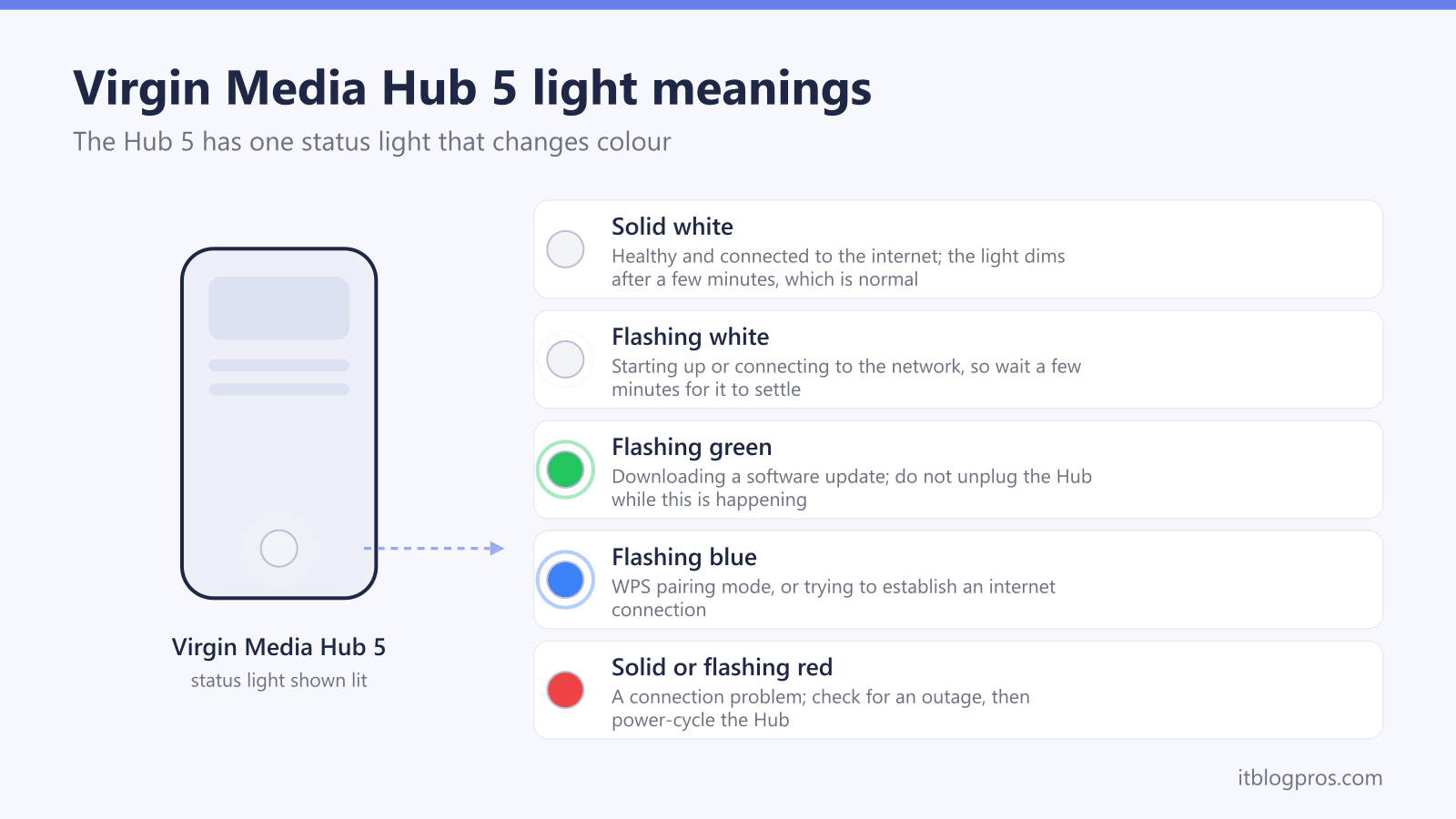
Complete Hub 5 Light Reference
| Light pattern | What it means | What to do |
|---|---|---|
| Solid white | Everything is okay; this is the normal working state | Nothing |
| Flashing white | The hub is booting up | Wait at least 5 minutes; check the cables are pushed in firmly |
| Solid green | Modem mode is on, so the hub shares no WiFi of its own | Use your own router, or hold the pinhole reset 10 seconds to exit |
| Slow flashing green | A software update is downloading | Leave it; the hub reboots a few minutes after the download |
| Slow flashing blue | The WPS pairing window is open for 2 minutes | Pair the device now |
| Solid blue | A device paired over WPS; it holds for 20 seconds | Nothing |
| Rapid flashing blue | The WPS pairing attempt failed | Start the pairing again |
| Solid red | A cable connection problem, or the hub is too hot | Power off, clear the vents, check cables, cool 15 minutes, power on |
| Flashing red | Startup finished but the hub could not register on the network | Reboot at the wall and allow 5 to 10 minutes; then a 10 second reset |
| No light | The hub is off | Check the power supply both ends, the wall switch, and the power button |
How the Hub 5 Light Actually Works
The Hub 5 carries a single LED on the front, bottom right, and Virgin Media's key for it uses solid and flashing only. There is no separate pulsing or breathing tier, and no amber or orange state, so a light is either steady or blinking and the colour does the rest of the work:
- Solid white is the healthy, working state.
- Flashing white is booting.
- Solid green is modem mode; slow flashing green is a software update.
- Blue belongs entirely to WPS pairing.
- Red is heat or cabling when solid, and failed network registration when flashing.
Hub 5 Common Issues
Problem: Hub 5 stuck on flashing white
Fix: flashing white means the hub is booting, and Virgin Media asks for at least 5 minutes.
- Wait the full 5 minutes before doing anything
- Check every cable in and out of the hub is pushed in firmly while you wait
- A healthy Hub 5 finishes on a solid white light
- If it is still flashing white long past that, power cycle it and allow another 5 to 10 minutes
Problem: Hub 5 solid red light
Fix: Virgin Media names a cable problem or an overheating hub.
- Switch the power supply off at the wall
- Stand the hub upright in the open, vents uncovered, away from radiators and direct sunlight
- Check the cables for damage and push them in firmly
- Leave it 15 minutes to cool
- Power back on and allow 5 to 10 minutes; if it is still red once cool, hold the pinhole reset for 10 seconds
Problem: Hub 5 flashing red light
Fix: startup finished but the hub could not register on Virgin Media's network.
- Switch the power supply off at the wall
- Check the cables for damage and push them in firmly
- Switch back on and allow 5 to 10 minutes
- Still flashing red? Hold the pinhole reset for 10 seconds and give it another 5 to 10 minutes
Virgin Media Hub Red and Flashing Lights, State by State
Each subsection below answers one exact light state, using the meaning and the fix Virgin Media publishes on its own hub lights help pages. Virgin's light key covers the Hub 5, Hub 4, Hub 3, and Super Hub 2 or 2ac. Find your model, then find your light.
Two things catch most people out. Red does not automatically mean a line fault: on the Hub 3, Hub 4, and Hub 5, Virgin Media names overheating as a cause of a solid red light, and the published fix is a cool-down rather than a phone call. And Virgin Media documents no amber or orange state at all on the Hub 4 and Hub 5, while on the Hub 3 a yellow power light is a healthy state rather than a fault.
Hub 5 Solid Red Light Points to Heat or Cabling
Virgin Media gives two causes for a solid red light on the Hub 5: a problem with the cable connections, or the hub running too hot. Its published sequence deals with both at once.
- Switch the hub's power supply off at the wall.
- Stand the hub upright and out in the open, vents uncovered, away from radiators, direct sunlight, and other heat sources.
- Check every cable going into and out of the hub for damage, and push each one in firmly.
- Leave the hub off for 15 minutes to cool down.
- Switch it back on and allow 5 to 10 minutes to start up.
A healthy Hub 5 finishes on a solid white light. If it is still red after that and the case is no longer warm to the touch, hold the pinhole reset button for 10 seconds with the tip of a pen, then leave it 5 to 10 minutes to come back up.
Hub 5 Flashing Red Light Means Registration Failed
A flashing red light on the Hub 5 means the hub finished starting up but could not register on Virgin Media's network. It is not the hardware-fault signal it is widely described as, and Virgin Media's own first step is a reboot rather than an engineer.
- Switch the hub's power supply off at the wall.
- Check every cable into and out of the hub for damage, and push each one in firmly.
- Switch the power back on and let the hub start up for 5 to 10 minutes.
The light should move from flashing white to solid white. If it is still flashing red, hold the pinhole reset for 10 seconds and give it another 5 to 10 minutes. Only once that has failed is this an account, line, or hardware problem to hand to Virgin Media.
Hub 5 Flashing White Light Means Booting, Not Updating
Flashing white on the Hub 5 means one thing: the hub is booting up. Wait at least 5 minutes for it to finish, and use that time to check every cable is pushed in firmly. It is not a firmware update, and there is no separate fast-flashing white update state to worry about interrupting. Once the hub has finished, the light goes solid white.
Hub 5 Flashing Green Light Means a Software Update Is Downloading
A slow green flash on the Hub 5 means a software update is downloading. Leave the hub alone. It takes a few minutes to reboot once the download has finished, and the light returns to solid white afterwards. A solid green light is a different state entirely: that is modem mode, and the hub gives out no WiFi of its own.
Hub 5 Flashing Blue Light Means the WPS Window Is Open
Pushing the WPS button on the back of the Hub 5 makes the light flash blue slowly for 2 minutes, which is the window for pairing a device. A successful pairing turns the light solid blue for 20 seconds, then it returns to normal. A rapid blue flash means the pairing failed, so start the process again.
Hub 5x Red Light Has No Published Virgin Media Light Key
Virgin Media does not cover the Hub 5x in its hub lights help. The model selector on the hub lights page offers the Hub 5, Hub 4, Hub 3, and Super Hub 2 or 2ac only, and there is no Hub 5x entry among its per-state pages. No Hub 5x red-light meaning can be quoted from Virgin Media, so this guide will not invent one.
What is worth knowing is why the Hub 5x is a different diagnosis from the rest of the range. Virgin Media O2's Gig2 launch release says Gig2 customers receive it, and describes it as Virgin Media's first router to support XGS-PON, with a 10Gbps port. That is full fibre, not the coax network the Hub 3, Hub 4, and Hub 5 run on, and two practical consequences follow:
- There is no coax cable to finger-tighten. The lead into a Hub 5x is fibre, and fibre connectors are easily contaminated or damaged, so they are not something to unplug and reseat casually. Leave the fibre alone and report the fault instead.
- The coax advice in the rest of this guide, and in most Virgin Media light guides, does not transfer. Checking the coax wall socket is not a step that exists on a Hub 5x installation.
Until Virgin Media publishes a Hub 5x light key, the safe steps for a red light on a Hub 5x are the ones Virgin Media prescribes across its hubs: power off at the wall, stand the hub upright in the open with the vents clear so heat is ruled out, leave it, then power back on and allow 5 to 10 minutes. If it is still red, test your broadband service so the fault is logged, and say up front that the hub is a 5x on full fibre so it is not triaged as a coax fault.
Hub 4 Solid Red Light Points to Heat or Cabling
The Hub 4 shares the Hub 5's solid red meaning: a problem with the cable connections, or a hub that is too hot. Work the same sequence, and note the Hub 4 hides a lot of heat behind that single light circling the top quarter of the case.
- Switch the hub's power supply off at the wall.
- Stand it upright and in the open, vents uncovered, away from heat sources.
- Check every cable in and out of the hub for damage, and push each one in firmly.
- Leave it off for 15 minutes to cool.
- Power it back on and allow 5 to 10 minutes.
A healthy Hub 4 settles to a dimmed white light, not green. If it is still red once cool, hold the pinhole reset for 10 seconds and allow another 5 to 10 minutes.
Hub 4 Flashing Red Light Means Registration Failed
Flashing red on the Hub 4 has the same meaning as on the Hub 5: startup completed, but the hub could not register on Virgin Media's network. Reboot it at the wall, check the cables while it is off, and give it 5 to 10 minutes to come back. If the flash persists, a 10 second pinhole reset is Virgin Media's next step. This is not a documented hardware-fault code, so there is no need to treat it as an emergency.
Hub 4 Dimmed White Light Is the Healthy State
This one resolves a lot of confusion. On the Hub 4, the normal working light is a dimmed white one, and Virgin Media's own wording is that everything is okay when you see it. A solid white light is normal too, but only for the first minute or so after switching on. Flashing white means the hub is booting, and wants at least 5 minutes. None of those three states needs action.
Hub 4 Flashing Green and Flashing Blue Lights Cover Updates and Pairing
A slow green flash on the Hub 4 is a software update downloading, and the hub reboots a few minutes after it finishes. A slow blue flash is the 2 minute WPS pairing window, a solid blue for 20 seconds confirms a device paired, and a rapid blue flash means the pairing failed and should be retried. A solid green light is neither of these: it means modem mode is on and the hub is sharing no WiFi.
Hub 3 Solid Red Power Light Means the Hub Is Overheating
The Hub 3 has several separate LEDs rather than one, so which light is red matters. A solid red power light usually means one thing on the Hub 3: the hub is too hot. Virgin Media's fix is the cool-down sequence, not a connection check.
- Switch the power supply off at the wall.
- Stand the hub upright in the open with the vents uncovered, away from heat sources.
- Check the cables for damage and push them in firmly.
- Leave it 15 minutes to cool.
- Power back on and allow 5 to 10 minutes.
The power light goes from flashing white to solid white when the hub is healthy. If it is still red and no longer warm, hold the pinhole reset for 10 seconds.
Hub 3 Flashing Red Internet Light Means Registration Failed
The state to look for is a solid white power light, a solid green WiFi light, and a flashing red internet light. That combination means the Hub 3 finished starting up but could not register on Virgin Media's network. Switch the power supply off at the wall, switch it back on, and allow 5 to 10 minutes. A solid white power light means it has come back up properly.
Hub 3 Flashing Red WiFi Light Has Two Separate Meanings
How long the WiFi light flashes red tells you which problem you have.
- Flashing red constantly means the hub is on but the WiFi is not, and Virgin Media puts this down to a loose connection in the home. Push every cable in and out of the hub in firmly, then reboot at the wall and allow 5 to 10 minutes.
- Flashing red for 2 minutes only means a WPS pairing attempt failed. Press the WPS button for 2 seconds to start the process again.
Hub 3 Flashing Red Phone Light Points to the Home Phone Network
A flashing red phone light on the Hub 3 is not a broadband symptom. Virgin Media says it means there may be a home phone issue in your area or on the wider network. Check that the cables into and out of the hub and the home phone are pushed in firmly, then reboot the hub at the wall and allow 5 to 10 minutes. If the phone light is still flashing red after that, it is one to report. If you have no phone service on the account, the phone light simply stays off.
Hub 3 Flashing White and Flashing Green Lights Are Startup and Updates
A flashing white power light on the Hub 3 means the hub is starting up, and it turns solid white when it has finished. A flashing green power and internet light alongside solid green WiFi and phone lights is the same story, so give it 5 to 10 minutes. A flashing green internet light on its own means a software update is downloading, and the hub reboots a few minutes later. On the WiFi light, a green flash for about 2 minutes is the WPS pairing window, and solid green for 5 minutes confirms a device paired.
Hub 3 Yellow and Purple Power Lights Are Not Faults
Two Hub 3 colours get mistaken for warnings. A solid yellow power light is a healthy state: Virgin Media's wording is that everything is okay and this is what the hub looks like working normally. A solid purple power light, with solid green internet and phone lights, means modem mode is on, so the hub is sharing no WiFi by design. Exit modem mode manually, or hold the pinhole reset for 10 seconds and leave it 5 to 10 minutes, after which the power light turns white.
Anyone searching for an amber or orange Virgin Media hub light is most likely looking at one of these. Virgin Media publishes no amber state for the Hub 4 or Hub 5 at all, and no red state whatsoever for the Super Hub 2 or 2ac.
5-Minute Quick Fixes for All Hubs
The fix ladder (work down it in order)
Stop as soon as the light goes white.
- Reboot at the wall. Virgin's reset help page says to switch the hub off at the wall, wait 10 seconds, turn it back on and wait 5 to 10 minutes; it is ready when the white light at the front is solidly lit.
- Check the cabling, and the heat. Make sure the thick white coax cable is finger-tight at both the wall socket and the hub, and that the wall socket itself is not loose or damaged. Then check the hub is upright and out in the open with its vents clear, because Virgin Media names overheating alongside cabling as a cause of a solid red light. If it is warm to the touch, leave it off for 15 minutes before switching back on. This step does not apply to the Hub 5x, which runs on fibre rather than coax.
- Check the Virgin Media service status. Visit the Virgin Media service status page and enter your postcode. If there is a confirmed outage, the hub is fine and you only need to wait it out.
- Do a pinhole reset. Virgin Media says to use the tip of a pen on the reset button, and asks for 10 seconds on the Hub 3, Hub 4, and Hub 5 alike, then leave the hub 5-10 minutes to start up. This also exits modem mode if the hub was stuck in it. Note: a reset wipes your custom WiFi name and password; setting them again afterwards takes a minute at the hub's 192.168.0.1 login page.
- Escalate to Virgin Media. If the light is still red or the hub will not come online after the reset, the fault is likely on the line or the hub itself; contact Virgin Media (see when to call) with your model and the exact light behaviour ready.
The detailed versions of these steps follow below.
Fix 1: Reboot the Hub at the Wall
- Unplug hub from power (button on back or pull plug)
- Wait 10 seconds, which is the wait Virgin's reset help page gives
- Check coax cable is firmly connected
- Plug back in and allow 5 to 10 minutes
- Check lights: Virgin says the hub is ready when the white light at the front is solidly lit
Why this is the first step: Virgin Media's reset help page gives this reboot as the way to restart the Hub, and puts its warning about having to redo changes such as the WiFi password under the factory reset instead.
Fix 2: Check Your Coax Cable
The thick cable connecting to the wall socket is critical:
- At the hub: Ensure finger-tight connection
- At the wall: Check it's secure
- Along the cable: Look for damage, kinks, or chew marks
- Try different socket: If you have multiple wall sockets
Signs of bad coax:
- Exposed inner wire
- Bent connector
- Loose connection
- Visible damage
Fix 3: Check Virgin Media Service Status
Before troubleshooting, see if Virgin Media has issues:
- Visit: virginmedia.com/help/service-status
- Enter your postcode
- Check for local outages
- Look for planned maintenance
If there's an outage, just wait it out - your hub is fine!
Fix 4: Factory Reset (Last Resort!)
WARNING: This erases WiFi name, password, and all settings!
- Locate reset button - Virgin's reset help page puts it on the back or base of the hub
- Use the tip of a pen, which is what Virgin's help pages ask for - press and hold for 10 seconds
- Watch lights - will flash as it resets
- Wait 5-10 minutes - for the hub to start up
- Reconfigure - set up WiFi again
When to use this:
- Changed settings and made things worse
- Suspect configuration problem
- Virgin Media support suggests it
When to Contact Virgin Media
Call Immediately If:
- ✓ Solid or flashing red light persists after the cool-down, the cable check and a 10-second reset
- ✓ Hub making unusual noises
- ✓ Burning smell from hub
- ✓ Physical damage to hub
- ✓ Lights completely off with power connected
- ✓ Confirmed service outage in your area
How to Contact Virgin Media
Best Methods:
- My Virgin Media App: Fastest for tech support
- Phone: 150 from Virgin Media line, 0345 454 1111 from other
- Online Chat: Available via website
- Social Media: @virginmedia on Twitter
What to Have Ready:
- Your Virgin Media account number
- Hub model number (sticker on bottom)
- Description of light behaviour
- Steps you've tried
- How long issue has persisted
Upgrading Your Virgin Media Hub
When To Upgrade
Upgrade from Hub 3 to Hub 4/5 if:
- You have speeds over 350Mbps
- Need better WiFi coverage
- Have 10+ connected devices
- Experience frequent disconnections
How to Get Free Upgrade:
- Check eligibility in My Virgin Media app
- Call and ask about Hub 5 availability
- May be free if you renew contract
Hub Comparison
| Feature | Hub 3 | Hub 4 | Hub 5 |
|---|---|---|---|
| Max Speed | 500Mbps | 1Gbps | 1.1Gbps |
| WiFi | AC1750 | AC2600 | WiFi 6 AX3000 |
| Ethernet Ports | 4 | 4 | 4 |
| USB Port | No | No | Yes |
| Best For | Basic use | Most homes | Power users |
| Coverage | Good | Better | Best |
Third-Party Router Options
A third-party router is only worth buying once the Hub is in modem mode. Virgin Media's own wording is that modem mode turns the Hub into a cable modem, letting you connect your own WiFi kit to it, and the light key above is how you confirm it took: solid green on the Hub 4 and Hub 5, or a solid purple power light with solid green internet and phone lights on the Hub 3. Set that first, then plug your own router into one of the Hub's Ethernet ports; Virgin's modem mode help page does not say which port carries the connection, so if the router gets no internet, move the cable to each of the Hub's other Ethernet ports in turn. The same Virgin page says modem mode is not currently available for the Hub 5x, and Virgin's Connect app page says the sticker on the bottom of the Hub or the Connect app shows which Hub you have, so check before buying; on a Hub 5x, the mesh route further down, with the Hub left in place, is the alternative. Be clear about what it will not do, though. Your own router replaces the Hub's WiFi, not the line into the house, so a solid red light (heat or cabling) and a flashing red light (registration on Virgin Media's network failed) are left exactly as they were. Clear the light first, and buy the router for coverage.
Best Third-Party Routers for Virgin Media:
TP-Link Archer BE550 (best all-rounder)
- TP-Link lists tri-band WiFi 7, a dedicated 2.5 Gbps WAN port and four 2.5 Gbps LAN ports
- That multi-gig WAN port only earns its place on the gigabit tiers, where Virgin Media quotes average downloads of 1,130Mbps on Gig1 and 2,000Mbps on Gig2; on the sub-gigabit packages a gigabit port is never the limit
- TP-Link lists it as EasyMesh-compatible, so it can work with other EasyMesh routers and range extenders, which is the part that matters if patchy coverage rather than the Hub is the real complaint

TP-Link Archer AX73 (best value)
- WiFi 6, with the ports TP-Link lists as one gigabit WAN and four gigabit LAN
- Enough for every Virgin Media package below Gig1, where the line never outruns the port
- Easy modem-mode setup with Virgin

Note: Virgin's help page gives "modem mode" steps for the Hub 3, 4 and 5 and the Super Hubs, not the Hub 5x.
Virgin Media Hub Placement Tips
Optimal Hub Position
DO:
- ✓ Central location in home
- ✓ Elevated (on shelf, not floor)
- ✓ Open space with airflow
- ✓ Away from thick walls
- ✓ Near main usage area
DON'T:
- ✗ In cupboards or enclosed spaces
- ✗ Behind TV or in an entertainment centre
- ✗ Next to microwaves or baby monitors
- ✗ On the floor
- ✗ Near fish tanks or mirrors
Improving Coverage
If Hub Lights Are White But WiFi Is Weak:
This is the honest part of the diagnosis. When the light is healthy (solid white, or dimmed white on the Hub 4) and the connection into the house is solid, but WiFi is still weak in the rooms that matter, the hub itself is the bottleneck, not the line. Virgin's own hubs are competent modems and average routers, so the two reliable fixes are to add mesh coverage or to take the hub out of the equation entirely:
- Run the hub in modem mode and put a stronger router behind it, bearing in mind Virgin's help page says modem mode is not currently available for the Hub 5x; our guide to the best WiFi router for Virgin Media and the walk-through on using the Hub in modem mode with your own router cover the setup.
- Keep the hub as-is and blanket the home with mesh; see the best WiFi mesh systems ranked by real-user reviews, or weigh up a WiFi extender vs a mesh system first.
If the drop-outs only bite in the evenings rather than everywhere, the cause may be congestion rather than the hub; the Virgin Media slow at night fixes guide is the better starting point.
For a straightforward mesh upgrade, consider these solutions:
TP-Link Deco X10 (best value mesh)
- TP-Link sells it as Dual-Band WiFi 6 AX1500 and rates the 2-pack at up to 3,900 sq ft (360 m²), positioned for 2-4 bedroom houses
- Works in access-point mode beside the Hub, or with the Hub in modem mode
- Dead-simple app setup

TP-Link Deco X60 (for bigger homes)
- More coverage and grunt for 3+ floors
- Same easy setup, seamless roaming Check price on Amazon UK →
Amazon eero Pro 6E (easiest premium option)
- WiFi 6E, set up in minutes from the app
- Handles 100+ devices; great for busy homes Check price on Amazon UK →
Frequently Asked Questions
Q: Why is my Virgin Media hub flashing green? A: A slow green flash means a software update is downloading. Leave the hub alone; it reboots itself a few minutes after the download finishes and the light returns to white. It is not the hub trying to connect, and it should not end on solid green, which would mean modem mode.
Q: What does breathing/pulsing green mean? A: Virgin Media documents no power-save green state. Its Hub 4 and Hub 5 key lists solid green (modem mode) and a slow green flash (software update downloading) only, so a green light that seems to breathe is that slow update flash. The healthy state is solid white on the Hub 5 and dimmed white on the Hub 4.
Q: How long should the white light last? A: Flashing white means booting, and Virgin Media asks for at least 5 minutes. If it is still flashing white well past that, power cycle the hub and allow another 5 to 10 minutes. Solid white is not a waiting state at all: on the Hub 5 and Hub 3 it means the hub is working normally, and the Hub 4 shows a dimmed white for the same thing.
Q: Can I use my old Virgin hub with Gig1? A: Hub 3 supports up to 500Mbps. For Gig1 (1Gbps), you need Hub 4 or Hub 5. Contact Virgin Media for a free upgrade.
Q: Why does my hub keep rebooting? A: Constant rebooting indicates overheating, power supply issues, or hardware fault. Ensure good ventilation and contact Virgin Media if it continues.
Q: What if my hub lights are completely off? A: No light means the hub is off. Check the power supply is firmly connected at the wall and at the back of the hub, that the wall socket is switched on, and that the hub's own power button is in the on position. Allow 5 to 10 minutes to start up, after which the light turns white. If there is still nothing, the hub may be faulty.
Q: How do I know if I have Hub 3, 4, or 5? A: Virgin's Connect app page says to look at the sticker on the bottom of the Hub or check through the Connect app. Virgin's Hub 5 article says the Hub 5x is used on full-fibre connections, so if it is a Hub 5x you are on Virgin Media's full fibre network rather than coax, so the coax steps in this guide do not apply and Virgin Media publishes no light key for that model.
Q: Will a factory reset fix my red light? A: It is Virgin Media's own next step, but only after the basics. For a solid red light, cool the hub and check the cables first; for a flashing red light, reboot at the wall first. If either is still red after that, hold the pinhole reset for 10 seconds and allow 5 to 10 minutes.
Q: How often should I restart my Virgin hub? A: Monthly restarts are good practice but not required. Only restart if experiencing issues.
Q: What's the difference between solid and flashing red? A: Solid red means a cable connection problem or a hub that is running too hot, so the fix is to uncover the vents, check the cables and let it cool for 15 minutes. Flashing red means the hub finished starting up but could not register on Virgin Media's network, so the fix is a reboot followed by a 10-second pinhole reset. Neither is a documented hardware-fault code.
Summary: Quick Reference Guide
Normal Operations:
- ✅ Solid white (dimmed white on Hub 4) = Healthy and working
- ✅ Flashing white = Booting, give it 5 minutes
- ✅ Slow flashing green = Software update downloading
- ✅ Blue in any pattern = WPS pairing, not a fault
- ✅ Solid yellow power light (Hub 3) = Healthy
Take Action:
- ⚠️ Solid green (Hub 4/5) = Modem mode is on, so there is no WiFi
- ⚠️ Solid red = Uncover the vents, check cables, cool 15 minutes
- ⚠️ Flashing red = Reboot, then a 10-second pinhole reset
Call Virgin Media:
- 🔴 Solid red after a cool-down and a reset
- 🔴 Flashing red after a reboot and a reset
- 🔴 No lights with the power confirmed on = Faulty hub
Where to get more help
Related Virgin Media Guides:
- Virgin Media WiFi Not Working - WiFi-specific troubleshooting
- Best Router for Virgin Media - Third-party options
- Virgin Media Blocking VPN - VPN issues
If your hub lights are doing something this guide does not cover, describe it through the contact page and we will help you troubleshoot.