
Lets learn how to Reset Sky Broadband Router Quickly and Easily. In this guide, we will show you how to reset Sky Broadband routers, also known as Sky Hubs. The guide below will show you how to reset, restart, and power cycle your Sky Broadband router, even if you're not a geek.
Here are some helpful tips and tricks for resetting your Sky Hub or router.
This guide is incredibly helpful in understanding the basics of your home internet setup even if you have an Asus, TP-Link, Netgear, or another brand router in your home.
Sky Broadband Router Reset
How to Factory Reset a Sky Router (Sky Max Hub, SR213 and Older Hubs)
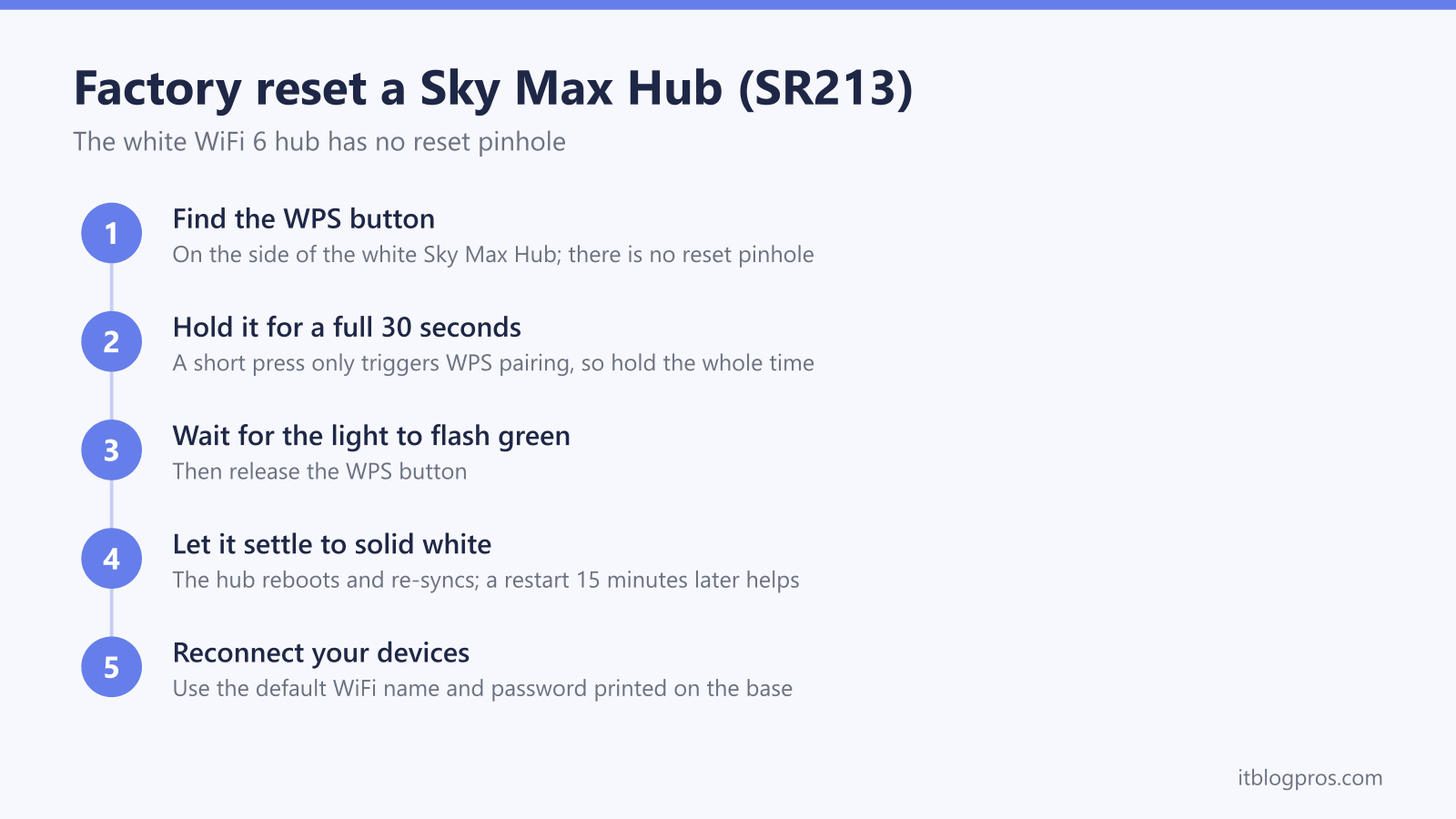
To factory reset a Sky Max Hub (the white SR213), Sky's setup guide says to press and hold the WPS button on the side for 30 seconds until the front light flashes green, then wait for the white front light to go solid. For the older black Sky Q Hub (SR203), Sky's guide says to hold Reset on the back until the power light flashes green, about 10 seconds.
Key Takeaways
- You'll learn that Sky's guide resets the white Sky Max Hub (SR213) by holding the side WPS button for a full 30 seconds.
- You'll see how the older black Sky Q Hub (SR203) differs, with Sky's guide saying to hold Reset on the back for about 10 seconds until the power light flashes green.
- We explain the difference between restarting, power cycling and a full factory reset, so you choose the gentlest fix that actually solves your problem.
- You'll find out where each hub's settings live, at 192.168.0.1 on the SR203 and in the My Sky app on the Max Hub, including using tracert to track down a router's IP address when you've lost it.
- We set out the order to work through when resets turn into a habit: rule out a line fault and then the hub itself, and only treat it as a coverage problem once both are clear.
Factory reset a Sky Max Hub (SR213, the white WiFi 6 router)
The Sky Max Hub is the newer white router that Sky Group's launch announcement says uses WiFi 6, and Sky's setup guide gives its model code as SR213. To factory reset a Sky Max Hub, Sky's guide says to press and hold the WPS button on the side of the hub for a full 30 seconds, until the light on the front starts flashing green, then let go. Sky's guide says the hub is good to go once the white light on the front is solid. Sky's help pages say a reset clears all the hub's settings, including your WiFi password, so note yours first and expect to set a custom password again afterwards; the defaults are the WiFi details Sky lists on the bottom of the hub and in the My Sky app.
A couple of things worth knowing before you do it:
- Hold the WPS button for the full 30 seconds; Sky's guide gives a 3 second hold for WPS pairing, not a reset.
- The older black Sky Broadband Hub, also known as the Sky Q Hub (model SR203), works differently; Sky's SR203UK guide says to hold Reset on the back until the power light flashes green, about 10 seconds, and not to unplug or switch off the hub while it resets.
- If you only want to clear a temporary glitch rather than wipe your settings, try a simple restart first; we cover that lower down.
The rest of this guide covers restarting, power cycling and factory resetting every Sky hub, so read on whichever model you own.
Common reasons to reset a Sky Broadband router
You can easily reset your Sky Broadband router on your own, which can save you lots of hassle, stress, and money on call out fees.
If you own a Sky Broadband router, chances are at some point you have had problems with it, perhaps trouble streaming media or downloading files online because it is acting up.
You will learn how to reset your Sky Broadband router and fix all of these issues with a few basics in this guide. When you learn how to do it yourself, you won't need to call anyone else for your first line of troubleshooting and diagnostics. This new sense of independence makes living with an unpredictable internet connection much less terrifying.
What resetting a Sky Broadband router actually means
'Resetting' a router is always a little confusing, even though it shouldn't be. The reason is that the term 'resetting' can mean a few different things, depending on who you ask and what their understanding of the process is.
Resetting often gets used instead of restarting or power cycling a router. Sometimes you will hear someone asking you to give your router a quick reset, when in fact they meant to say restart.
Resetting should actually refer to a configuration reset, such as a factory reset and not a restart or a power cycle. What makes this even more confusing is the fact that issues that you are trying to solve can sometimes be solved by a reset or a restart.
Knowing whether to reset or restart your router
The most obvious symptom is a lack of internet service. The first thing most people will do when faced with a similar issue is to simply restart the router, or power it off at the AC power and then power it back on again. Once the router has restarted, you can continue to troubleshoot your Sky Broadband router.
The most common reasons why you might want to restart your Sky Broadband router or Sky Broadband router are:
- Slow internet
- WiFi signal keeps dropping
- No internet connection at all, red light
- Router frozen, lights no blinking
- Can't connect to the WiFi
You want to reset your router if you are experiencing issues like these:
- You have lost your login details for your router
- You cannot access your router via WiFi or Ethernet
- You suspect that unauthorised users are accessing your router and you can't change your WiFi password
- You want to sell your router and you want to erase all of your personal data from the unit
Reset Methods
There are many ways to reset your Sky Broadband router, regardless of the make or model. We will cover some fundamental ways for you to reset your Sky Broadband router or router, as well as other manufacturers. The good news is that it is very easy to do, no matter which method you choose, although in the case of a factory reset you will need to do a little prep work, which we will cover below.
Reset via login
Resetting your Sky Broadband Hub is very easy, but you will need some details in order to accomplish this. The first thing that you will need is your router's IP address. Sky's SR203UK setup guide gives the login address as:
192.168.0.1
Sky's Sky Max Hub guide says that hub's settings are managed in the My Sky app instead, so use the app on a Max Hub.
If you have set up your IP address to match a different subnet then you will need to consult your records and find out what it was set as. If you still can't find it, then you can try a few other things.
Log onto a Windows computer and press the following keys:
Windows + R
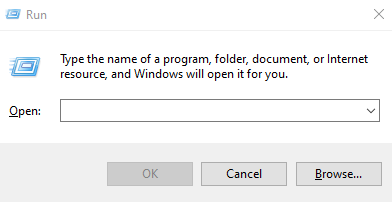
Next, type in the following command:
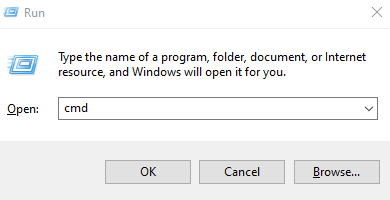
Next, type in this command:
tracert 8.8.8.8
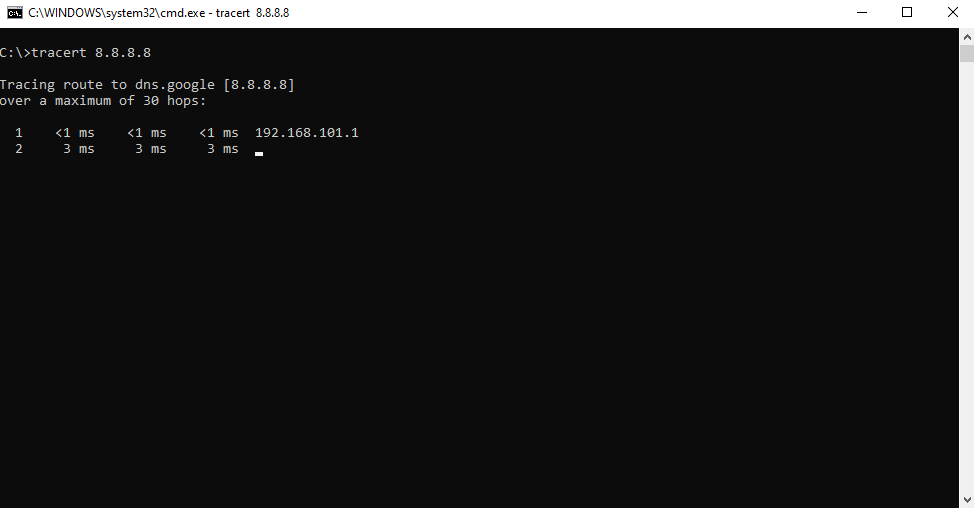
This will show you a series of hops that your data takes to Google's DNS server 8.8.8.8. The first IP address is usually your router. In this example, the IP address is 192.168.101.1, so we would take it and enter it into a web browser. This will take you to the router's login page.
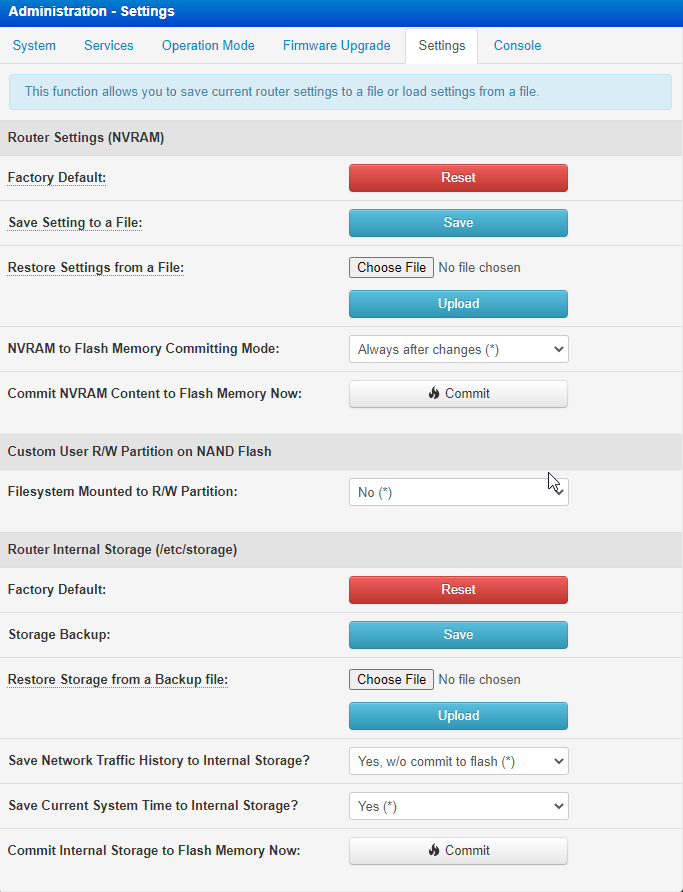
Once you login to your router, navigate to the settings or administration tab on your router. You will then find the 'Factory Reset' or 'Reset Router Defaults'.
Here is an example of an Asus router menu:
Reset via Mobile App (If applicable)
If your router happens to come with a mobile app then you can also perform a factory reset via your smart device like a mobile phone or tablet. Once installed, it is just a matter of opening the app and logging on with your router's credentials.
From there, you can use all of the same functionality as the web login, allowing you to reset your router from wherever you are, in some cases even when you are not at home.
Factory reset
Sometimes it is necessary to restore the defaults of your Sky Broadband router, and this could be necessary for a few reasons. The first, and most common issue that people experience that necessitates a factory reset is a forgotten username and password to get into the router.
Sky's SR203UK guide puts the WiFi password on the back of the hub or on the Connect card, and you are able to change it to something more secure or memorable if you need to. Whatever the reason is for not being able to login to the router, all you need to do is the following.
- On an SR203, Sky's guide says to hold Reset on the back of your Sky Broadband Hub; on a Sky Max Hub, Sky's guide uses the WPS button on the side instead.
- Hold it until the light flashes green, which Sky's guides put at about 10 seconds for the SR203 and 30 seconds for the Sky Max Hub.
- Wait for the light to settle: Sky says the SR203's power light goes green when it is done, and a solid white front light means the Sky Max Hub is good to go.
- On an SR203, Sky's guide gives the login username as admin and the password as your WiFi password; Sky manages Sky Max Hub settings in the My Sky app.
You can now log in and check that you are connected to the internet. If you are still having problems with your router then you will need to contact Sky Broadband, or you can reach out to your router's support team if you are using a non Sky Broadband router.
Sky Broadband Support https://www.sky.com/help/articles/contacting-sky
TP-Link Support https://www.tp-link.com/uk/choose-your-location/
D-Link Support https://www.dlink.com/en/support
Asus Support https://www.asus.com/support/
NETGEAR Support https://www.netgear.com/support/
Restarting Sky Broadband Router
If you need to troubleshoot your router before taking the more drastic steps of a factory reset, then sometimes a simple router restart will do the trick. You will also hear the term 'reboot' thrown around, which is the same thing as a restart.
If you have a mobile phone or tablet running on the Sky Broadband network, check the My Sky app, which Sky's Max Hub guide says handles that hub's settings, for a restart option. If those options are not working for you, then you can try one of the following methods as a quick fix.
Powering off the device (the classic off and on again)
Some people will tell you that you have to turn your router off completely to clear a fault. The easiest way to do this is to unplug the router's power cable at the wall, leave it unplugged while you check the broadband cable is pushed home at both ends, then plug it back in, and make sure that the power button is still on. Sky's help page for a phone fault says to switch the hub off at the mains plug socket for a few seconds, then switch it back on.
The time spent while switched off and unplugged allows for all the electronic components in the device to fully discharge, and lose the temporary data in their storage, allowing the device to operate as intended.
This temporary storage is also called volatile memory, and is designed to be emptied out when power is lost. The actual configuration settings of your router are stored in non-volatile memory.
Login and reset your Sky Broadband router
It seems so easy to simply restart the router, so logging in to restart it remotely is mainly useful when you do not have physical access to it. The router might be locked in another room, installed in a hard to reach space, or you may need to restart it while you are away from home.
Every router model is different, so be sure to look at your specific model router on how to login and perform a restart. Simply log into your router and go to the admin panel. From there, look for a restart or reboot option, and click that. The router should restart and then come back online after a few minutes.
Factory reset your Sky Broadband Router
Be sure to take note of your router's current settings before you perform a factory reset. Sky's reset instructions for Sky Broadband routers end once the hub's light settles; if it does not come back online after that, Sky's guides point to the My Sky app and sky.com/hubsetup.
However, you should note all of the settings of your device before undergoing a factory reset in case there is a WiFi or network setting that you have changed or configured at some point in the past that you can't quite remember.
It is far easier to note these settings down than it is to reconfigure all of your wireless devices if your WiFi name or password suddenly changes.
When a reset is not a lasting fix
Sometimes a reset clears a one-off glitch and everything settles down. If you find yourself resetting the Sky Hub every few days, work through the causes in order before buying anything. Check the Sky service status page for an outage in your area, reseat the broadband cable at both ends and at the master socket, and read the front light against our Sky hub lights guide, which sets out which colours Sky treats as a fault to be tested rather than a glitch to reset. Then rule out the hub itself: a unit that reboots on its own or has Ethernet ports that have quietly stopped working is failing hardware, and that wants replacing rather than extending.
Only once the line and the hub are both in the clear does coverage become the likely answer. If the resets cluster in the rooms furthest from the hub while the connection holds steady beside it, the signal is simply not reaching far enough, and the cleanest fix is to leave the Sky Hub doing its job and add a mesh system running in access-point mode behind it. That keeps Sky's setup untouched, with no change to the way the hub connects the line. Be clear about the limit, though: better coverage improves reach, control and reliability across the home, and it will not raise the line speed Sky delivers to the property, mend a fault on the line or stop a failing hub from rebooting.
For most homes the value pick is the TP-Link Deco X10 (2-pack). TP-Link lists Access Point Mode as one of the two working modes on its spec sheet, so the X10 runs off a spare Ethernet port on the Sky Hub and adds coverage without a single Sky setting changing, which is what clears the dead spots behind the reset habit.

If you are still weighing your options, our guide on whether an extender or a mesh fixes dead zones and our ranked mesh buying guide are worth a read before you buy.
Replacing the Sky Hub with your own router outright is the advanced route. It is possible, but it takes extra setup on the replacement router, so we only suggest it if you are comfortable with that; for nearly everyone, a mesh in access-point mode is the simpler and more reliable upgrade.
Finishing up
Your router should now be back online after rebooting, restarting, or resetting it, and you have a better understanding of how the different procedures work.
A router can be reset or restarted easily, but if you want to troubleshoot it, you need to know exactly how to proceed. Once your router is up and running, congratulations! You've taken the first step to becoming technically independent.
Until next time, happy surfing.