
Logging in to a Vodafone Broadband hub gives full control over your home network without ringing support. Whether you run a Power Hub, an Ultra Hub or the newer Ultra Hub 7, the admin panel lets you rename the Wi-Fi, set a stronger password, open ports for gaming and check which devices are connected. This guide covers the exact login address, where to find the admin password printed on the hub, what each setting does and what Vodafone actually allows if you would rather run your own router. It applies to Power Hub, Ultra Hub (Pro II) and Ultra Hub 7 (Pro 3) units supplied with Vodafone Full Fibre and Pro Broadband packages in the UK.
The Vodafone hub login address is 192.168.1.1, typed straight into a browser on a device connected to the hub. Vodafone gives that address for the Power Hub, Ultra Hub, Ultra Hub 7 and the older Wi-Fi Hub, and 192.168.0.1 for its separate 5G Hub. The admin password is printed on a sticker on the base of the hub, alongside the Wi-Fi details. Once in, the panel covers Wi-Fi name and password, connected devices, port forwarding and the firewall.
Key Takeaways
- The Vodafone hub login address is 192.168.1.1, entered in any web browser on a device connected to the hub by Wi-Fi or cable.
- The admin password is unique to each hub and printed on the sticker on the base of the unit, next to the Wi-Fi network name and password.
- Vodafone's own support pages give 192.168.1.1 for the Power Hub, Ultra Hub, Ultra Hub 7 and the older Wi-Fi Hub, and 192.168.0.1 only for its separate 5G Hub.
- On a standard plan Vodafone lets you use your own Openreach-approved router in place of the hub, while Pro Broadband, 5G Broadband and Digital Voice plans keep the hub in the chain.
- A factory reset via the recessed reset button restores the original sticker password if the admin login has been changed and forgotten.
Vodafone hub login address and where to start
Every current Vodafone hub uses the same default login address: 192.168.1.1. Type that number straight into the address bar of any web browser, not into a search engine, and press Enter. It is the most widely used router address in the UK, and the general 192.168.1.1 login guide covers the other brands that share it. The hub's admin panel loads locally, so an internet connection is not even required for this part.
The device used to log in must be connected to the hub first, either over Wi-Fi or with an Ethernet cable into one of the yellow LAN ports. A phone, tablet or laptop all work.
There is one address worth knowing about, and one worth ignoring. Vodafone's reset your router password guidance gives 192.168.1.1 for the Power Hub, Ultra Hub, Ultra Hub 7 and the older Wi-Fi Hub, and gives 192.168.0.1 only for the 5G Hub, which is the mobile broadband unit rather than a fixed-line one. Vodafone's manage your 5G Hub settings page draws the same line, telling 5G Hub owners to type 192.168.0.1 and Power Hub owners to type 192.168.1.1. So 192.168.0.1 is a real Vodafone address, but it belongs to the 5G Hub and not to older fixed-line hubs. The hostname vodafone.broadband does not appear on any Vodafone support page, and the sites that promote it are automated router-address directories that list every plausible address against every brand, so it is not worth relying on. If 192.168.1.1 does not load on a fixed-line hub, the address to trust is the one printed on the sticker on the hub itself.
This address is the same across the Power Hub, Ultra Hub and Ultra Hub 7, so the steps below apply whichever hub Vodafone supplied.
How to log in to a Vodafone hub step by step
The login itself takes under a minute once the admin password is to hand.
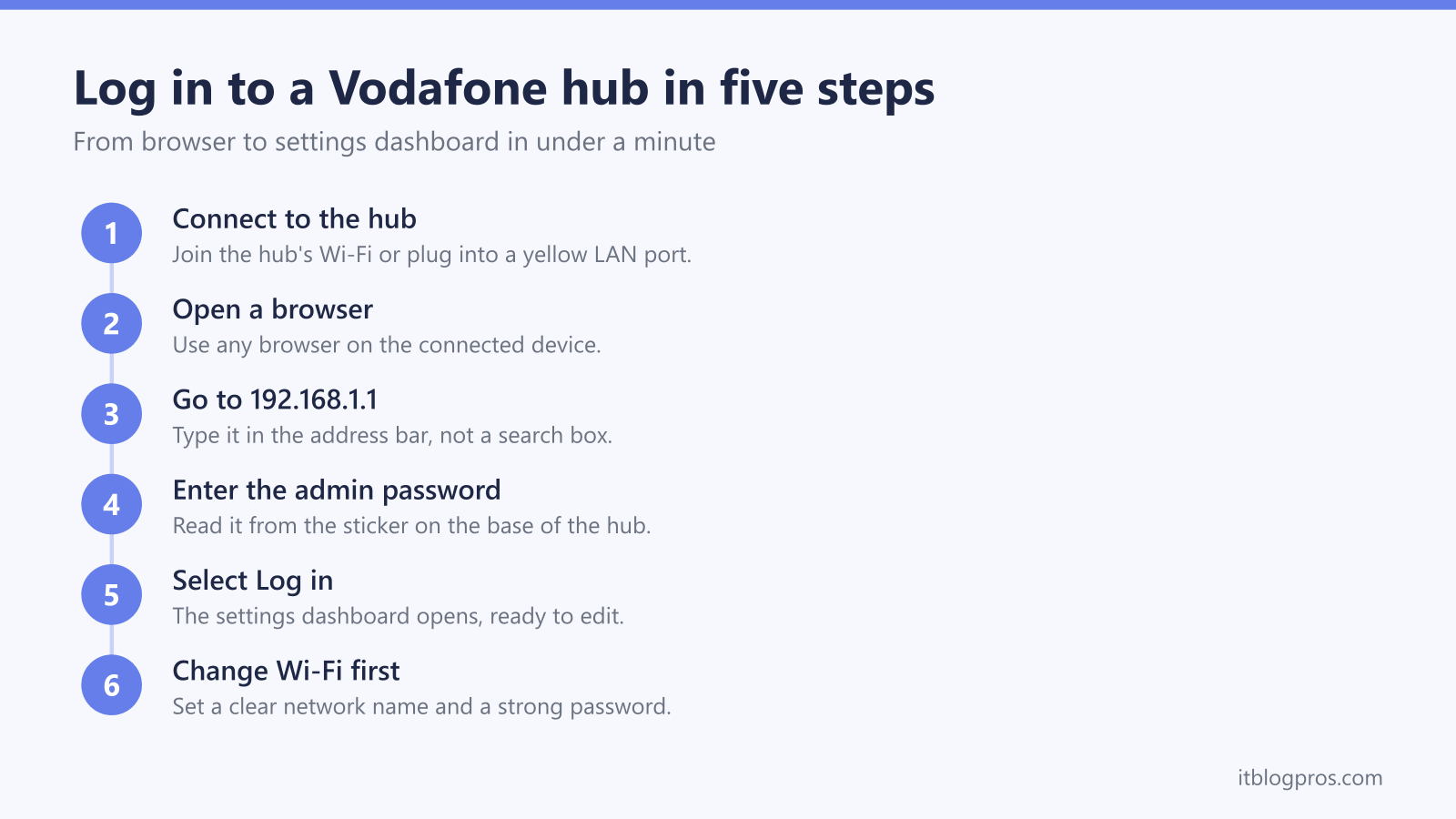
First, connect a device to the hub over Wi-Fi or by Ethernet cable. Second, open a web browser and type 192.168.1.1 into the address bar, then press Enter. Third, the Vodafone admin login page appears. Fourth, enter the admin password printed on the sticker on the base of the hub. Fifth, select Log in to open the settings dashboard.
The admin password is not the same as the Wi-Fi password, although both sit on the same base sticker. The Wi-Fi password connects devices to the network, while the admin password unlocks the settings panel. If the sticker has worn off or the hub came second hand, our guide to how to find the router admin password covers the other ways back in. On some Vodafone units a username such as vodafone is also requested, but on most current hubs the sticker password alone is enough. Changing this admin password to something memorable after the first login is sensible, and the panel records it so it does not need writing down anywhere insecure.
What you can change once logged in
The Vodafone admin panel groups the useful controls into a few clear menus.
Wi-Fi settings let you rename the network (the SSID) and set a new Wi-Fi password. Picking one clear name rather than separate 2.4GHz and 5GHz names usually gives the smoothest roaming around the house. Connected devices lists everything currently on the network, which is the quickest way to spot an unknown device or confirm a smart plug has joined.
Port forwarding opens specific ports to a games console, security camera or home server, and the firewall section controls how strict the hub is about incoming traffic. Guest Wi-Fi, where supported, creates a separate network for visitors that keeps them away from your main devices. Parental controls and a schedule for pausing the internet on chosen devices are also available on the newer Ultra Hub and Ultra Hub 7. For most people the two settings worth changing on day one are the Wi-Fi name and the Wi-Fi password.
Running your own router instead of the Vodafone hub
This is the honest part many guides skip, and it starts with the plan rather than the hardware. Vodafone requires its own router on Pro Broadband, on 5G Broadband and on any plan that includes Digital Voice. On every other plan you may use your own router outright, provided it is Openreach-approved: you ring Vodafone, ask for your broadband username and password, and the hub can come out of the chain altogether.
Bridge mode is a separate and much foggier question. Vodafone UK publishes nothing about a bridge or modem-only mode on its hubs, in either direction. TP-Link's UK support pages say Vodafone hubs cannot be put in bridge mode, and eero is reported to say much the same, but both are describing the older Vodafone Wi-Fi Hub rather than the Power Hub, Ultra Hub or Ultra Hub 7, so neither is proof about the units Vodafone ships now.
That leaves three realistic setups. The simplest is to plug your own router into a LAN port of the Vodafone hub and let it pull an address by DHCP. This works on any plan but creates double NAT, where two routers run network address translation at once, which can complicate gaming, port forwarding and some VPNs. The cleaner option is to set your own router to access point mode, which removes the double NAT but also gives up that router's own firewall and routing features. The third, open on a standard Full Fibre plan, is to bypass the hub entirely by connecting your router to the fibre socket and using PPPoE with the credentials Vodafone hands over on request. Keep the hub in a cupboard rather than selling it, because Vodafone asks for it back in the chain before investigating any speed or reliability complaint.
If the goal is better range, faster Wi-Fi or stronger features, choosing a capable unit matters more than the mode. The buying guide to the best router for Vodafone Broadband covers models that pair well with a Vodafone hub, both those that run happily in access point mode behind it and those that can take its place on PPPoE.
Login troubleshooting when 192.168.1.1 will not open
A failed login almost always comes down to one of a handful of causes.
If the page will not load at all, confirm the device is actually connected to the Vodafone hub and not to a neighbour's network, a mobile hotspot or a work VPN. A VPN in particular intercepts 192.168.1.1 and must be switched off first. If the hub is a 5G Hub rather than a fixed-line one, try 192.168.0.1, which is the address Vodafone publishes for that unit. Otherwise read the address off the sticker on the hub rather than guessing at alternatives.
If the page loads but the password is rejected, check it has been read correctly from the base sticker, as capital I, lower-case l, zero and the letter O are easy to confuse. If the admin password was changed at some point and is now forgotten, the only route back is a factory reset, which restores the original sticker password. The hub light pattern can also confirm whether the unit is healthy or still booting, which the Vodafone router lights guide explains in full. A full walkthrough of the reset itself, including the button location and what gets wiped, is in the Vodafone router reset walkthrough.