
BT WiFi that keeps dropping is frustrating precisely because the broadband itself is usually fine. The Smart Hub 2 stays connected to BT while phones, laptops and smart-home gadgets lose signal, which points the finger at the wireless side: channel congestion, one network name for both bands, heat or a tired Hub. The fixes below run from free and quick to last-resort hardware, in the order worth trying them.
BT WiFi that keeps dropping while the broadband stays connected points at the Smart Hub 2's wireless side: channel congestion, devices that BT says can struggle with one network name for both bands, or a hot, badly placed Hub. Work the ladder: stand the Hub upright and central, check the 5GHz section for a band split, reboot, and if drops persist add a mesh in access-point mode behind the Hub.
Key Takeaways
- BT broadband drops and BT WiFi drops are different faults: if the Hub's broadband light stays steady blue but devices lose signal, the problem is wireless, not the line.
- BT's dual-band help page says the Smart Hub 2 uses one network name for both bands by default and that some devices do not handle that well, listing intermittent or very slow Wi-Fi among the symptoms.
- BT's channel help page does not recommend changing wireless channels manually, because that disables Smart Wireless, and gives no channel steps for the Smart Hub 2, so check congestion with a WiFi analyser app.
- A Smart Hub laid flat, boxed in a cupboard or sat by a radiator overheats and drops WiFi, so it must stand upright, out in the open and away from heat.
- Because the Smart Hub handles the broadband authentication, the durable fix is to keep the Hub and add a mesh in access-point mode behind it, not to bin the Hub.
Check the Line Before Blaming the WiFi
When BT WiFi keeps dropping, the first job is to work out whether the broadband line is failing or only the wireless is. Look at the Hub's status light: a steady blue light means the connection to BT is up, so if devices still lose signal the fault sits in the WiFi, not the line. A flashing orange or purple light points at a line or authentication problem instead, which is a different fix entirely. The BT Smart Hub lights guide decodes each colour, and the general WiFi keeps dropping walkthrough covers the causes that are not specific to BT. This page assumes the broadband light is steady and the drops are wireless.
Cause 1: Channel Congestion and Interference
In flats, terraces and busy streets, dozens of neighbouring routers compete for the same airspace. BT's channel help page says BT does not recommend manually changing wireless channels on its hubs, because that disables Smart Wireless, which BT says automatically chooses the channel with the least interference and switches if the connection becomes congested. That page gives manual channel steps for the original Smart Hub and the Home Hub 4 and Hub 5, but its Smart Hub 2 and Smart Hub 3 section gives no channel steps and points to the My BT app instead. For the Smart Hub 3 only, BT's separate fixed-channel page gives Hub Manager steps to set the 2.4GHz channel to 1, 6 or 11, says some older 2.4GHz devices such as smart plugs and security cameras can struggle to stay connected when the hub switches channels, and still recommends leaving the hub to choose. Hub Manager opens at 192.168.1.254 or bthomehub.home (the BT Smart Hub login page walks through the address and password), so check what its Wireless page offers on your model. A free WiFi analyser app on a phone shows which channels neighbours are using, which tells you how crowded the airspace is before anything is changed.
Cause 2: One Network Name for Both Bands
BT's dual-band help page says the Smart Hub 2 uses the same network name for 2.4GHz and 5GHz by default, and that a typical 5GHz-capable device on that name switches between the bands automatically. The same page says some devices do not handle a single name for both bands well: they may not connect wirelessly, may not connect to 5GHz even in the same room, or may get intermittent or very slow Wi-Fi. It lists some Apple devices, including the iPhone 5 and Apple TV, some Android mobiles and some Xbox consoles as devices known to have problems. BT's help pages describe no band-steering switch for the Smart Hub 2, and they disagree on a split. BT's split help page says the Smart Hub 2 does not have that capability because it is designed for use with Complete Wi-Fi, while BT's dual-band page includes it in steps that open Advanced Settings, then Wireless, then 5GHz, set Sync with 2.4GHz to No, give the Wireless SSID a new name and apply. To settle it for one hub, check the 5GHz section in Hub Manager for that setting; BT's dual-band page says devices then carry on connecting to the original name, which becomes the 2.4GHz network. BT documents no separate 5GHz on and off control for the Smart Hub 2, since its page on turning Wi-Fi on and off gives settings for each band only on the Home Hub 4 and Hub 5. Where no split appears, move any device that keeps dropping onto a mesh behind the Hub, covered below.
Cause 3: An Overheating or Badly Placed Hub
A Smart Hub that runs hot throttles and drops WiFi. BT's own guidance is to stand the Hub upright on its base, because laying it flat or boxing it in restricts the vents and causes overheating. Keep it out in the open, off the floor and away from radiators, windowsills, TVs and other kit that gets warm. Cupboards, shelves behind the sofa and closed media units are the classic traps: they cook the Hub and block the signal at the same time. A central, elevated, well-ventilated spot fixes heat and coverage together, and it costs nothing to try first.
Cause 4: BT Complete Wi-Fi Discs Fighting the Signal
Homes on BT Complete Wi-Fi add mesh discs that pair with the Hub, and when those discs drop, placement is nearly always the reason. A disc glowing blue is happily connected; an orange disc is struggling for backhaul and will drop the devices hanging off it. If the main disc nearest the Hub drops, it can take the others down with it. Space the discs so each one still has a solid link back to the Hub rather than pushing them to the far edges of the house, and add a disc rather than stretching two across three floors. A factory reset of a misbehaving disc followed by a Hub reboot clears most stuck discs.
The Fix Ladder in the Right Order
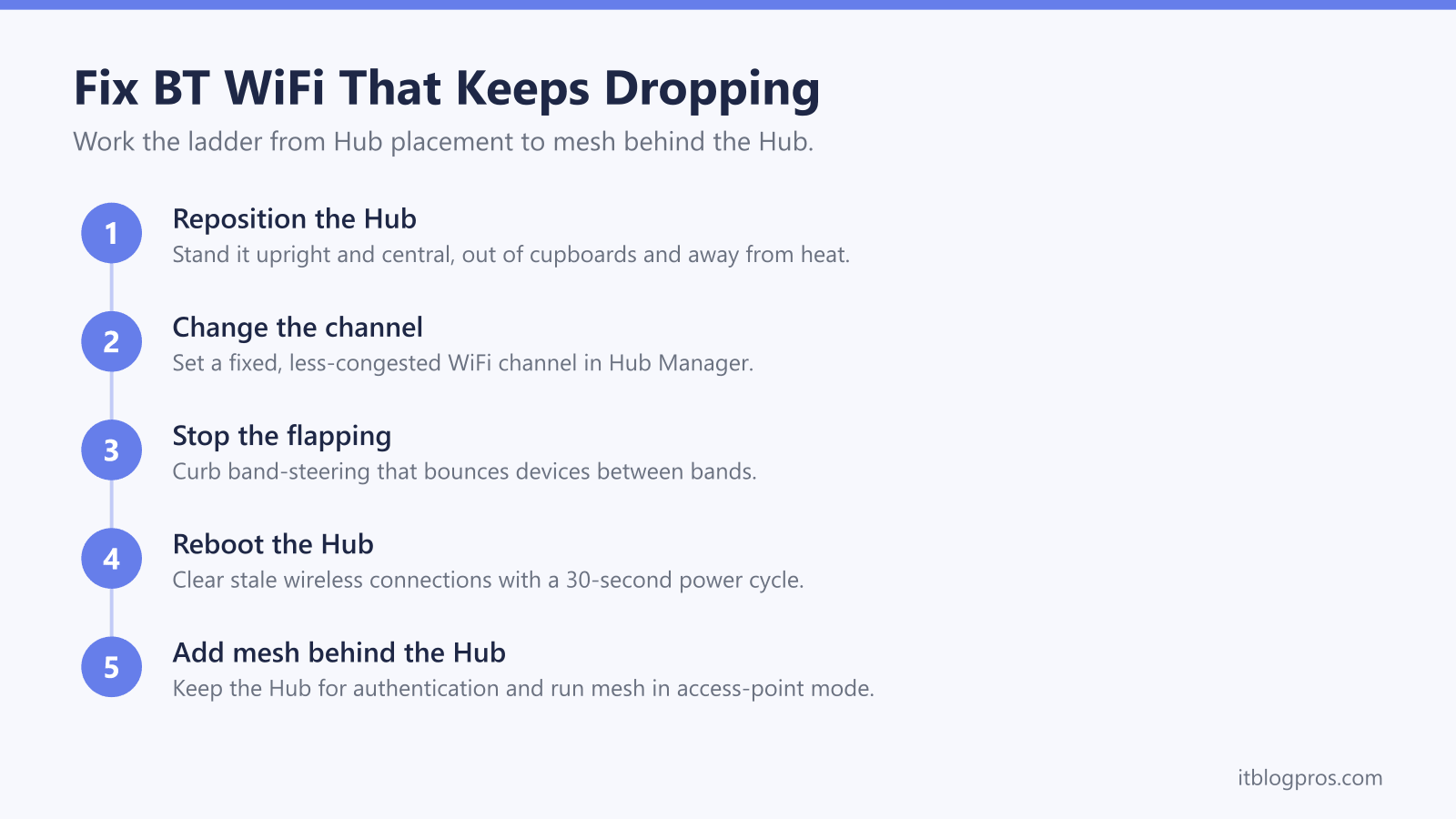
Work the causes in order rather than changing everything at once. Reposition the Hub upright and central first, because it is free and fixes both heat and coverage. Then check channel congestion with a WiFi analyser app, bearing in mind that BT's channel help page does not recommend changing channels manually and gives no channel steps for the Smart Hub 2. Next, for the specific devices that drop, check the 5GHz section in Hub Manager for Sync with 2.4GHz. Reboot the Hub to clear stale wireless connections. Only if drops still persist after all of that does hardware come into play, and the honest answer there is to add mesh behind the Hub rather than replace it.
When Replacing Beats Fixing: Add a Mesh Behind the Hub
An ageing Smart Hub is worth keeping even when its WiFi is tired, because the Hub handles the broadband authentication that puts you online. Binning it means reconfiguring that connection from scratch, which is why the durable fix is to keep the Hub and add a mesh in access-point mode behind it. Wire one mesh unit into a spare Ethernet port on the Hub, set the mesh to access-point mode in its app, and switch the Hub's own WiFi off so the two are not competing. The mesh then handles all the wireless with proper roaming, while the Hub quietly keeps the line up. A TP-Link Deco X50 three-pack is a sensible Wi-Fi 6 mesh for a whole house behind the Hub: set it up in the Deco app first, then switch it to access-point mode under Advanced, and leave the Hub's DHCP on. If the trouble is only one stubborn dead room rather than the whole house, a single TP-Link RE705X extender plugged in roughly halfway between the Hub and the dead zone is cheaper than a full mesh. The mesh versus extender guide covers which suits your layout, and the best router for BT broadband page compares options if you decide to move beyond the Hub.