
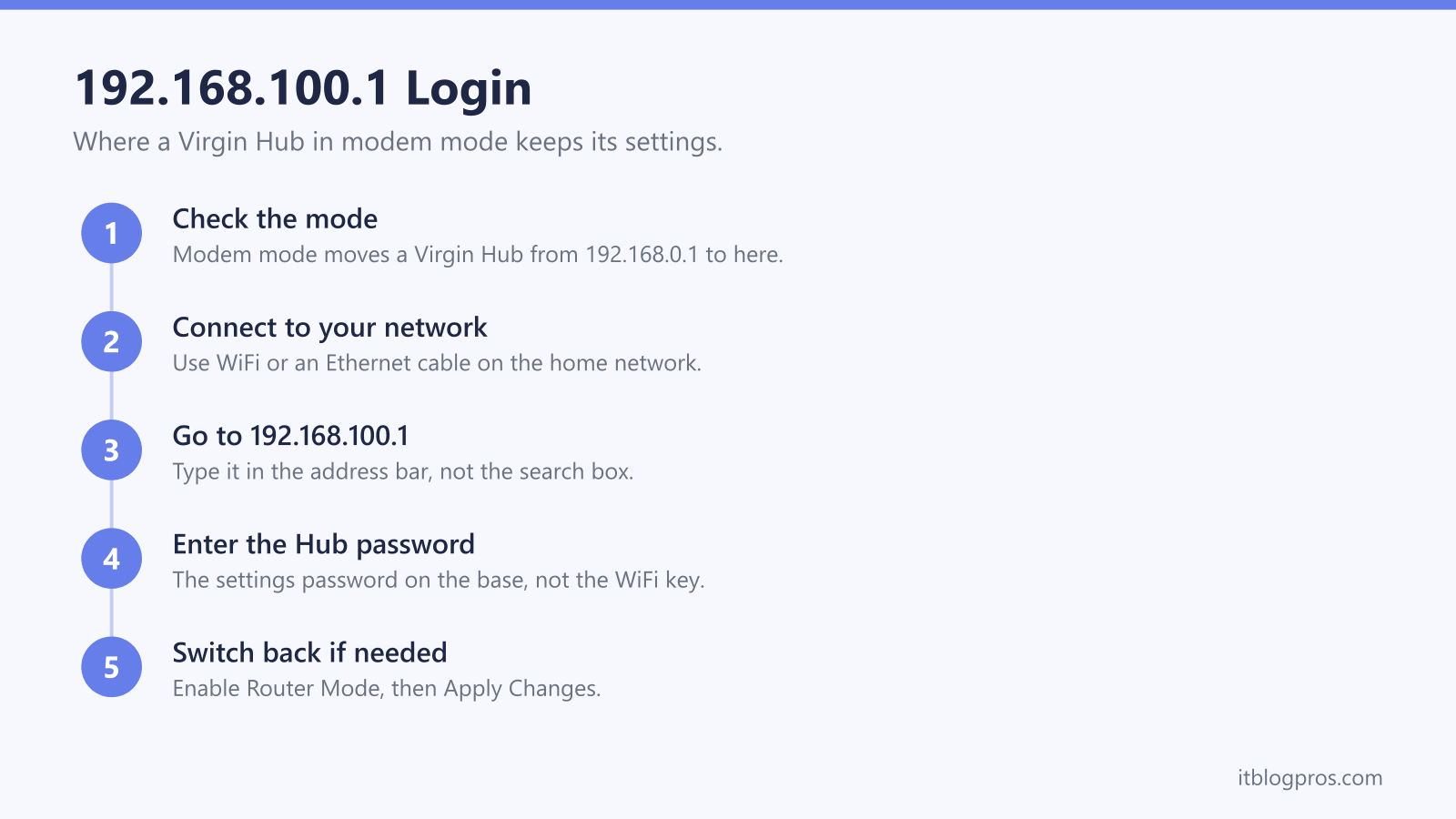
192.168.100.1 is the address a cable modem answers on, and in the UK it is the one Virgin Media customers meet when the Hub is switched into modem mode. Once that switch is made, the familiar 192.168.0.1 page stops answering and the Hub's settings move here, while your own router takes over the home network. This guide covers which devices use the address, the login steps, the password it asks for and what to do when it will not load.
192.168.100.1 is the settings address for a Virgin Media Hub in modem mode. Virgin's help page says the Hub's address changes from 192.168.0.1 to 192.168.100.1 after the switch, and the login wants the Hub settings password printed on the base of the Hub, not the WiFi password. Netgear's cable modems answer at the same address with the username admin.
Key Takeaways
- Virgin Media's help page gives 192.168.100.1 as the Hub's address once modem mode is on, replacing the 192.168.0.1 it used before the switch.
- The login asks for the Hub settings password from the base of the Hub, which Virgin says is not the WiFi password.
- Virgin lists modem mode for the Hub 3, 4 and 5 and the Super Hub 1, 2 and 2AC, and says it is not currently available on the Hub 5x.
- Netgear's cable modems use http://192.168.100.1 with the username admin and the default password password, except the CM2000, which has a unique password on its label.
- Virgin says a factory reset puts the Hub back into router mode, so 192.168.0.1 answers again afterwards and modem mode has to be switched back on.
192.168.100.1 Is the Address a Modem Answers On
Like 192.168.0.1 and 192.168.1.1, 192.168.100.1 only exists inside your own connection. Typing it into a browser reaches whichever device owns that address on your line, never a website, which is why it has to go into the address bar rather than a search box. Cable modems use it for their own status and settings pages, and it appears on Netgear's cable modem login page and on Virgin Media's help page for a Hub running in modem mode.
In the UK the Virgin case is by far the most common. A Virgin Hub normally works as a router and answers at 192.168.0.1, which the 192.168.0.1 login guide covers. Switch it into modem mode and it hands the home network over to your own router and moves its settings page to 192.168.100.1. If the old address has suddenly gone quiet on a Virgin line, that change is usually the reason.
Virgin Media's Modem Mode Moves the Hub to 192.168.100.1
Virgin's help page on rebooting and resetting the Hub sets out the change plainly: before switching, the Hub's address is 192.168.0.1, and after switching, the modem mode address is 192.168.100.1. The switch itself is made on the old address. Virgin's steps are to sign in at 192.168.0.1, select Modem Mode, select Enable Modem Mode and then select Apply Changes.
Not every Hub offers it. Virgin lists modem mode for the Hub 3, 4 and 5 and for the older Super Hub 1, 2 and 2AC, and marks it as not currently available for the Hub 5x. A Hub 5x therefore keeps routing and keeps its settings at 192.168.0.1, and if you are unsure which model sits on the shelf, the Hub 5 versus Hub 5x guide sets out the differences. Choosing the router that goes behind a Hub in modem mode is the bigger decision, and the best WiFi router for Virgin Media guide works through the options.
How to Log In at 192.168.100.1
Start on a computer, tablet or phone connected to your home network, by WiFi or by an Ethernet cable. Open a web browser, click into the address bar at the top, type 192.168.100.1 and press Enter. Typing it into a search box returns search results instead of the login screen, so the address bar matters.
The page asks for a password. On a Virgin Hub that is the Hub settings password, which Virgin's help page says is printed on the base of the Hub and is not your WiFi password. Enter it and the Hub's settings open. The most common reason to be here is to undo modem mode, and Virgin's steps for that are Hub Settings, then Modem Mode, then Enable Router Mode or Disable Modem Mode, and finally Apply Changes. Virgin says the Hub then reboots and returns to router mode, after which its settings are back at 192.168.0.1.
The Password Is the Hub Settings Password on the Base
The password prompt catches people out because a Virgin Hub carries two passwords on its label. Virgin's help page is specific that the one for the settings page is the Hub settings password on the base of the Hub, and that it is not the WiFi password your devices use to join the network. If you have never changed it, the printed one works.
If it was changed at some point and nobody remembers the new one, the way back is a factory reset, which restores the printed password. Virgin's instructions are to press the reset button on the back or base of the Hub with a pen for 10 seconds. Bear in mind what that does to a modem mode setup: Virgin says resetting the Hub to factory settings also activates router mode, so modem mode has to be switched back on afterwards. The difference between the two kinds of password is explained further in the guide to finding your router admin password.
Netgear Cable Modems Answer at 192.168.100.1 Too
Standalone cable modems are far more common in the US than in the UK, but they use the same address. Netgear's support page on logging in to its cable modems gives http://192.168.100.1 as the address and admin as the username, with password as the default password, and notes that both are case-sensitive. That article covers the CM series, from the CM500 and CM600 up to the CM1000, CM1200 and CM3000.
The CM2000 is the exception Netgear calls out: it has no default password, and each unit ships with a unique password printed on its label. If a Netgear modem's lights are the real puzzle rather than its settings, the guide to Netgear router lights with no internet is the better starting point, and the 192.168.1.1 login guide covers the addresses many other brands use.
When 192.168.100.1 Will Not Load
The first check is the mode. If a Virgin Hub is still in router mode, nothing answers at 192.168.100.1, because Virgin's help page gives 192.168.0.1 as the address before the switch. Try that address first. If a factory reset has happened since modem mode was set up, Virgin says the Hub will be back in router mode for the same reason.
Netgear's checklist for a settings page that will not open is a sensible order for any equipment. Make sure the device is connected to the right network, disconnect any VPN or second network connection, clear the browser cache or try another browser, and restart the modem, the router and the device itself. If your own router is plugged into a Hub that is still in router mode, both are routing at once, which is double NAT, and the double NAT guide explains why that causes trouble and how to clear it.
After the Switch, Your Own Router Holds the Settings
Once a Virgin Hub is in modem mode, 192.168.100.1 becomes a page you visit rarely. The everyday settings, from the WiFi name and password to the list of connected devices and any port forwarding, now live on your own router at its own address. A Netgear router opens at routerlogin.net, as the Netgear router login guide explains, and the 192.168.1.1 login guide covers the addresses many other brands use.
That split is the point of modem mode. The Hub carries the cable connection, and the router you chose handles everything inside the home. Keep the Hub settings password somewhere safe all the same, because switching back to router mode starts at 192.168.100.1.
The router login guide lists the login address and password for every other UK hub and router brand.