
192.168.8.1 is the settings address for two quite different kinds of router: the Huawei 4G and 5G boxes that run home broadband from a SIM card, and GL.iNet's small travel routers. Both answer at the same number but ask for very different passwords, and carrier-branded Huawei units can use another address entirely. This guide covers which devices use it, how to log in, where the password comes from and what to try when the page will not open.
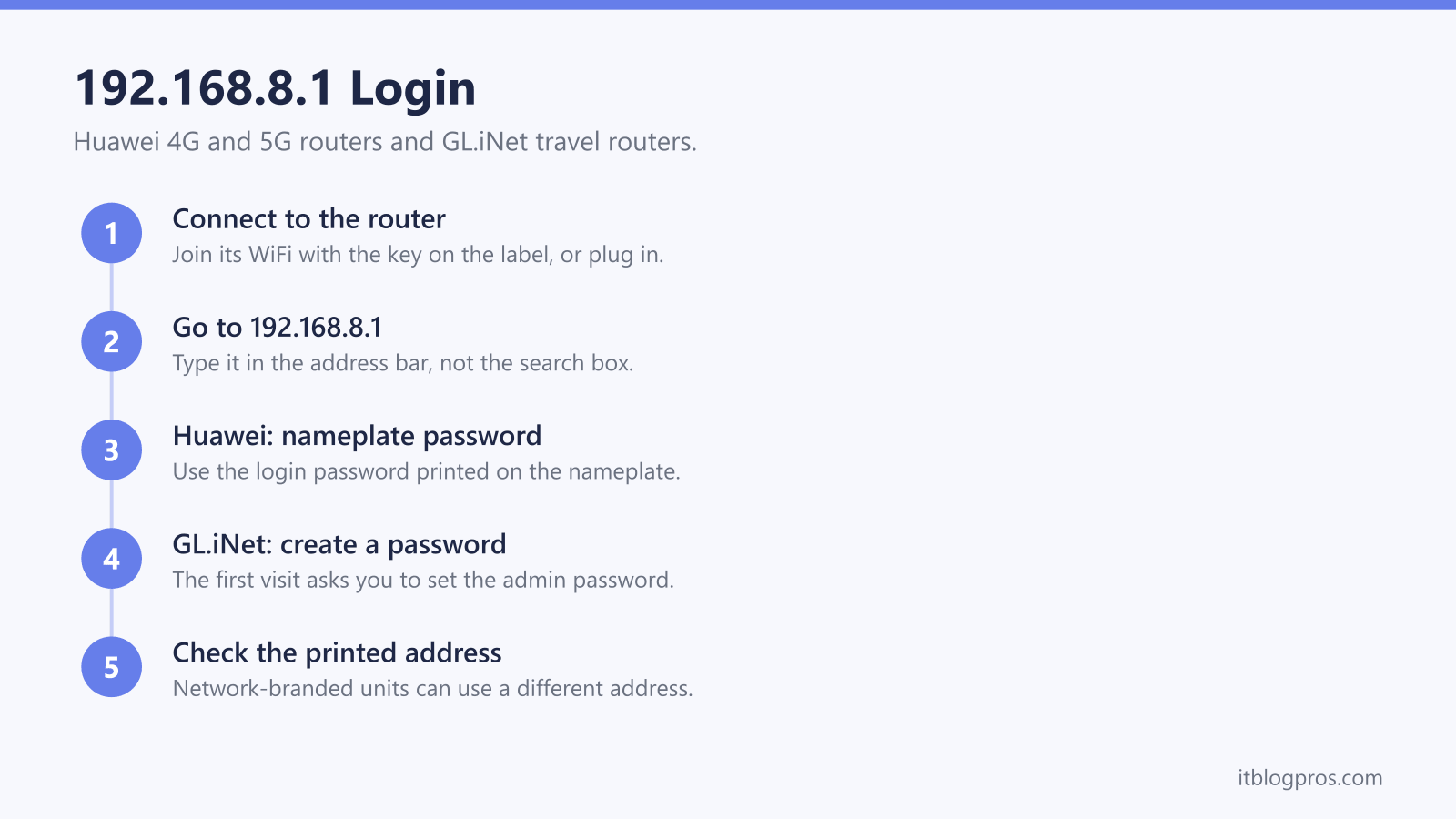
192.168.8.1 is the login address for Huawei 4G and 5G routers and GL.iNet travel routers. Huawei's support page says to enter 192.168.8.1 in the browser and use the login password from the nameplate. GL.iNet's setup guide has no default password at all, because the first visit asks you to create one. Carrier-branded Huawei units can print a different address.
Key Takeaways
- Huawei's support page tells owners of its 4G and 5G CPE routers to enter 192.168.8.1 in the browser and use the login password from the nameplate.
- Huawei says carrier-customised versions can use a different address, so the address printed on the nameplate beats any general guide.
- GL.iNet's setup guide sends owners to http://192.168.8.1 and has them set an admin password on the first visit, so there is no factory password to look up.
- Vodafone's GigaCube help sends its owners to https://giga.cube with the password from the bottom of the GigaCube, rather than to a number.
- GL.iNet's troubleshooting page says to check the device's IPv4 default gateway when 192.168.8.1 will not open, because the router's address may have been changed.
192.168.8.1 Belongs to Huawei Mobile Routers and GL.iNet
Two families of router share this address. The first is Huawei's CPE range, the 4G and 5G routers that take a SIM card and turn a mobile signal into home broadband, and Huawei's support page for them names 192.168.8.1 as the web management address. The second is GL.iNet, whose range includes small travel routers, and whose first-time setup guide sends owners to http://192.168.8.1.
Like 192.168.0.1 and 192.168.1.1, it is a private address that only exists on the router's own network. Typing it into a browser reaches the router you are connected to, never a website, so it goes into the address bar and not a search box. The same number does not mean the same login, though. The two families ask for very different passwords, which the sections below take in turn, and some Huawei units sold by mobile networks use a different address altogether.
Huawei 4G and 5G Routers Use the Password on the Nameplate
Huawei's support page for its CPE routers is direct: enter 192.168.8.1 in the address box of the browser and enter the login password to reach the web-based management page, and it adds that the IP address and password can be obtained from the nameplate. The nameplate is the printed label on the router itself, usually on the base.
Huawei also offers a route that skips the browser. Its support page says the AI Life app can manage the router: tap the CPE in the app, then Show more, then Wi-Fi settings, to change the network name and password. That suits anyone whose only goal is a new WiFi password and who would rather not deal with the web page at all. For everything beyond the WiFi name and password, the web page at 192.168.8.1 is the place to go, and the router admin password guide explains why the login password and the WiFi password are different things.
Network-Branded Routers Can Use a Different Address
Huawei's general guide to its router login page carries an important warning: the address may vary for carrier custom versions, so use the actual address printed on the nameplate at the bottom of the router, or consult the carrier. A Huawei router supplied by a UK mobile network can therefore behave differently from one bought unlocked.
Vodafone's GigaCube is a clear example. Vodafone's help page for changing GigaCube settings says to connect to the GigaCube WiFi, open a browser, type https://giga.cube and enter the password from the bottom of the GigaCube, with no number involved. Three's 5G Hubs are a separate case again, and the Three 5G Hub login guide covers those models and their addresses. Whatever the network, the label on the router is the authority when it disagrees with a guide.
How to Log In at 192.168.8.1
Connect to the router first. GL.iNet's setup guide gives two ways: join the router's WiFi using the network name and WiFi key on the bottom label, or connect a device to the router's LAN port with an Ethernet cable. A Huawei 4G or 5G router works the same way, by WiFi or by cable.
Then open a browser and type http://192.168.8.1 into the address bar. GL.iNet recommends Chrome, Edge or Safari for the best compatibility. On a Huawei router, enter the login password from the nameplate when asked. On a GL.iNet router that has never been set up, the page asks for a language and then for a new admin password instead. Once you are in, the router's settings open, and a stubborn signal problem is better tackled with the guidance further down than with settings.
GL.iNet Routers Ask You to Create the Password
GL.iNet takes a different approach to security from most routers. Its first-time setup guide has no default admin password to look up: on the first visit to 192.168.8.1 the router asks you to set up your admin password and then click Next, and only after that does it move on to the WiFi settings for models that have them.
That has two consequences. A new GL.iNet router cannot be opened with a password from a label or a manual, because none exists until you create it. And a forgotten admin password cannot be recovered from the router either. GL.iNet's troubleshooting page lists a reset to factory defaults as the step to take when access cannot be restored, after which the router asks for a new admin password on the next visit, exactly as it did when it was new.
When 192.168.8.1 Will Not Open
GL.iNet's troubleshooting page sets out a sensible order that works for Huawei routers too. Check the connection first: the right WiFi network with the right password, or an Ethernet cable in the correct port. Then check the address itself. GL.iNet points out that 192.168.8.1 is only the default and may have been changed, and suggests reading the IPv4 Default Gateway from the network settings on your computer or phone, which shows the address the router is really using.
After that come the browser fixes: open a private or incognito window to rule out a cached page, and disable any VPN or proxy software, which can stop a device reaching its own router. GL.iNet also suggests its app as an alternative way in, and a factory reset as the last resort. On a Huawei router supplied by a network, check the nameplate again, because Huawei says those versions can use a different address.
Signal, Not Settings, Usually Decides a Mobile Router
Many visits to a 4G or 5G router's settings page are really about a slow or patchy connection, and a login cannot change the strength of the mobile signal reaching the router. Placement and antennas are where that problem is solved. The external antenna guide for 5G hubs works through the options, from moving the router to a better window to adding an antenna.
Where the mobile connection is fine but the WiFi inside the home is not, the answer is usually better WiFi behind the router rather than a different router in front of it. The guide to using your own router with Three 5G broadband covers that arrangement, and the same thinking applies to any mobile broadband router. The 192.168.0.1 and 192.168.1.1 login guides cover the other common addresses if the device in front of you turns out not to be a Huawei or a GL.iNet at all.
The router login guide lists the login address and password for every other UK hub and router brand.