
A docking station turns one cable into a desk full of screens, a wired network connection and a charger, but only when it matches the laptop plugged into it. Dell, HP, Lenovo and Apple each document the limits that matter: which kind of port the dock needs, how many external displays the laptop can run and how much power the dock passes back. This guide sets out those checks in plain English, then lists five docks worth shortlisting for UK buyers.
Start with the laptop, not the dock. Check whether its USB-C port carries video or Thunderbolt, how many external displays its maker supports and how many watts it needs. Dell's dock guide says its USB-C docks need a port with DisplayPort Alternate Mode, Apple's pages set each MacBook's display limit, and DisplayLink docks add screens through a driver instead.
Key Takeaways
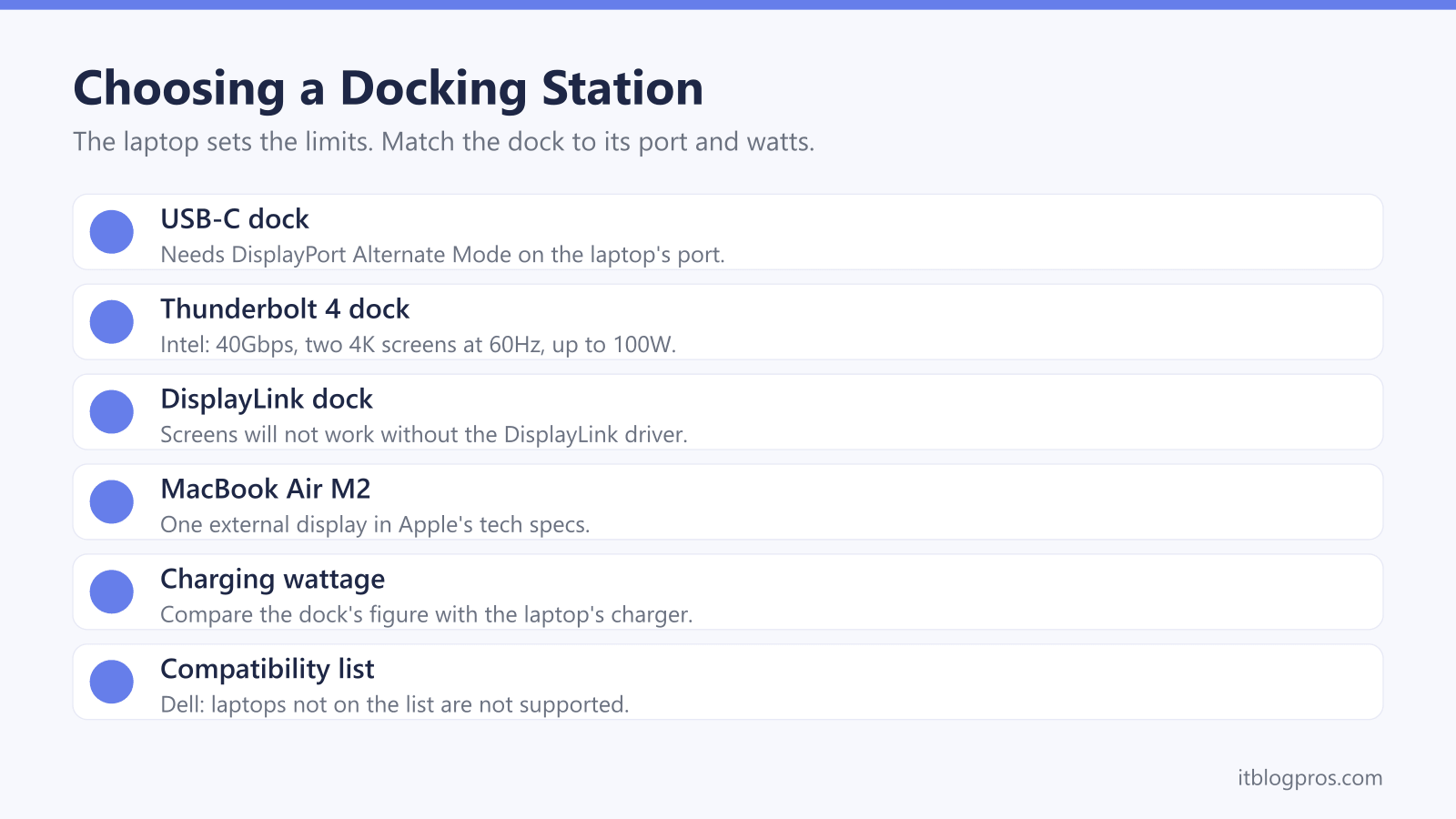
- Intel's Thunderbolt 4 page says Thunderbolt uses the USB-C connector but requires a constant 40Gbps and supports two 4K displays at 60Hz and up to 100W charging, which a plain USB-C port does not promise.
- Apple's support pages say a hub or dock does not raise the number of displays a Mac supports, and the M2 MacBook Air's tech specs list one external display.
- Dell's dock guide says universal docks need DisplayLink software to drive monitors, and that without it the screens will not work.
- Lenovo's datasheet says the ThinkPad Universal USB-C Dock charges at 65W with its bundled 90W adapter, while HP rates its USB-C 100W G6 Dock at up to 100W on HP and non-HP laptops.
- Dell's compatibility article says laptops missing from a dock's list are not supported, even though its dock guide says Dell USB-C docks work with any laptop that has a compatible port.
USB-C, Thunderbolt and DisplayLink Docks Work Differently
Three kinds of dock share the same oval plug, and they are not interchangeable. Intel's Thunderbolt 4 page says Thunderbolt 4 is not the same as USB-C, even though it uses the USB-C connector. Intel says Thunderbolt 4 certification requires a constant 40Gbps, and lists up to two 4K displays at 60Hz or one 8K display on one connection, plus up to 100W for laptop charging. Its Thunderbolt overview adds that Thunderbolt 5 reaches 80Gbps and charges at up to 240W.
A USB-C dock is the everyday option. Dell's guide to its docking stations says USB-C docks work with any laptop whose USB-C port supports DisplayPort Alternate Mode, the feature that carries video down the cable, and tells owners to use a port marked with a DisplayPort icon, a lightning bolt or a power icon.
DisplayLink docks are the third type. Synaptics, the company behind DisplayLink, says many laptops limit how many external displays they can run natively and that DisplayLink removes that limit, using software on the laptop to drive extra screens over USB.
The Laptop Sets the Screen Limit, Not the Dock
Apple is clear that a dock cannot add displays a Mac does not support. Its pages on how many displays a MacBook Air or MacBook Pro can run say a supported hub or daisy chaining can put two displays on one Thunderbolt port, but does not increase the maximum. The M2 MacBook Air's tech specs list one external display at up to 6K. Apple's M3 guide allows two external displays on the M3 MacBook Air, but only with the lid closed, macOS Sonoma 14.3 or later and power connected. Its page for the M4 MacBook Air lists two external displays alongside the built-in screen.
PCs vary too. HP's QuickSpecs for its USB-C 100W G6 Dock give up to three external displays, with a separate resolution table for each class of laptop: some reach three 4K screens at 60Hz, others three at Full HD. Dell's quick reference matrix lists up to four external monitors for its Pro Dock WD25 and three for the older WD19S, and points buyers to the dock's user guide for exact layouts.
DisplayLink Docks Add Screens but Need a Driver
DisplayLink is the usual answer for a laptop that runs out of display outputs, and its catch is software. Dell's dock guide says universal docks require DisplayLink software to drive monitors, and that without it the screens will not work. Dell lists four monitors for its UD22 Universal Dock, but only two without the driver. Belkin's FAQ for its INC002 dual display dock says the same of its own model.
On a Mac there is one more step. DisplayLink's support article says macOS requires the user to allow Screen Recording for the DisplayLink driver to work, because it needs the pixels to draw the extended screen, and adds that DisplayLink Manager sends no data or pixels back to DisplayLink or Synaptics. Belkin's FAQ notes that DisplayLink uses the laptop's processor, so processor load can rise and 3D frame rates can dip slightly, and Dell's compatibility article says USB bandwidth limits universal dock performance. The trade still suits an M1 or M2 MacBook Air, which Dell's guide says cannot run two external monitors natively.
Match the Dock's Charging Wattage to the Laptop
A dock's headline wattage is not always what reaches the laptop. Lenovo's datasheet for the ThinkPad Universal USB-C Dock says it charges at 65W with the 90W adapter in the box, and at up to 100W only with a 135W adapter sold separately. Dell's compatibility article for its WD19 family and WD22TB4 docks lists up to 90W for non-Dell laptops and Macs, with higher figures reserved for Dell systems. HP rates its USB-C 100W G6 Dock at up to 100W on HP and non-HP laptops.
Compare that with the laptop's own charger. Apple's power adapter page says a Mac charges from any USB-C adapter or display that supports USB Power Delivery, even a lower-wattage one, but recommends at least the minimum of the adapter Apple lists, which is 140W for the 16-inch MacBook Pro. Dell's guide warns that some Precision workstations and non-Dell laptops may still need their own adapter. The replacement laptop charger guide covers wattage further, and the battery drains while plugged in guide and the laptop power hub help when the battery falls while docked.
Brand Docks Come With Compatibility Lists
Dell, HP and Lenovo publish lists of laptops tested with their docks, which matter more for support than for basic function. Dell's own pages pull in two directions. Its dock guide says Dell USB-C and universal docks work with any laptop that has a compatible USB-C or USB 3.0 port, yet its dock compatibility article says laptops not on a dock's list are not supported and may see limited functionality. Dell's industry standard compatibility article adds that Wake-on-LAN and MAC address pass-through do not work on non-Dell laptops.
HP's QuickSpecs for the USB-C 100W G6 Dock point to HP's online compatibility tool and say HP Quick Connect, Wake-on-LAN and MAC address pass-through work only on HP or HP-supported notebooks. HP also says it does not provide Ethernet and audio drivers for Macs. Lenovo's datasheet lists Windows 10 and above as the supported operating system for the ThinkPad Universal USB-C Dock, points to its Accessory Smart Find site, and notes that extras such as the mirrored power button may not be available on other Lenovo or non-Lenovo laptops.
The Dock's Ethernet and Audio Ports Earn Their Place
Most docks add a wired network port, and on a home working desk it is often the most useful one. The guide to whether Ethernet slows wireless devices explains what a wired laptop changes for the rest of the network. HP's QuickSpecs give its USB-C 100W G6 Dock a 2.5Gbps Ethernet port, noting that full speed needs network kit that supports 2.5GbE. Lenovo's ThinkPad Universal USB-C Dock, Belkin's INC002 and both UGREEN docks below list Gigabit Ethernet.
The cable from the dock to the router matters too, and the Cat6 versus Cat8 guide covers which one is worth buying. If the router is the weak link, the best WiFi router for working from home guide sets out the options. Audio is the other port to check. Lenovo's datasheet lists a 3.5 mm combo jack and Belkin lists a combined audio in and out jack, so a headset can stay plugged into the desk, and the Dell WL7024 headset guide looks at one built for home working.
The Docks Worth Shortlisting
Each pick comes with a limit worth knowing. HP's USB-C 100W G6 Dock is the strongest all-rounder on paper, with up to 100W for HP and non-HP laptops and three display outputs, though HP's QuickSpecs say macOS testing was still under way at launch. Lenovo's ThinkPad Universal USB-C Dock suits ThinkPads and other Windows laptops, but Lenovo lists Windows only and 65W charging with the supplied adapter. UGREEN's Revodok Max 208 has three downstream Thunderbolt 4 ports and 85W charging from its bundled 140W adapter, suited to a MacBook Pro or Thunderbolt laptop.
For an M1 or M2 MacBook Air that needs two screens, Belkin's INC002 uses DisplayLink to run two 1080p monitors, and Belkin lists MacBook Air models up to the M2 as compatible. UGREEN's Revodok Pro 210 is the budget choice, a hub passing up to 85W from a charger you supply, and UGREEN says two monitors show identical content on a Mac. Dell owners need not buy a Dell badge: Dell's guide says Thunderbolt docks work with any Thunderbolt laptop regardless of brand.
For a single screen without a dock, the USB-C to HDMI adapter guide covers adapters and cables.
| Product | Best for | Key specs | Price | |
|---|---|---|---|---|
 | HP USB-C 100W G6 Dock Our pick | HP and most USB-C laptops, up to three screens | Up to 100W, HDMI 2.1, 2x DP 1.4, 2.5GbE Ethernet | Check price → |
 | Lenovo ThinkPad Universal USB-C Dock ThinkPad pick | ThinkPads and other Windows USB-C laptops | 65W with 90W adapter, 2x DP 1.4, HDMI 2.0, Gigabit | Check price → |
 | UGREEN Revodok Max 208 Thunderbolt 4 Dock Thunderbolt | MacBook Pro and Thunderbolt 4 laptops | 3x Thunderbolt 4, 85W charging, Gigabit Ethernet | Check price → |
 | Belkin USB-C Dual Display Dock (INC002) DisplayLink | Two screens from an M1 or M2 MacBook Air | DisplayLink, 2x HDMI 1080p, 85W charging, Gigabit | Check price → |
 | UGREEN Revodok Pro 210 10-in-1 USB-C Hub Budget | A tight budget, using the laptop's own charger | 2x HDMI, up to 85W pass-through, Gigabit, no charger | Check price → |