
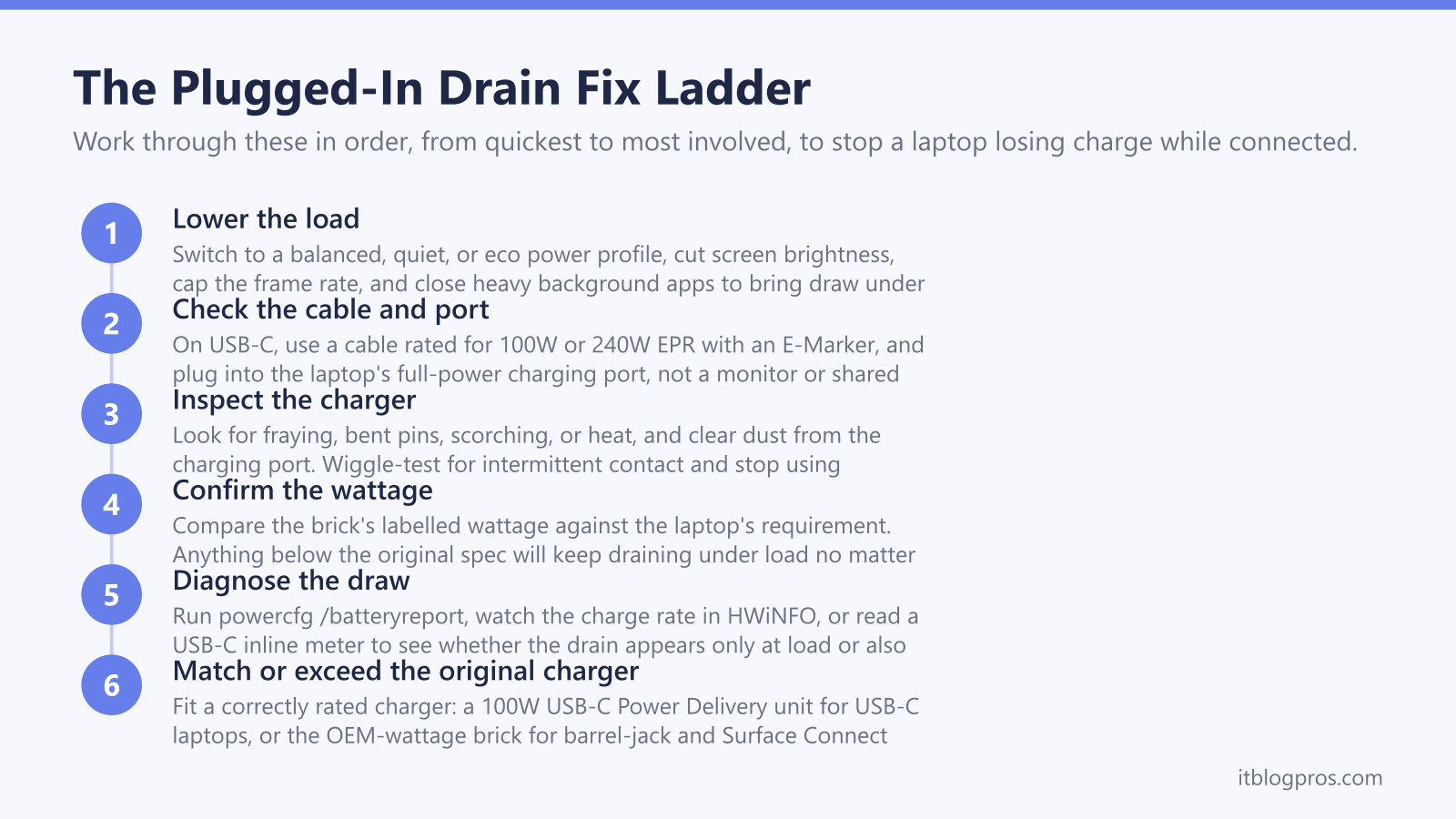
A laptop that loses charge while it is plugged in feels like a contradiction, yet it points to one simple imbalance: the system is drawing more power than the charger can supply, so the battery quietly tops up the shortfall. This is most common on gaming and heavy-use laptops, where a demanding CPU and GPU under load can outpace a modest adaptor. It also shows up when the charger is underpowered for the model, when a USB-C cable is not rated for the wattage, when the laptop is fed from a low-power USB-C port, or when a charger has simply worn out. The fixes range from a five-minute settings change to swapping in a correctly rated charger. This guide explains each cause and gives a clear fix ladder to work through in order.
A laptop battery drains while plugged in when the system draws more watts than the charger delivers, so the battery covers the gap. The usual culprits are an underpowered or worn charger, a USB-C cable not rated for the wattage, a low-power USB-C port, or heavy background and gaming load. Matching the original wattage and easing the load fixes most cases.
Key Takeaways
- A net drain while plugged in means the load exceeds the charger output, so the battery makes up the difference.
- Gaming and heavy CPU or GPU use can briefly demand more wattage than the supplied adaptor delivers, especially on slim adaptors shipped to save weight.
- A USB-C cable without the correct E-Marker chip caps charging at 60W, so a 100W charger may only deliver 60W through the wrong cable.
- Charging from a low-power USB-C port, a monitor, or a multi-port charger that splits its output often supplies far fewer watts than the laptop needs.
- Matching or exceeding the original wattage, using a properly rated USB-C cable, and lowering the load resolves most plugged-in drain.
A Net Drain Means the Load Has Outrun the Charger
A laptop charger has a fixed wattage budget. It must power everything the laptop is doing right now and, with whatever is left over, top up the battery. When the live system draw stays below the charger output, the surplus charges the battery and the percentage climbs. When the draw rises above the charger output, there is no surplus left, so the system pulls the missing watts from the battery. The percentage falls even though the cable is plugged in.
This is the single idea behind almost every plugged-in drain complaint. The battery is acting as a buffer, smoothing out moments when the laptop briefly needs more power than the adaptor can hand over. A short dip during a heavy task is normal on many machines. A steady, continuous fall while plugged in is the symptom worth investigating, because it means the average load is sitting above the charger ceiling rather than spiking past it for a few seconds.
Gaming and Heavy Loads Push Past the Adaptor Ceiling
Gaming laptops are the classic case. A large gaming laptop with a high-end discrete GPU can demand well over 200W under full load once the CPU, GPU, display, fans and any peripherals are all working hard. Manufacturers sometimes ship an adaptor sized for typical use rather than absolute peak, partly to keep the brick lighter and cheaper. When a game pins the GPU, the combined draw can climb above what that adaptor supplies, and the battery covers the rest.
The same effect appears outside gaming: video rendering, 3D work, heavy virtual machines, or many browser tabs alongside a video call can all lift sustained draw. Practical relief comes from lowering the ceiling the laptop is trying to reach. Switching to a balanced, quiet, or eco power profile caps CPU and GPU clocks and cuts total wattage demand, often enough to bring the draw back under the charger output. Lowering screen brightness, capping the in-game frame rate, and closing background apps all help in the same direction.
The USB-C Cable and Port Decide How Many Watts Get Through
On USB-C laptops the cable is a gatekeeper, not just a wire. USB Power Delivery only allows more than 3A (above roughly 60W at 20V) through a cable that carries an E-Marker chip declaring it is rated for 5A. If the cable cannot identify itself as a 100W (5A) or higher Extended Power Range cable, the system limits current to 3A, so even a 100W or 240W charger delivers at most about 60W. A laptop designed around 90W or more will then run short and lean on the battery under load.
The port matters just as much. Charging from a low-power USB-C port, a USB-C monitor, a dock, or a multi-port charger that splits its budget across devices can supply far fewer watts than the laptop needs. A 60W or 65W feed into a machine built for 100W will hold steady at idle and drain under load. To rule the chain in or out, use a USB-C cable explicitly rated for 100W or 240W EPR with the correct E-Marker, plug into the laptop's full-power charging port, and avoid sharing the charger with a phone or tablet while you test.
Worn, Wrong, or Damaged Chargers Lose Output Over Time
Chargers degrade. Cables flex thousands of times near the strain relief, internal conductors fatigue, and connectors loosen, so an adaptor that once delivered full power may now sag under load or cut out intermittently. A drain that started gradually, or that comes and goes when the cable is moved, points this way.
Work through a quick physical check. Inspect the cable for fraying, kinks, or a hot spot, and the connector for bent pins or scorching. On a barrel-jack charger, confirm the centre pin is straight and the plug seats firmly. Check the laptop's charging port for dust, debris, or corrosion and clear it gently with compressed air. Never keep using a charger that smells of burning, crackles, or runs very hot. Where possible, test the same charger on another compatible laptop, or test the laptop with a known-good charger, to isolate whether the fault is in the adaptor or the machine. A non-original or generic adaptor that does not actually deliver its labelled wattage produces exactly the same symptom.
Matching the Right Wattage Fixes the Underpowered Case
When the cause is a charger that simply cannot supply enough power, the cure is a charger that can. The rule is to match or exceed the wattage printed on the original brick, never to drop below it. A laptop that needs 65W will keep draining behind a 45W supply no matter how good that supply is.
For laptops that charge over USB-C, a correctly rated higher-wattage USB-C Power Delivery charger such as the UGREEN 100W USB-C GaN charger can resolve the underpowered case, provided it is paired with a cable rated for the wattage and plugged into the laptop's full-power USB-C port. Caveat: this only suits laptops that genuinely charge over USB-C. Many gaming Acer and MSI models, and other barrel-jack designs, use a proprietary connector and must match the wattage of their original brick or use the official charger. Microsoft Surface laptops that use the Surface Connect port are the same. Always confirm the connector type and the required wattage before buying. For broader background on adaptor sizing across the laptop power cluster, see the laptop power and charging problems pillar.
Background Load and a Quick Diagnostic Pass
Software can lift the baseline draw enough to tip a borderline charger into deficit. Constant cloud sync, runaway background processes, aggressive indexing, or a stuck app can keep the CPU busy and raise wattage demand even when the screen looks idle. Open Task Manager, sort by CPU and power usage, and end or update anything sitting unexpectedly high.
To confirm what is happening, generate a Windows battery report by running powercfg /batteryreport from a command prompt and reviewing the usage and capacity history. For a live view, a tool such as HWiNFO shows the charge rate in real time: a negative charge rate while plugged in is direct proof the battery is discharging under load. A USB-C inline power meter is the most precise option, displaying the exact watts reaching the laptop so a 100W charger showing only 60W immediately exposes a cable, port, or setting bottleneck. If the drain only ever appears at heavy load and the battery charges fine at idle, the charger is underpowered for the peak. If it drains even at idle, suspect the cable, the port, or a failing charger.
