
Laptop power and charging problems feel alarming, but nearly all of them trace back to one of three families of cause: battery or charger hardware, power-management software, or overheating. A machine that dies the instant the mains lead leaves the socket is a very different fault from one that simply refuses to top up past 80 percent, yet both get lumped together as "charging issues". This hub sorts the symptoms, gives a short universal triage that works on any brand, and then routes through to the exact fix for your make and your specific behaviour. Work the triage ladder first, then follow the link that matches what your laptop is actually doing.
Laptop power faults fall into three families: failing battery or charger hardware, power-management software that throttles or caps charging, and overheating that forces emergency shutdowns. A quick triage tells the families apart in minutes. Test a second charger and outlet, run on battery alone, check the Windows power plan, then route to the brand or symptom guide that matches your exact problem.
Key Takeaways
- Almost every laptop power problem belongs to one of three families: battery or charger hardware, power-management software, or overheating and thermal shutdowns.
- A charging cap at 80 percent is usually a deliberate battery-health feature, not a fault, and lives in the maker's own utility such as Dell Power Manager, Lenovo Vantage, or Surface smart charging.
- A laptop that switches off the instant it is unplugged points at a worn battery, a charger that never charges, or a critical-battery power setting, and is rarely a software glitch.
- Battery draining while plugged in during gaming usually means the charger cannot supply both the load and a top-up, so the laptop pulls the shortfall from the cell.
- Slower performance on battery is normal Windows power throttling rather than damage, and the Best performance power mode disables it.
The Three Families of Laptop Power Fault
Sorting a power problem into the right family saves hours of guessing. Almost every fault belongs to one of these three groups.
- Battery and charger hardware. A worn cell that no longer holds charge, a charger delivering the wrong voltage, a frayed cable, or a dirty charging port. These produce the most dramatic symptoms: instant shutdown on unplug, no charging light, or a battery that reads a percentage but cannot sustain the machine. A swollen or visibly bulging battery sits here too and needs prompt, careful attention.
- Power-management software. Drivers, the Windows power plan, the maker's own battery utility, and BIOS or UEFI charge thresholds. This family is responsible for the cases that look broken but are working exactly as designed, such as charging stopping at 80 percent or the processor slowing the moment the mains lead is pulled.
- Overheating and thermal shutdowns. Dust-clogged fans and blocked vents let the processor hit its thermal limit, and the firmware cuts power to protect the hardware. Heat is the single most common cause of unexpected shutdowns, so it earns a check early in any triage.
The Universal Triage That Works on Any Brand
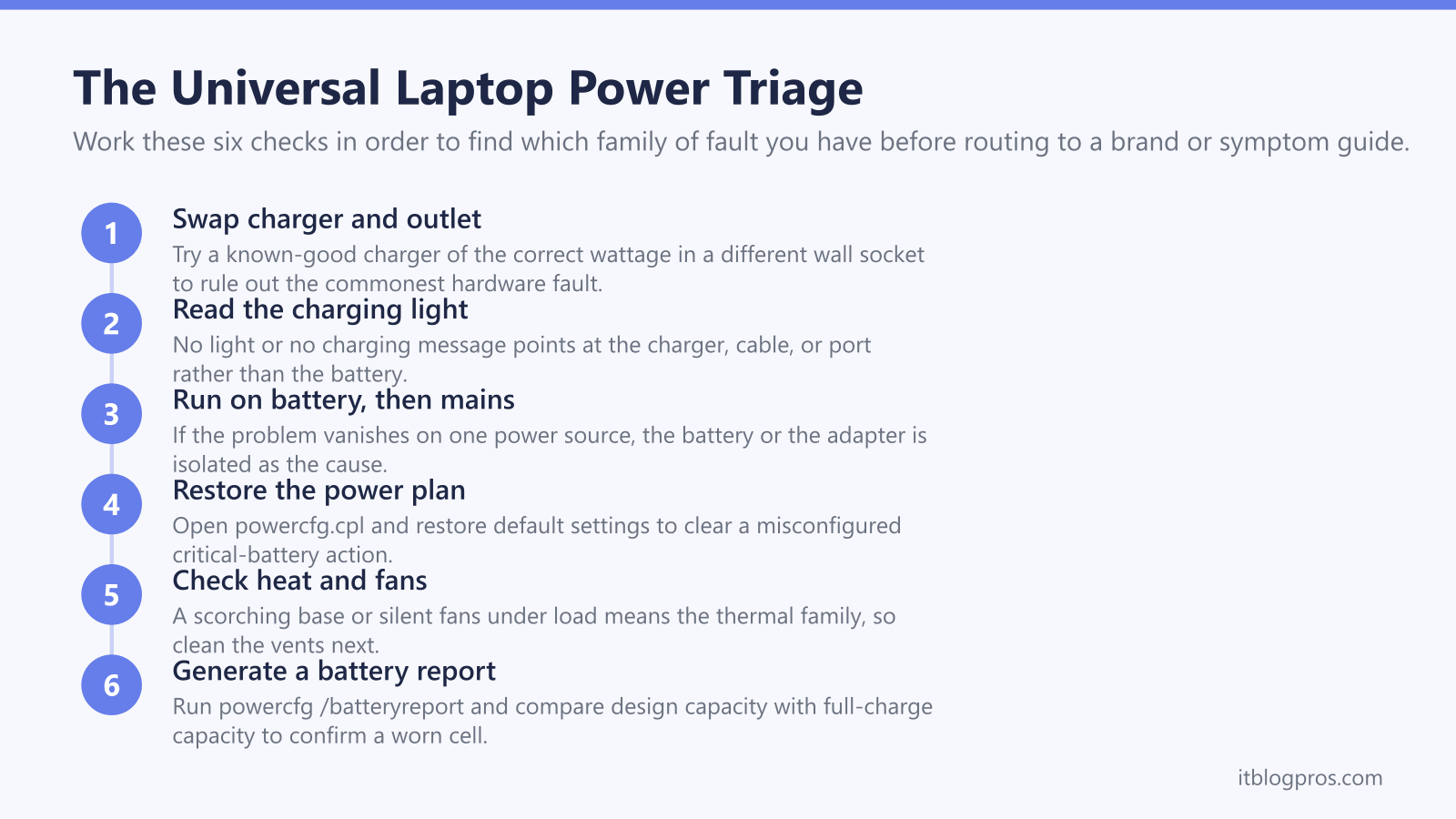
Before diving into brand guides, run this short ladder. It tells the three families apart on any Windows laptop and on a Mac with minor wording changes.
- Swap the charger and the wall socket. A known-good charger of the correct wattage and a different outlet rule out the cheapest, most common hardware fault in two minutes.
- Watch the charging indicator. No light or no "plugged in, charging" message points at the charger, cable, or port rather than the battery.
- Run on battery alone, then on mains alone. If problems vanish on one power source, you have isolated the battery or the adapter.
- Restore the Windows power plan to defaults. Open
powercfg.cpl, pick a balanced plan, and choose restore default settings to clear a misconfigured critical-battery action. - Feel for heat and listen to the fans. A scorching base or silent fans during load means the thermal family, and a cooling clean is the next step.
- Generate a battery report. Run
powercfg /batteryreportand compare design capacity against full-charge capacity. A large gap confirms a worn cell.
The heroSpec above lays this same ladder out as a quick visual reference.
Route by Brand
Each maker hides its charge limits, battery utilities, and diagnostics in a different place, so the brand guides go straight to the right menu for your machine.
- Asus laptops that switch off when unplugged: Asus laptop switches off when unplugged
- Dell machines that turn off the moment the lead is pulled: my Dell laptop turns off when unplugged
- Lenovo laptops with the same sudden cut-out: Lenovo laptop switches off when unplugged
- HP, Acer, MSI, Apple, and Surface owners can start from the all-brands shutdown guide, which carries the maker-specific power software and diagnostics for each: laptop shuts down randomly, fix for all brands
Gaming Acer and MSI models and the Surface line are worth a special note: they often use barrel-jack or Surface Connect power rather than USB-C, so any charger swap must match the original wattage exactly.
Route by Symptom
If you would rather match the behaviour than the badge, pick the symptom that fits.
- Turns off the instant it is unplugged. A worn battery, a charger that never charges, or a critical-battery setting. Start at laptop turns off when unplugged.
- Will not charge past 80 percent. Almost always a deliberate battery-longevity feature in the maker's utility, covered in the battery-health section below.
- Battery drains while plugged in. Common on gaming laptops when the charger cannot cover both the load and a top-up. Covered in the gaming section below and in laptop switches to battery while gaming.
- Slow only when on battery. Normal Windows power throttling, explained in its own section below.
- Random shutdowns at any time. Usually heat or drivers rather than the battery: laptop shuts down randomly, fix for all brands.
When a Charging Cap Is a Feature, Not a Fault
A battery that stops at 80 percent and shows "plugged in, not charging" is usually working exactly as the manufacturer intended. Lithium-ion cells wear faster when held at a full charge for long periods, so makers ship a longevity feature that holds the charge lower.
- Dell uses Dell Power Manager, where Battery Information offers a Custom or Primarily AC Use setting with a charge threshold.
- Lenovo uses Lenovo Vantage, under battery settings, with a Conservation Mode toggle that caps around 55 to 60 percent.
- HP exposes Adaptive Battery Optimizer or a Battery Health Manager option in HP Support Assistant and the BIOS.
- Surface runs smart charging automatically and adds a Battery Limit option in UEFI that caps at 50 percent for kiosk-style use.
- Apple uses Optimized Battery Charging, which can pause at 80 percent when it expects the Mac to stay plugged in, plus a manual charge limit in recent macOS releases.
None of these needs a repair. Switch the relevant utility to charge to 100 percent if you want the full capacity, accepting slightly faster long-term wear.
Charger Wattage, Battery Drain, and USB-C Replacements
Two of the most misread symptoms come down to wattage. A gaming laptop pulling 200 watts under load from a 180 watt charger has to make up the shortfall from the battery, so the percentage falls even though the mains lead is plugged in. The fix is to match the wattage printed on the original brick, for example 19.5V 11.8A 230W, and to drop into an Eco or Silent performance mode when raw speed is not needed.
When a charger genuinely needs replacing, the right answer depends on how the laptop takes power. Many modern ultrabooks charge over USB-C Power Delivery, and for those a verified high-wattage option is the UGREEN 100W USB-C GaN charger. The 100 watt ceiling comfortably runs and charges most USB-C laptops.
The important caveat: this only suits laptops that actually charge over USB-C. Machines with a barrel-jack connector, many gaming Acer and MSI models, and anything using Surface Connect cannot use it. Those must match the wattage on the original brick or use the official charger, because under-powering a high-draw laptop is exactly what causes the battery to drain while plugged in.
Why a Laptop Slows Down on Battery
A laptop that feels sluggish only when unplugged is almost never damaged. Windows switches to a battery-saving power mode and enables Power Throttling, which caps processor clock speed to stretch the charge. On many machines this trims processor performance by a quarter to a half, which is plenty to make web pages and apps feel heavier.
To confirm and control it:
- Open Task Manager and look for the small green leaf beside throttled processes.
- Click the battery icon and move the power mode slider towards Best performance, which disables throttling at the cost of runtime.
- In
powercfg.cpl, raise the on-battery processor minimum and maximum state if you want a custom balance.
This is a deliberate trade between speed and battery life rather than a fault, so treat noticeably slower-than-expected behaviour as a tuning question, not a repair.