
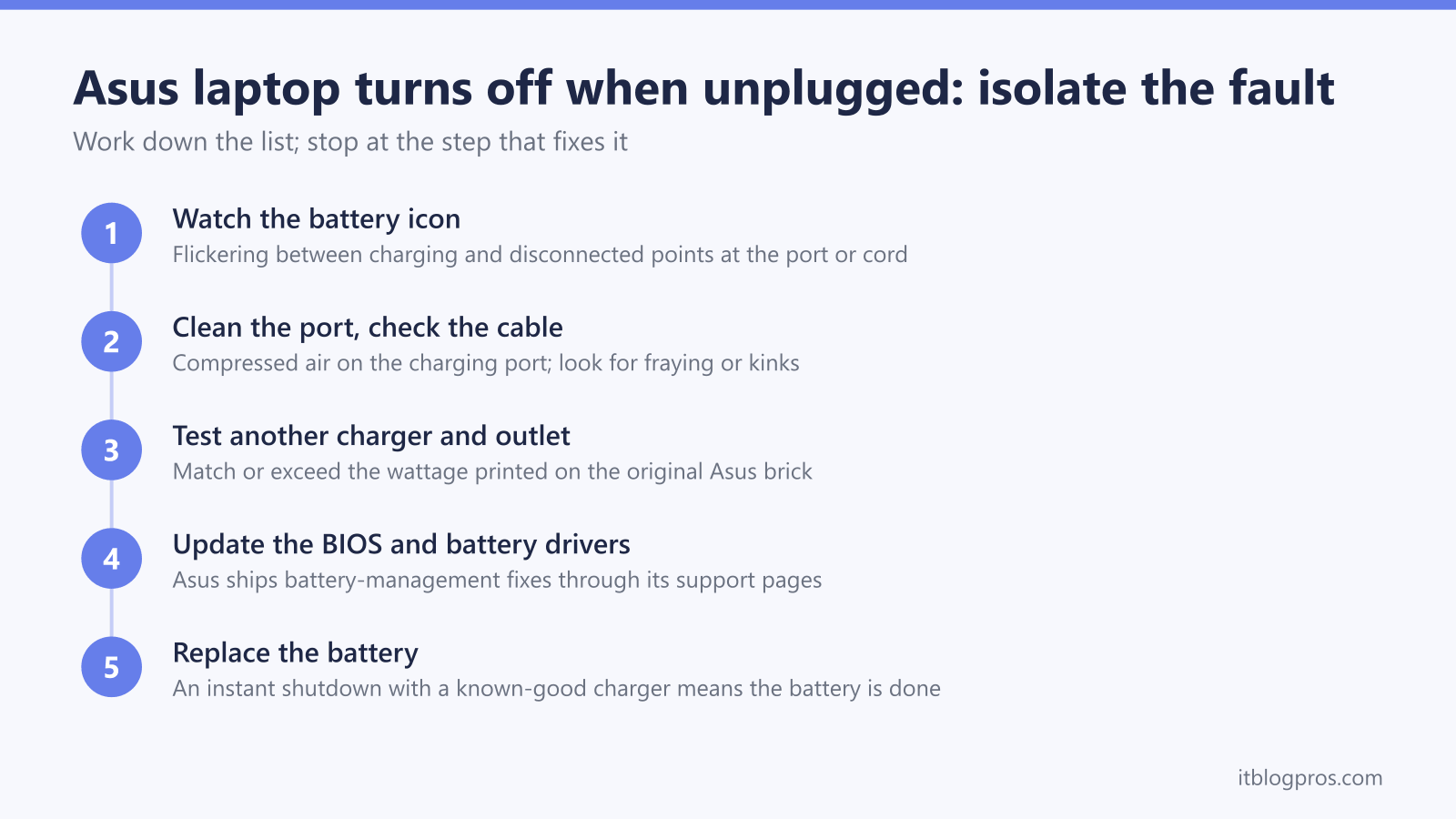
An Asus laptop that switches off the moment you unplug it almost always has a power-delivery fault: a flat or failing battery, a worn charger, or a dirty charging port. These checks isolate the cause, starting with the ones that cost nothing.
If your Asus notebook turns off when unplugged due to a faulty power supply, it is not that likely that the faulty power supply is preventing the battery from getting charged. Even though a faulty power supply can occur occasionally, the symptoms are easy to detect.

Asus Laptop Switches Off When Unplugged
When you plug an Asus laptop into its charger, the charging LED lights up and the operating system shows the charge level on screen; the Asus power supply has an LED power indicator of its own. Those three indicators are your first diagnostic tools. Sometimes, due to overheating or a faulty power cable, the battery never gets the chance to charge properly.
The BIOS on your computer may need to be updated, or the cooling fan may need attention. Either way, an Asus laptop that keeps shutting down the moment you unplug it is not behaving normally, and the fault is worth tracking down.
Unplugging your laptop may result in problems with its power plug, power adapter, or battery. Instead of using a surge protector or extension cord, connect your laptop directly to an outlet. Owners of other brands can look at our laptop power issue article.
An Asus laptop that turns off when unplugged is living on mains power because the battery is flat, failing, or never charging properly. The usual culprits are a worn or underpowered charger, a dirty charging port, or a battery at the end of its life. Test a different adapter and wall outlet first; a battery icon that flickers between charging and disconnected points at the port or cord rather than the battery.
Key Takeaways
- A flat or failing battery is the most common reason an Asus laptop runs only on mains power and dies the moment you unplug it.
- A battery icon that flickers between charging and disconnected points to a dirty charging port, a loose power plug, or a damaged cord rather than the battery itself.
- You can isolate the fault by testing a different power adapter, a different outlet, and running on battery alone to see which change stops the shutdowns.
- Random shutdowns are not always power-related; overheating, dust-clogged cooling fans, Windows corruption, and outdated drivers can all trigger them.
- Checking your Windows power plan and confirming the Balanced profile rules out a simple power-management misconfiguration before you consider replacing hardware.
Asus Laptop suddenly turns off not charging
When your laptop stops charging and shuts down suddenly, you might have a few problems. The laptop charger port might be dirty, or you might have a bad contact on the power cord or the power plug.
You will notice that the battery icon keeps going between charging and disconnected if these are the issues. As a result, the laptop’s battery will never be fully charged while it is charging.
If you don’t fully charge your battery, you may start experiencing random power outages.
You will need to check the charging capabilities of your laptop with different power adapters in order to resolve this issue. Your battery may not have been damaged by incomplete charging cycles since this started happening recently.
You may need to replace your battery if you’ve noticed this happening for some time.
When the power cord is fine but the laptop still switches off
If this is the case then you probably have a faulty battery or charger/power adapter. If your laptop shuts down when unplugged then you could have an issue with your battery or your power management profile.
If you unplug your device and you notice that the battery suddenly drains, or when you unplug your charger cable the notebook asks you to power down the device before it switches off on its own.
Reasons an Asus laptop only works with the charger plugged in
This is normally due to a flat battery, which would also reveal itself as your laptop shuts off when unplugged.
It is not normal for your laptop to power off when you unplug it, so if this is happening then you are looking at a serious issue. The reason your battery is not charging could be for one of the following reasons:
- faulty battery
- faulty laptop charger
- faulty power cord
- bad charging circuitry on your laptop’s motherboard.
Reasons an Asus laptop shuts down unexpectedly
Several possible problems could be causing your laptop to randomly shut down: Windows corruption, power supply problems, and hardware problems.
Some laptops can shut down even when you don’t unplug them, which may indicate a problem with overheating (thermal shutdown or hardware component failure).
You may also experience random shutdowns and reboots if you have driver problems.
Your laptop will go into hibernate mode and wake up again if your power management settings are incorrect.
To get the best performance from your laptop, set up its advanced power settings properly
There may be moisture on your laptop’s components due to environmental humidity, liquid spills, or even insect infestation in extreme cases.
This could cause your laptop to power off randomly.
Regardless of how good you are at using computers and laptops, a random problem can still catch you off guard. Checking the basics of a sudden laptop shutdown will help you fix it.
Most of the time, thermal overload is caused by the motherboard’s thermal overload controls. In other words, critical components on your laptop’s motherboard can usually detect excessive heat and either warn you with a beep or alarm, or shut down entirely in extreme cases.
The issue with cooling and notebooks is that there is an area within the device, which makes airflow a problem.
Most electronic components are very close to one another to save space, which is not always great for system thermals. Our top 5 tips should help you to narrow down the issue, and hopefully, fix it yourself.
IMPORTANT: CHECK YOUR SYSTEM’S WARRANTY AND CHECK IF YOU ARE ELIGIBLE FOR A FREE REPLACEMENT OR REPAIR BEFORE ATTEMPTING ANY REPAIRS
A notebook powering off unexpectedly is probably one of the worst feelings in the world. These are just occasional inconveniences that happen from time to time. It can sometimes be disastrous for your work, as you lose all the progress you have made.
The moment the problem starts recurring regularly, it is time to start troubleshooting. With our quick guide, you can find out what is causing your sudden laptop shutdowns, as well as how to fix them yourself. Let’s get started!
Asus Laptop Troubleshooting Starting Point
Check your cooling system immediately in case of a sudden laptop shutdown. Your cooling fans or ventilating unit may be malfunctioning if you run your laptop for a prolonged period of time.
Examine the location of the fan and/or ventilating unit and check for dust build-up, sticker residue, water damage, or anything else obstructing its airflow.
Ensure that the blades are not bent or broken. Your laptop will overheat if the fan is weak.
Dust and obstructions can be found in the back vents of your laptop. If your cooling system is not functioning properly, a small speck of dust can be detrimental.
Check the thermal paste between each surface and its corresponding chip, and remove any excess heat sinks. Thermal paste should be added if it is not present.
Windows Corruption
Windows corruption is not fun. It can be a real headache to remedy, and it can cause all sorts of problems for your computer. Windows corruption issues are usually caused by long periods of high CPU usage, or maybe your hard drive is starting to fail.
If you have a sudden shutdown issue while playing video games, then the beginning of the end of your gaming session is probably a good idea to shut down your device.
If you are getting random restarts while using programs or applications, then there might be some corruption in Windows that is causing the problem to occur.
You can resolve Windows corruption by running a chkdsk scan on your hard drive. This is a quick and easy tech solution that can get you back into Windows without needing to call anyone out.
If you are having problems with the scanner tool, then you will need to check that the computer is being recognized by your Device Manager (Control Panel > System & Security > Device Manager). If not, then you will need to update your network card and/or sort out any issues there.
Hardware Issues: Asus Laptop Battery and Charge Problems
It is possible that the shutdowns are related to your graphics card if you have a hardware issue. There may also be loose pins in the power cord going to the device or it may not fit snugly in the outlet.
Using another power cord or plugging in a different one is an option if your notebook is shutting down randomly while plugged in.
Laptops that randomly shut down can also be caused by motherboard or video card issues. A video card problem might affect the CPU, which could also result in a shutdown.
When your laptop shuts down while playing games or performing other CPU-intensive tasks, you should run a virus scan and defragment your hard drive.
Adding more fans to your computer or using a laptop cooling pad can also help you avoid computer overheating.
Laptops can randomly shut down for a variety of reasons, but most of them are easy to fix. The long-term benefits usually outweigh the initial difficulties.
Power Supply Problems
To check if your laptop is suffering from faulty power supply issues, you will need to plug the laptop into a different outlet. If it starts working again then that was the problem! It may be time for an upgrade as well.
You can also check that the power cord is securely plugged into the laptop and the electrical socket. If there is a loose connection anywhere, then you should be able to see it or feel it with your hands.
If your laptop still thinks that it is not getting any electricity, then you will need to look at replacing some of the internal parts.
If your laptop still thinks that it should be getting electricity even when you are sure that all parts are properly connected, then there might be a fault with the motherboard.
That is not to say that this will happen in every case. Some motherboards might have electromagnetic interference issues from something like a cordless phone or a wireless router.
It’s a good idea to try running your laptop on battery power and checking if it is still shutting down.
Software Driver Problems
Due to their nature as computers, laptops can have many of the same issues as desktop computers. The drivers on your laptop can cause huge problems without you even knowing it.
Installing new drivers is necessary. There are times when they come preinstalled on the laptop, but more often than not, you will need to download them yourself.
If you ever wish to uninstall your drivers again, make sure you store them in a separate folder on your computer. You will be able to find the right drivers and uninstall them much easier if you ever run into problems with any of them.
The drivers on your computer may not be performing their duties correctly if they are outdated or corrupted. You could experience random shutdown issues as a result.
Many people are unaware that your Microsoft Windows installation has a lot of power management settings that make your laptop more efficient when it is not connected to a charger.
Checking your device’s power profile is a good idea if you need to use it in an area where it needs to be unplugged.
Power plan settings to check before replacing hardware
It is unlikely that your laptop is powering down when you unplug it due to a power management misconfiguration, however you should determine what your current power profile is.
Follow these steps to determine what is running on your laptop. Choose the Choose Power Plan option by clicking Start, typing “Power” and clicking Enter. You can see your current plan once you have that window open.
Most people find that the “Balanced” profile is sufficient, so double check what you selected and turn on the profile that’s right for you.
The Power Profile section allows you to edit the shut screen action for your laptop and edit your power profile. The device can go into hibernation, log out, or even do nothing.
When the charger itself is the problem
Several of the faults above trace back to one component: the power adapter. A worn charger with a frayed cable or tired internals can deliver just enough power to keep the laptop running while never properly topping up the battery, so the machine dies the instant you unplug it. An underpowered charger produces a similar pattern; the laptop draws more than the adapter can supply under load, falls back onto the battery, and slowly drains even while plugged in.
Before you buy anything, check the wattage printed on your original Asus adapter and match or exceed it with any replacement. If your Asus charges through a USB-C port, the UGREEN 100W GaN charger is the one we recommend; its 100W output gives most USB-C-charged Asus models, including thin gaming machines, the headroom they need, and the four ports let it replace your phone and tablet chargers at the same time. It only suits laptops that charge over USB-C though; gaming models with a barrel-style jack must stick with the original Asus brick, as their power draw goes well beyond what USB-C can deliver.
If a known-good replacement charges the battery properly and the shutdowns stop, you have found the fault for the price of a new adapter rather than a new battery or a motherboard repair.

A final thought
These tips should help you narrow down the reason why your Asus laptop is turning off when unplugged, and hopefully you’ve now fixed the problem.
We would appreciate it if you could let us know if you have found a way to diagnose and resolve random shutdown issues yourself without having to hire someone to do it for you.
It is our sincere hope that you have learned how to prevent problems, and that as a result, your laptop will no longer shut down when it is unplugged from its charger.