
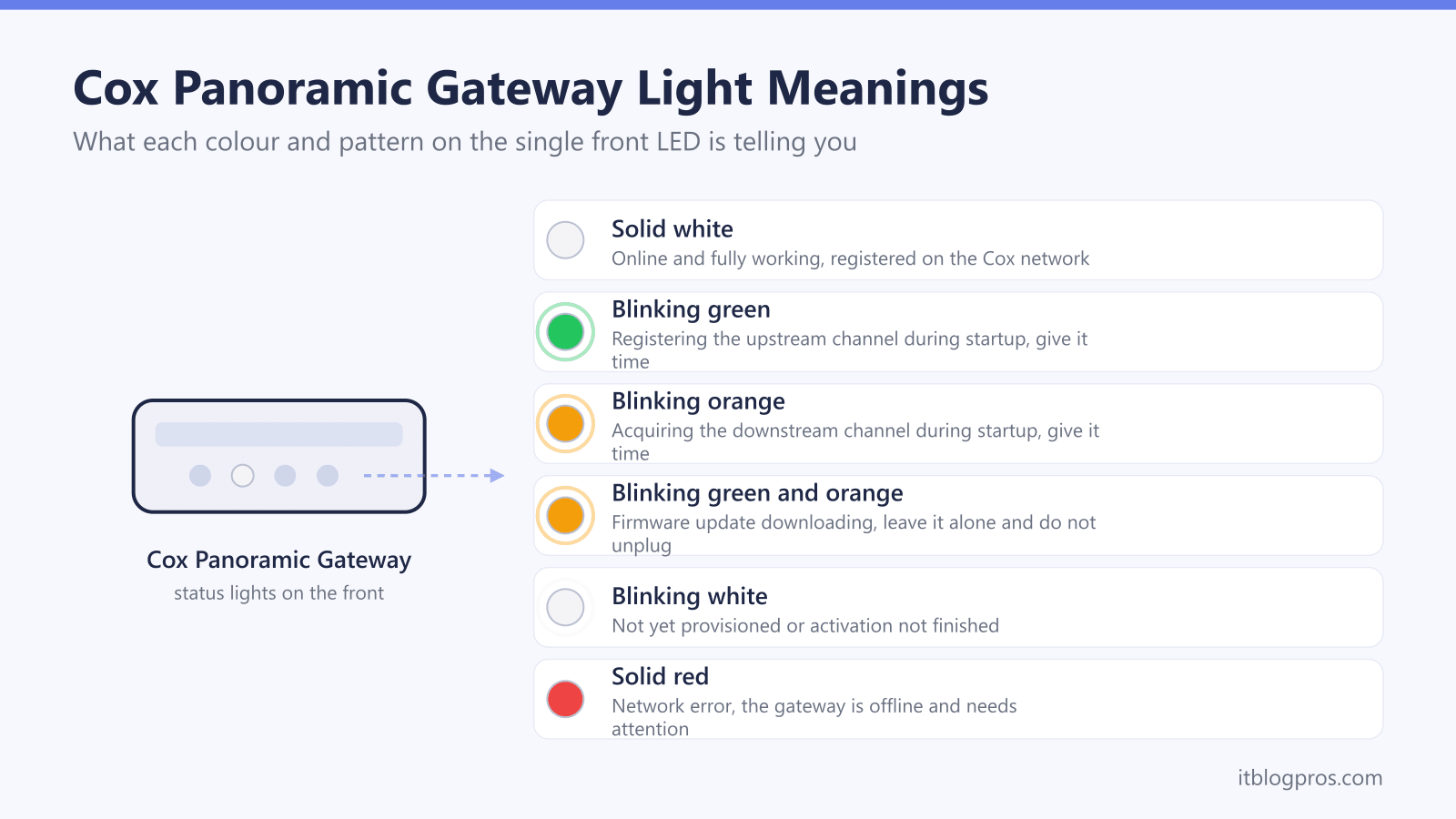
A blinking green or orange light on a Cox Panoramic WiFi gateway is usually the device doing its job. The single LED on the front cycles through these colours while the gateway hunts for its connection to Cox, and on a fresh start or after a reboot that handshake is completely normal. Green means it is registering the upstream channel, orange or amber means it is locking on to the downstream channel, and once both succeed the light settles to a steady white. The problem is not the blinking itself but blinking that never stops, because a gateway stuck mid-handshake has no working internet to hand to your devices.
This guide explains exactly what each Cox Panoramic light colour means, why the green-and-orange dance happens, how long to wait before acting, and the fixes in the right order when the light refuses to turn white. It also flags the fake "Cox" outage and "modem compromised" scams that tend to surface while people are searching for help.
A blinking green light on a Cox Panoramic gateway means it is registering the upstream channel, and blinking orange or amber means it is locking on the downstream channel. Both are normal at startup and should settle to solid white within about ten minutes. If the light keeps blinking or alternates green and orange for longer, check for an outage, tighten the coax, and power cycle the gateway.
Key Takeaways
- Solid white is the healthy state on a Cox Panoramic gateway, meaning it is online and fully working; blinking green or orange means it is still connecting.
- Blinking green is the upstream handshake and blinking orange or amber is the downstream handshake, both normal for up to about ten minutes after a restart.
- A slowly blinking green and orange together usually means a firmware update is downloading, so leave the gateway alone and do not unplug it.
- If the light will not settle to white, check for an area outage, hand-tighten the coax, then power cycle by unplugging for a full minute.
- Cox will never call or text to say your modem is compromised and demand gift cards, crypto, or remote access, so treat those messages as scams.
What the Cox Panoramic Light Colours Mean
The Cox Panoramic WiFi gateway, sold as the PW6 (Technicolor CGM4141) and the newer PW8 (Technicolor CGM4981), uses a single multi-colour LED on the front to report its status. The colour and whether it is solid or blinking together tell you exactly where the gateway is in its connection process.
| Light state | What it means | What to do |
|---|---|---|
| Solid white | Online and fully working, registered on the Cox network | Nothing needed, this is the healthy state |
| Blinking green | Registering the upstream channel during startup | Wait, it is connecting |
| Blinking orange or amber | Registering the downstream channel during startup | Wait, it is connecting |
| Blinking green and orange slowly | Firmware update downloading and installing | Leave it alone, do not unplug |
| Blinking white | Not yet provisioned or activation not finished | Complete activation, then power cycle |
| Blue | WPS pairing mode is active | Normal if you started WPS, otherwise ignore |
| Solid red | Network error, the gateway is offline | Power cycle once, then contact Cox if it stays |
| No light | No power | Check the power cable and the wall outlet |
For the full colour chart across every brand of gateway, the universal router lights guide lays the patterns out side by side, and the router and gateway lights by ISP pillar maps each major US provider's scheme.
Why a Cox Gateway Blinks Green and Orange
The green and orange blinking is the gateway talking to Cox in two directions, and understanding the two channels makes the light far less alarming.
Blinking green is the upstream channel. This is your gateway sending a signal out to Cox to register itself on the network. During a normal boot the light flashes green while it locks on to that upstream path.
Blinking orange or amber is the downstream channel. This is Cox sending signal back down to your gateway. The amber flash means the gateway is acquiring the downstream channels it needs to actually receive data.
A healthy gateway works through both stages and then shows a solid white light. During boot-up the LED often cycles through amber and green before settling, so seeing it move between the two colours is expected, not a fault. What matters is that it finishes. A gateway that keeps blinking green is stuck on the upstream handshake, and one that keeps blinking orange is stuck acquiring the downstream signal, which usually points to a line or signal problem rather than a broken box.
There is one combination to leave well alone. A slow blinking of green and orange together generally means the gateway is downloading and installing a firmware update. Unplugging it mid-update can corrupt the firmware and leave you with a far bigger problem, so if you see that pattern, be patient and let it finish.
How Long to Wait Before Acting
Patience fixes more Cox light problems than any button. After a power loss, a restart, or a fresh install, the gateway needs time to complete both handshakes and pull any pending firmware.
Cox guidance is to allow the front light up to ten minutes to turn solid white after power is restored. If a firmware update is involved, that window can stretch to roughly fifteen minutes. Throughout that time some blinking of green and orange is entirely normal.
The rule of thumb is straightforward. If the gateway has been blinking for less than ten minutes after a restart, wait. If it is still blinking green, orange, or both after ten to fifteen minutes with no progress toward solid white, then it is time to start troubleshooting. Acting too soon, especially yanking the power during a firmware update, tends to create problems rather than solve them.
How to Fix a Cox Panoramic Light That Will Not Settle
When the light keeps blinking well past the normal window and there is no internet, work through these steps in order. Most cases clear by step three.
- Check for an area outage first. Before touching the hardware, confirm the problem is not on Cox's side. Open the Cox app or sign in to your Cox account to see whether an outage is reported for your address. If there is one, there is nothing to fix at home and the gateway will recover on its own once service returns.
- Check the cables. A loose coaxial cable is a common cause of a stuck downstream handshake. Hand-tighten the coax where it screws into the back of the gateway and into the wall jack, and make sure the power cable and any Ethernet cables are seated firmly and undamaged.
- Power cycle the gateway properly. Unplug the power cord, wait a full sixty seconds, then plug it back in. Allow up to ten minutes for it to re-register. The light should move through green and orange and finally settle to solid white. This single step resolves the majority of stuck-light cases.
- Refresh the coax connection. If it still will not settle, unplug the power, disconnect the coaxial cable for about ten seconds, reconnect it, then restore power and give the gateway several minutes to stabilise.
- Restart from the app. The Cox app can restart your gateway remotely, which is a clean alternative to pulling the plug and can re-provision a gateway that is stuck blinking white.
If the light still refuses to reach solid white after all of this, the cause is most likely a signal fault on the line or a provisioning issue that only Cox can resolve, which is the point to contact support.
When a Factory Reset Helps and How Long to Hold
A power cycle and a factory reset are not the same thing. A power cycle simply restarts the gateway and keeps every setting. A factory reset wipes the gateway back to its defaults, including your custom WiFi network name and password, so only reach for it after a normal reboot has failed and you are prepared to set the network up again.
The reset button on a Cox Panoramic gateway is recessed inside a pinhole on the back, designed so it cannot be pressed by accident, so you will need a paperclip or pen tip. Press and hold it for around ten to thirty seconds, until the LED blinks or changes state to confirm the reset has begun, then release and allow a couple of minutes for the gateway to fully reboot. Reset guidance varies a little between Cox models, so if a short hold does nothing, hold steadily for the full thirty seconds.
After a factory reset your WiFi name and password revert to the defaults printed on the gateway's label, so reconnect using those credentials. If the gateway returns to a stuck blinking light even after a factory reset, the fault is almost certainly on the line or in the hardware and needs Cox's attention rather than another reset.
If the underlying issue turns out to be a recurring WiFi fault rather than a one-off connection hiccup, it is worth reviewing related problems such as why your WiFi says no internet and what double NAT is and how to fix it, both of which can survive a reboot and look like a gateway fault.
Avoiding Fake Cox Outage and Modem Scams
Connection faults are a favourite hook for scammers, because people searching for help are anxious and distracted. While your gateway is blinking and the internet is down, be wary of any unsolicited contact that claims to be Cox.
The most common variants are a text or voicemail warning that you will lose a discount unless you call a number back, a message offering an outage "credit" or a free upgrade through a link to a fake Cox login page, and the alarming "your modem has been compromised" call that pressures you to install remote-access software or read out a code. Search-result phone numbers can also be fake support lines built to harvest your account details, so a number that appears next to your search is not automatically the real Cox.
The rules are simple. Cox will never call or text to say your modem is hacked and then demand gift cards, cryptocurrency, wire transfers, or remote access to your computer, will never ask for your full Social Security number, passwords, or PINs over the phone, and will never threaten instant disconnection to rush you. Any pressure to act immediately is itself the warning sign. Check outages and contact support only through the Cox app or by typing Cox.com directly into your browser, never through a link or number that arrived in a message you did not request.
When Buying Your Own Equipment Can Help
Cox charges a monthly fee for the Panoramic WiFi gateway, and over a couple of years that recurring rental adds up to more than a capable modem of your own would cost. Owning a compatible DOCSIS 3.1 modem and your own router removes that monthly charge and often gives you a better-ventilated, more configurable setup.
This is a bigger decision than a single light fix, and the savings maths and approved-device list differ by provider, so confirm your plan speed and check that any modem you buy is on Cox's approved list before switching. The detailed cost breakdown in this cluster is written for Xfinity in stop renting your gateway and buy your own modem, but the same principle applies to Cox. Strong, widely approved options include the Motorola MB8611 and the ARRIS SURFboard S33, both DOCSIS 3.1 modems suited to gigabit plans.
For comparison, sibling guides in this silo cover the same light logic on other providers, including Xfinity blinking orange, Xfinity blinking white with no internet, and the Spectrum red light fix.