
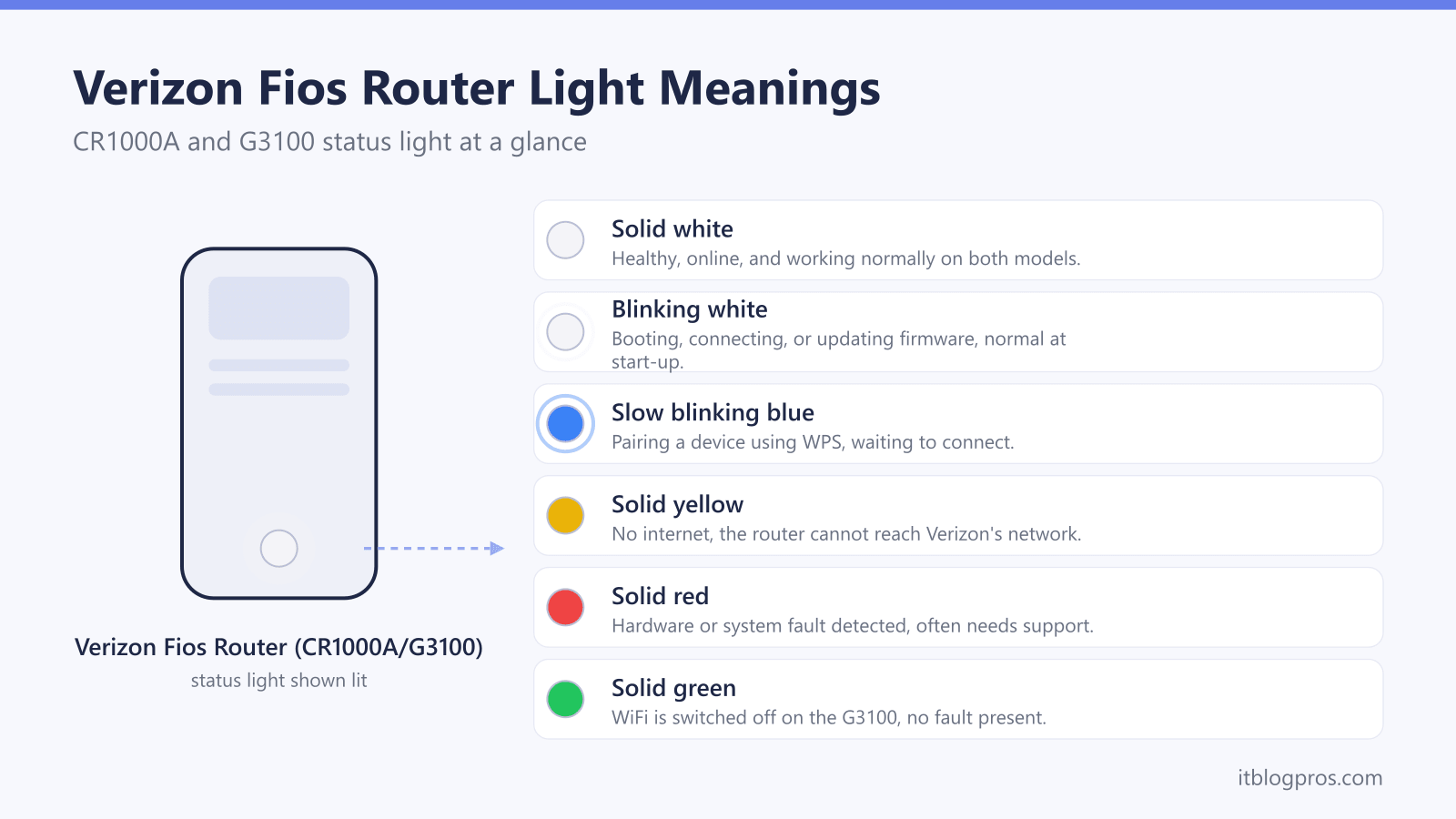
A blinking white light on a Verizon Fios router is almost always the device starting up. On both the newer CR1000A (the Verizon Router) and the older G3100 (the Fios Router), white means the unit has power and is working through its boot and connect sequence. Once it finishes, the CR1000A settles to a steady white glow and the G3100 settles to a steady white light as well, both signalling a healthy online connection. The problem is not the white light itself but a white light that never stops blinking, which means the router has stalled before it could reach the internet.
This guide explains exactly what the white light means on each model, how the CR1000A and G3100 differ in the colours they use for faults, and how to clear a stuck blinking white light in the right order. It also flags the fake Verizon support and outage scams that tend to surface while people search for help.
A blinking white light on a Verizon Fios router (CR1000A or G3100) means the unit is booting or connecting and is normal for the first few minutes. Solid white means it is healthy and online. If the white light keeps blinking past five minutes, power cycle the router and the ONT, check the cables, and confirm there is no area outage before contacting Verizon.
Key Takeaways
- A blinking white light means the Verizon Fios router is booting or connecting, which is normal for the first few minutes after power on.
- A solid white light is the healthy online state on both the CR1000A and the G3100, so once blinking stops at steady white the router is working.
- A white light that keeps blinking past five minutes means the router has stalled before reaching the internet and needs a power cycle.
- The models differ on faults: the G3100 shows yellow for no internet and red for hardware issues, while the CR1000A leans on white with yellow or red flagging trouble.
- Verizon will never demand gift cards, crypto, or your password over the phone, so treat unsolicited Verizon outage or refund messages as scams.
What a White Light Means on a Verizon Fios Router
Verizon Fios routers use a single front status light that changes colour and pattern to report health. White is the colour you see most, and on its own it is a good sign rather than a fault.
A solid white light means the router has finished starting, has a working connection, and is online. This is the state you want to settle on. A blinking, pulsing, or soft-blinking white light means the router is still working through its start-up: powering on, loading firmware, or trying to establish its connection. Right after you plug the router in, or after a power cut or a firmware update, a blinking white light is completely normal and should turn solid within a few minutes.
The trouble only begins when the white light blinks and never stops. A router stuck on blinking white has powered on but cannot complete its connection to Verizon's network, so it never reaches the steady white online state and there is no internet to pass on to your devices.
For the full colour chart across every brand of gateway, the universal router lights guide lays the patterns out side by side, and the router and gateway lights by ISP pillar maps each major US provider's scheme.
CR1000A and G3100 Light Meanings Compared
The two routers Verizon ships under the Fios brand do not use identical light schemes, so it helps to know which one you have. The CR1000A is the newer Wi-Fi 6E unit branded simply as the Verizon Router. The G3100 is the older Wi-Fi 6 unit branded as the Fios Router. Both use a front status light, but they differ in how they flag faults.
| Light state | CR1000A (Verizon Router) | G3100 (Fios Router) |
|---|---|---|
| Solid white | Healthy, online and working | Healthy, online and working |
| Blinking or pulsing white | Booting, connecting, or firmware update | Booting and starting up |
| Slow blinking blue | Pairing a device by WPS | Pairing a device by WPS |
| Solid blue | Pairing successful | Pairing successful |
| Yellow | No internet, lost connection to Verizon | Solid yellow means no internet connection |
| Red | Fault or no signal during start-up | Solid red is a hardware fault, fast blink is overheating |
| Green | Not used for normal status | Solid green means WiFi is switched off |
The practical takeaway is the same on both: white blinking equals booting or connecting, white solid equals healthy. The colours to worry about are yellow and red. On the G3100, a solid yellow light specifically means the router has booted but cannot reach the internet, and a solid red light means a hardware or system fault. On the CR1000A, the front light leans on white, with yellow or red appearing to flag a connection or hardware problem.
A quick note on the CR1000A's rear panel: it has a separate small LED next to the WAN port that glows or flashes white to show network link and activity. That rear light flashing is normal data traffic and is not the same as the front status light, so do not confuse the two.
Why the White Light Keeps Blinking
A white light that refuses to go solid is the router telling you it powered on but could not finish connecting to Verizon's network. The usual causes are straightforward and rarely point to a dead router.
- A passing service outage in your area, which leaves the router cycling as it tries and fails to find a signal.
- A loose or unseated cable, most often the Ethernet cable between the router and the Optical Network Terminal (ONT), or the coaxial cable on a coax-fed Fios setup.
- A stalled boot loop after a firmware update or an unclean power loss, where the router hangs partway through start-up.
- An ONT that needs restarting, since the Fios router depends on the ONT for its signal and a stuck ONT will leave the router blinking.
- A provisioning issue on Verizon's side, where the account or equipment has not been activated correctly.
Because most of these clear on their own or with a single proper restart, the fix list below works through them in order rather than jumping straight to a reset.
How to Fix a Stuck Blinking White Light Step by Step
Give the router a few minutes first, because a blinking white light during a normal boot is not a fault. If it is still blinking after about five minutes, work through these steps in order. Most cases are resolved by step three.
- Wait five minutes. A fresh boot, especially after a firmware update, can hold the white light blinking for several minutes. Let it finish before treating it as a fault.
- Check for an area outage. Before touching the hardware, confirm the problem is not Verizon-wide. Use the My Verizon or My Fios app, or sign in at Verizon.com, to check service status for your address. If an outage is reported, the router will recover on its own once service returns.
- Power cycle the router and the ONT together. This is the single most effective fix. Unplug the router, then unplug the ONT (and, on a battery-backed ONT, remove the battery), wait at least 30 to 60 seconds, plug the ONT back in first and let it fully boot, then plug the router back in. Allow the router two to five minutes to start and settle to solid white.
- Reseat the cables. A slightly loose cable is enough to stall the connection. Firmly reseat the Ethernet cable between the router and the ONT, and on a coax-fed setup hand-tighten the coaxial connector at both ends. Check that nothing is visibly damaged or kinked.
- Try a different cable or port. If reseating does not help, swap the Ethernet cable between the ONT and router for a known-good one, since a failing cable can produce exactly this symptom.
- Let it cool and ventilate. Verizon's Wi-Fi 6 and 6E routers run warm. If the router is boxed in or its vents are blocked, move it into open air and let it cool before retrying, since heat can force a fault during boot.
If the white light still blinks endlessly after a clean power cycle of both the router and the ONT, the next step is a factory reset, covered below, and then a call to Verizon if that fails too.
When a Factory Reset Helps and How Long to Hold
A power cycle and a factory reset are not the same thing. A power cycle simply restarts the router and keeps every setting. A factory reset wipes the router back to defaults, including your custom WiFi network name and password, so only use it once a normal restart has failed and you are ready to set the network up again.
To factory reset a Verizon Fios router, find the recessed Reset button on the back and press and hold it with a paperclip or pen tip:
- CR1000A (Verizon Router): press and hold the Reset button for at least ten seconds, then release. The front light will soft-blink white while the reset and firmware refresh complete. Verizon recommends then unplugging the router's power for three to five minutes before plugging it back in, which helps it resync to the network.
- G3100 (Fios Router): a short press and hold of about three seconds restarts the router without losing settings, while holding for ten to fifteen seconds performs a full factory reset.
After a factory reset, your WiFi name and password revert to the defaults printed on the router's label, so reconnect using those credentials and then re-run the setup wizard. If the white light keeps blinking even after a factory reset and a clean restart of both the router and the ONT, the fault is almost certainly on the line or in the hardware and needs Verizon's attention rather than another reset.
Avoiding Fake Verizon Outage and Support Scams
Connection faults are a favourite hook for scammers, because people searching for help while their internet is down are anxious and easy to rush. While your router is stuck blinking white, be wary of any unsolicited contact that claims to be Verizon.
Common scams include texts or voicemails warning that your account will be suspended or your discount lost unless you call back, messages offering an outage refund or a free upgrade through a link to a fake Verizon login page, and callers who insist a technician must remotely access your router or that your modem has been compromised and needs an urgent fix. Phone numbers that appear high in search results can also be fake support lines set up to harvest your account details.
The rules are simple. Verizon will never demand gift cards, cryptocurrency, or wire transfers, will never ask for your full Social Security number, password, or account PIN over the phone, and will never threaten instant disconnection to pressure you into acting. Any demand to act immediately is itself the warning sign. Check outages and contact support only through the official My Verizon or My Fios app, or by typing Verizon.com directly into your browser, never through a link or number that arrived in a message you did not request.
When the Problem Is the Connection, Not the Router
If the router does reach solid white but your devices still say there is no internet, the fault is no longer the light on the box. A healthy white light only confirms the router itself is online; it does not guarantee every device behind it has a working path out.
Two connection problems commonly survive a reboot and masquerade as a router fault. The first is a device-level or DNS issue, covered in why your WiFi says no internet, where the router is fine but a single device cannot get online. The second is double NAT, which often appears when a second router or a personal modem sits behind the Fios equipment and quietly breaks connections.
Unlike some providers, Verizon Fios does not levy the same monthly modem rental that cable ISPs do, so there is less of a buy-your-own-modem case here than there is on cable. If you are on cable rather than fibre and weighing whether to stop paying a rental fee, the detailed cost breakdown in stop renting your gateway and buy your own modem walks through the maths. For a like-for-like single-colour fault on another provider, the Spectrum router red light fix and the Xfinity router blinking white with no internet guides cover the same kind of stuck-light troubleshooting on cable gateways.