
Bridge mode turns an Xfinity gateway into a plain modem so your own router or mesh system runs the network instead of Comcast's hardware. You reach the control panel that holds the bridge mode switch by logging in to the gateway admin tool at 10.0.0.1. This guide covers the login address, the default username and password and where to find them, how to enable the admin tool through the Xfinity app, the exact path to flip bridge mode on, what the gateway stops doing once it is bridged, and when running bridge mode is the right call. Every step here matches Xfinity's current support guidance, including the recent change that switches the local admin tool off by default.
The Xfinity gateway admin tool lives at 10.0.0.1 and the username is admin. On current firmware the local admin tool is off by default, so it is enabled in the Xfinity app first, and Xfinity's article says that first enabling opens a screen to create the admin password. That created password is the one the login accepts. Bridge mode sits under Gateway, At a Glance and turns the gateway into a modem only.
Key Takeaways
- The Xfinity gateway admin tool opens at http://10.0.0.1 in any web browser on the same network.
- The username is admin, and Xfinity's article says the admin password is created on a screen in the app the first time admin access is switched on.
- Current Xfinity firmware turns the local 10.0.0.1 admin tool off by default, so it is re-enabled in the Xfinity app under WiFi, View WiFi Equipment, Advanced Settings, Admin Tool Online Access.
- Bridge mode lives under Gateway, At a Glance in the admin tool, and enabling it disables the gateway's routing, WiFi and DHCP so it acts as a modem only.
- Bridge mode suits running a third-party router or mesh and avoiding double NAT, but it is unnecessary for a simple single-router or single-computer setup.
The Xfinity gateway login address is 10.0.0.1
Every Xfinity gateway, including the xFi models such as the XB6, XB7 and XB8, uses the same local admin address, walked through step by step in the 10.0.0.1 Xfinity router login guide. Type http://10.0.0.1 into the address bar of any browser on a device connected to the gateway by WiFi or Ethernet, then press Enter. That opens the gateway admin tool, the built-in control panel separate from the Xfinity app and the xfinity.com account site. The admin tool is the only place that holds the bridge mode switch, so it is the page to reach before anything else. Note that 10.0.0.1 works only from inside your own network. A bridged gateway also changes how the admin tool behaves, which is covered in the troubleshooting section below.
The username is admin and the password is created in the app
At the login screen the username is admin. The password is where most walkthroughs have it backwards. Xfinity's Admin Tool access article puts the password step in the app rather than the browser: if you are enabling access for the first time, you are taken to a screen to set up a new password to access the admin tool, and you enter that new password and save. So on a gateway enabled today the password is the one created during that step, and there is no printed default to look up. The sticker survives only as a narrow legacy exception, which Xfinity words as users who enabled access prior to February 2026 may still use the default password found on the sticker on the bottom of the gateway. Older setups used the word password. If none of those work, the admin password was changed at some point and only a factory reset clears it, which the troubleshooting section explains. Changing the admin password away from any default is sensible once you are in, and the wider guide on what a router admin password is and how to find yours covers doing the same on other routers.
Turn on the admin tool in the Xfinity app first
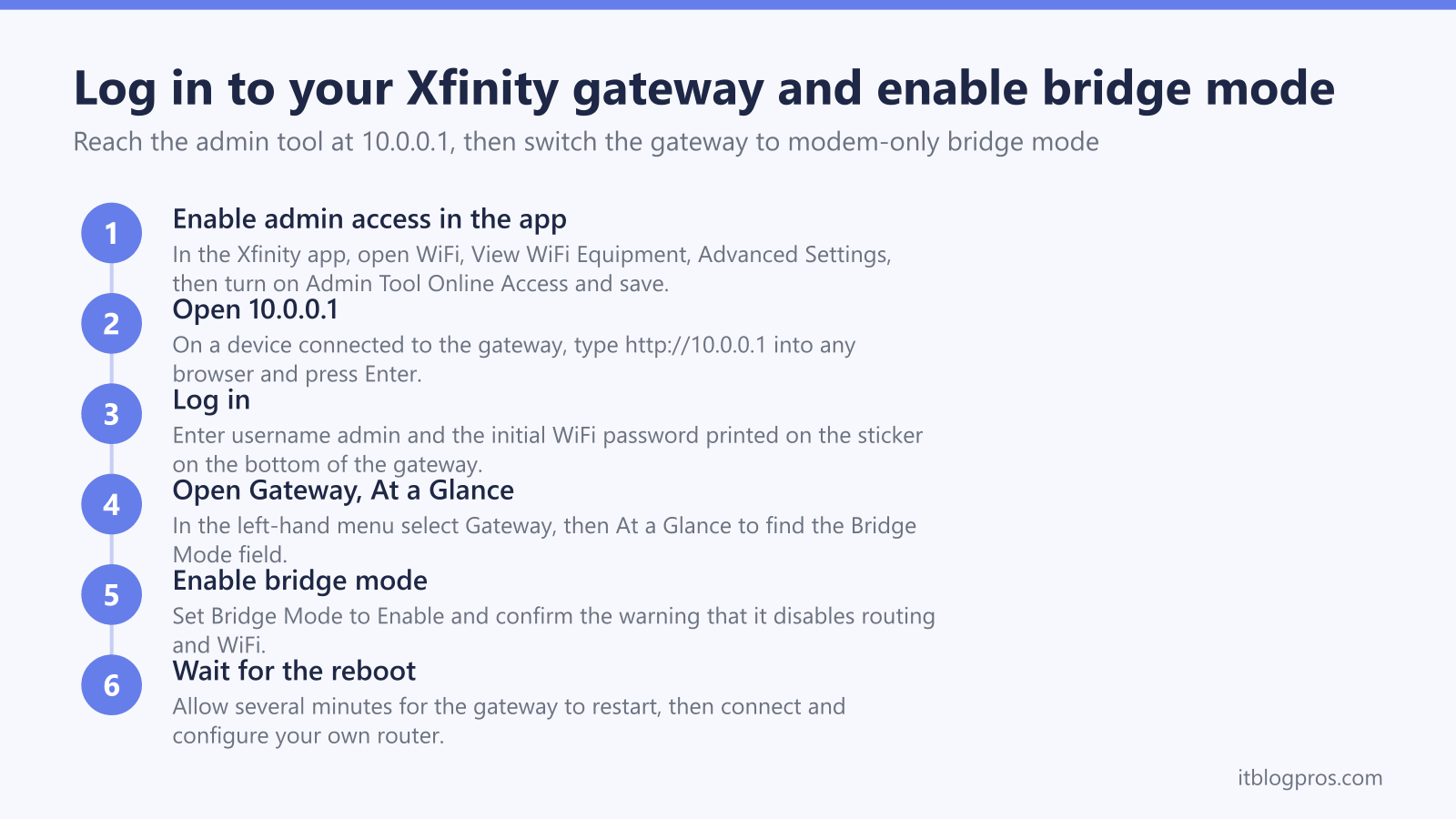
On current firmware Xfinity ships the local 10.0.0.1 admin tool switched off to reduce the chance of an attacker reaching it, since most customers never need it. If 10.0.0.1 will not load, enable it first. Open the Xfinity app, go to the WiFi tab, select View WiFi Equipment, open Advanced Settings, choose Admin Tool Online Access, slide the toggle to allow access and tap Save. Xfinity's article adds a step most walkthroughs skip: enabling access for the first time takes you to a screen to set up a new password for the admin tool, so create one there and keep it, because that is the password 10.0.0.1 will ask for. The browser tool then loads and accepts the admin login. Turning the toggle back off after you finish keeps the gateway locked down.
How to enable bridge mode in the admin tool
Once logged in at 10.0.0.1, look at the left-hand menu and select Gateway, then At a Glance. Find the Bridge Mode field, select Enable and confirm the warning that pops up. The warning states plainly that enabling bridge mode disables the router functionality and turns off the private WiFi network. Click OK to confirm, then allow several minutes for the gateway to restart and apply the change. After the reboot the gateway WiFi is gone and your own router takes over the network. To reverse it later, return to Gateway, At a Glance and set Bridge Mode to Disable.
What you can change in the admin tool besides bridge mode
While you are logged in, the admin tool exposes more than the bridge switch. On gateways still in normal router mode you can adjust DHCP and local IP address ranges under Connected Devices, set up port forwarding and port triggering, toggle the firewall level, and manage the guest and home networks. WiFi name and password changes are increasingly handled in the Xfinity app rather than the admin tool once WiFi Intelligence is active on the gateway, so if those fields are greyed out, use the app instead. Bridge mode makes most of these settings irrelevant, because once the gateway is a modem only, your own router handles DHCP, port forwarding, the firewall and WiFi.
When bridge mode is the right call and the alternative
Bridge mode is the right move when you want your own router or a mesh system such as Eero, TP-Link Deco or Netgear Orbi to run the whole network. Leaving the gateway routing while your own router also routes creates double NAT, which breaks port forwarding, some games and certain services, and splits control across two devices. Bridging the gateway removes that conflict so a single router runs everything. It is unnecessary for a simple setup with one computer or where the gateway WiFi already covers the home. If the goal is to stop renting Comcast hardware entirely, a separate approved modem plus your own router is cleaner than a bridged gateway, covered in the guide to stopping the Xfinity gateway rental. Either way, a capable third-party router is the upgrade that makes bridge mode worthwhile.
Login and bridge mode troubleshooting
If 10.0.0.1 will not load, confirm the device is connected to the Xfinity gateway and not a phone hotspot or a VPN, then enable Admin Tool Online Access in the Xfinity app as described above. If the page loads but the password is rejected, check first that you are using the one created when admin access was switched on rather than anything printed on the gateway, since that is the mistake that sends people to a reset they did not need. If that fails too, the password really was changed, and a factory reset is the way back. Use the control your model has. Xfinity's article Factory reset an Xfinity Gateway (XB2 or XB3) gives the pinhole on the back held for 30 seconds and covers those two models alone, while a Comcast employee on Xfinity's forum says the XB7 resets from the WPS button held 15 seconds or more, and forum answers describe the XB8 as having no reset hole at all. Xfinity publishes no figure for the newer gateways, so hold until the lights go off rather than counting. A gateway already in bridge mode hides the WiFi tab and View WiFi Equipment options in the app and does not serve the admin tool at 10.0.0.1, so undoing bridge mode in that state means the same factory reset, after which it reboots into normal router mode. For wider reset and recovery steps, including third-party routers behind the gateway, see the router reset guide for every US ISP.
The router is what makes bridge mode worthwhile
Bridge mode only pays off with a capable router behind the gateway, since the gateway stops handling WiFi and hands the whole network to your own hardware. A strong standalone router or a mesh system is what turns bridge mode into better range and control rather than just a changed setting. The tested picks, from a single powerful router to whole-home mesh, are gathered in the recommended gear list.