
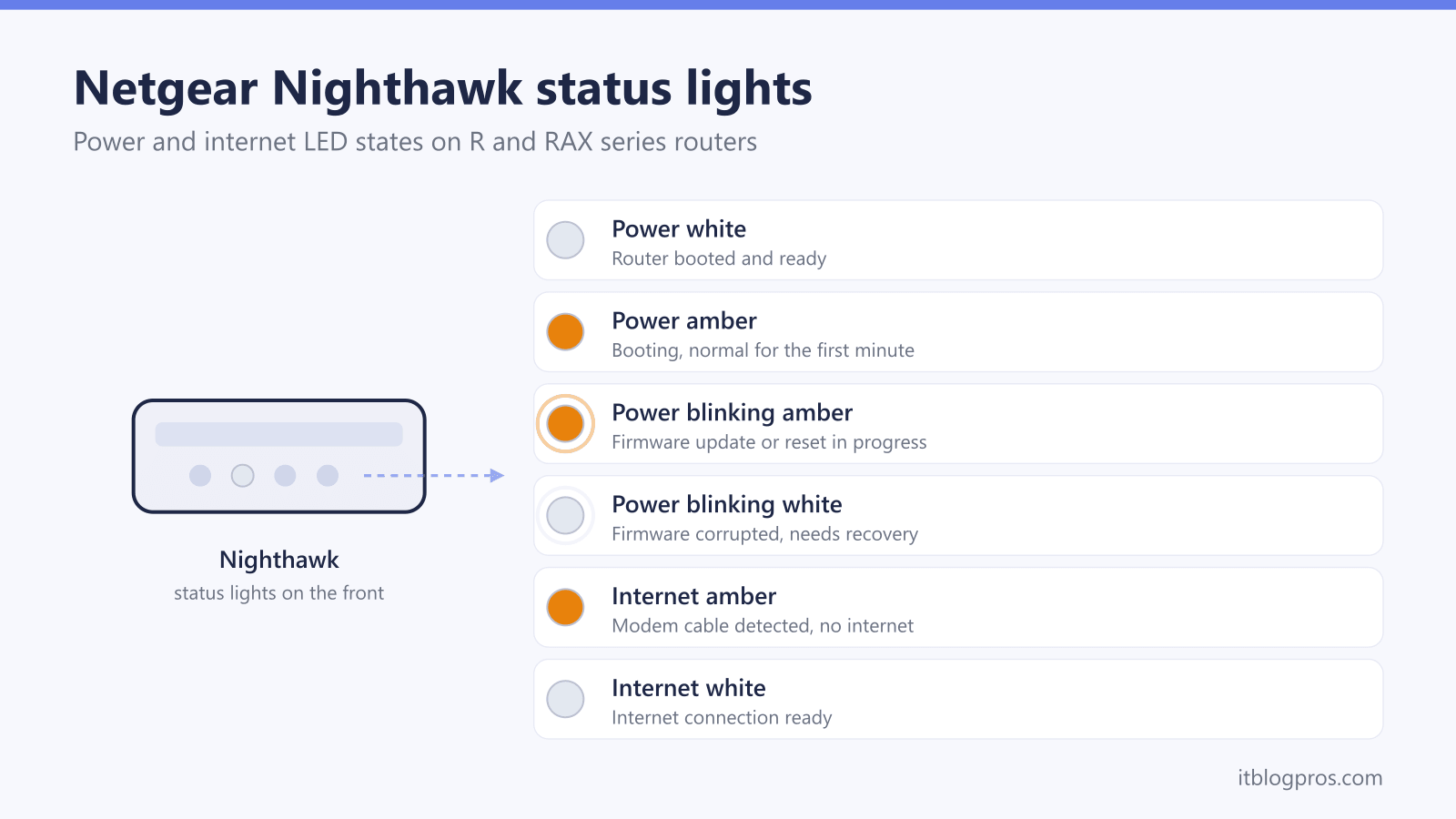
The lights on a Netgear Nighthawk follow a simple code once you know it: amber means starting up or partially working, white means ready, blinking means activity, and off means no power, no cable, or a switched-off radio. The two states that send most owners searching are a power light stuck on amber, which points to a failed boot, and an internet light that sits amber or goes dark, which means the router can see the modem but cannot get online. This guide decodes every LED on the common R-series and RAX-series Nighthawks using Netgear's own documentation, then walks through the exact fix for each fault, from a simple restart to a firmware recovery. A wider primer on router LED colors across brands lives in the router lights color guide.
On a Netgear Nighthawk, the power light shows amber while booting and turns white when ready; stuck amber means a boot problem and a blinking white power light means corrupted firmware. The internet light is white when online, amber when the router sees the modem but has no connection, and off when no cable is detected. Power cycle the modem first, then the router, and factory reset if a fault light stays.
Key Takeaways
- Amber on the power light is normal for the first minute after plugging in, and a power light stuck on amber beyond that points to a boot or hardware problem.
- A blinking amber power light means a firmware update is installing or the Reset button was pressed, so the router must stay plugged in until it finishes.
- A slow, continuously blinking white power light means the firmware is corrupted, which a factory reset or a TFTP firmware reload usually repairs.
- An amber internet light means the Nighthawk detects the cable to the modem but has no working connection, which usually traces to the modem or the ISP.
- The correct restart order is always modem first, then the Nighthawk once the modem is fully back online.
Netgear Nighthawk light meanings at a glance
| Light | What it means | What to do |
|---|---|---|
| Power solid white | The router has finished booting and is ready. A few models show solid green for the same state. | No action needed. This is the normal working state for the power LED. |
| Power solid amber | The router is powering on. Netgear says the power LED lights amber for around 20 seconds after power-up before turning white, so brief amber is normal. | Wait one to two minutes. If it stays amber, power cycle the router, unplug all Ethernet cables from the LAN ports, check the power adapter, and factory reset if nothing changes. |
| Power blinking amber | The firmware is upgrading, or the Reset button was pressed and the router is restoring factory settings. | Leave the router alone until it finishes. Interrupting a firmware update by unplugging the router is the most common cause of corrupted firmware. |
| Power blinking white | The firmware is corrupted, usually because an update was interrupted or failed part-way through. | Factory reset the router. If it still blinks, reload the firmware over TFTP using Netgear's recovery instructions for your exact model, then contact support if it persists. |
| Power off | The router is not receiving power. | Check the power adapter is firmly seated at both ends, plug into a wall outlet rather than a power strip, and use the Netgear adapter that shipped with the router. |
| Internet solid white | The internet connection is ready and the router is online. Some models show solid green instead. | No action needed. If devices still cannot browse, the fault is on the WiFi or device side rather than the internet link. |
| Internet solid amber | The router detects the Ethernet cable to the modem but has not established a working internet connection. | Restart the modem first and let it fully sync, then restart the Nighthawk. If amber remains, log in at routerlogin.net and check whether the router has a WAN IP address. |
| Internet off | No Ethernet cable is detected between the router's internet port and the modem. | Reseat the cable in the yellow internet port and in the modem, try a known-good cable, and confirm the modem is powered on and online. |
| Internet blinking white | The internet port is sending or receiving traffic. Blinking here is activity, not a fault. | No action needed. |
| WiFi solid white | The WiFi radios are on and broadcasting. On models with separate 2.4 GHz and 5 GHz LEDs, each light covers its own band, and blinking means traffic on that band. | No action needed. |
| WiFi off | The WiFi radios are switched off, so nothing can connect wirelessly even though the router is otherwise working. | Press the WiFi On/Off button on the router to turn the radios back on, and check that a WiFi schedule has not been set in the router settings. |
| USB blinking | A USB drive or printer is plugged in and trying to connect. Solid white or green means the device is connected and ready, and off means no device is attached. | Give it a minute to mount. If it never goes solid, reseat the drive or try another USB port. |
| Ethernet port amber | The wired device on that port has linked at 100 Mbps or 10 Mbps instead of gigabit. White or green indicates a gigabit link. | Swap the Ethernet cable for a Cat 5e or better one and check the connected device supports gigabit. Amber on a port is a speed indicator, not an error. |
The Nighthawk models this guide covers
Netgear has used the same core LED language across the mainstream Nighthawk line for a decade. That covers the classic WiFi 5 R-series such as the R6700, R7000, R7800, and R8000, and the WiFi 6 RAX-series including the RAX40, RAX43, RAX50, and RAX54. On all of these, amber means booting or partial connectivity and white means ready.
A few models add their own quirks, and they are worth naming. The R8000 Nighthawk X6 blinks white and amber together when it is running in access point mode, which looks alarming but is normal for that configuration. The RAX80 uses white-only status LEDs: its power light blinks white while the router boots, upgrades firmware, or restores after a reset, and it never shows amber at all, so RAX80 owners should read blinking white in context rather than assuming corruption. Ethernet port LEDs on all models use color for speed rather than health, with white or green meaning a gigabit link and amber meaning 100 Mbps or 10 Mbps.
Orbi mesh systems use a completely different ring-light code, covered separately in the Netgear Orbi light meanings guide.
A power light stuck on amber signals a failed boot
When a Nighthawk powers up, the power LED lights amber for roughly 20 seconds and then turns white or green once the router is ready. Netgear's own guidance is blunt: if the light has not turned white after about a minute, the router has a problem.
Work through the fixes in this order. First, power cycle the router by unplugging it for 30 seconds and plugging it back in, since a one-off boot glitch clears this way more often than not. Second, check the power supply: use the adapter that shipped with the router and plug it straight into a wall outlet rather than a surge strip, because an under-powered adapter can leave the router unable to complete its boot. Third, unplug every Ethernet cable from the LAN ports and reboot with only the modem cable attached. Netgear specifically flags faulty cables, misbehaving wired devices, and accidental network loops, where two ports end up bridged, as causes of amber LED states, so reconnecting cables one at a time identifies the culprit.
If none of that helps, factory reset the router using the recessed Reset button. A power light that still refuses to turn white after a reset points to a hardware fault, and Netgear advises contacting support at that stage.
A blinking power light means firmware activity or corruption
The two blinking power states mean very different things, and telling them apart saves a lot of wasted effort.
Blinking amber means the router is busy: the firmware is upgrading, or the Reset button was pressed and the router is wiping back to factory settings. This is the one state where doing nothing is the right move. Leave the router plugged in and untouched until the light settles, because cutting power mid-update is exactly how firmware gets corrupted.
A slow, continuous blinking white power light is the more serious state. Netgear's documentation says this means the firmware is corrupted, typically after an interrupted update or a power outage during one. The fix path runs from mild to advanced. Start with a factory reset, holding the recessed Reset button for about seven seconds until the power light blinks, then releasing. If the router still will not boot cleanly, Netgear's recovery route is a TFTP firmware upload: download the latest firmware file for your exact model from netgear.com/support, connect a computer to a LAN port by Ethernet, and push the file to the router with a TFTP client. Netgear publishes step-by-step TFTP instructions for both Windows and Mac in its knowledge base, and the process rescues most soft-bricked Nighthawks without any special hardware.
The internet light decoded from off to amber to white
The internet LED, marked with a globe icon on most models, reports the link between the Nighthawk and your modem. White or green means the connection is ready, blinking white is normal traffic, amber means the router detects the cable to the modem but has no working internet connection, and off means no cable is detected at all.
An internet light that is off is a physical-layer problem. Reseat the Ethernet cable in the Nighthawk's yellow internet port and in the modem's LAN port, swap in a known-good cable, and confirm the modem is actually powered on.
Amber, often described as orange in searches, is the state that strands a whole house offline. The router is healthy but nothing upstream is answering. Restart in the correct order: unplug both boxes, power the modem on first and wait two to three minutes until its online light is solid, then power the Nighthawk on. If amber persists, log in at routerlogin.net, with admin as the default username, and check the internet port status. An IP address of 0.0.0.0 means your ISP has not issued an address, which usually means a modem fault, an ISP outage, or a wrong connection type, such as a DSL line expecting PPPoE credentials while the router sits on DHCP. Cross-check the modem's own lights against the US router and gateway lights guide, and if every light looks normal but browsing still fails, the Netgear lights on but no internet guide covers the deeper causes.
WiFi, USB, and Ethernet lights explained
The WiFi LED is the one most often misread. Off does not mean broken: it means the radios are switched off, usually because someone pressed the WiFi On/Off button on the router, and no device can connect wirelessly until it is pressed again. Models with separate 2.4 GHz and 5 GHz LEDs light each band independently, and blinking on either simply means traffic is flowing on that radio.
The USB LEDs follow the same ready-versus-busy pattern as everything else. Blinking means a plugged-in drive or printer is trying to connect, solid white or green means it is mounted and ready, and off means no device is attached or the Safely Remove Hardware option was used.
Ethernet port LEDs indicate link speed rather than health: white or green for gigabit, amber for a 100 Mbps or 10 Mbps link. Amber on a port with a modern device usually means a tired or under-specified cable, so a Cat 5e or better replacement typically restores the gigabit link.
One final gotcha explains a completely dark Nighthawk that still serves WiFi perfectly. Several models carry a physical LED On/Off switch on the back that darkens every status light except power, and the status LEDs can also be disabled in the router settings. Check that switch before assuming a fault.
The reset sequence that clears most Nighthawk faults
Most Nighthawk light faults clear with the same escalating sequence, so run it top to bottom before considering anything drastic.
- Unplug the Nighthawk and the modem from power and leave both off for 30 seconds.
- Power the modem on first. Wait two to three minutes until its online or sync light is solid.
- Power the Nighthawk on and wait for the power light to run amber and settle on white, which takes a minute or two.
- If a fault light remains, unplug every Ethernet cable except the modem link and reboot again, reconnecting devices one at a time to expose a bad cable or a network loop.
- Still stuck: factory reset. With the router powered on, hold the recessed Reset button with a paperclip for about seven seconds until the power light blinks, then release and let the router restart.
- Set the router up again through the Nighthawk app or at routerlogin.net, and install any pending firmware update immediately, since out-of-date firmware is behind a large share of repeat faults.
- If the power light blinks white even after a reset, move to the TFTP firmware reload described above, and contact Netgear support if that fails.
A factory reset wipes your WiFi name, password, and any custom settings, so have your ISP details to hand before step 5.
The point where replacing the Nighthawk beats fixing it
A Nighthawk is worth replacing in three specific situations, and worth keeping in almost every other.
The first is a confirmed hardware fault: the power light never turns white after a factory reset and a TFTP firmware reload, which is exactly the point where Netgear's own guidance runs out and refers you to support. The second is repeat firmware corruption, where the router soft-bricks after every update, a classic sign of failing flash storage. The third is age: the WiFi 5 R-series launched from 2013 onward, and older models no longer receive regular firmware updates, which matters for security as much as speed.
For a like-for-like standalone replacement with the same performance character as a big Nighthawk, the ASUS RT-AX86U Pro is the strongest pick, and the TP-Link Archer AX55 covers the same job at a budget price for small and mid-sized homes. If the Nighthawk was already struggling to cover the house, a mesh system is the better shape of fix, with the eero Pro 6E for simplicity and the TP-Link Deco X55 for value across three units.
If the troubleshooting above traced the amber internet light to an aging cable modem rather than the router, replacing that side fixes the actual fault: the Motorola MB8611 and ARRIS S33 are both DOCSIS 3.1 units that pair well with any of the routers here.