
The ring on a Netgear Orbi router or satellite tells you exactly what the system is doing, and the colour is the same whether you are in the UK or the US. White means the unit is booting or ready to set up, blue means a satellite has a strong link back to the router, amber means that link is only fair, and magenta is the one that brings most people to this page: the router has lost the internet, or the satellite cannot reach the router. This guide explains every Orbi LED state from Netgear's own documentation, then walks through fixing the magenta fault, re-syncing a satellite, and doing a clean factory reset. The behaviour is consistent across common models such as the RBK50, RBK752, RBK852 and the newer RBKE9 series, with only minor wording differences in older units. Orbi uses its own ring-light code rather than the amber-and-white pattern of the standalone Netgear Nighthawk router lights, and a wider primer on LED colours across brands lives in the router lights colour guide.
On a Netgear Orbi, white means booting or ready, blue means a strong router-to-satellite link, amber means a fair link, and magenta means no internet or no backhaul. The ring goes off once everything is connected. Magenta is the main fault: it points to a modem or sync problem, fixed by power cycling, moving the satellite closer, or re-syncing.
Key Takeaways
- Magenta is the fault colour: on the router it means no internet, and on the satellite it means no backhaul connection to the router.
- A normal, working Orbi shows no ring light at all once setup finishes, so a dark ring is a good sign, not a fault.
- Blue means a strong router-to-satellite link and amber means a fair one, so amber is a cue to move the satellite closer.
- Re-sync a satellite by pressing the Sync button on the router and then the satellite within two minutes, with the units in the same room.
- Factory reset by holding the Reset button with a paperclip until the power LED blinks amber, then set the system up again from scratch.
Netgear Orbi light meanings at a glance
| Light | What it means | What to do |
|---|---|---|
| Solid white (router) | The Orbi router is powered on and ready to be set up, but setup has not been completed yet. | Finish setup in the Orbi app or at orbilogin.com. If setup is already done and the ring stays solid white, power cycle the router. |
| Pulsing white | The unit is powering up, or it is trying to connect after the Sync or WPS button was pressed. On a satellite it is searching for the router. | Wait one to two minutes for it to settle on a colour. If it pulses white for several minutes, the satellite cannot find the router, so move it closer and try syncing again. |
| Solid magenta | The big fault. On the router it means no internet connection. On the satellite it means no backhaul link to the router, or it has not been given an IP address. | On the router, reboot the modem and router and check the WAN cable. On the satellite, move it closer to the router, then press Sync on both units to re-link them. |
| Solid blue (about 3 minutes) | The satellite has a good, strong backhaul connection to the router. This shows for roughly three minutes after syncing, then the ring goes off. | No action needed. This is the result you want when placing a satellite, so leave it where it is. |
| Solid amber (about 3 minutes) | The satellite has a fair, but not ideal, backhaul connection to the router. Speeds through that satellite may be reduced. | Move the satellite closer to the router or reduce obstructions such as thick walls, then re-check. Aim for blue rather than amber. |
| Ring off | Everything is working. A connected Orbi router and satellite both turn the ring LED off during normal use to avoid a glowing light at night. | No action needed. A dark ring with internet working is the normal, healthy state. |
| Power LED solid green | On the small power button LED, green simply means the unit is powered on. Some older Orbi models also use green during normal operation. | No action needed unless the ring shows a fault colour. Green on the power LED is normal. |
| Power LED pulsing amber | The unit is performing a factory reset or installing a firmware update. The unit may also show solid amber briefly while rebooting. | Wait for it to finish and do not unplug it. A firmware update or reset can take several minutes to complete. |
| Power LED pulsing red | The unit needs attention, which usually points to a hardware or serious connectivity problem. | Power cycle the unit. If red continues, factory reset it, and if it still shows red, contact Netgear support as the hardware may be faulty. |
Magenta is the fault to focus on
Magenta is the colour that sends most people looking for answers, and it means two different things depending on which unit shows it. On the Orbi router, solid magenta means the system has no internet connection, so the router is not receiving a working signal from your modem or ISP. On a satellite, solid magenta means it has no backhaul connection to the router, or it has not been handed an IP address, so it cannot pass traffic on to your devices.
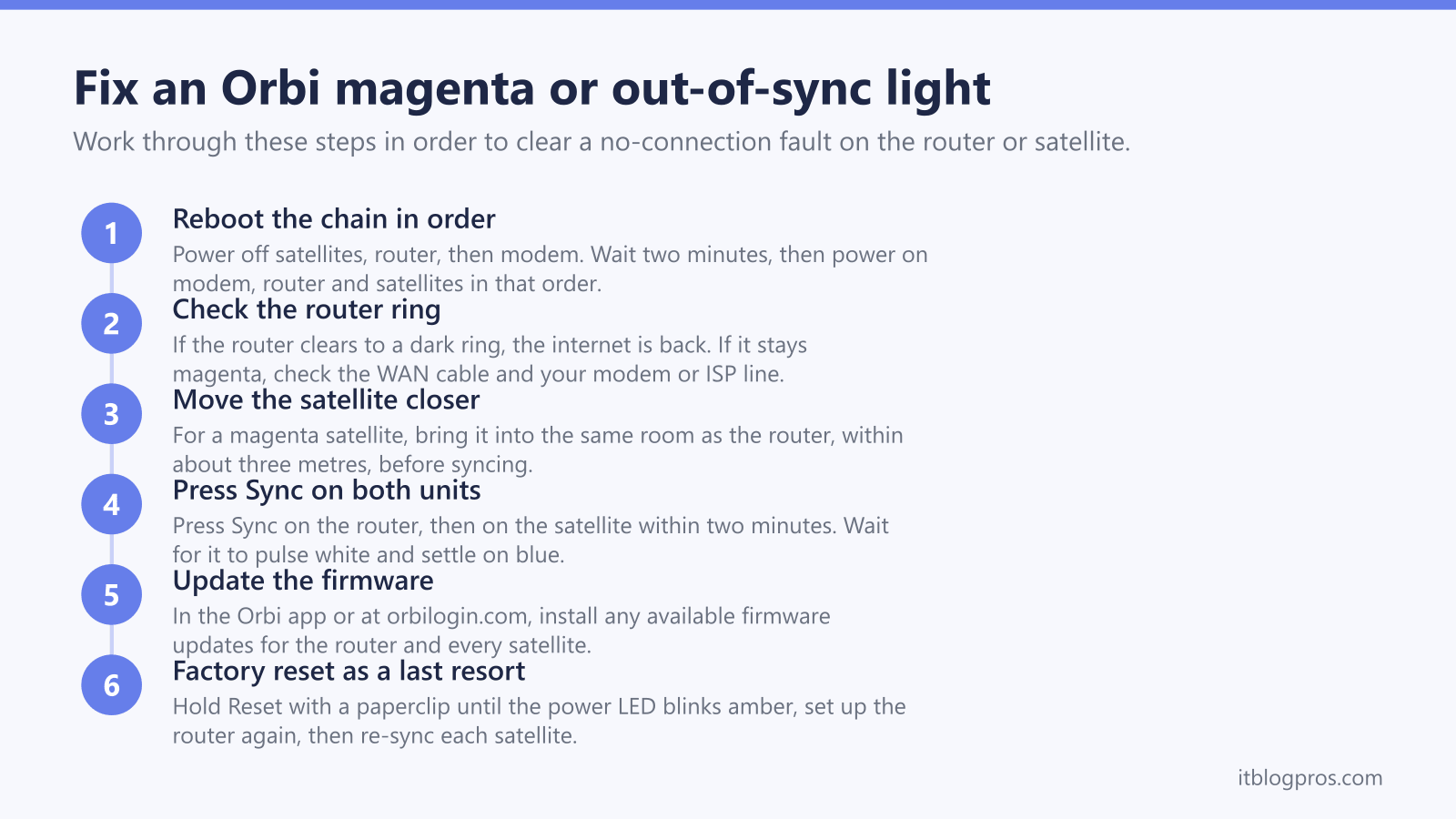
Start with the router. Reboot your modem and the Orbi router together: power both off, wait two minutes, switch the modem on first and let it come fully online, then switch the router on. Check that the internet cable is firmly seated in the router's yellow internet port. If the router clears to a dark ring but a satellite stays magenta, the problem is the link between router and satellite rather than the internet itself, which is covered in the sync section below.
A dark ring is the normal, healthy state
It catches a lot of people out, but a working Orbi shows no ring light at all. Once the router has internet and a satellite has synced, both units turn their ring LEDs off so they are not glowing in a bedroom or living room overnight. If your internet is working and the rings are dark, nothing is wrong.
The ring only lights up to report a change or a problem. Solid white means it is ready to set up, pulsing white means it is booting or connecting, blue and amber appear for about three minutes after a satellite syncs to show link quality, and magenta flags a fault. So if you see colour, read it against the table above; if you see nothing and the internet works, leave it alone.
Re-syncing a satellite that will not connect
When a satellite sits on magenta, or pulses white for a long time, it has lost its link to the router. The fastest fix is to re-sync the two units. First, bring the satellite into the same room as the router, ideally within about three metres, because syncing needs a strong signal even though everyday use does not.
Press the Sync button on the back of the router, then within two minutes press the Sync button on the back of the satellite. The satellite ring pulses white while it searches, then settles on blue for a good link or amber for a fair one, before going off. Once it shows blue, move the satellite back towards its intended spot, roughly halfway between the router and the dead zone you are trying to cover. If it lands on amber there, it is too far away or there are too many walls in between, so bring it a little closer.
Power cycling and firmware before anything drastic
Many Orbi faults clear with a clean power cycle in the right order. Switch off the satellites, then the router, then the modem. Wait two minutes, then power them back on in reverse: modem first and fully online, then the router, then each satellite. This lets the chain hand out addresses cleanly and often clears a stubborn magenta light without any reset.
Outdated firmware is another common cause of sync and connection problems. Open the Orbi app or sign in at orbilogin.com and check for a firmware update for both the router and every satellite. Apply any updates one unit at a time and do not unplug a unit while its power LED is pulsing amber, as that means an update or reset is in progress.
Factory resetting the router and satellite
If power cycling, re-syncing and a firmware update all fail, a factory reset gives you a clean start. With the unit powered on, use a paperclip to press and hold the Reset button on the back until the power LED blinks amber, then release. On a wall-plug satellite, the ring LED blinks amber instead. The unit then reboots to its factory settings.
Reset the router first and set it up again from scratch using the Orbi app or orbilogin.com, which restores your internet connection. Then reset each satellite and sync it back to the router using the steps above. A factory reset wipes your WiFi name, password and any custom settings, and services such as Netgear Armor or parental controls need to be reactivated afterwards, so only reset once the simpler fixes have been ruled out.
When it is worth replacing an ageing Orbi
Repeated magenta lights, satellites that drift back to amber no matter where you put them, or a unit that keeps pulsing red usually point to ageing or failing hardware rather than a one-off glitch. Older Orbi models can also fall behind on firmware support, which leaves sync problems unfixed.
If an Orbi keeps dropping its backhaul after you have re-synced, updated firmware and factory reset it, the honest move is to replace it rather than keep fighting it. A current dual-band or tri-band mesh such as the TP-Link Deco X50 or the Amazon eero 6+ sets up in minutes from a phone, self-heals its backhaul, and gets ongoing updates. Before you buy, it is worth checking whether a single mesh upgrade is actually the right fix for your layout, or whether a simpler change would do, which is the question settled in the extender versus mesh decider.