
Moving to EE full fibre changes how the landline works. The old copper wall sockets stop carrying a dial tone, and calls run through the EE Smart Hub instead, which is why a phone that worked perfectly on Monday can be silent on Tuesday. The good news is that almost every dead EE Digital Home Phone comes down to a handful of causes: the phone is still plugged into the wall, the hub needs a restart, a voicemail is interrupting the tone, or a cordless handset has lost its registration. This guide names the EE hubs that carry the phone port, walks through the no-dial-tone fixes in order, and covers the extra quirks that catch customers moved across from BT.
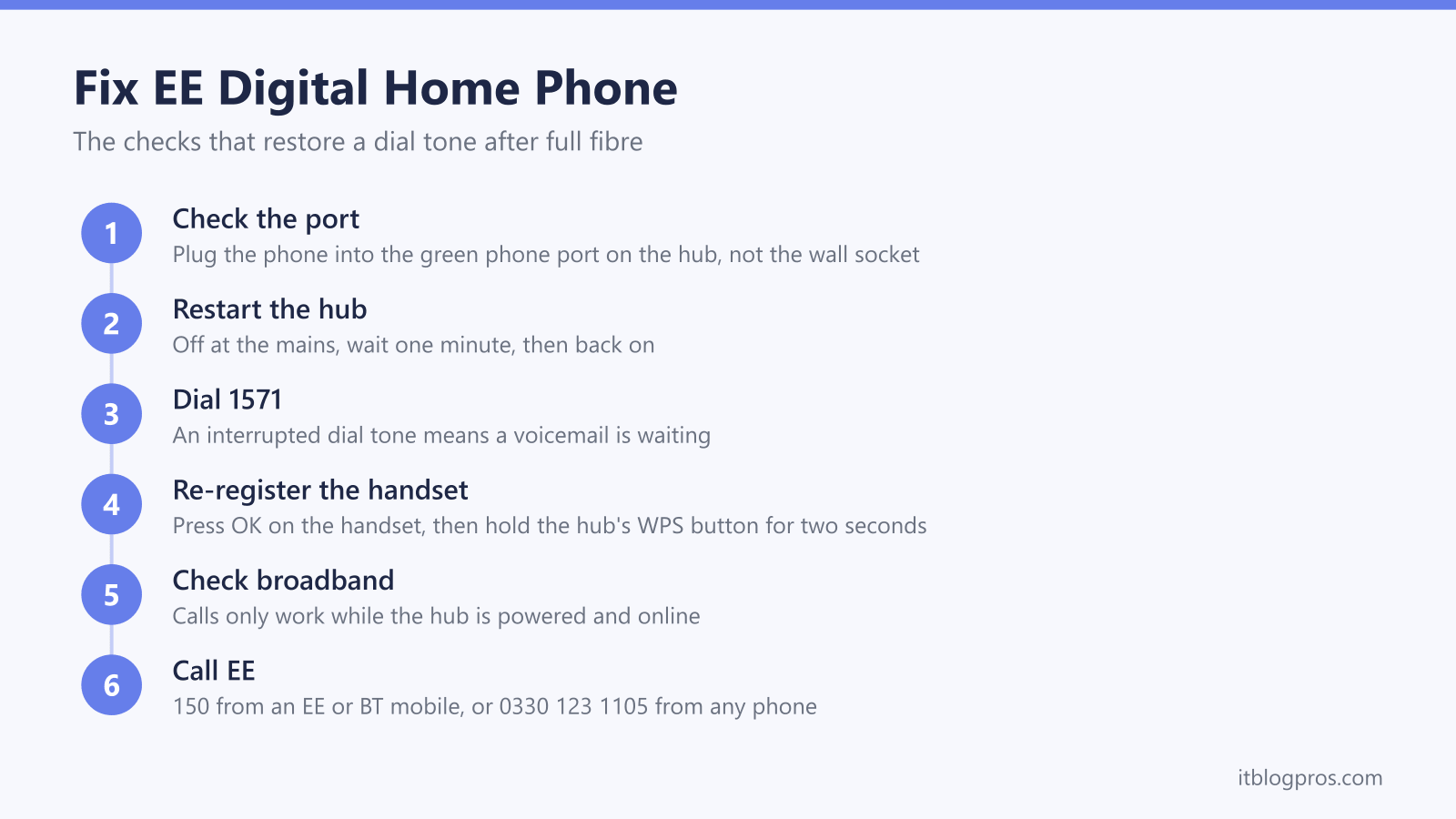
An EE Digital Home Phone that has stopped working is usually plugged into the wrong socket, waiting on a hub restart, or holding an unheard voicemail. Plug the phone into the green phone port on the back of the Smart Hub, restart the hub at the mains for one minute, dial 1571 to clear any waiting voicemail, and re-register cordless handsets with the hub's WPS button.
Key Takeaways
- After a full fibre upgrade the landline runs through the hub, so the phone must plug into the green phone port on the hub rather than the old wall socket.
- Every hub on EE's current comparison list carries a voice port, including the Smart Hub 7 Pro, Smart Hub 7 Plus, Smart Hub 6 Plus and the WiFi 5 Smart Hub.
- An interrupted or stuttering dial tone means a voicemail is waiting, and dialling 1571 to listen to or delete the message restores the normal tone.
- Cordless EE Digital Home Phone handsets register to the hub by pressing OK on the handset and holding the hub's WPS button for two seconds.
- The phone only works while the hub has power and broadband, so a power cut stops calls unless a Battery Back Up unit keeps the hub running.
The landline now runs through the hub, not the wall socket
EE full fibre carries no analogue phone line. Calls are converted to data and sent over the broadband connection, a service EE calls Digital Home Phone. From the switchover day, the master socket and any wired extension sockets around the house stop carrying a dial tone, and a phone left plugged into them stays silent no matter how healthy the line looks.
The phone service instead comes out of the green phone port on the back of the EE hub. That has two practical consequences. First, the phone or its base unit has to sit near the hub, or use EE's Digital Home Phone Adapter as a wireless extension. Second, the phone only works while the hub is powered on and broadband is up. If the whole connection is down rather than just the phone, start with the EE WiFi not working guide and the EE router lights guide, because no fix on this page helps while the hub itself is offline.
EE hubs with a phone port and where to find it
EE's own hub comparison confirms that every model on its current list includes a voice port for Digital Home Phone. The port is the green socket on the back of the hub, and the models differ as follows:
- Smart Hub 7 Pro (SH40J): WiFi 7, one FXS voice port, four 2.5GigE LAN ports and a 2.5GigE WAN port.
- Smart Hub 7 Plus (SH35): WiFi 7, phone support listed as DECT/FXS, one 2.5Gbps LAN, three 1Gbps LAN and a 2.5Gbps WAN port.
- Smart Hub 6 Plus (SH30A/SH31B/SH32B), widely known as the Smart Hub Plus: WiFi 6, one FXS voice port and four 1GigE LAN ports.
- Smart Hub (SH20A): WiFi 5, one FXS voice port.
EE's setup guidance also confirms the Digital Home Phone service works with both EE and BT Smart Hubs, which matters for households moved across from BT that kept a BT Smart Hub 2. If the hub in the house has a green phone port on the back, the service can run through it once EE has activated Digital Home Phone on the account.
No dial tone fixes in the order worth trying
Work through these checks in sequence, because the early ones clear the vast majority of faults:
- Check the socket. The phone cable, or the cordless base unit's cable, must be in the green phone port on the back of the hub, not a wall socket and not a broadband filter. Extension leads plugged into the old master socket no longer do anything.
- Confirm broadband is up. The hub's light should show its normal connected colour. A hub that is offline cannot carry calls, so fix the connection first using the EE router lights guide.
- Restart the hub. Turn it off at the mains, wait one minute and turn it back on. EE's own troubleshooting recommends exactly this for call failures, and it clears most one-off provisioning glitches once the hub reconnects.
- Listen to the dial tone. An interrupted or stuttering tone is not a fault. It means a voicemail is waiting. Dial 1571 from any handset and choose option 1 to listen to the message, and the tone returns to normal.
- Re-register a cordless EE handset. If the screen says the handset needs registering to the hub, press OK on the handset, then press and hold the WPS button on the hub for two seconds. The pairing window lasts two minutes. Depending on the hub model, the WPS button sits on the side or the back.
- Move closer if the handset shows no link to the hub. The handset rechecks every 60 seconds, so a handset carried back into range reconnects by itself.
- Check the adapter light. A Digital Home Phone Adapter flashing green has lost its connection to the hub and needs its setup run again.
- Check the Hub Manager. Signing in at 192.168.1.254 shows whether the hub believes the phone service is configured. The EE Smart Hub login guide covers the address and the admin password. A hub that reports the phone as not configured usually needs EE to resend the phone service settings from their side.
If none of that restores the tone, the fault is on the account or the network. Call EE on 150 from an EE or BT mobile, or 0330 123 1105 from any other phone, and ask them to check the Digital Home Phone provisioning. From an EE mobile, texting HELP to 66093 also triggers automated line checks.
Handset, base unit and adapter setup after the upgrade
How the phone connects depends on what kind of handset is in the house:
- A corded phone plugs its cable straight into the green phone port on the back of the hub. Nothing else is needed.
- A third-party cordless phone connects through its base unit. The base unit's phone cable goes into the green phone port and the base unit itself plugs into the mains for power. Additional handsets around the house keep talking to their own base as before.
- EE Digital Home Phone handsets pair with the hub wirelessly rather than through a cable. Press OK on the handset, follow the on-screen prompts, and when instructed press and hold the hub's WPS button for two seconds until the handset confirms registration.
- The Digital Home Phone Adapter suits a phone that has to live away from the hub, such as one in a hallway where the old socket used to be. It connects to the hub wirelessly and behaves like an extension socket, and a corded or cordless base plugs into it. A steady light means it is connected, while flashing green means the link to the hub has failed and setup needs repeating.
One caveat worth stating plainly: hard-wired extension sockets around the house are not brought back to life by any of this. Phones in other rooms need either a cordless handset talking to a base at the hub, or an adapter.
A new phone is rarely part of the fix. EE's adapter help page says any phone of any age works with Digital Home Phone, plugged into the hub or an adapter, as long as it is a tone-dialling phone. Two cases fall outside that. A pulse dialling phone is not covered by EE's promise, and an older phone can stay silent on incoming calls, because EE's setup page warns that phones bought before 2015 may not ring while connected to the Digital Home Phone adapter. Try that phone straight into the green port first, since EE's warning names the adapter only. Ask about a microfilter before buying too: BT's Digital Voice setup page says BT supplies a free microfilter that lets such a phone ring, requested on 150 from a BT or EE mobile or 0330 123 1105 from any other phone, while EE's own setup page does not mention one. If the old phone still has to go, a basic DECT cordless phone such as the Gigaset A170 covers the job. Gigaset's user guide describes connecting its base to the analogue phone port of a router and registering up to four handsets to one base, and warns that the phone does not work unless the base's power adapter is connected.
![Gigaset A170 - Cordless DECT Telephone - Illuminated Graphic Display - Easy to Use - Simple Installation, Black [UK Version]](https://m.media-amazon.com/images/I/41XaXtkKTzL._SL500_.jpg)
Customers moved from BT to EE and the differences that matter
Households migrated from BT broadband to the new EE brand mostly keep a working phone service, but three quirks cause real problems:
- Contacts live on the hub, not the handsets. BT Digital Voice and EE Digital Home Phone handsets store the phone book on the hub itself. Before swapping a BT Smart Hub 2 for an EE hub, sign in to the old hub's settings at 192.168.1.254, find the phone contacts page and export the list as a vCard file. The EE Smart Hub login guide explains the login process, which is the same address on both brands' hubs. Skip the export and the contacts go in the bin with the old hub.
- Handsets need re-registering to the new hub. BT Digital Voice handsets can register to an EE hub using the same WPS routine, but handsets sometimes cling to their old BT registration and refuse to pair. De-registering the handset from the old hub first, or removing its registration through the handset's own menu, clears the blockage.
- The service name changes but the plumbing does not. BT calls the service Digital Voice and EE calls it Digital Home Phone. Both run through the green phone port, and EE confirms its service works on both EE and BT Smart Hubs, so a kept BT Smart Hub 2 keeps carrying calls after the account moves to EE.
Power cuts, emergency calls and the Battery Back Up
A digital landline needs mains power and a live broadband connection, so a power cut silences the phone at the exact moment it might matter most. Calls to 999 included. EE's stated position is that a mobile phone is the fallback, which is fine for most households and useless for those with poor mobile signal or a telecare pendant on the landline.
EE supplies a Battery Back Up unit that keeps the hub, the broadband and the Digital Home Phone running for at least an hour in a power cut. Two versions exist: the black Battery Back Up and the white Battery Back Up Plus. The Plus model takes about six hours to charge fully and drops into a hibernation standby mode once only 25 percent of its charge remains, saving the rest for when the hub needs it. EE provides a unit to vulnerable customers, including people who rely on a health alarm or medical pendant connected to the phone line or who have no mobile phone, and requesting one means contacting EE on 150 or 0330 123 1105.
The wider rules on what providers must offer, and who qualifies for free protection, are covered in the digital landline power cut rules guide.
Faults that only EE can clear
Some failures sit entirely on EE's side and no amount of replugging fixes them:
- Switchover day gaps. The phone service can activate later in the day than the broadband, so a silent phone on the morning of the upgrade often comes alive by evening. Leave the phone connected to the green port and test again after the hub has been online for a while.
- The hub shows the phone as not configured. The Hub Manager reporting no phone service after a day online means the provisioning never reached the hub. EE support can resend the phone settings to the hub, which customers on the EE community report as the standard fix.
- Number port problems. A landline number moved from another provider occasionally stalls mid-transfer, leaving outgoing calls working while incoming calls fail, or the reverse. Only EE can chase the port.
For all of these, call 150 from an EE or BT mobile or 0330 123 1105 from any other phone. Describing the exact symptom, such as no dial tone versus an error message on a handset versus incoming calls failing, shortens the diagnosis considerably.