
If you're frustrated with Virgin Media's Hub 3, 4, or even the newer Hub 5, you're not alone. Many Virgin Media customers find that third-party routers provide better WiFi coverage, faster speeds, and more reliable connections than Virgin's own equipment.
The best router for a Virgin Media connection depends on whether you want control or coverage: run the Hub in modem mode behind your own router for control, or add a mesh in access-point mode for coverage. Virgin's help page says modem mode is not currently available for the Hub 5x. TP-Link lists a 2.5 Gbps WAN port on the Archer BE550, the single-router pick; the eero Pro 6E and Deco cover whole-home WiFi.
Key Takeaways
- You can keep your Virgin Media Hub and still upgrade your WiFi, either by running the hub in modem mode behind your own router (not currently available on the Hub 5x, Virgin's help page says) or by adding a mesh system in access-point mode
- We compare the best 2026 picks across budgets; the eero Pro 6E for whole-home performance, the TP-Link Deco BE65 for multi-gig lines, the TP-Link Deco X60 for value and the Google Nest Wifi Pro for smart homes
- For Virgin's Gig1 and Gig2 tiers you'll want a multi-gig port; the TP-Link Archer BE550, with the dedicated 2.5 Gbps WAN port TP-Link lists, is the single-router pick for those fastest speeds
- A mesh or a new router fixes coverage and stability rather than your line speed, so the honest check before buying is whether a wired device already gets the speed you pay for
- You'll learn how to avoid Double NAT issues, why a new router won't raise your line speed but will steady it, and how the two-year costs of buying your own kit compare with Virgin's hub and pod rentals
The picks at a glance
| Product | Best for | Key specs | Price | |
|---|---|---|---|---|
 | TP-Link Archer BE550 Top router | Gig1 and Gig2 on a single router behind the Hub | Tri-band WiFi 7 (BE9300), 2.5G WAN, four 2.5G LAN | Check price → |
 | Amazon eero Pro 6E Whole-home | Premium whole-home coverage on the fastest tiers | WiFi 6E tri-band, multi-gig port | Check price → |
 | TP-Link Deco BE65 Multi-gig mesh | Gigabit-plus lines and homes with Ethernet between rooms | Tri-band WiFi 7 (BE9300), four 2.5G ports per unit | Check price → |
 | TP-Link Deco X60 Value mesh | Best-value whole-home coverage | WiFi 6 (AX5400) mesh | Check price → |
 | Google Nest Wifi Pro Smart homes | Simple mesh with a built-in smart-home hub | WiFi 6E mesh, app-driven | Check price → |
 | TP-Link Archer AX55 Value router | Budget single-router upgrade behind the Hub | WiFi 6 (AX3000), gigabit | Check price → |
Replace the hub, run modem mode, or add mesh: which is right for you
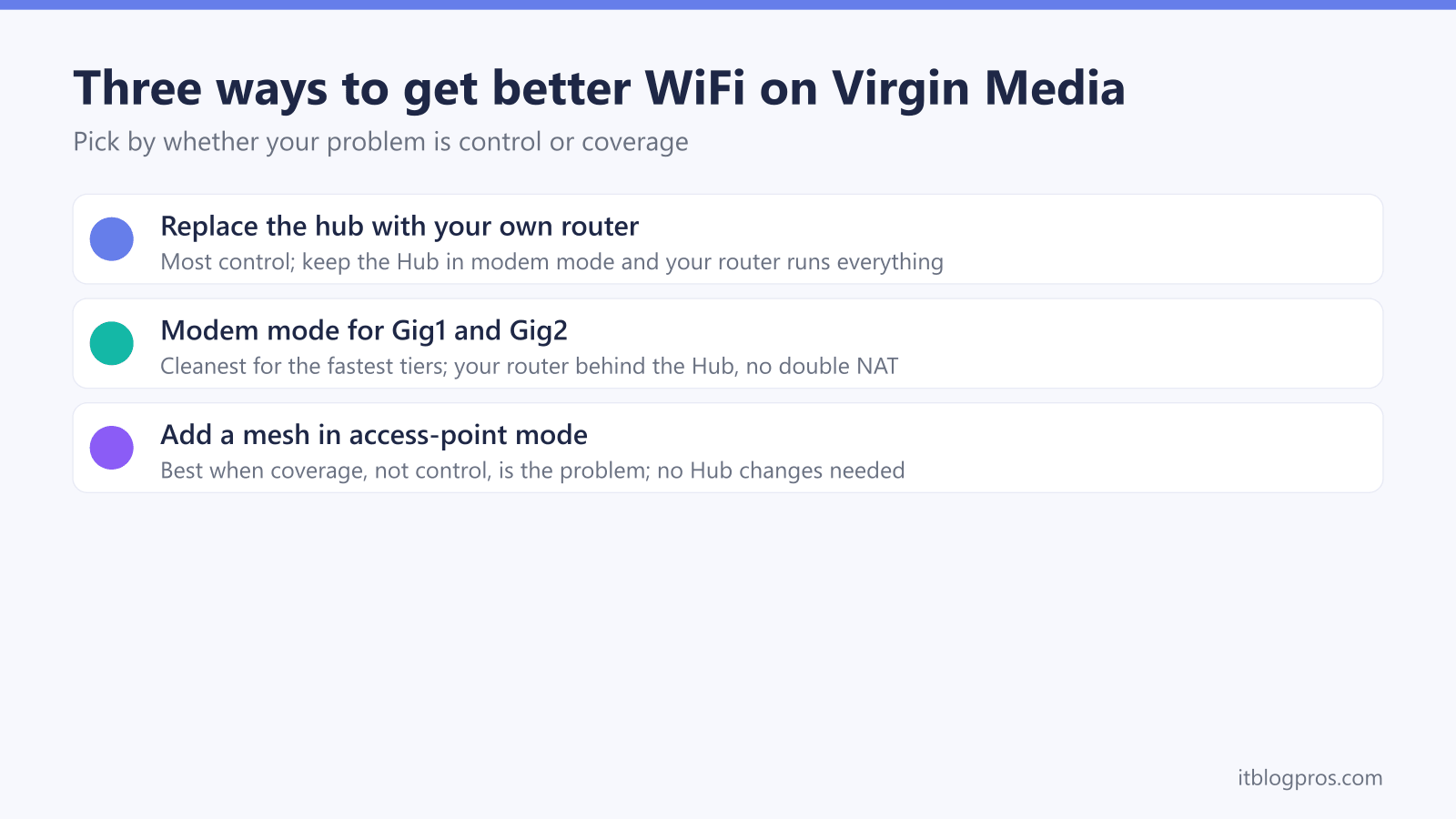
Three routes give better WiFi behind a Virgin Media connection, and the right one depends on whether your problem is control or coverage. Use this short guide to pick before you spend.
- Replace the hub with your own router when you want full control: QoS, port forwarding, a proper VPN server and stable settings. You still keep the Virgin hub, but you run it in modem mode and put your own router in charge. Our guide to using your own router with any UK ISP walks through the principle for every provider.
- Use modem mode to place your own router behind the Virgin hub. Virgin's reset and modem mode help page gives the steps for the Hub 3, 4 and 5 but says modem mode is not currently available for the Hub 5x, which Virgin Media O2's Gig2 launch release says Gig2 customers receive, so on a Hub 5x the access-point route below is the option; see putting the Virgin Media Hub 5 in modem mode for the exact steps.
- Add a mesh in access-point mode when coverage, not control, is the problem. The Virgin hub stays in charge of the connection and the mesh simply spreads strong WiFi through the house, which avoids a Double NAT headache entirely.
- Bridge or ONT is for non-Virgin lines: full-fibre customers on Openreach connect their own router straight to the ONT, so this route does not apply to Virgin's cable service.
If you are still weighing the speed tier itself, our Gig1 vs Gig2 comparison and the Hub 5 vs Hub 5x differences help you size the router you actually need.
Find the right router by need
This page is the hub for Virgin Media buyers; jump straight to the buying guide that matches your priority.
- Fastest Gig2 tiers: the best routers for Virgin Media Gig2 2Gbps cover the multi-gig options in detail.
- Gaming: see the best router for gaming in the UK for low-latency picks.
- Working from home: the best WiFi router for working from home prioritises stability and video-call headroom.
- Tight budget: the best budget WiFi routers under 100 pounds still beat the stock hub.
- Smart home: the best WiFi router for a smart home handles dozens of always-on devices.
- Whole-home coverage: compare the best mesh systems ranked by real user reviews, and if you are unsure which approach fits, read extender vs mesh for dead zones. On a Hub 5 specifically, jump to our pick of the best mesh for the Virgin Media Hub 5.
For the underlying setup, the use your own router with any UK ISP guide and the Double NAT fix cover the two things that trip most people up.
Using Your Own Router with Virgin Media
Yes, but with limitations. Virgin Media uses a cable modem technology that requires their hub to connect to their network. However, you have two options:
Virgin Media's official explainer on modems and modem mode confirms the hub stays in the chain either way, and Ofcom's broadband speed guidance is a useful reference for the speeds your package should actually deliver to the property.
Option 1: Modem Mode (Advanced Users)
- Put a Virgin Media Hub 3, 4 or 5 into "modem mode" (Virgin's help page says it is not currently available for the Hub 5x)
- Connect your own router via Ethernet
- Lose the features Virgin's help page says modem mode disables, including Intelligent WiFi, Plume Pod compatibility, the SamKnows speed test and Connect app features such as Homescan
Option 2: Mesh System (Recommended)
- Keep Virgin Media hub active
- Add mesh WiFi system for better coverage
- Easier setup, keeps all Virgin Media features
Reasons to upgrade your Virgin Media Hub WiFi
Common Virgin Media Hub Problems:
Virgin Media Hub 3 Issues:
- Limited AC1750 WiFi (outdated standard)
- Poor coverage beyond 1,500 sq ft
- Frequent disconnections with many devices
- No WiFi 6 support
Virgin Media Hub 4 Issues:
- Better than Hub 3 but still limited range
- WiFi dead zones in larger homes
- Struggles with 20+ connected devices
- No advanced features like QoS
Virgin Media Hub 5 Issues:
- Good WiFi 6 support but expensive to get
- Still limited range compared to dedicated systems
- Basic management interface
- Can't optimise for specific use cases
Best Mesh WiFi Systems for Virgin Media
1. Eero Pro 6E - Best Overall Performance
The eero Pro 6E is the pick when the Hub reaches the far end of the house badly rather than not at all. Virgin's kit has to stay in the chain either way, so the eero either runs in bridge mode alongside the Hub to spread coverage without a Double NAT, or takes over the routing behind the Hub in modem mode once you want control as well as reach. What it cannot do is clear a red light on the Hub, a coax fault or an area outage, because none of those are WiFi problems.
2. TP-Link Deco BE65 - Tri-Band WiFi 7 Mesh with 2.5G Ports
What TP-Link Lists:
- Tri-band WiFi 7, rated BE9300, across the 6GHz, 5GHz and 2.4GHz bands
- Four 2.5 Gbps ports on every unit, with WAN/LAN auto-sensing
- Combined wireless and wired backhaul, which uses a cable and wireless links between units at the same time
- HomeShield QoS and QoS by Device, plus OpenVPN, PPTP and L2TP/IPSec VPN server and client
Who It Suits on Virgin Media:
- Gig1 and Gig2 lines, where a 2.5 Gbps port on each unit keeps the wired links above gigabit
- Homes with Ethernet between rooms, which can use the wired side of the backhaul
- Access Point Mode beside the Hub, or Router Mode behind the Hub in modem mode (TP-Link lists both)
- On a sub-gigabit package where the problem is only coverage, those multi-gig ports go unused
Check the TP-Link Deco BE65 2-pack price on Amazon UK →
3. TP-Link Deco X60 - Best Value for Money
Why Choose TP-Link Deco:
- WiFi 6 AX5400 support at affordable price
- TP-Link rates each unit at 2,900 sq ft, 5,300 for a two-pack
- Easy setup and management
- Strong parental controls
Perfect for Virgin Media Users:
- Handles Virgin's 1GB speeds easily
- Works in router or access point mode
- Automatic mesh optimisation
- Free lifetime support
4. Google Nest Wifi Pro 6E - Best for Smart Homes
Smart Home Integration:
- Built-in Google Assistant (optional)
- Thread and Matter support for smart devices
- Automatic device prioritization
- Family WiFi controls
Virgin Media Performance:
- WiFi 6E for latest devices
- Covers 4,400 sq ft with 3-pack
- Self-optimising mesh network
- Works with Virgin TV and services
Check the Google Nest Wifi Pro price on Amazon UK →
Traditional Routers vs Virgin Media Hub
Best High-End Router: TP-Link Archer BE550
If you prefer a single powerful router over a mesh, this is our pick for Virgin's fastest tiers:
Features (as TP-Link lists them):
- Tri-band WiFi 7, rated BE9300, with a dedicated 2.5 Gbps WAN port; that is what carries Virgin's Gig1 and Gig2 tiers
- Four 2.5 Gbps LAN ports, so a wired PC or console is not capped at gigabit either
- EasyMesh-compatible, so it can work with other EasyMesh routers and range extenders
- QoS by Device, which lets you prioritise a work laptop or console, plus OpenVPN, PPTP, L2TP and WireGuard VPN clients
If gaming features are the priority, our best router for gaming guide covers them.
Setup with Virgin Media:
- Enable modem mode on your Virgin hub (Virgin's help page gives steps for the Hub 3, 4 and 5 and says modem mode is not currently available for the Hub 5x)
- Connect the TP-Link router's WAN port to the hub via Ethernet
- Run the TP-Link setup and choose Dynamic IP as the connection type
- Note: Virgin's help page says modem mode disables Intelligent WiFi, Plume Pod compatibility and Connect app features such as Homescan
Best Budget Router: TP-Link Archer AX55
TP-Link lists the Archer AX55 with one gigabit WAN port and four gigabit LAN ports, and that single fact decides where it fits on Virgin: behind the Hub on the sub-gigabit packages, not on the fastest ones. In modem mode a gigabit WAN cannot carry Gig1, which Virgin quotes at an average 1,130 Mbps, or Gig2 at 2,000 Mbps. Below those tiers it is the cheapest way to move to WiFi 6 and get real control back from a Hub that is fine on the line but weak through walls. It will not raise your line speed, and it will not fix a coax fault or an outage.
Check the TP-Link Archer AX55 price on Amazon UK →
Setup Guide: Adding Mesh WiFi to Virgin Media
Method 1: Access Point Mode (Recommended)
Step 1: Connect Mesh System
- Connect main mesh unit to Virgin hub via Ethernet cable
- Power on mesh system
- Download manufacturer's app
- Follow setup wizard
Step 2: Configure Network
- Set mesh WiFi name (different from Virgin's)
- Set strong password
- Position additional mesh units around home
- Run speed tests to verify performance
Step 3: Optimise Settings
- Disable Virgin hub WiFi (optional)
- Set mesh system as primary WiFi
- Configure device priorities if needed
- Update firmware on all units
Method 2: Modem Mode (Advanced)
Only recommended if:
- You have a Hub 3, 4 or 5, since Virgin's help page says modem mode is not currently available for the Hub 5x
- You're comfortable with networking
- You can do without the Intelligent WiFi, Plume Pod and Connect app features that Virgin's help page says modem mode disables
- Want complete control over your network
Steps:
- Enable modem mode on Virgin hub
- Connect router to Virgin hub
- Configure internet connection settings
- Set up WiFi networks
- Test all Virgin Media services
What an Upgrade Actually Changes
Before spending anything, plug a laptop into the Hub with an Ethernet cable and run a speed test. If the wired result matches the package you pay for, the line is healthy and your problem is coverage, which is what a mesh or a better router is for. If the wired result is also well down, no amount of new hardware will help and the fault belongs with Virgin Media.
That distinction matters more than any product on this page. A mesh spreads a working connection further; it does not create speed that is not arriving at the Hub in the first place.
Gaming Performance with Virgin Media
Best Setup for Gaming
For Console Gaming:
- Use mesh system with gaming mode
- Connect gaming consoles via Ethernet when possible
- Enable QoS prioritization for gaming traffic
- Use 5GHz or 6GHz bands for wireless gaming
Recommended Gaming Setup:
- Primary: Eero Pro 6E (automatic gaming optimisation)
- Budget: TP-Link Deco X60 with gaming accelerator
- Multi-gig mesh: TP-Link Deco BE65, which TP-Link lists with HomeShield QoS and QoS by Device
Troubleshooting Virgin Media + Mesh WiFi
Common Setup Issues
Problem: Mesh WiFi Not Getting Full Speed Solution:
- Ensure Ethernet cable is Cat6 or better
- Check Virgin hub isn't limiting speeds
- Position mesh units correctly (not too close/far)
- Update mesh firmware
Problem: Double NAT Warnings Solution:
- Set mesh system to access point mode
- Or enable modem mode on the Virgin hub (Virgin's help page says modem mode is not currently available for the Hub 5x)
- Check device settings for conflicts
Problem: Virgin Services Not Working Solution:
- Keep Virgin hub WiFi enabled for Virgin services
- Use mesh WiFi for internet devices
- Check Virgin TV and phone connections
Cost Comparison: Virgin Equipment vs Upgrades
Virgin Media Equipment Costs
Virgin Media Hub 5 Upgrade:
- Cost: £50-100 setup fee
- Monthly: +£5-10/month rental
- Performance: Good but limited coverage
Virgin Media WiFi Pods:
- Cost: £99 for 3 pods
- Performance: Basic WiFi extension
- Limitations: Slower than mesh systems
Third-Party System Costs
Budget Option: TP-Link Deco X60
- Upfront: £200-300 for 3-pack
- Monthly: £0 ongoing costs
- Performance: Better than Virgin Hub 5
- Coverage: Larger area coverage
Premium Option: Eero Pro 6E
- Upfront: £500-600 for 3-pack
- Monthly: £0 ongoing costs
- Performance: Excellent for all use cases
- Features: Advanced security and controls
2-Year Cost Analysis
Virgin Media Route:
- Hub 5 + WiFi Pods: £300 + (£10/month × 24) = £540
- Performance: Good in most areas
Mesh System Route:
- Eero Pro 6E: £550 one-time
- Performance: Excellent everywhere
- Features: More advanced capabilities
Frequently Asked Questions
Using your own router and your Virgin Media warranty. Virgin Media supports third-party equipment, so running your own router does not void your warranty; you just keep their hub connected.
Returning Virgin Media's hub after buying your own. You must keep Virgin's hub, since it is required for their cable service. You can disable its WiFi and run it in modem mode, but the hub itself has to stay.
The best mesh for Virgin Media gigabit. The eero Pro 6E and the TP-Link Deco BE65 both suit gigabit lines, and TP-Link lists four 2.5 Gbps ports on each BE65 unit; for the fastest tiers, pick a system with a 2.5G WAN port.
Calling Virgin Media before setting up mesh WiFi. There is no need to contact Virgin Media first. A mesh system connects to the hub over Ethernet and runs in access-point mode.
Whether mesh WiFi improves Virgin Media speed. It will not raise your line speed, but it gives far better coverage and more consistent speeds throughout your home.
Watch Our Setup Guide
See exactly how to set up mesh WiFi with your Virgin Media hub in our detailed video tutorial.
📺 Virgin Media + Mesh WiFi Setup Guide
Watch step-by-step setup for Eero, TP-Link Deco, and ASUS mesh systems with Virgin Media hubs.
Watch the Setup Tutorial →Our Recommendation
For most Virgin Media customers, we recommend the TP-Link Deco X60 3-pack as the best balance of performance, coverage, and price.
For large homes or power users, upgrade to the Eero Pro 6E for WiFi 6E support and premium features.
For Gig1 and Gig2 lines with Ethernet between rooms, the TP-Link Deco BE65 fits, because TP-Link lists four 2.5 Gbps ports per unit and combined wireless and wired backhaul.
For help choosing the right system for your Virgin Media setup, email us at [email protected] for personalised advice.