
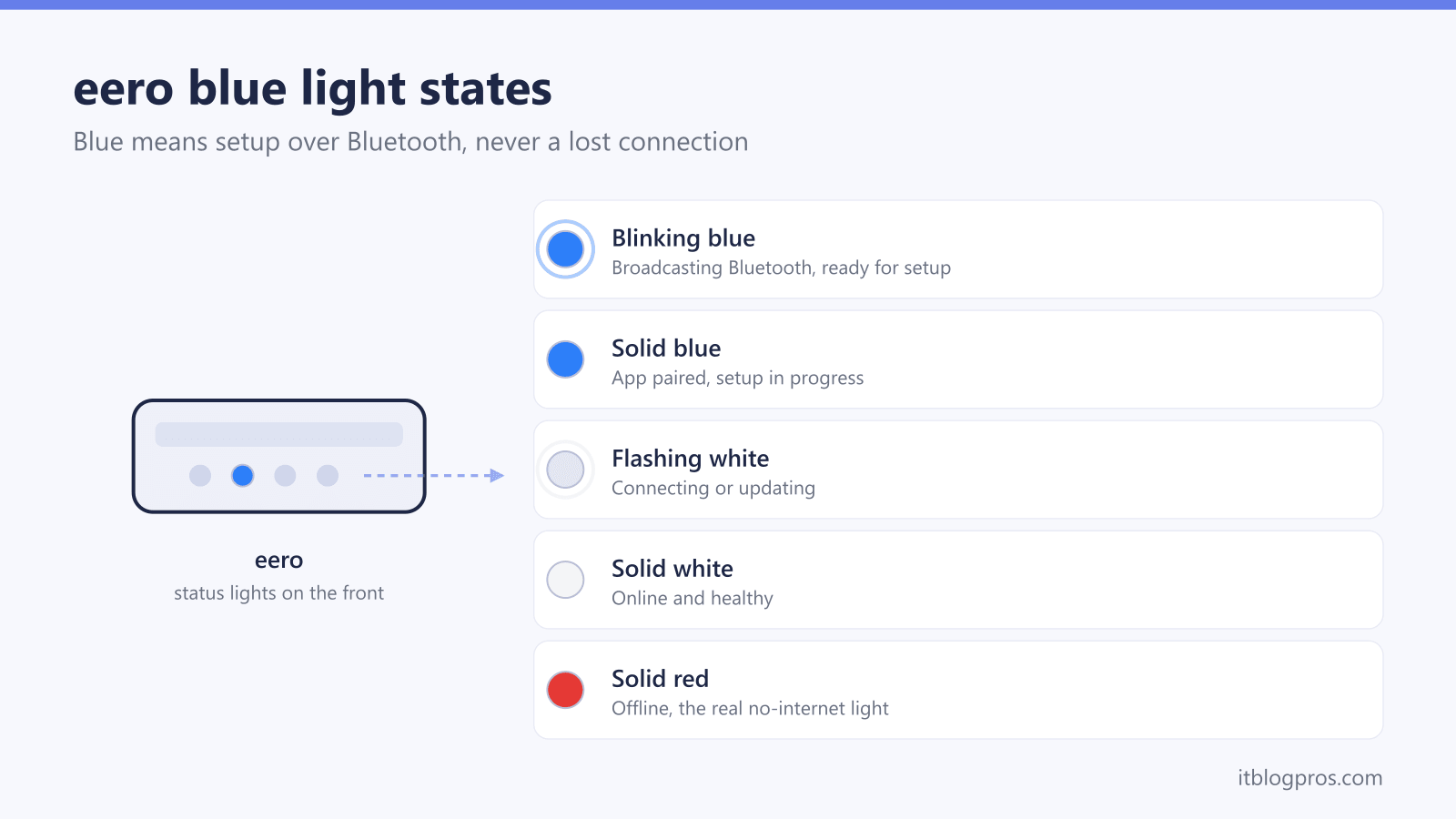
A blue light on an eero signals setup mode, nothing more. Half the internet still claims a flashing blue eero has lost its connection, and that myth sends owners rebooting modems that were never the problem. This guide decodes both blue states against eero's own documentation, walks the normal setup color sequence from blue to white, and unsticks an eero that keeps blinking blue.
A blue light on an eero is a setup state, not an internet fault. Blinking blue means the eero is broadcasting Bluetooth and waiting for the eero app to pair with it. Solid blue means the app has found the eero and setup is underway. An eero with no internet shows solid red, not blue, so finish setup in the app and the light turns white.
Key Takeaways
- Blinking blue means the eero is broadcasting Bluetooth and waiting for the eero app to pair with it, which is normal out of the box and after a factory reset.
- Solid blue means the eero app has connected and setup is in progress; it usually shows for only a few seconds before the light moves on.
- A blue light never means no internet; an eero that is online shows solid white and an eero that has lost its connection shows solid red.
- An eero stuck blinking blue is almost always a Bluetooth pairing failure: check phone Bluetooth and app permissions, stand within a few feet, and restart both devices.
- A hard reset, holding the reset button about 15 seconds until the LED flashes red, wipes the eero and returns it to blinking blue, ready for a fresh setup.
eero blue light states and the colors people confuse them with
| Light | What it means | What to do |
|---|---|---|
| Blinking blue | Bluetooth pairing. The eero is broadcasting Bluetooth and is ready for setup. Normal on new units, after a hard reset, and while adding an eero to a network. | Open the eero app on a phone with Bluetooth on, stand within a few feet, and follow the setup prompts. No modem or internet troubleshooting is needed. |
| Solid blue | Setup in progress. The eero app has paired with the eero and is transferring settings; eero's table files this under ready for setup. It normally lasts seconds. | Keep the app open and the phone nearby. The light should move to flashing white, then solid white. If it sticks, restart the app and the eero. |
| Flashing white | Connecting or updating. Seen during boot, mid-setup while the eero joins the internet, and while firmware installs. | Wait it out, up to ten minutes or more on a first boot with updates. Never unplug an eero mid-update. |
| Solid white | Online. The eero is connected and working normally. This is the everyday state. | Nothing to fix. The LED can be dimmed or turned off in the eero app if the glow is unwanted. |
| Solid red | Offline. This is the light that actually means no internet connection, the state blue is wrongly blamed for. | Check the modem and the Ethernet cable to the gateway eero, restart both, and see the full eero light meanings guide for the complete red-light procedure. |
| Flashing red | Resetting. The eero flashes red while a hard reset is triggered and processed. | Release the reset button once the flashing starts and let the reset finish. The eero returns to blinking blue, ready for a fresh setup. |
A blue eero light is a setup state, not an internet fault
Search for a blinking blue eero and half the results claim the router has lost its internet connection. eero's own LED table on support.eero.com says otherwise. On current eero models, blue appears in exactly one context: setup and Bluetooth pairing. The light that actually signals a dead connection is solid red, which eero's documentation labels simply as offline. A healthy eero that is online and passing traffic shows solid white.
The distinction matters because the fixes are completely different. Chasing an internet fault while the light is blue means rebooting modems and reseating cables for a problem that does not exist, when the real task is finishing setup in the eero app. If devices report a connection problem while the eero itself shows solid white, the fault usually sits elsewhere, and the guide to WiFi that says no internet walks through that scenario. For every non-blue color on an eero, including the red, yellow, green, and aqua states, the full eero light meanings guide decodes the lot. This page goes deep on blue alone.
Blinking blue means the eero is broadcasting Bluetooth for setup
eero's LED table labels flashing blue as Bluetooth pairing. The eero is advertising itself over Bluetooth so the eero app on a phone can discover it and begin setup. That is the entire meaning. It carries no information about the modem, the ISP, or the WiFi.
Blinking blue appears in three situations. A brand-new eero blinks blue once it finishes booting, because it has never been configured. An eero that has been hard reset returns to blinking blue, and eero's reset documentation confirms a factory-reset unit ends at a flashing blue LED, ready to set up again. And an eero being added to an existing network blinks blue while it waits for the app to find it.
The correct response is always the same: open the eero app on a phone with Bluetooth switched on, stand near the device, and follow the prompts. The light should move to solid blue once the app pairs, and no amount of modem rebooting will move it along faster.
Solid blue means the app has connected and setup is underway
Solid blue is the shortest-lived light in the eero repertoire. eero's LED table gives it the short label ready for setup, and eero's support article on the flashing blue light adds the practical detail: solid blue appears briefly after the eero pairs with the app during setup. In plain terms, blinking blue means the eero is calling out for the app, and solid blue means the app has answered.
Expect solid blue for seconds rather than minutes. Once the app has hold of the eero it pushes network settings across, the LED switches to flashing white while the eero connects to the internet and pulls any firmware updates, and it finally settles on solid white when everything is online. Keep the phone within a few feet and leave the app open for the whole stretch; walking off mid-pair is a common way to bounce the eero straight back to blinking blue.
The normal setup sequence runs from blue to white
A first setup runs through the light states in a fixed order. Flashing white while the eero boots. Blinking blue while it broadcasts Bluetooth and waits for the app. A brief solid blue while the app pairs and transfers settings. Flashing white again while the eero connects to the internet and installs updates. Solid white when the network is up and running.
Firmware updates can stretch the second flashing white phase to ten minutes or more on a first boot, and pulling the plug mid-update is the one genuinely harmful move available here, so leave the eero alone until the light settles. The gateway eero also needs its Ethernet cable seated firmly in the modem for the sequence to finish; a loose cable does not cause blue lights, but it will stall the run to white. Households setting an eero up on Comcast service can check the eero 6 on Xfinity guide for how the pairing plays out on that ISP and whether the upgrade earns its keep.
An eero stuck blinking blue is a Bluetooth handshake failure
An eero stuck blinking blue has one underlying problem: the phone and the eero cannot complete a Bluetooth handshake. Every fix targets that handshake, and most of the failures live on the phone.
Confirm Bluetooth is switched on in the phone settings, not just glanced at in the quick toggle. On an iPhone, open Settings, find the eero app entry, and confirm Bluetooth permission is granted to the app. On Android, the eero app relies on the Location and Nearby devices permissions for Bluetooth scanning, so grant both. Then stand within a few feet of the eero, because Bluetooth pairing through walls and floors is unreliable.
If permissions and proximity check out, restart the software on both ends. Force close the eero app and reopen it, reboot the phone, and power cycle the eero by unplugging it for 30 seconds. A different phone or tablet with the eero app installed makes an excellent test, since it isolates whether the fault is the eero or the original handset. Reinstalling the app clears corrupt caches on stubborn phones. Only after all of that fails is a hard reset worth trying, and if a factory-fresh eero still cannot pair with two different phones, eero support is the next call.
Soft reset and hard reset end on different light colors
eero's reset documentation defines three levels, and the LED confirms each one.
A restart is just power: unplug the eero, wait 30 seconds, and plug it back in. The light runs flashing white and returns to solid white. Nothing is erased.
A soft reset uses the reset pinhole button on the eero. Hold it until the LED flashes yellow, roughly 7 seconds, then release. A soft reset keeps the eero on the network and preserves logs and advanced settings such as IP reservations and port forwarding, so it clears glitches without forcing a re-setup. The light returns to solid white when it completes.
A hard reset is the factory wipe. Hold the reset button until the LED flashes red, roughly 15 seconds, then release. This clears all user data, logs, and network settings and removes the eero from the network. When it finishes, the LED lands on blinking blue: the eero is back to its out-of-box state, advertising Bluetooth and waiting for the app. A hard-reset eero must be added again through the eero app before it carries any traffic, so treat this as the last resort rather than a quick fix.
Every other eero light color has its own page
Blue is one entry in a longer table. The states most often confused with it break down like this: flashing white means the eero is connecting or updating, solid white means online, solid red means offline with no internet connection, and flashing red means the unit is mid-reset. eero also uses yellow for power supply problems, green for power saving and for identifying multiple eeros, and aqua for hotspot internet and Zigbee device discovery on models with the built-in smart home hub. One extra wrinkle from eero's own documentation: the eero Signal uses different LED meanings from the standard table, so owners of that model should lean on its dedicated setup guide. The full color-by-color breakdown, including the red fault states that genuinely do mean trouble, lives in the eero light meanings guide.
When replacing beats fixing an aging first-generation eero
A word of honesty before any shopping: an eero stuck in setup is almost never broken hardware. Bluetooth permissions, phone glitches, and app cache corruption cause the overwhelming majority of stuck blue lights, and the checklist above resolves most of them without spending a cent.
The exception is the original first-generation eero from 2016. Amazon ended software and security updates for first-gen units at the end of September 2022, so those routers have spent years on frozen firmware, and a decade-old unit that repeatedly fails Bluetooth pairing across multiple phones, survives hard resets, and still cannot complete setup has a fair claim to retirement.
For that household, the Amazon eero Pro 6E three-pack is the coherent replacement. It brings Wi-Fi 6E with access to the 6 GHz band, covers up to 6,000 square feet, handles 100 or more devices, supports internet plans up to 2.5 Gbps on the wired side, and doubles as a Zigbee smart home hub. Setup runs through the same eero app, and the same blue-to-white light sequence described above applies from the first boot.