
A portable monitor is a slim second screen that runs from a laptop's USB-C port, folds into a bag and turns a hotel desk or kitchen table into a two-screen set-up. Laptop screen extenders take the idea further and mount on the laptop itself. Both depend on one detail that is easy to miss: whether the laptop's port can send a picture at all. This guide sets out what ASUS, Lenovo, Arzopa, Apple, Microsoft and Dell say about connections, power, size and Mac limits, then lists the screens worth shortlisting.
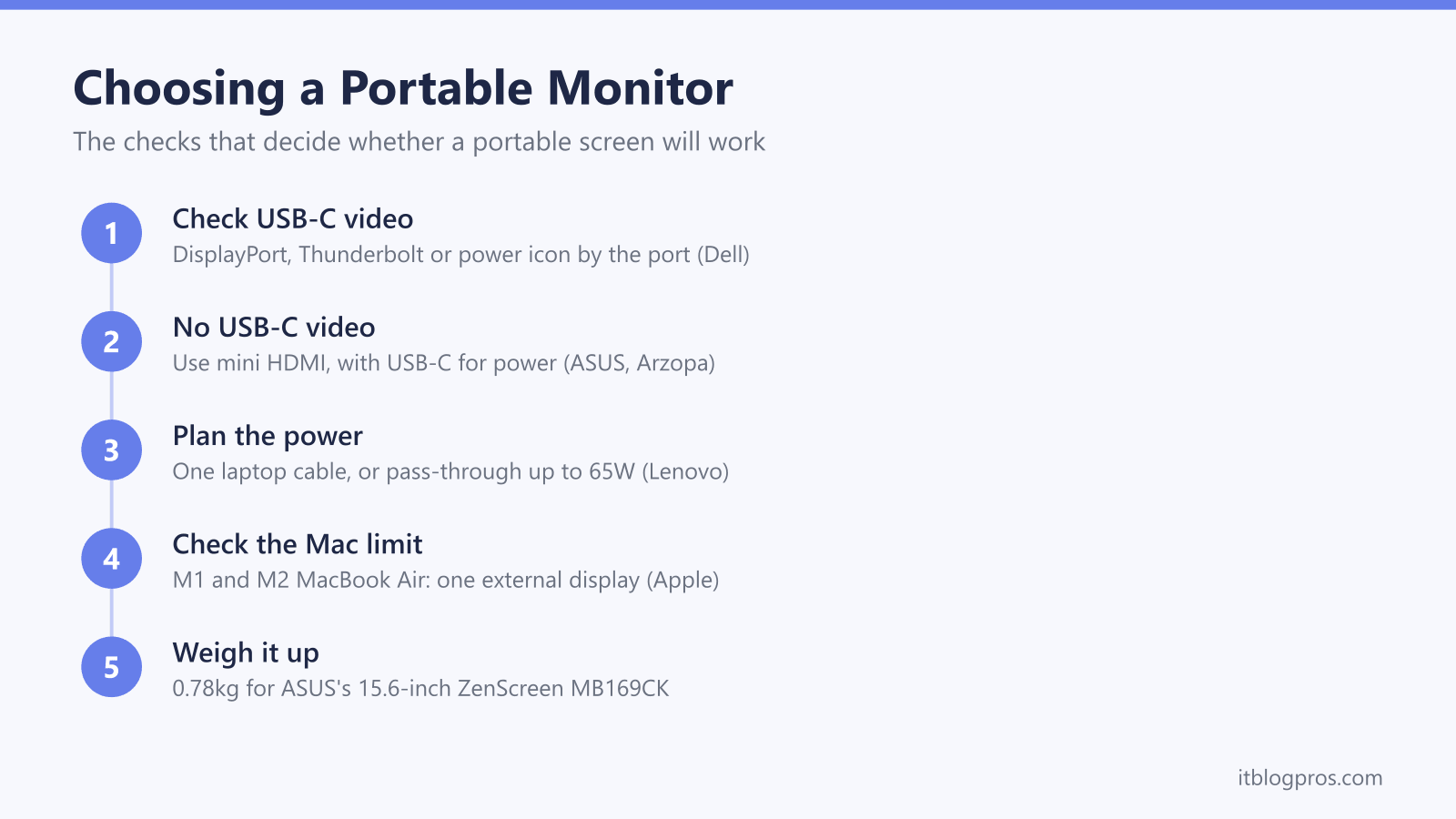
Check the laptop first. A portable monitor runs from one USB-C cable only if that port carries video, which Dell says is marked by a DisplayPort, Thunderbolt or power icon. Without it, use the monitor's mini HDMI port with a USB-C power lead. ASUS's 15.6-inch ZenScreen MB169CK, at 0.78kg, offers both connections, while Apple lists one external display for M1 and M2 MacBook Air models.
Key Takeaways
- Dell says not every USB-C port supports video output, and that ports which do show a DisplayPort icon, a Thunderbolt lightning bolt or a power icon.
- ASUS and Arzopa say one USB-C cable carries power and picture when the laptop supports USB-C video, and that HDMI connections need USB-C for power.
- Apple lists one external display for the M1 and M2 MacBook Air, and says the M3 runs a second only with the lid closed.
- Lenovo lists up to 65W of USB-C power delivery with pass-through on its 16-inch L16, which has no HDMI port, while ASUS's 15.6-inch MB169CK weighs 0.78kg.
- ASUS says touch on its ZenScreen Touch travels over USB-C, with 10-point touch on Windows, Chrome and Linux but single-point touch on macOS.
The Laptop's USB-C Port Has to Carry Video
Every other choice on a portable monitor rests on one check: whether the laptop's USB-C port can send a picture. Not all of them can. Dell's guide to docking stations says not every USB-C port supports video output, and tells owners to look for a small DisplayPort icon, a lightning bolt for Thunderbolt or a power icon beside the port. Dell calls the video feature DisplayPort Alternate Mode, or DP Alt Mode for short.
ASUS repeats the warning on its ZenScreen MB169CK page, asking buyers to check that the laptop's USB-C port supports DP Alt mode before use, because some USB-C ports only handle data or charging. Macs are simpler. ASUS says all Apple silicon models support DisplayPort Alt Mode over USB-C, and Apple's tech specs for the M1 and M2 MacBook Air list DisplayPort output on their USB-C ports.
If Windows reports that the display connection might be limited, Microsoft's USB-C troubleshooting page says the PC, the display and the cable all need to support DisplayPort Alternate Mode. The USB-C cable guide explains which leads carry video.
One Cable From the Laptop or a Separate Power Lead
A portable monitor has no mains plug of its own. Over a single cable, ASUS says USB-C handles both power and video on the MB169CK, and Arzopa says the same of its Z1C. That power comes out of the laptop's battery, so a long session away from a socket runs it down sooner. ASUS lists the MB169CK's power consumption at 7.64W and Arzopa rates the Z1C at 8W. ASUS also says an external power adapter can improve brightness and stability, plugged into the monitor's second USB-C port.
Lenovo's L16 can work the other way round. Lenovo lists two USB-C ports with power delivery up to 65W and says power pass-through lets the monitor run and charge the laptop at the same time. Its box list gives a 1m USB-C cable and a sleeve but no charger, so pass-through needs a USB-C charger of your own.
Microsoft's USB-C page lists a charger connected through a hub or dock as one cause of slow charging. For a full desk set-up with more ports, the docking station guide takes over.
Mini HDMI Is the Fallback for Laptops and Consoles
A laptop without video over USB-C still has a way in. ASUS and Arzopa both fit a mini HDMI port and put a mini HDMI to HDMI cable in the box. Arzopa's advice is to use full-featured USB-C if the laptop supports USB-C video output, and otherwise HDMI for video with USB-C for power. ASUS agrees, though its MB169CK box list has no power adapter; Arzopa includes a USB-A to USB-C power cable but notes that accessories vary by channel. Lenovo's L16 has no HDMI port at all.
An adapter is no workaround: Microsoft says a DisplayPort Alternate Mode adapter has to go into a USB-C port that supports that mode, and the USB-C to HDMI adapter guide covers choosing one.
Consoles connect over HDMI. ASUS says the MB169CK works with Xbox and PlayStation consoles, or a Nintendo Switch with its included dock, and Nintendo says the Switch Lite does not support TV mode. On phones, Apple says iPhone 15 and later USB-C models, apart from the 16e and 17e, mirror their screen on a USB-C display.
Size, Weight and Touch Decide How Well It Travels
The screens here run from 15.6 to 16.1 inches. ASUS lists the MB169CK at 15.6 inches and 1920 x 1080, weighing 0.78kg and 1.2cm deep without its stand. Arzopa's Z1C is 16.1 inches at the same resolution, 9.3mm deep and 1.72lb, about the same weight. Lenovo's L16 is heavier at 0.97kg but uses a taller 16:10 shape at 1920 x 1200. Arzopa's Z1RC fits 2560 x 1600 into 16 inches for sharper text; its spec table says 1.79lb, though a headline on the same page says 1.7lb. Each lists a 60Hz refresh rate, so for fast games the gaming monitor guide is the better read.
Touch brings its own condition. ASUS says its ZenScreen Touch MB16AHT carries touch data over its USB-C ports, with 10-point touch on Windows, Chrome and Linux but only single-point touch on macOS. Arzopa's spec tables list no touch screen on the Z1C or Z1RC, so check that line on any listing.
A laptop bag with room for a sleeve and a laptop stand to lift the main screen finish the set-up.
Most MacBook Air Models Drive One Extra Screen With the Lid Open
Macs add a limit. Apple's tech specs for the M1 and M2 MacBook Air list support for one external display alongside the built-in screen. The M3 MacBook Air can run a second, but only with the lid closed: Apple's guide says that opening the lid with two displays connected makes the second one go dark or disconnect. A portable monitor sits beside an open laptop, so these models get one extra screen.
Apple says the M4 MacBook Air supports up to two external displays as well as its own, and that closing the lid does not raise that number. Apple also says a supported hub does not increase the maximum number of displays, so a hub does not get around it.
That matters for laptop screen extenders with two panels, since each panel is a separate external display. The MacBook buying guide compares the current models. On Windows, Microsoft says Windows key + P switches between Duplicate, Extend and Second screen only, and Settings, System, Display, Multiple displays, Detect finds a screen Windows has missed.
Laptop Screen Extenders Mount on the Lid
A laptop screen extender is a portable monitor built to attach to the back of the laptop's lid, with one or two panels that swing or slide out beside the main screen. Mobile Pixels, which makes the Trio Max, lists it at 14 inches and 1920 x 1080, weighing 2.0lb, with USB-C and USB-A connections. That is about 0.9kg, more than ASUS's whole 15.6-inch MB169CK.
The checks above apply to every panel. Each one is a separate external display, so a two-panel extender needs a laptop that can drive two extra screens, and Apple lists one external display for the M1 and M2 MacBook Air. Check the extender maker's own compatibility notes for the exact laptop before buying, along with the range of lid sizes it fits and how it connects.
Power and video follow the same rules as any portable monitor: a USB-C port that carries video, or the alternative the maker names. Mobile Pixels' spec page lists Android phones and the Nintendo Switch as compatible with the Trio Max.
The Portable Monitors Worth Shortlisting
Each pick comes with a limit worth knowing. ASUS's ZenScreen MB169CK is the main pick: a 15.6-inch 1920 x 1080 screen at 0.78kg, with two USB-C ports that ASUS lists with DP Alt Mode, a mini HDMI port, a sleeve and a detachable 360-degree kickstand, but no power adapter in the box for HDMI use. Arzopa's Z1C is the budget choice, with a 16.1-inch screen, a built-in stand, two 1W speakers and three cables in the box, though Arzopa says accessories can vary by channel.
Lenovo's L16 suits anyone who wants to charge the laptop through the screen, with up to 65W of pass-through, a 16:10 panel and a stand that tilts and lifts by up to 10mm, but it has no HDMI port, so the laptop needs USB-C video. Arzopa's Z1RC is the sharper screen, at 2560 x 1600 and 350 nits on a 16-inch 16:10 panel, rated at 12W, so it draws more than the Z1C's 8W. For a desk screen that stays put, the monitor for laptop guide covers 24 and 27-inch models.
| Product | Best for | Key specs | Price | |
|---|---|---|---|---|
 | ASUS ZenScreen MB169CK 15.6-inch Portable Monitor Our pick | One USB-C cable, with mini HDMI as a fallback | 15.6in 1920x1080 60Hz, 2x USB-C DP Alt, mini HDMI, 0.78kg | Check price → |
 | Arzopa Z1C 16.1-inch Portable Monitor Budget | A bigger second screen with all the cables in the box | 16.1in 1920x1080 60Hz, 2x USB-C, mini HDMI 2.0, 1.72lb | Check price → |
 | Lenovo L16 16-inch Mobile Monitor Pass-through | Charging the laptop through the screen over USB-C | 16in 1920x1200 60Hz, 2x USB-C PD up to 65W, 0.97kg | Check price → |
 | Arzopa Z1RC 2.5K 16-inch Portable Monitor Sharper screen | Sharper text on a taller 16:10 screen | 16in 2560x1600 60Hz, 2x USB-C, mini HDMI 2.0, 1.79lb | Check price → |