
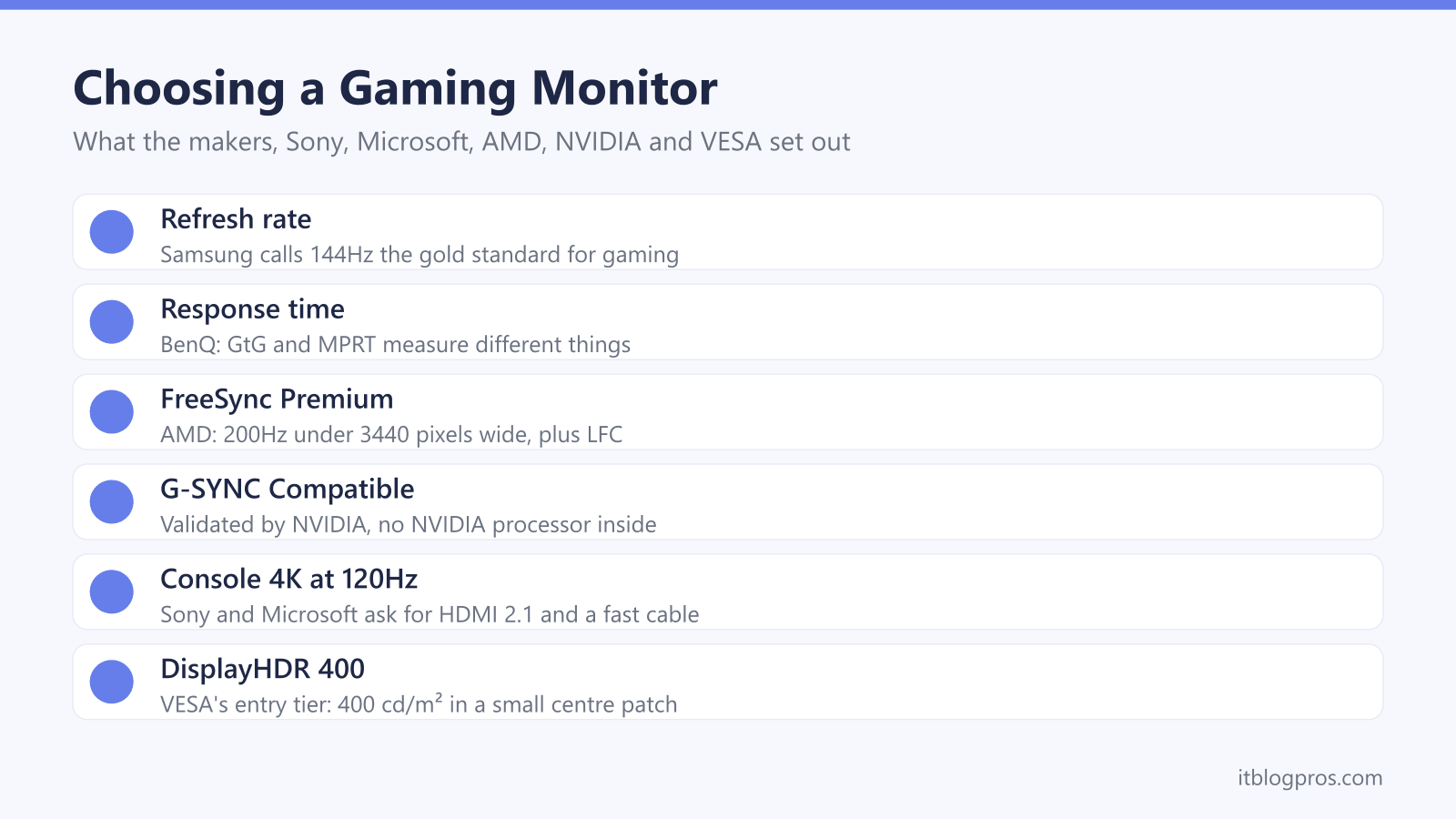
A gaming monitor decides how smooth, sharp and responsive every game looks, yet its spec sheet is a wall of numbers that different makers measure in different ways. This guide sets out what the monitor makers, Sony, Microsoft, AMD, NVIDIA and VESA actually say about refresh rate, response time, resolution, panel type, adaptive sync, console support and HDR, so the numbers line up with the graphics card or console you own. It ends with four monitors for 1080p, 1440p, 4K and OLED setups.
Match the monitor to whatever drives it. NVIDIA's own charts test its RTX 5060 family at 1080p and 1440p, the RTX 5070 family at 1440p and the RTX 5080 at 4K, and Samsung's UK buying guide calls 144Hz the gold standard for gaming. For 4K at 120Hz on a PS5 or Xbox Series X, Sony and Microsoft both ask for an HDMI 2.1 connection and an Ultra High Speed cable.
Key Takeaways
- Samsung defines refresh rate as the most images a monitor can show each second, and says the highest usable rate depends on the monitor, the graphics card and the resolution.
- Response time figures are not like for like: BenQ explains that GtG times a pixel changing between grey levels, while MPRT measures how long a pixel stays visible.
- AMD's FreeSync tiers for monitors ask for at least 144Hz, or 200Hz for FreeSync Premium on screens under 3440 pixels wide, with low framerate compensation on all three tiers.
- Microsoft lists an Xbox Series X, an Ultra High Speed HDMI cable and a TV that supports HDMI 2.1 for 4K at 120Hz, and Sony says the PS5 supports HDMI 2.1 and 4K 120Hz output.
- ASUS gives the ROG Strix OLED XG27AQDMES a 3-year warranty that includes panel burn-in, so read the warranty line on any OLED's spec page before buying.
Refresh Rate Is a Ceiling the Graphics Card Has to Fill
Refresh rate is how many times a second the picture is redrawn, measured in hertz. Samsung's support page calls it the maximum number of images per second a monitor can display, and says the highest rate you can actually use depends on the monitor, the graphics card and the selected resolution. Microsoft's Windows help adds that a higher rate can reduce motion blur and screen tearing in games.
Samsung's UK buying guide sets out the bands: 100 to 120Hz suits casual players after a balance of smoothness and cost, 144Hz is widely considered the gold standard, and 240Hz to 360Hz or more makes the difference in competitive play. None of that shows unless the graphics card keeps up. NVIDIA's own charts test its RTX 5060 family at 1080p and 1440p, the RTX 5070 family at 1440p and the RTX 5080 at 4K, and Samsung warns that 4K gaming needs a powerful GPU for high frame rates. The graphics card guide and the gaming laptop guide cover that side of the match.
Makers Quote Response Time in Two Different Ways
Response time is how quickly the pixels keep up with motion. Samsung's UK guide defines it as how long a pixel takes to change colour and suggests aiming for under 1ms for gaming. The catch is that makers measure it in different ways. BenQ's UK explainer says grey to grey, or GtG, times a pixel moving from one grey value to another, while moving picture response time, or MPRT, measures how long a pixel stays visible on screen. BenQ calls MPRT the more subjective of the two.
The four monitors in this guide show the spread. LG lists 1ms GtG for the UltraGear 27G610A, with a footnote saying Faster Mode has to be selected to reach it. MSI quotes 1ms MPRT for the MAG 275UPD E14. ASUS gives the TUF Gaming VG249Q5R as 1ms GtG with 0.3ms as a minimum, and the ROG Strix OLED XG27AQDMES as 0.03ms GtG. Compare GtG with GtG, and treat any figure tied to a special mode as a best case.
IPS, VA and OLED Trade Colour, Contrast and Care
Panel type sets the character of the picture. Samsung's UK buying guide describes IPS as known for accurate colours and wide viewing angles, a versatile choice for players who also want sharp visuals. VA panels, in Samsung's words, shine in cinematic, story-driven games, with high contrast and deep blacks at a more accessible price. OLED goes further, with individually lit pixels, perfect blacks and what Samsung calls infinite contrast.
OLED brings one extra question, and that is burn-in, where static images such as a game's health bar or a taskbar can leave a lasting mark. ASUS answers it with care software and warranty cover: it fits ASUS OLED Care to the ROG Strix OLED XG27AQDMES, and its UK spec page lists a 3-year warranty that includes panel burn-in. Terms differ between brands and between models, so read the warranty line on the maker's own spec page before buying any OLED. For a second screen beside a laptop rather than a gaming setup, the monitor for laptop guide covers the simpler choices.
G-SYNC Compatible and FreeSync Tiers Set the Sync Baseline
Adaptive sync lets the monitor change its refresh rate to match the frames the graphics card sends, which Samsung's UK guide says helps prevent tearing and stuttering. Each graphics card maker runs its own badge. NVIDIA's G-SYNC page describes G-SYNC Compatible displays as ones that do not use NVIDIA processors but are validated by NVIDIA, while G-SYNC and G-SYNC Ultimate monitors carry an NVIDIA G-SYNC processor, with Ultimate adding what NVIDIA calls ultimate HDR.
AMD's FreeSync page sets out three tiers for monitors, all with tear-free play, low latency and low framerate compensation, or LFC. Plain FreeSync needs at least 144Hz on screens under 3440 pixels wide, FreeSync Premium needs 200Hz there or 120Hz at 3440 pixels wide and above, and Premium Pro adds FreeSync HDR. VESA's AdaptiveSync Display logo is a brand-neutral badge that VESA says guarantees a lab-certified maximum refresh rate. On cables, Samsung's support page says FreeSync can run over HDMI but G-Sync needs DisplayPort.
PS5 and Xbox Series X Need HDMI 2.1 for 4K at 120Hz
Consoles connect over HDMI, so the HDMI version matters more than DisplayPort here. Sony's PS5 resolution guide says the console supports HDMI 2.1 and 4K 120Hz output, asks for an HDMI 2.1 port where the screen has one, and wants the cable from the box or an Ultra High-Speed cable rated for 4K 120Hz. Sony also lists 1440p at 60Hz or 120Hz with VRR where the screen supports it, and says to turn off 120 Hz Output if games misbehave on a monitor.
Microsoft lists an Xbox Series X, an Ultra High Speed HDMI cable that supports HDMI 2.1 and a TV that supports HDMI 2.1 for 4K at 120Hz, and says a Series S, or a TV without HDMI 2.1, can still run 120Hz at a lower resolution. MSI's MAG 275UPD E14 lists two HDMI 2.1 ports, console modes at 60Hz and 120Hz up to 2160p, and VRR for PS5 and Xbox. The HDMI cable guide and the PS5 vs PS5 Pro guide cover the console end.
DisplayHDR 400 Is the Entry Tier, Not the Top
HDR labels vary more than any other line on a spec sheet. VESA's DisplayHDR programme, updated as CTS 1.2 in May 2024, names its tiers after brightness: DisplayHDR 400, 500, 600, 1000 and 1400, plus True Black tiers from 400 to 1400. At the 400 level a screen needs 400 cd/m² in a small centre patch and a black level no higher than 0.4 cd/m², while the True Black tiers ask for 0.0005 cd/m². VESA requires 1D local dimming or better for DisplayHDR 500 and 600 and 2D local dimming for 1000 and above, while the 400 level needs either a substantial rise in native contrast or 1D dimming.
The makers' own wording shows how wide the gap is. LG lists DisplayHDR 400 for the UltraGear 27G610A. MSI describes the MAG 275UPD E14 as HDR Ready and ASUS lists HDR10 for the TUF Gaming VG249Q5R, and neither page names a DisplayHDR tier. ASUS gives the ROG Strix OLED XG27AQDMES HDR10 support and 400 cd/m² peak HDR brightness.
Four Gaming Monitors for 1080p, 1440p, 4K and OLED
Size follows the desk. Samsung's size guide gives an optimal viewing distance of 50 to 90cm for a 24-inch screen and 40 to 110cm for a 27-inch one, and says at least an arm's length works well for both. For a screen that travels, see the portable monitor guide.
The LG UltraGear 27G610A is the main pick: a 27-inch 1440p IPS panel at 200Hz with FreeSync Premium, DisplayHDR 400 and a stand that adjusts for height, tilt, swivel and pivot. Its page lists HDMI 2.1 in one place and HDMI 2.0 in another, so console players wanting 120Hz should confirm with LG. The ASUS TUF Gaming VG249Q5R is the budget 1080p choice at 200Hz, though ASUS lists tilt only and HDMI 2.0. The MSI MAG 275UPD E14 suits a PC and a console at 4K, given a card that can drive it. The ASUS ROG Strix OLED XG27AQDMES brings OLED with burn-in named in the warranty. The gaming mouse, keyboard, headset and chair guides finish the setup.
| Product | Best for | Key specs | Price | |
|---|---|---|---|---|
 | LG UltraGear 27G610A Our pick | 1440p PC gaming with a mid-range graphics card | 27in IPS, 2560x1440, 200Hz, FreeSync Premium, DisplayHDR 400 | Check price → |
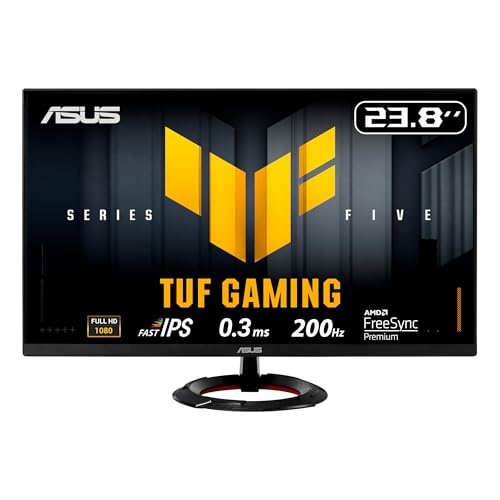 | ASUS TUF Gaming VG249Q5R Budget | Fast 1080p games on an entry-level graphics card | 23.8in Fast IPS, 1080p, 200Hz, FreeSync Premium | Check price → |
 | MSI MAG 275UPD E14 4K and consoles | A PC plus a PS5 or Xbox Series X at 4K 120Hz | 27in IPS 4K 144Hz, 2x HDMI 2.1, DP 1.4a, console VRR | Check price → |
 | ASUS ROG Strix OLED XG27AQDMES OLED | OLED contrast with burn-in named in the warranty | 26.5in QD-OLED, 1440p, 240Hz, 0.03ms GtG, 2x HDMI 2.1 | Check price → |