
A NAS, short for network attached storage, is a small box of hard drives that sits on the home network and keeps backups, family photos and films in one place that every device can reach. Choosing one comes down to a handful of decisions: how many drive bays, which drives go in them, how fast the network port is and how the files stay safe. This guide sets out what Synology, UGREEN, QNAP, Asustor, WD, Seagate and the NCSC say about each, then lists four picks.
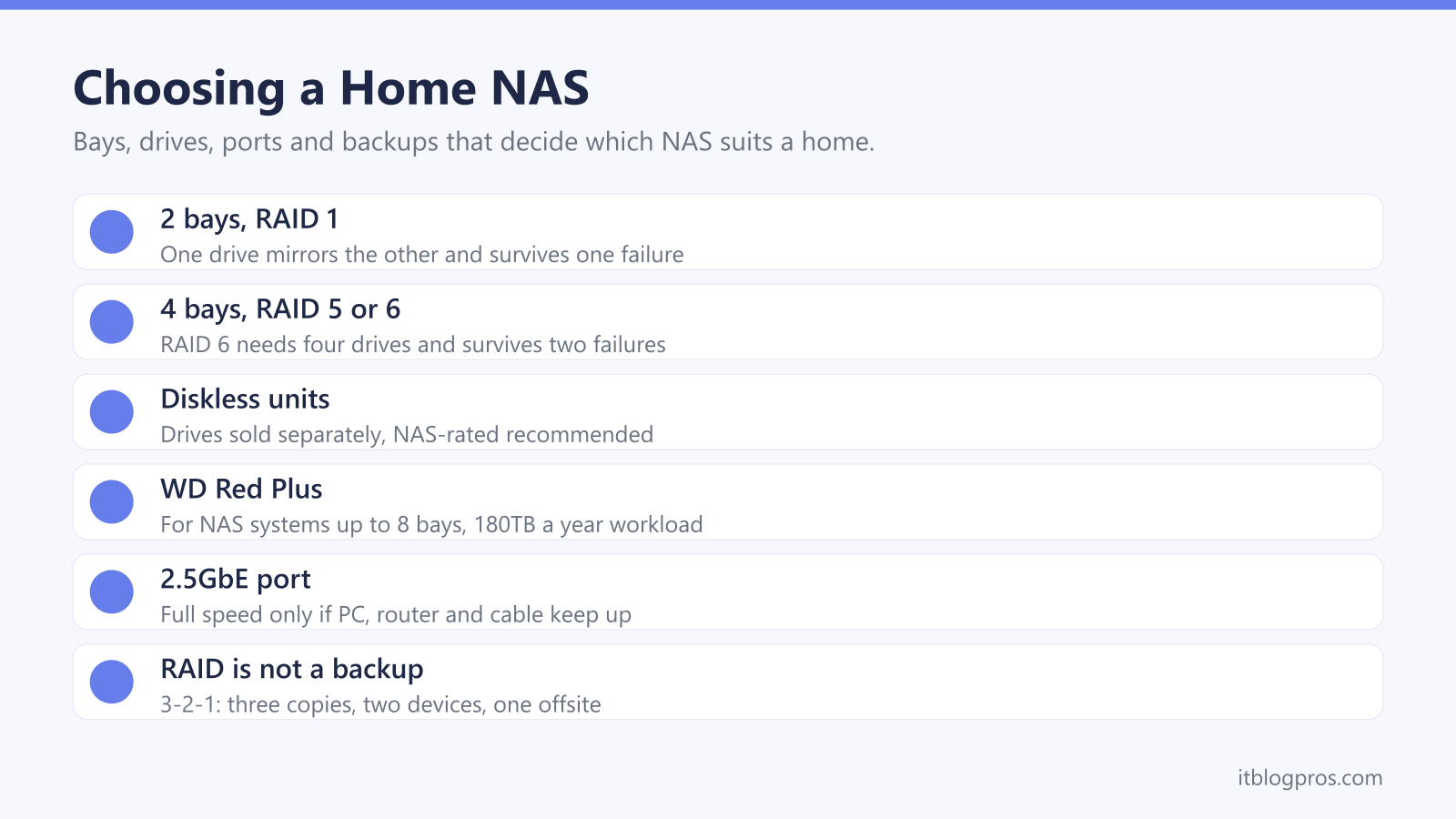
For most homes, a 2-bay NAS with two NAS-rated drives in RAID 1 is the sensible start, because one drive mirrors the other, as Synology explains. Four bays suit a fast-growing photo or film library. Most units are diskless, so budget for drives such as WD Red Plus. RAID is not a backup, so keep a second copy elsewhere, and leave remote access off unless it is needed.
Key Takeaways
- Synology's guide to RAID types says RAID 1 mirrors two drives and survives one failure, while RAID 5 needs three drives and RAID 6 needs four and survives two.
- QNAP's security guide says RAID gives no protection against deletion or encryption, and the NCSC describes the 3-2-1 rule: at least three copies, on two devices, one offsite.
- UGREEN sells its NASync DH2300 and DH4300 Plus without drives and recommends NAS-rated drives such as WD Red Plus, which WD rates for NAS systems with up to 8 bays.
- UGREEN says a 2.5GbE port only reaches 2.5GbE speeds when the computer's adapter, the switch or router and the cabling all support the faster link.
- The NCSC advises changing default passwords, turning on 2-step verification and switching off remote access when it is not needed, and QNAP says never to connect a NAS straight to the internet.
A NAS Is Shared Storage That Plugs Into the Router
A NAS is a small computer built around its drives, with its own operating system and an Ethernet port. Every phone, laptop and smart TV in the house can reach the same files, and UGREEN's DH2300 page says its app can back up new phone photos and videos to the NAS automatically over Wi-Fi. That page also lists what else to buy: the drives, plus a router with a spare LAN port.
The NCSC's backup infographic describes the usual alternatives. Cloud storage can back up automatically, it says, but needs a reliable internet connection, so it does not suit a slow, unreliable or metered line. An external hard drive holds large amounts of data, and the NCSC advises unplugging it when not in use, because ransomware can move to attached media. A NAS sits between the two: large and local, but always connected.
For a drive that has vanished from Windows, the external hard drive guide helps. A sluggish laptop is a job for the SSD upgrade guide, not a NAS.
Two Bays Mirror the Drives, Four Bays Add RAID 5 and RAID 6
RAID combines several drives into one storage pool, and the number of bays decides which types are possible. Synology's guide to RAID types sets out the common ones. RAID 1, usually two drives, mirrors the data, so a single drive can fail without data loss. RAID 5 needs at least three drives and survives one failure, while RAID 6 needs four and survives two. RAID 0 and JBOD simply add capacity together, and Synology says a single drive failure in RAID 0 loses all the data on the array.
Mirroring costs space. UGREEN's DH2300 page works it through: two 8TB drives in RAID 1 give about 8TB of usable space, or about 16TB in Basic or JBOD mode with no protection against a drive failure. UGREEN calls RAID 1 the safer option for most families. Synology's own Hybrid RAID, or SHR, combines drives of different sizes, and with enough drives SHR-1 tolerates one failure and SHR-2 tolerates two. On UGREEN's 4-bay DH4300 Plus, RAID 5, RAID 6 and RAID 10 join the list.
RAID Is Not a Backup, So Keep a Copy Somewhere Else
Mirrored drives protect against a dead disk, not a deleted folder. QNAP's security guide puts it plainly: RAID is not a backup method, and it gives no protection against data deletion or encryption. UGREEN's DH2300 FAQ adds ransomware, fire and theft to the list RAID does not cover. Synology's backup tutorial makes the same point from another angle, saying that even with a local copy on the NAS, a RAID crash or drive failure can still cause data loss, so it recommends backing up to a different destination as well.
All three makers point to the 3-2-1 rule, which the NCSC's 10 Steps guidance describes as at least three copies, on two devices, with one offsite. For irreplaceable photos and videos of family members, the NCSC's infographic suggests a copy in the cloud and another on removable media. Snapshots help undo mistakes, but QNAP notes they sit on the same drives as the data. The NCSC also advises testing backups regularly and knowing how to restore files before it is needed for real.
Diskless Units Need NAS-Rated Drives Bought Separately
Most home NAS boxes arrive empty. UGREEN lists both the DH2300 and DH4300 Plus as diskless, with storage drives not included, and recommends NAS-rated drives such as WD Red Plus or Seagate IronWolf, checked against its drive compatibility list. Its beginner's guide says desktop drives may work in some setups, but that compatibility, workload rating and reliability may become an issue.
The drive makers explain the difference. WD rates its Red Plus range for RAID-optimised NAS systems with up to 8 bays and a 180TB a year workload, lists CMR recording and gives a 3-year limited warranty. Seagate's IronWolf page lists CMR, workloads of up to 180TB a year and IronWolf Health Management, which monitors drive status in compatible NAS systems.
Synology has been stricter about third-party drives. Its drive policy FAQ says that with DSM 7.3, its 2025 DiskStation Plus models accept third-party hard drives for new storage pools, though Synology still recommends drives from its compatibility list. M.2 SSDs must be on that list to build a pool or cache.
Processor, Memory and Network Ports Set the Pace
Beyond storing files, the processor and memory decide what else the NAS can run. UGREEN's beginner's guide gives the ARM-based DH2300 4GB of fixed memory and no Docker, and the DH4300 Plus 8GB with Docker, but neither runs virtual machines. Synology fits the DS725+ with a 2-core, 4-thread AMD Ryzen R1600 and 4GB of ECC memory, expandable to 32GB. Photo apps come as standard: UGREEN's AI album sorts pictures by faces, scenes and places, and Synology Photos lists facial and object recognition.
Films are harder work. UGREEN says hardware transcoding matters when a phone or TV cannot play a file's format directly, that Plex needs an active Plex Pass for it and that Jellyfin does not. It also says its ARM-based DH models have a weaker transcoding path than its Intel N100 model, though all output 4K over HDMI.
Then comes the port. UGREEN warns that a 2.5GbE port does not guarantee 2.5GbE speeds, because the computer's adapter, switch or router and cabling must all keep up. The Cat6 versus Cat8 guide covers the cable.
Remote Access Is Where the Security Settings Matter
A NAS holds a household's most personal files, so the security settings deserve attention on day one. QNAP's security guide says never to connect the NAS's network port directly to the internet: it belongs behind the router, which can block malicious traffic. QNAP also advises disabling UPnP and port forwarding on the router, and offers myQNAPcloud Link or QVPN for remote access instead. Synology's security tutorial recommends deactivating the default admin account, turning on multi-factor authentication and opening only the ports that needed services use on the router.
The NCSC's guidance on smart devices, which covers items that connect to the internet or the home network, gives the same basics. Change any default password, turn on 2-step verification where it is offered, switch on automatic updates, and switch off remote access if the device is not needed away from home. Asustor's security page suggests VPN connections for remote access and disabling SSH and SFTP when they are not needed. UGREEN lists encryption, a firewall and two-factor authentication on its DH models.
The NAS Units and Drive Worth Shortlisting
Each pick has a limit worth knowing first. UGREEN's NASync DH2300 is the simple start: two bays, an 8-core ARM processor, 4GB of fixed memory and a 1GbE port, with no Docker or virtual machines, which suits backups, family photos and shared files. The NASync DH4300 Plus moves to four bays, 8GB of memory, a 2.5GbE port, Docker and RAID 5 or RAID 6.
Synology's DS725+ pairs two bays with the Ryzen R1600, expandable memory and two M.2 slots for SSD cache. Its spec table lists one 1GbE and one 2.5GbE port, while the overview on the same page mentions two 2.5GbE ports. RAID 5 needs Synology's DX525 expansion unit. All three are diskless, so add a pair of WD Red Plus drives or similar.
Power cuts are the last risk. UGREEN's DH2300 FAQ calls a UPS strongly recommended, because a sudden power loss during a file write can corrupt data, and UGREEN sells its own DC UPS units. The router and ONT battery backup guide covers the broadband side.
| Product | Best for | Key specs | Price | |
|---|---|---|---|---|
 | UGREEN NASync DH2300 2-Bay NAS (Diskless) Our pick | Phone photos, PC backups and shared family folders | 2-bay, 8-core ARM, 4GB RAM, 1GbE, 4K HDMI, no drives | Check price → |
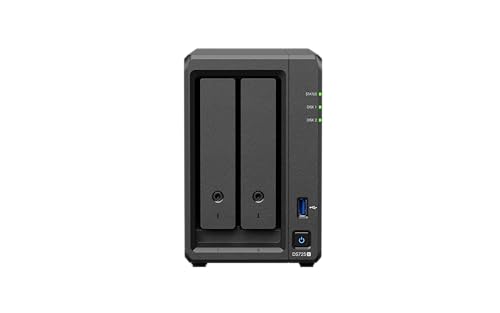 | Synology DiskStation DS725+ 2-Bay NAS Synology | Synology's apps, 2.5GbE and memory that can grow | 2-bay, Ryzen R1600, 4GB ECC (max 32GB), 1GbE + 2.5GbE | Check price → |
 | UGREEN NASync DH4300 Plus 4-Bay NAS (Diskless) Four bays | A growing photo or film library with RAID 5 or 6 | 4-bay, 8-core ARM, 8GB RAM, 2.5GbE, Docker, no drives | Check price → |
 | WD Red Plus 4TB NAS Hard Drive NAS drive | Filling a 2-bay or 4-bay NAS for RAID 1 or RAID 5 | 4TB 3.5in SATA, CMR, NAS up to 8 bays, 180TB a year | Check price → |