
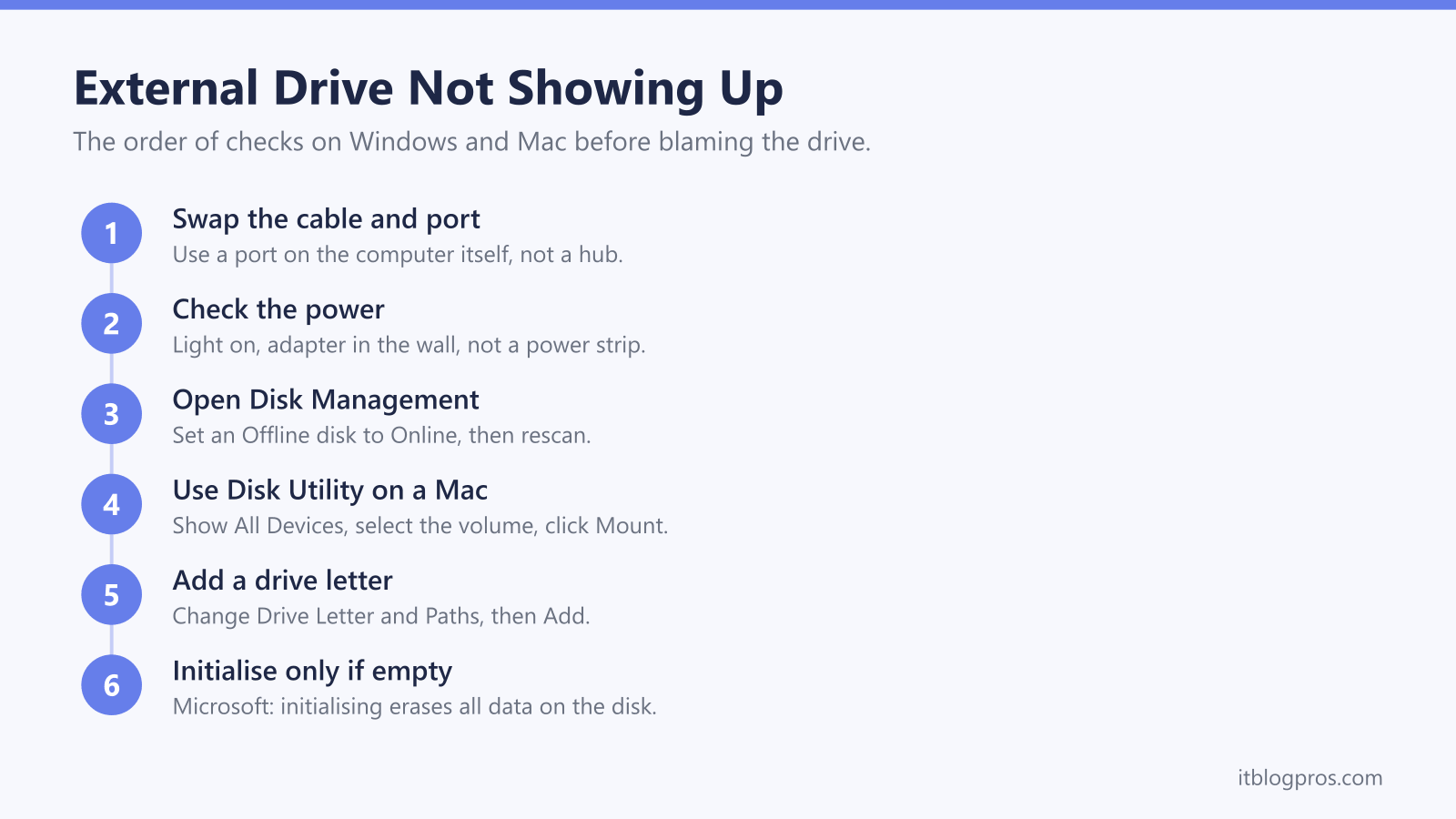
An external hard drive that will not show up is usually a connection, power or setup problem rather than a dead drive. Microsoft, Apple, Seagate and WD all set out much the same order of checks: the cable and port first, then the power, then Disk Management on Windows or Disk Utility on a Mac. This guide walks through those checks, flags the one step that erases data, explains what the makers offer when a drive has failed and lists five replacements worth shortlisting.
Try a different cable and a port directly on the computer, then check whether the drive appears in Disk Management on Windows or Disk Utility on a Mac. Microsoft's guides say a volume with no drive letter can be given one, but initialising a disk erases all its data. Seagate says a driver will not fix a drive that is not detected.
Key Takeaways
- Microsoft's Disk Management troubleshooting guide says USB disks sometimes do not get enough power from some ports, especially through hubs, so a port on the PC itself and a different cable come first.
- Microsoft's guide to initialising disks warns that the process erases all data on the disk, so a drive full of files should never be initialised as a quick fix.
- Apple's Disk Utility guide says an external volume can be mounted with the Mount button, and Apple says a device missing from Disk Utility's sidebar may need service.
- WD's formatting guide says Windows and macOS can both read and write exFAT, while an NTFS drive mounts as read only on a Mac.
- Seagate includes Rescue Data Recovery Services with drives such as the One Touch and Expansion, while WD says it does not provide data recovery services and refers owners to partners.
Start With the Cable, the Port and the Power
Most drives that disappear are not dead. Microsoft's guide to troubleshooting Disk Management says USB disks sometimes do not get enough power from some ports, especially through USB hubs, so the first test is a port directly on the PC. Cables fail often, Microsoft adds, which makes a different cable the second. Seagate's USB external troubleshooter sets out the same order: another port, another cable, then another computer.
Power matters most for larger desktop drives with their own adapter. Seagate says to check that the drive's light is on and to plug the adapter straight into the wall rather than a surge protector or power strip, and WD's guide for drives a Mac does not detect says the same. WD also says to use the cable that came with the drive, and warns that a USB port may not supply enough power to start it. On hubs, WD's page pulls both ways: it says not to use a USB hub, then suggests a good powered hub or docking station can supply more power than a standard port.
Disk Management Shows Whether Windows Can See the Drive
Disk Management lists the drives Windows detects, even ones File Explorer does not show. Microsoft's troubleshooting guide says to type Computer Management into the taskbar search, choose Run as administrator, then open Storage and Disk Management. A disk marked Offline comes back by right-clicking it and choosing Online. For an external disk missing from the list, Microsoft suggests unplugging it, plugging it back in and selecting Action, then Rescan Disks.
Device Manager is the next stop. Microsoft says to right-click the Start button, open Device Manager and look for a device with an exclamation mark, and that one fix which sometimes works is Uninstall device, followed by Action, then Scan for hardware changes. Seagate's troubleshooter adds that Code 10 in Device Manager, after another cable and computer have been tried, means the drive has probably failed. Seagate's driver FAQ says its external drives need no product-specific drivers on Windows 7 or later, and that a drive which is not detected most likely has a hardware fault or a corrupted file system, neither of which a driver will fix.
A Drive Letter Is a Quick Fix, Initialising Erases the Drive
A volume listed as Healthy but with no letter never appears in File Explorer. Microsoft's guide to changing a drive letter says to right-click the volume, choose Change Drive Letter and Paths, select Add, pick a letter under Assign the following drive letter. Microsoft says the option is greyed out when the drive is unallocated and needs initialising, or when the partition is an EFI System or Recovery partition.
Initialising is the step that loses data. Microsoft's guide to initialising disks warns that the process erases all data on the disk, and its troubleshooting guide says a disk shown as Not Initialized may have corrupted formatting or may be failing. Microsoft gives the same caution for a partition shown as RAW or Unallocated: format it or create a New Simple Volume only when you know it is empty. A USB stick that is not showing up follows similar steps, though Microsoft says some USB drives cannot be initialised and are only formatted and given a letter. Memory cards are covered in the SD card and card reader guide.
On a Mac, Disk Utility Mounts and Repairs the Drive
A Mac can detect a drive without showing it on the desktop. Apple's guide to connected devices says to choose Finder, then Settings, and select the items you want under General for the desktop and under Sidebar for Finder windows. If it still seems absent, Apple's repair guide says to open Disk Utility and choose View, then Show All Devices. Apple's Disk Utility guide then says to select the volume and click Mount, or to disconnect and reconnect the drive.
Apple says a device missing from Disk Utility's sidebar may mean the Mac or the device needs service, and suggests shutting down, unplugging non-essential devices and checking the cable, connections and power. First Aid is Apple's repair tool: make sure there is a current backup, run it on each volume, then the container and finally the device, and erase the disk if First Aid finds errors it cannot repair. Seagate's troubleshooter says a drive that will not mount points to some level of file system corruption, and suggests data recovery rather than a repair when the data is irreplaceable.
Format the Drive for Every Computer That Will Use It
A healthy drive can still look missing because of its file system. WD's formatting guide says Windows and macOS can both read and write exFAT, but an NTFS drive mounts as read only on a Mac. WD's Mac troubleshooting page adds that APFS and HFS+ drives are not detected on Windows without a third-party driver. Seagate's formatting guide says newer Seagate drives come preformatted as exFAT and that a drive used on both Mac and PC is best formatted exFAT, while Apple's Disk Utility guide lists ExFAT for Windows volumes over 32GB.
Reformatting fixes a mismatch, but Seagate and WD both warn that formatting erases all data on the drive, so copy the files off on a computer that can still read them. Backup drives follow their own rules. Samsung's T7 Shield manual says the drive must be changed to APFS to use Time Machine on a Mac, so a Time Machine drive is best kept for the Mac alone. On a PC, Microsoft's File History guide simply asks for an external drive or a network location, then Turn on.
When the Drive Has Failed, Recover the Data Before the Warranty
Another computer is the final test. Microsoft's troubleshooting guide says a disk that will not work on a different PC is a good sign the problem is the disk, and that a data recovery lab can try to retrieve important files. The same guide says disks fail often, and treats a drive that sometimes disappears as a reminder to check backups.
The two big makers handle recovery differently. Seagate's Rescue Data Recovery Services page lists the One Touch, Expansion and Ultra Touch among the drives that include Rescue, which offers one in-lab recovery attempt and returns the data on an encrypted device if recovery succeeds, though Seagate says it is not available in all countries. WD's warranty and data recovery article says WD does not provide data recovery services and refers owners to partner companies, and its data recovery page says using one will not void the warranty if the provider gives written verification on its letterhead. Timing matters: WD's warranty replacement article says all data on a returned drive is erased, so recovery must be done first.
Choosing the Replacement: Hard Drive or SSD, USB-C or USB-A
Portable hard drives carry the big capacities, with WD's data sheets running to 6TB for the WD Elements and My Passport, while Samsung's manual lists the T7 Shield SSD at 1TB, 2TB and 4TB. The SSD's case is speed and toughness. Samsung quotes up to 1,050MB/s read, which needs a USB 3.2 Gen 2 port with UASP enabled, and rates the T7 Shield IP65, though its manual says drop damage is not covered by the warranty. The SSD upgrade guide covers SSDs inside the laptop itself.
The plug matters as much. Apple says a Mac with USB-C ports needs a USB-C to USB-A adapter for a USB-A cable. WD's My Passport, Works with USB-C includes a USB-A cable and a USB-C adapter, the WD Elements Portable (USB-C) includes only a USB-C to USB-C cable, and Samsung boxes both. Seagate's One Touch data sheet promises Mac use without reformatting, then says in a footnote that reformatting may be required. The budget Seagate Portable Drive is pitched at Windows PCs and is not among the drives Seagate's Rescue page names.
| Product | Best for | Key specs | Price | |
|---|---|---|---|---|
 | Seagate One Touch Portable HDD 5TB Our pick | Big capacity with a password lock and Seagate Rescue | 5TB, USB 3.0, hardware encryption, Rescue included | Check price → |
 | WD My Passport, Works with USB-C 5TB Both plugs | Laptops with USB-A or USB-C, three-year warranty | 5TB, USB 3.2 Gen 1, USB-A cable plus USB-C adapter | Check price → |
 | WD Elements Portable (USB-C) 2TB USB-C | MacBooks and laptops with USB-C ports only | 2TB, USB 3.2 Gen 1, USB-C to USB-C cable, exFAT | Check price → |
 | Seagate Portable Drive 2TB Budget | Windows PCs with USB-A ports on a tight budget | 2TB, USB 3.0, powered by the USB cable, Type-A cable | Check price → |
 | Samsung T7 Shield 1TB SSD pick | Speed and knocks, with both cable types in the box | 1TB SSD, USB 3.2 Gen 2, up to 1,050MB/s read, IP65 | Check price → |