
AirPods are made for Apple devices, but Apple says they work as a Bluetooth headset with non-Apple devices too, so a Windows laptop pairs them like other earbuds, and a Mac usually connects them without being asked. The part that trips people up is the case, because Apple's newer cases have no button on the back and the pairing gesture has changed. This guide follows Apple's and Microsoft's own instructions for both, then works through the usual problems: muffled calls, sound in one ear and AirPods that never appear.
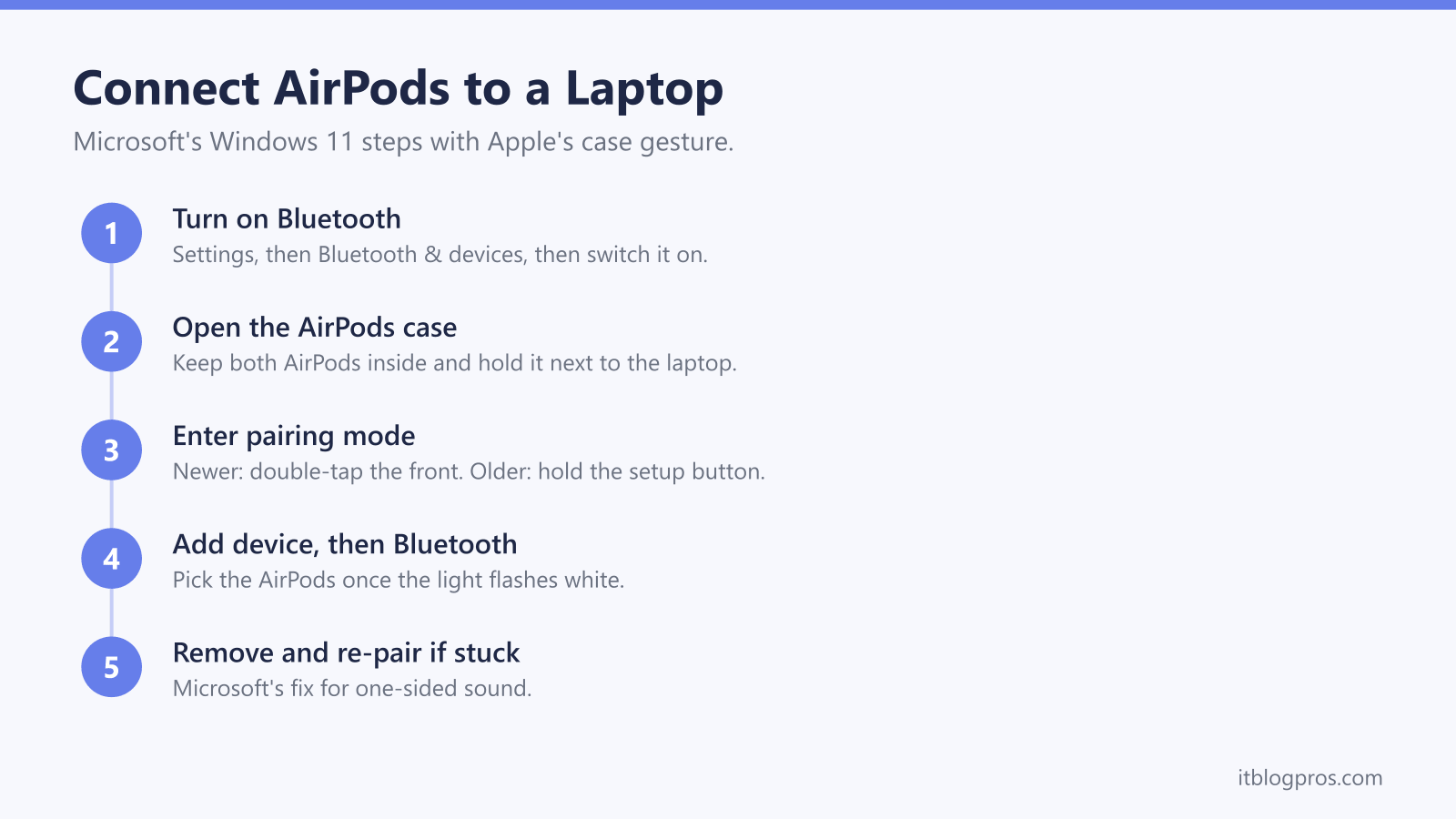
Microsoft's Windows 11 steps are Start, Settings, Bluetooth & devices, then Add device and Bluetooth. Apple's guide says to open the case with the AirPods inside, then double-tap the front on AirPods 4, AirPods 5 or AirPods Pro 3, or hold the setup button on the back of older cases, until the light flashes white. Apple says a Mac signed in to the same Apple Account as your iPhone connects them automatically.
Key Takeaways
- Microsoft's Windows 11 route is Start, Settings, Bluetooth & devices, then Add device and Bluetooth, and Microsoft says paired devices reconnect automatically whenever both are in range.
- Apple's guide puts AirPods 4, AirPods 5 and AirPods Pro 3 into pairing mode with a double-tap on the front of the case, while older models use the setup button on the back.
- Apple says AirPods connect automatically to every Apple device signed in to the same Apple Account, so a Mac usually needs no pairing once an iPhone has them.
- Microsoft's Windows team explains that classic Bluetooth earbuds switch to the Hands-Free Profile when the microphone is in use, which plays audio in mono at lower fidelity.
- Microsoft's re-pair fix for one-sided sound is to remove the earbuds, put both in the case, add them again and accept the prompt to connect the second earbud.
Windows Pairs AirPods Through Bluetooth Settings
Microsoft's instructions for Windows 11 start in Settings. Select Start, then Settings, then Bluetooth & devices, and make sure the Bluetooth switch is on. Microsoft also offers a taskbar shortcut: select the network, sound or battery icon beside the clock, open the arrow on the Bluetooth quick setting and look under New devices.
Next, put the AirPods into pairing mode. Apple's guide for non-Apple devices says to open the case with the AirPods inside and hold it next to the laptop, then double-tap the front of the case on AirPods 4, AirPods 5 or AirPods Pro 3, or press and hold the setup button on the back for about 5 seconds on earlier models, until the status light flashes white. Back in Settings, select Add device, then Bluetooth, and pick the AirPods from the list.
On Windows 10, Microsoft's route is Settings, Devices, Bluetooth & other devices, then Add Bluetooth or other device. Either way, Microsoft says a paired device reconnects automatically whenever both are in range with Bluetooth on.
A Mac Connects AirPods Through Your Apple Account
On a Mac there is often nothing to do. Apple's guide says that once AirPods are set up with one Apple device, such as an iPhone, they connect automatically to other Apple devices signed in to the same Apple Account. To move them across by hand, Apple says to click the Bluetooth status menu in the menu bar and select the AirPods.
A Mac that has never seen them pairs from System Settings. Apple's steps are to click Bluetooth in the sidebar, check it is on, open the case next to the Mac and use the same case gesture as on Windows, then select the AirPods in the list and click Connect.
When AirPods keep jumping between a Mac and an iPhone, Apple's switching guide has a setting on each device. On the Mac, click the AirPods' name in System Settings and, below Connect to This Mac, choose When Last Connected to This Mac. The iPhone has the same choice under the AirPods' name in Settings, and Apple notes that AirPods move to the iPhone automatically for calls.
Calls Sound Worse Because Windows Switches to Hands-Free
Music sounds fine until a Teams or Zoom call starts, then turns muffled. Microsoft's Windows OS Platform blog explains why. Classic Bluetooth audio uses A2DP, which gives high quality sound but does not allow the microphone, and the Hands-Free Profile, which allows the microphone but plays audio in mono at lower fidelity. While the microphone is in use, stereo playback is off the table.
So Windows can list one pair of earbuds twice. Sony's help guide for its WF-C710N names the entries Headphones (Stereo) for music and Headset (Hands-Free) for calls. For listening only, TP-Link's Bluetooth adapter FAQ suggests unticking Handsfree Telephony on the device's Services tab in Devices and Printers, which turns off the profile the microphone needs.
Microsoft's real fix is LE Audio with super wideband stereo, needing LE Audio earbuds, a supported PC, Windows 11 version 24H2 and an updated driver. Apple's spec pages for AirPods 4 and AirPods 5 do not mention LE Audio, so expect the hands-free sound on Windows calls. The Dell WL7024 guide looks at a headset made for home working instead.
The Re-Pair Fix Restores Stereo Sound in Windows 11
Windows 11 has a second stereo problem, set out in Microsoft's support article on Bluetooth audio playing in only one channel. Microsoft says it commonly happens with LE Audio earbuds that were not paired properly, especially when only one side connected during pairing, and that a firmware or software update adding LE Audio support to the PC or the earbuds can disrupt an existing connection.
Microsoft's re-pair steps are short. Open Settings, then Bluetooth & devices, then Devices, find the earbuds under Audio, select Disconnect and then Remove Device. Put both earbuds in the charging case, put them into pairing mode, then select Add device and Bluetooth and choose them from the list. When Windows prompts to connect the second earbud, accept it.
The same article lists settings worth checking first, all under System, then Sound: Mono audio switched off, matching left and right volume, and an output format of 2 channels, 16 bit, 48000 Hz. Microsoft's LE Audio page adds that LE Audio needs Windows 11 version 22H2 or newer and is not supported on Windows 10.
AirPods That Will Not Appear Need a Restart or Reset
When the AirPods never show up in the list, Microsoft's Bluetooth troubleshooting guide gives an order to work through. Check that aeroplane mode is off, turn Bluetooth off and on again, and set Bluetooth devices discovery to Advanced under Bluetooth & devices, then Devices. If an old entry for the AirPods is there, remove it and add them again. Microsoft calls an outdated or incompatible driver one of the most common causes of Bluetooth connection problems, and Device Manager can search for a newer one.
On the AirPods side, Apple's guide says a restart is just closing them in the case for at least 10 seconds. A reset goes further. Apple's steps are to close the lid for 30 seconds and open it, then hold the setup button on older cases for about 15 seconds. On AirPods 4, AirPods 5 and AirPods Pro 3, double-tap the front of the case while the light is on, again when it flashes white and a third time when it flashes faster. Amber, then white, means it worked.
A USB Bluetooth Adapter Covers a Missing or Weak Radio
Microsoft's pairing guide says most Windows devices have Bluetooth built in, and that one without it can gain Bluetooth from a USB Bluetooth adapter. Microsoft's troubleshooting guide suggests checking the product specifications first, because some devices have no Bluetooth at all.
An adapter needs a little care. TP-Link's FAQ for its UB adapters says to disable the computer's built-in Bluetooth adapter in Device Manager before using one, and to remove any third-party Bluetooth drivers. For range trouble, TP-Link suggests a front USB port or a USB 2.0 extension cable and warns that 2.4 GHz WiFi can interfere, while Microsoft says unshielded devices in USB 3.0 ports can disrupt Bluetooth. TP-Link's UB500 Plus page lists Windows 11, 10, 8.1 and 7 only, so it is not a Mac accessory.
A Bluetooth adapter is also a separate product from a WiFi dongle, which the USB WiFi adapter guide covers. If the laptop's WiFi is struggling too, the guides to Windows 11 WiFi problems and a laptop that will not connect to WiFi deal with that half.
Earbuds and an Adapter That Suit a Laptop
Set expectations before buying AirPods mainly for a Windows laptop. Apple's guide says you can listen and talk on a non-Apple device but cannot use Siri, Apple's spec pages warn that functionality may be limited, and Apple says Personalised Spatial Audio is not available on other devices. No earbud below escapes the hands-free drop on Windows calls either: Sony lists the classic A2DP and HFP profiles for the WF-C710N, and Apple's pages do not mention LE Audio.
With that understood, the AirPods 5 make the most sense for anyone who also owns an iPhone or a Mac, and Apple's spec page lists the H2 chip and Active Noise Cancellation. The AirPods 4 are the simpler Apple choice: Apple sells the noise-cancelling version as a separate model, and its spec page notes that the USB-C charge cable is sold separately. Sony's WF-C710N suits a Windows laptop better, because Sony's help guide documents Swift Pair and a connection to two devices at once. TP-Link's UB500 Plus adds Bluetooth 5.3 to a Windows PC that lacks it.
For over-ear headphones, the noise cancelling headphones guide compares Sony, Bose, Sennheiser and Soundcore, and the Bluetooth speaker guide covers speakers.
| Product | Best for | Key specs | Price | |
|---|---|---|---|---|
 | Apple AirPods 5 Our pick | iPhone and Mac owners who also use Windows | H2 chip, ANC, Bluetooth 5.3, USB-C charging case | Check price → |
 | Apple AirPods 4 Budget AirPods | Apple users who do not need noise cancelling | H2 chip, Bluetooth 5.3, up to 5 hrs, USB-C case | Check price → |
 | Sony WF-C710N For Windows | A Windows laptop and a phone at the same time | Bluetooth 5.3, Swift Pair, multipoint, SBC and AAC | Check price → |
 | TP-Link UB500 Plus Adapter | Windows PCs with no Bluetooth or a weak signal | Bluetooth 5.3, USB 2.0, adjustable antenna, Windows | Check price → |