
A USB WiFi adapter, the small dongle that plugs into a spare USB port, is the quickest way to give a desktop PC WiFi or to replace a laptop's tired built-in card. Choosing one comes down to four things: the WiFi generation your router uses, the version of Windows on the PC, the USB port the dongle goes into and where its antenna ends up sitting. This guide takes each in turn, then matches five adapters to the setups they suit.
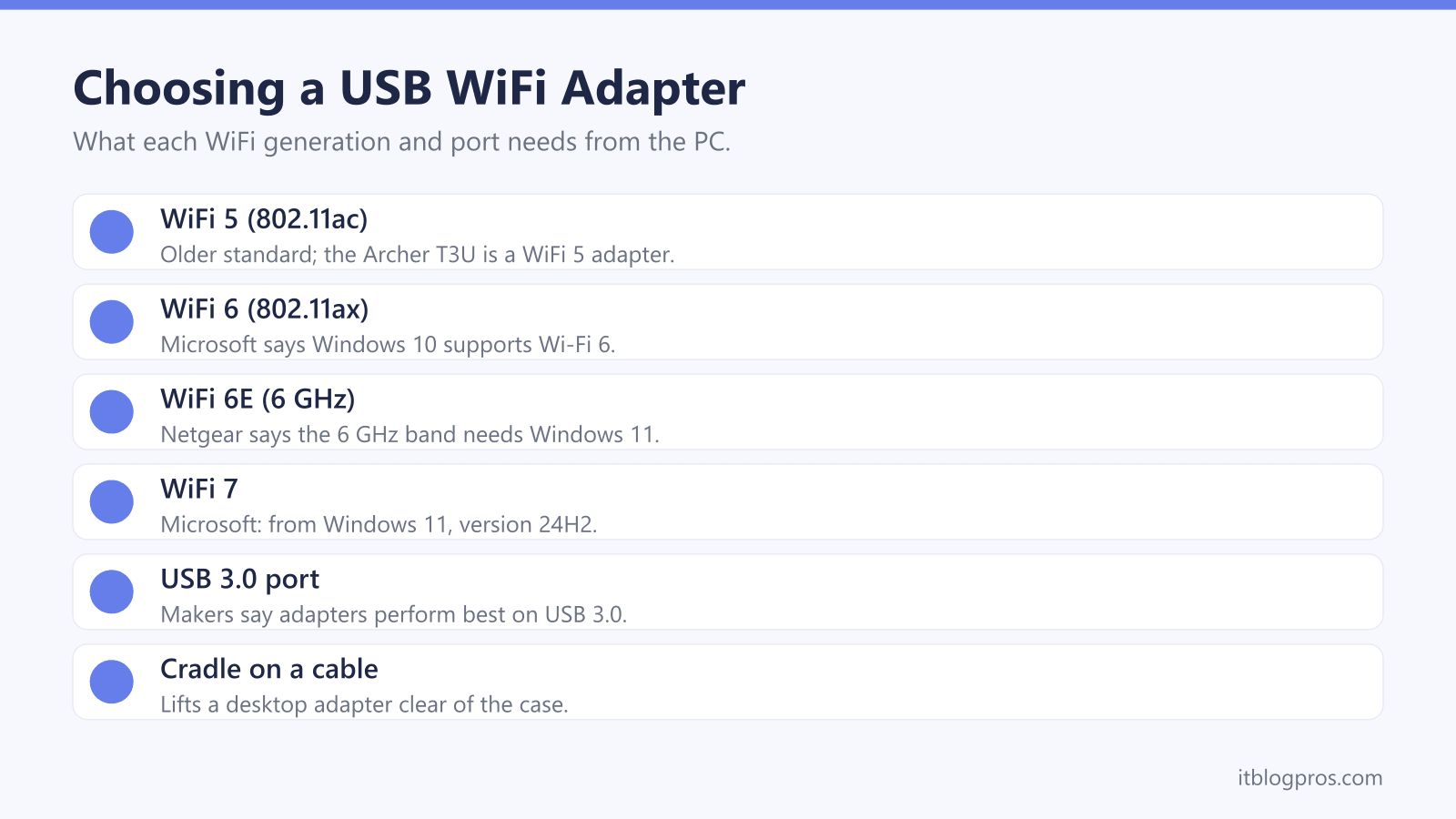
For most PCs, a dual-band WiFi 6 adapter on a USB 3.0 port is the sensible buy. Go for WiFi 6E or WiFi 7 only when the router supports it and the PC runs Windows 11: Microsoft says Wi-Fi 7 starts with Windows 11 version 24H2, and Netgear says the 6 GHz band needs Windows 11. On a desktop, use a cradle so the adapter sits clear of the case.
Key Takeaways
- The Wi-Fi Alliance's naming maps 802.11ac to Wi-Fi 5 and 802.11ax to Wi-Fi 6, which is the way to read the standard listed on an adapter's spec page.
- Microsoft says Wi-Fi 7 is available starting with Windows 11 version 24H2, and Netgear says its A8000 needs Windows 11 to connect on the 6 GHz band.
- TP-Link and Netgear both say their USB 3.0 adapters work in USB 2.0 ports but perform best on USB 3.0, and the USB-IF gives the hi-speed USB 2.0 rate as 480 Mb/s.
- TP-Link says the Archer TX20UH, TX20U Nano and TBE400U come with their driver pre-loaded, while the older Archer T3U still ships with a Resource CD.
- A cradle on an extension cable, like the 1.2 metre one TP-Link includes with the TX20UH, lifts a desktop adapter clear of the case, and a PCIe card suits a desktop that never moves.
Each WiFi Generation Adds Bands and Features
The Wi-Fi Alliance's naming scheme is the key to reading an adapter's spec page. Its announcement of the scheme gives Wi-Fi 4 to 802.11n, Wi-Fi 5 to 802.11ac and Wi-Fi 6 to 802.11ax. TP-Link's page for the Archer T3U lists 802.11ac, which makes it a WiFi 5 adapter, while the Archer TX20UH page lists 802.11ax.
The Wi-Fi Alliance describes Wi-Fi 6 as bringing higher data rates, greater capacity and improved power efficiency, with MU-MIMO letting a router handle more devices at once and OFDMA improving efficiency, and says it added Wi-Fi in the 6 GHz band. TP-Link's page for its TXE75E card describes the WiFi 6E standard as the one adding 6 GHz. Wi-Fi 7 goes further: the Alliance says its 320 MHz channels in the 6 GHz band give twice the throughput of Wi-Fi 6.
None of it arrives unless the router speaks the same generation. TP-Link's TX20U Nano page notes that MU-MIMO and OFDMA need the router to support them too, and the WiFi 7 versus WiFi 6 guide covers the router side.
WiFi 6E and WiFi 7 Adapters Need Windows 11
For the two newest generations, the operating system matters as much as the router. Microsoft's support page on faster and more secure Wi-Fi says Windows 10 supports Wi-Fi 6 and WPA3, and lists neither Wi-Fi 6E nor Wi-Fi 7 for it. On Wi-Fi 7 the same page is explicit: it is available starting with Windows 11, version 24H2.
The makers agree on 6 GHz. Netgear's A8000 page says Windows 11 is required to connect on 6 GHz and that Windows 10 only supports the 2.4 and 5 GHz bands, and Netgear lists its A9000 WiFi 7 adapter as not compatible with Windows 10. TP-Link is less tidy. It lists Windows 10 and 11 for the Archer TBE400U WiFi 7 adapter, yet its footnote says the WiFi 7 features need the PC's operating system to support them too.
Microsoft's page also gives a quick check for an adapter already fitted: run netsh wlan show drivers and look for 802.11ax or 802.11be under the supported radio types.
A USB 3.0 Port Sets the Speed Ceiling
The port matters because USB 2.0 can be slower than the WiFi link itself. The USB Implementers Forum gives the hi-speed rate that USB 2.0 introduced as 480 Mb/s. TP-Link's pages for the Archer T3U and TX20UH say USB 3.0 transfers data up to 10 times faster than USB 2.0 while staying backwards compatible with it, and the T3U and TBE400U footnotes add that the computer has to support USB 3.0 as well. Netgear's A8000 and A9000 pages put it simply: best performance with USB 3.0, compatible with 2.0.
That makes the TX20U Nano a trade-off worth knowing about. TP-Link lists it as a USB 2.0 device while quoting up to 1201 Mbps on the 5 GHz band, well above the 480 Mb/s hi-speed USB rate. On a modest broadband package the gap may never show, but on a fast full fibre line the USB 3.0 models are the better fit.
Plug a USB 3.0 adapter straight into a USB 3.0 port on the PC itself, and check the PC maker's manual when the port labels are unclear.
Most New Adapters Install Their Own Driver
Driver discs are fading out. TP-Link says the Archer TX20UH and TX20U Nano come with their driver pre-loaded, ready to plug in and install. The Archer TBE400U has a built-in driver too, and Netgear advertises plug-and-play setup for the A8000 with an installation USB stick in the box.
The older Archer T3U is the exception here. TP-Link still packs it with a Resource CD, keeps its drivers in the TP-Link download centre and warns that the driver may need updating after an operating system update. For a PC with no disc drive, the guide to installing a WiFi adapter without a CD walks through the options.
Check the operating system before buying. TP-Link lists only Windows 10 and 11 for the TX20UH, TX20U Nano and TBE400U, while the T3U page lists Mac OS X alongside Windows. That T3U page is not consistent on Windows either: its system requirements include Windows 11, but the feature bullets stop at Windows 10. Linux does not appear on any of these TP-Link spec pages.
Antenna Placement Decides the Signal on a Desktop
Where the adapter ends up matters as much as which one it is. A dongle pushed into the back of a desktop sits low down, among the cables, with the metal case between it and the router. An extension cradle fixes that by bringing the adapter up onto the desk.
Several makers include one. TP-Link ships the Archer TX20UH with a USB 3.0 cradle on a 1.2 metre cable, plus two high-gain antennas it describes as multi-angle adjustable. Netgear says the A8000 comes with its own USB cradle and adjustable antenna, and lists a USB 3.0 cable with cradle in the A9000 box too. For an adapter already owned, a separate cradle does the same job if its cable is rated for USB 3.0.
Nano adapters skip all of this. TP-Link pitches the TX20U Nano as small enough to plug in and forget, which suits a laptop on the move but leaves nothing to adjust. If a fitted adapter shows a weak signal, the USB WiFi adapter showing 2 bars guide covers the fixes first.
A PCIe Card Suits a Desktop That Stays Put
A desktop that never moves has another route: a WiFi card in a spare PCIe slot inside the case. It frees up the USB ports, and TP-Link's cards add Bluetooth. The Archer TX20E is a WiFi 6 card with Bluetooth 5.2 and two high-gain antennas, and TP-Link supplies both a standard and a low-profile bracket for smaller cases. The Archer TXE75E steps up to WiFi 6E and Bluetooth 5.3, and puts its two antennas on a magnetised base with a 1 metre cable, so they can sit on top of the case rather than behind it.
The same Windows rules apply. TP-Link lists the TX20E for Windows 11 and 10, 64-bit only, and says the TXE75E's 6 GHz band is currently supported only on Windows 11.
The catch is fitting: a card means opening the case and finding a free slot. A USB adapter moves between computers in seconds and is the only choice for a laptop. For a gaming desktop, the best router for gaming guide covers the other half of the link.
Five Adapters Cover Most PCs and Laptops
First, rule out what a new dongle will not fix. A laptop that refuses to join any network, or keeps dropping off, often has a settings or driver fault that the laptop won't connect to WiFi guide and the WiFi keeps dropping on a laptop guide sort out for free, and HP owners have their own HP laptop WiFi fix for Windows 11. No adapter makes the broadband line itself faster.
When the built-in WiFi is the weak link, the table below covers the usual cases. The TP-Link Archer TX20UH is the all-round desktop pick, with WiFi 6, USB 3.0 and a cradle. The TX20U Nano suits a laptop that keeps a dongle plugged in. The Archer T3U is the budget WiFi 5 choice and the only one here with Mac support listed. Netgear's A8000 is the WiFi 6E option for Windows 11, though its headline of up to 3 Gbit/s sits beside Netgear's note that the bands are not concurrent, with 1200 Mbps the top single-band rate. TP-Link's Archer TBE400U brings WiFi 7 with USB-C and USB-A connectors.
| Product | Best for | Key specs | Price | |
|---|---|---|---|---|
 | TP-Link Archer TX20UH Our pick | Desktop PCs that need the adapter up on the desk | WiFi 6, 1201 Mbps on 5 GHz, USB 3.0, 1.2m cradle | Check price → |
 | TP-Link Archer TX20U Nano For laptops | Laptops that keep a small dongle plugged in | WiFi 6, USB 2.0, 26.8 x 15.7 x 7.5 mm, Windows 10/11 | Check price → |
 | TP-Link Archer T3U Budget | WiFi 5 routers, tight budgets and Macs | WiFi 5, 867 Mbps on 5 GHz, USB 3.0, Windows and Mac | Check price → |
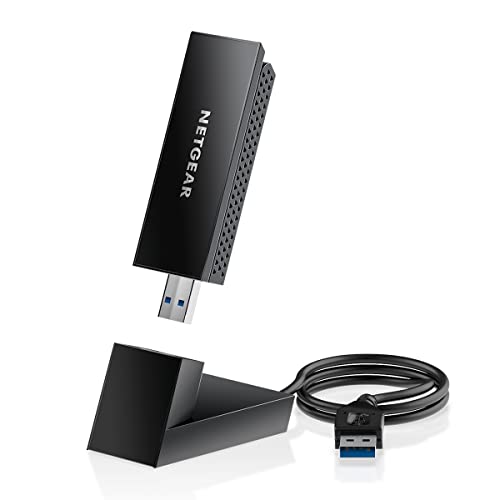 | Netgear Nighthawk A8000 WiFi 6E | Windows 11 PCs with a WiFi 6E router | WiFi 6E, 6 GHz on Windows 11, USB 3.0 with cradle | Check price → |
 | TP-Link Archer TBE400U WiFi 7 | WiFi 7 routers and laptops with USB-C ports | WiFi 7, USB-C and USB-A, USB 3.0, Windows 10/11 64-bit | Check price → |